I used to treat setting up a new Windows PC as a small weekend project. I would open a dozen browser tabs, hunt down official download pages, run installers, click through wizards, and then clean up the setup files left behind. By 2026 that ritual feels unnecessary to me. Microsoft's Winget package manager has changed how I install and maintain Windows apps, and once I started using it I stopped treating traditional installers as my default.
The command line finally feels friendly
Winget is an app store that lives in my terminal. Microsoft introduced it in 2020 as the official package manager for Windows 10 and 11, and it pulls from a curated repository of thousands of packages. When I install something through Winget, I am getting the official version from the publisher, not a random installer from a lookalike site. That matters because every extra website I visit is another chance to land on a convincing fake and download something malicious. Installers still work for one-off jobs, but they feel clunky compared with a single command.
The first command I ran was almost anticlimactic:
winget install Google.Chrome
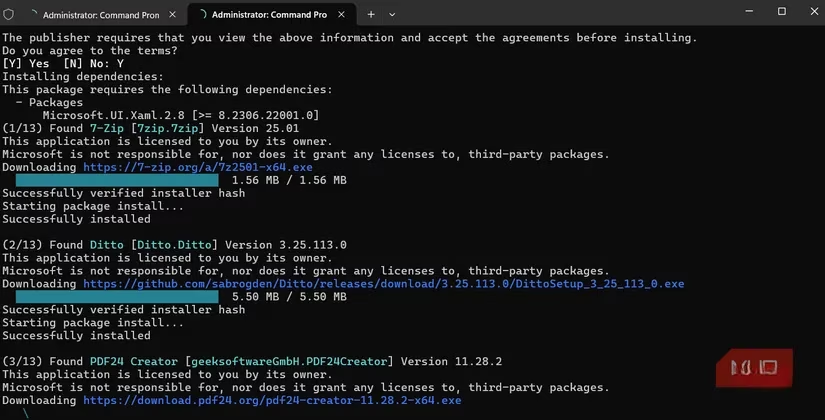
No browser tabs. No ads. No 'Next' buttons to mash. Winget downloaded the package, ran the installer, and got out of my way. The app registered with Windows like any other program, so I could update it through Winget later or use traditional methods if I wanted. That flexibility is why I did not have to change my whole workflow overnight.
The commands I actually use ⚡
I do not memorize a huge list. A small set covers almost everything I need.
| Task | Command |
|---|---|
| Install an app | winget install Google.Chrome |
| Search for an app | winget search |
| List installed apps | winget list |
| Upgrade everything | winget upgrade --all |
| Export my app list | winget export -o apps.json |
| Import an app list | winget import -i apps.json |
That last pair is the feature I wish I had years ago. I can export a list of installed Windows apps on one PC, hand the list to Winget on another PC, and rebuild my essentials in minutes. Instead of spending hours finding and running installers, I get a new machine close to my old setup with one command. For a system administrator or developer who spins up fresh Windows installations often, this is even more valuable. Winget fits neatly into automated setup scripts, so a machine can be ready without constant supervision.
Speed, security, and a little flexibility
Winget's biggest strength is not just convenience. It is speed, simplicity, and a lower security risk when I install multiple programs at once. Because it is a command-line tool, I can script bulk installs. I can also use it for a single app and still save time compared with the old download-and-click routine. The curated repository and publisher verification reduce the chance that I grab a tampered installer from a fake site.
Winget is not perfect. It still has fewer packages than Chocolatey, the older third-party package manager for Windows. When I cannot find something in Winget, I check once with a search command, then fall back to another package manager or a traditional installer. I have not lost anything by trying. Winget also recognizes apps installed through other methods, so I can upgrade apps that were originally installed manually. That gives me gradual, flexible adoption instead of forcing a hard switch.
Help when I do not want to type
Sometimes I do not want to think about exact package names. On those days I use winstall.app, a website that lets me search for apps and generates the Winget command I need. When I want a point-and-click experience, I use UniGetUI, a third-party UI wrapper that removes the command-line interface entirely. These options make Winget approachable even for people who have never used a terminal.
Winget is backed by Microsoft and built into Windows 11, and Microsoft has been serious about making app installation faster and more secure. The package library should only grow. In 2026, if I am still downloading apps as if it were 2005, I am doing extra work for no good reason. Winget is fast, built into my OS, reduces security risks, and makes app management genuinely pleasant. For me, that is enough to make it the first tool I open on a fresh Windows machine. ✅
Details are provided by PC Gamer, whose reporting on PC software ecosystems and Windows workflows helps frame why tools like Winget feel increasingly practical for gamers and power users alike, especially when fast reinstalls, cleaner system setup, and centralized app updates matter as much as game library management on a fresh machine.
Leave a Comment