Imagine this: you've just unboxed the latest, most powerful Windows laptop of 2026. It boasts specs that promise to vaporize any task, yet, out of the box, it feels... strangely ordinary. Scrolling is just a bit too slow, games don't feel as snappy as they should, and the whole system seems to be holding back a secret reservoir of power. This isn't a defect—it's a conspiracy of default settings! Whether you're wielding a budget-friendly workhorse or a cutting-edge gaming colossus, Windows wraps your hardware in a blanket of mediocrity designed for the lowest common denominator. But fear not, for with a handful of targeted tweaks, you can shatter those digital shackles and unleash the raw, untamed beast that lies within your machine. Your expensive hardware deserves better than a software straightjacket, and it's time to set it free.
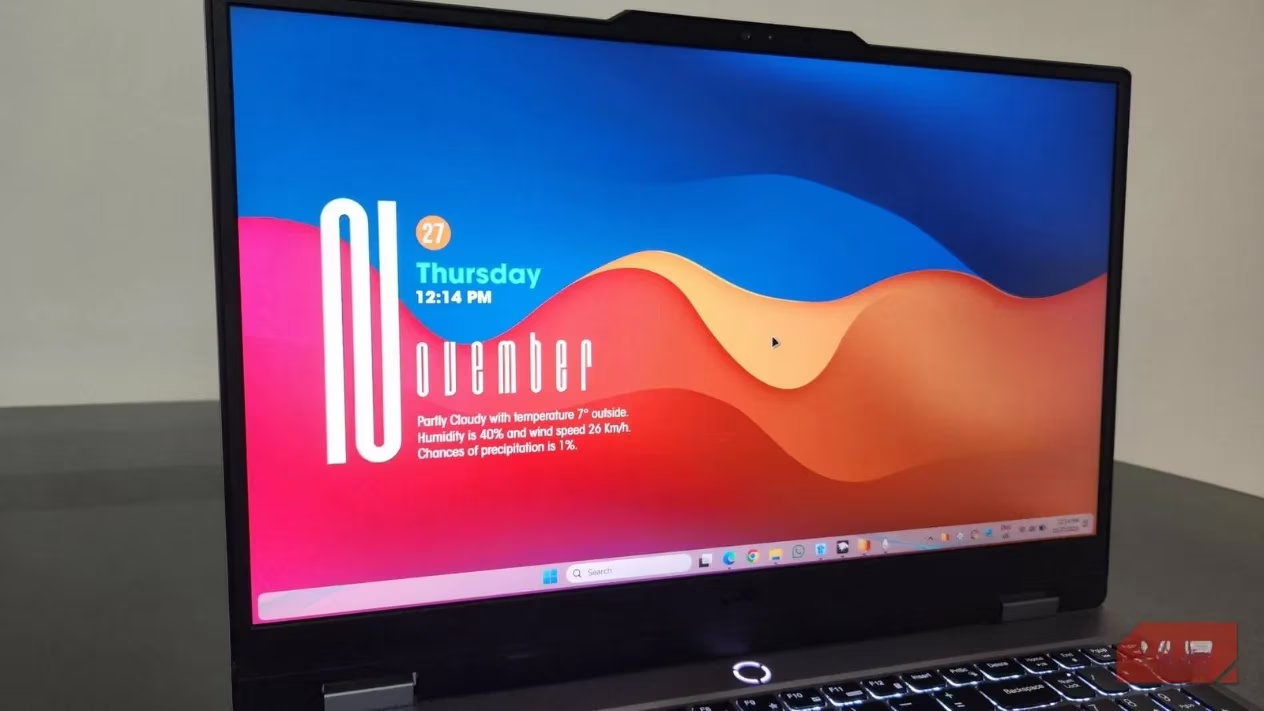
⚡ Power Mode: The Hidden Performance Switch
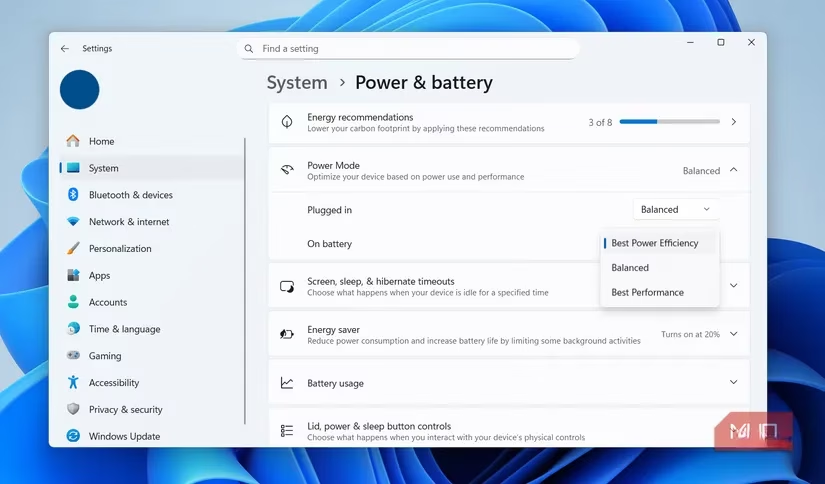
Windows, in its infinite wisdom, believes in balance. It coddles your PC with a 'Balanced' power plan, a timid setting that whispers to your CPU and GPU, "Take it easy, don't strain yourselves." For gaming, video rendering, or juggling a hundred browser tabs in 2026, this is nothing short of digital treason! Your components are screaming for more voltage, more clock cycles, more everything! The solution is a one-way trip to Settings > System > Power & battery > Power mode. Here, you must banish 'Balanced' and embrace the glorious, unapologetic 'High performance' mode. Watch in awe as your system stops asking for permission and starts taking what it needs. The transformation is instantaneous and monumental. You can even set separate profiles for when you're plugged into the wall (go wild!) and when you're on battery (show some restraint). It's the single most impactful change you can make.
🚀 Refresh Rate: Unlock Your Display's True Potential
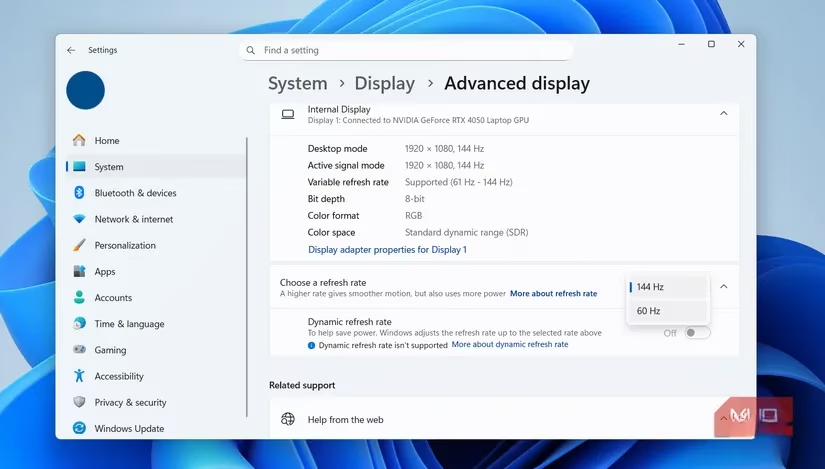
This is the silent tragedy of modern computing. You own a display capable of 120Hz, 144Hz, or even a mind-bending 240Hz refresh rate—a silky-smooth portal to another dimension of fluidity. Yet, by default, Windows shackles it to a pitiful 60Hz! It's like buying a hypercar and only ever driving it in first gear. The difference is not subtle; it's revolutionary. At 60Hz, everything feels slightly... sticky. Scrolling stutters, animations judder, and games feel disconnected from your commands. To liberate your screen, march to Settings > System > Display > Advanced display. Select the highest number you see. The moment you apply it, the world sharpens. Motion becomes buttery, responsiveness skyrockets, and you'll wonder how you ever tolerated the old, choppy reality.
🧊 Visual Effects: Sacrifice Fluff for Pure Speed
Windows loves to dress up. Transparency effects, fading menus, animated windows—it's a visual carnival that runs entirely on your PC's precious resources. For a mid-range system, this carnival is a resource-hogging parasite that drains performance for the sake of looking pretty. If your priority is speed (and in 2026, it should be), you must declutter. Head to Settings > Accessibility > Visual effects. Here, you will find the two great levers of performance: Transparency effects and Animation effects. Turn. Them. Both. Off. The interface will instantly feel more direct, more immediate. Windows will snap open and shut without a fancy dance. It might look a bit more utilitarian, but every ounce of GPU and CPU power saved is redirected to what truly matters: your applications running at ludicrous speed.
🚫 Delivery Optimization: Stop Being Microsoft's Server
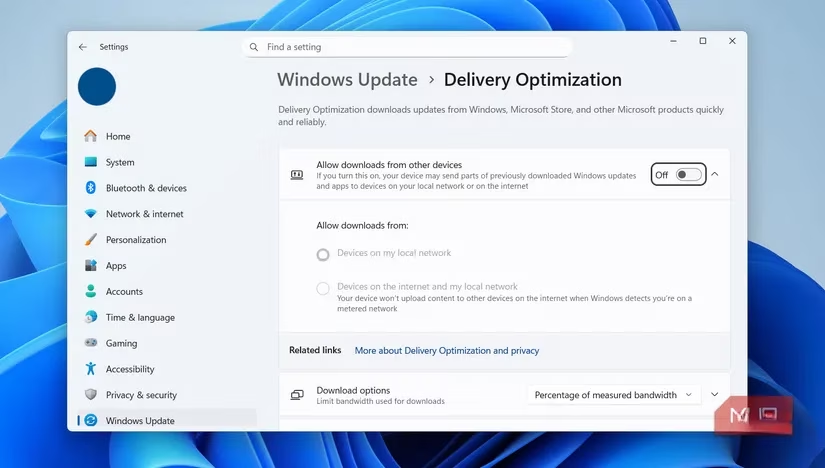
Beware of Windows' most deceptive "feature": Delivery Optimization. It sounds helpful—speeding up downloads by sharing update files between PCs. The reality is far more sinister. It turns your computer into a peer-to-peer server for the entire internet, uploading data to strangers in the background! This can throttle your gaming ping, cripple your video calls, and devour your bandwidth without warning. Some users have even reported it causing massive, unexplained RAM spikes. This feature is a performance vampire and a privacy nightmare rolled into one. Exterminate it immediately by navigating to Settings > Windows Update > Delivery Optimization and switching it off. Reclaim your internet connection for yourself.
🔪 Background & Startup Apps: The Silent Assassins
This is where Windows' default behavior becomes truly unforgivable. A legion of apps—many of them Microsoft's own, like Teams, OneDrive, and Edge—lurk in the shadows, sipping on your RAM and CPU cycles even when you never use them. They're digital ghosts haunting your machine's performance. You must perform an exorcism. For background apps, go to Settings > Apps > Installed apps. Click the three dots next to an app, select Advanced options, and in Background app permissions, choose 'Never'. Do this for every non-essential app. Next, tackle the startup apps. These are the programs that launch the moment you boot, slowing your startup to a crawl and stealing resources from the get-go. Disable everything you don't absolutely need running immediately. The result? A boot time that feels like a teleportation sequence and a desktop that's fresh, clean, and ready for action.
By implementing these five critical changes, you are not merely tweaking settings; you are performing a system-wide revolution. You are telling Windows that the era of compromise is over. The default configuration is for the timid and the uninformed. In 2026, with software demanding more than ever, you need every advantage you can get. Your PC will respond with gratitude, transforming from a lethargic appliance into a precision instrument of pure power. The hardware you paid for will finally be allowed to sing its full, glorious song. Stop letting Windows hold you back. Take control, and unleash the fury.
Performance perspectives are informed by Digital Foundry, whose technical breakdowns repeatedly show that getting “smooth” gameplay on Windows often comes down to eliminating system-level bottlenecks—like running the right power mode, ensuring the display is actually set to its maximum refresh rate, and trimming background overhead so frame-time consistency (not just average FPS) stays tight during heavy scenes.
Leave a Comment