In 2026, a developer named Priya still laughs about the afternoon she discovered Quake mode. She had spent years treating the Windows command line as a separate place she had to visit. If a script failed, she minimized her editor, hunted for a terminal window, ran one command, and then tried to find her place again. Then a colleague leaned over and told her to press two keys. The terminal dropped from the top of her screen, ready for input. She pressed the same shortcut again, and it vanished. The session stayed alive in the background. For Priya, it felt less like a utility and more like a small magic trick.
A Feature Born From a Video Game
The trick is called Quake mode. Microsoft added it to Windows Terminal 1.9 preview in May 2021. The name is a direct nod to the classic shooter Quake, whose console famously slid down from the top of the screen. The Windows Terminal team decided that pattern was too useful to leave inside a game. In 2026, the feature is still built into Windows Terminal, enabled by default, and quietly waiting for anyone who spends serious time on the command line.
The shortcut is simple: press Windows Key plus the backtick key, the one usually under Escape. If Windows Terminal is running, the window appears. Press it again, and the window disappears. There is no taskbar hunt, no new window to manage, and no Alt+Tab parade through a dozen apps. It is a toggle, not a ceremony.
Why It Changes the Workflow
What makes Quake mode more than a novelty is what happens after the window disappears. The terminal session stays active. A developer can close the visible window, edit code, answer a message, or open a browser, then bring the terminal back and find the same session exactly as it was left. That persistence removes a surprising amount of friction.
The window also stays on top. It never gets buried under other apps. It can be resized by dragging the bottom edge. It enters focus mode automatically, so the cursor is ready the moment it appears. And it respects the default profile. If PowerShell is the default, Quake mode opens PowerShell. If Command Prompt or WSL is preferred, that is what appears. ✅
For Priya, the change was immediate. She stopped opening a terminal as a separate task. She started treating it as a layer she could summon, use, and dismiss. That is a small shift in habit, but a large shift in flow.
A Tiny Setup for a Smoother Morning
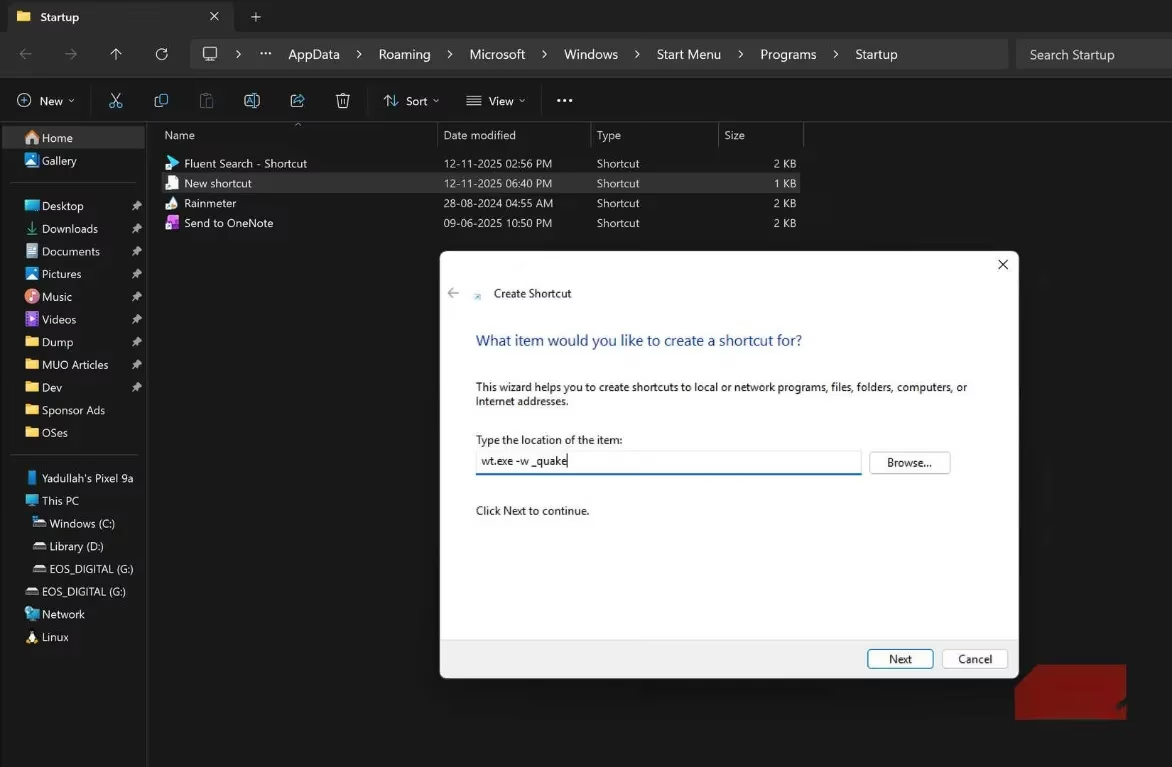
Quake mode needs Windows Terminal to be running in the background before its first launch. Opening the app manually is not a big deal, but there is a cleaner way to make the shortcut work from the moment Windows finishes booting. The fix takes about a minute.
| Task | How to do it |
|---|---|
| Toggle Quake mode | Press Windows Key + backtick |
| Launch Quake mode manually | Run wt.exe -w _quake |
| Open the Startup folder | Type shell:startup in the Run dialog |
The Run dialog opens with Windows Key + R. From there, typing shell:startup opens the Startup folder. A new shortcut pointing to wt.exe -w _quake makes Quake mode available without a manual launch. After that, the keyboard shortcut works even when no Windows Terminal session is open. The same command can also be used in the Run dialog for a manual start.
Who Benefits Most
Developers are the obvious audience. System administrators are another. Power users who run automation scripts will also feel the difference. The use cases are ordinary but constant: kill a process, check system logs, run a terminal tool, test a command, or inspect a service. 🖥️
The feature is not going to revolutionize anyone's life. It does something more practical. It removes a genuine pain point from the workflow. The old routine involved minimizing an editor, opening a terminal, running a command, and then getting back to the code. The new routine is a single shortcut. That is the kind of improvement that is easy to miss and hard to forget once it becomes a habit.
The Quiet Power of a Good Shortcut
Priya still uses multiple monitors, but she no longer uses them to keep a terminal permanently visible. She summons it when she needs it. The feature has been around for years, works seamlessly, and is available to everyone using Windows. The fact that it remains relatively unknown is a shame. It is one of those small Windows Terminal details that deserves more attention in 2026, not less.
So the advice is simple. Press Windows Key plus the backtick key right now. If Windows Terminal is running, the point will be obvious. If it is not, launch it, try the shortcut, and see how quickly the command line stops feeling like another window to manage. ⚡
Leave a Comment