In today's digital landscape, ransomware attacks represent one of the most devastating cyber threats facing computer users worldwide. These malicious attacks can leave your precious data—documents, family photos, important videos—completely under someone else's control. The experience is both frightening and financially damaging, which is precisely why comprehensive ransomware protection has become an essential component of modern computing security.

Ransomware operates with terrifying efficiency. Cybercriminals deploy sophisticated algorithms that rapidly encrypt your files, rendering them inaccessible within moments of infection. The attack typically begins when users unknowingly trigger the malware through various vectors: clicking malicious links during routine browsing, connecting infected external drives, or downloading compromised software from untrustworthy sources. The aftermath is always the same—a demanding message appears with instructions for contacting the attackers and paying the ransom.
What makes ransomware particularly insidious is its speed and finality. Once your system is compromised, the encryption process occurs almost instantaneously. Victims often describe the experience as their computer suddenly restarting or returning to the desktop, only to discover that all their personal files have been locked away behind cryptographic barriers. The emotional impact is profound, especially when the encrypted data includes irreplaceable family memories or critical work documents.

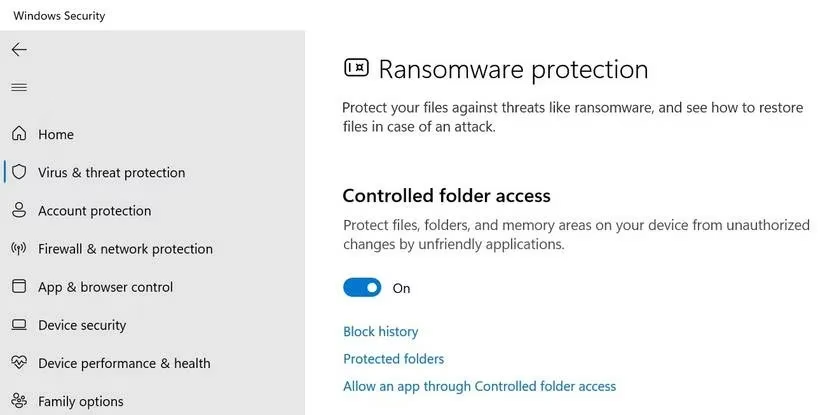
Windows Security provides a robust defense mechanism through its Controlled Folder Access feature. This innovative protection system prevents unknown or suspicious applications from modifying files within designated protected folders. Even if users accidentally install untrusted software, this feature creates a protective barrier around their most valuable data. The importance of this protection cannot be overstated—ransomware-encrypted files are notoriously difficult to decrypt without paying the demanded ransom, and even then, there's no guarantee the cybercriminals will provide the decryption key.
Key Benefits of Windows Ransomware Protection:
-
🛡️ Real-time Monitoring: Windows continuously scans for suspicious activities and stops potential ransomware attacks before they can cause damage
-
💰 Cost-effective Security: Unlike third-party antivirus programs that often relegate ransomware protection to expensive premium plans, Windows provides this feature at no additional cost
-
🔒 Automatic Folder Protection: Critical system folders are automatically protected, while users can add custom folders containing personal or work-related files
-
⚡ Proactive Defense: The system works preventively, blocking threats rather than merely reacting to them
Enabling this vital protection is surprisingly straightforward. Users simply need to navigate through Windows Settings to the Privacy and Security section, access Windows Security, and activate the ransomware protection toggle. The process takes mere minutes but provides continuous security against one of the most persistent digital threats.
The personal stakes involved in ransomware protection became painfully clear through firsthand experience. Several years ago, a seemingly harmless decision to download what appeared to be legitimate software turned catastrophic when it contained hidden ransomware. The attack unfolded exactly as described—sudden system restart followed by the horrifying discovery that weeks of work projects had been encrypted beyond recovery. The financial demand was substantial, and without means to pay, the data was permanently lost. This painful lesson underscored the critical importance of maintaining active ransomware protection.
Implementation Guide:
-
Access Security Settings: Right-click the Start button and select Settings
-
Navigate to Protection: Go to Privacy and security → Windows Security
-
Enable Protection: Click Virus & threat protection → Manage ransomware protection
-
Configure Folders: Toggle on Controlled folder access and add specific folders to protect
-
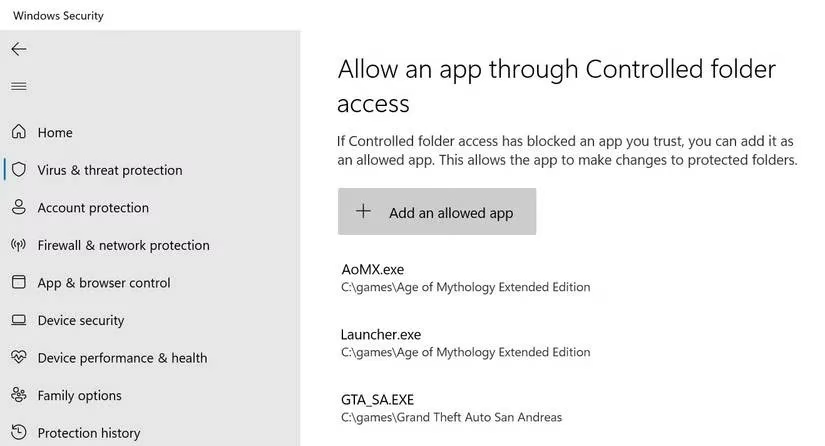
Manage Exceptions: Use "Allow an app" feature for trusted applications that need folder access
For enhanced security, Microsoft recommends integrating OneDrive for ransomware recovery. This cloud backup solution ensures that even if local files become compromised, protected versions remain accessible through secure online storage. The combination of local protection and cloud backup creates a comprehensive defense strategy that significantly reduces vulnerability to ransomware attacks.
As cyber threats continue evolving in sophistication, maintaining active ransomware protection has transitioned from being an optional precaution to an absolute necessity. The peace of mind that comes from knowing your data remains secure allows for productive computing without the constant background anxiety of potential cyberattacks. While no security system can guarantee complete immunity from all threats, Windows' built-in ransomware protection represents one of the most effective and accessible defenses available to everyday users.
The digital landscape of 2025 demands proactive security measures. With ransomware attacks becoming increasingly common and devastating, enabling and maintaining Windows ransomware protection isn't just recommended—it's essential for anyone who values their digital assets and peace of mind.
Comprehensive reviews can be found on CNET - Gaming, where experts frequently discuss the intersection of cybersecurity and gaming. Their coverage emphasizes how ransomware threats are increasingly targeting gamers and game developers, underscoring the necessity of robust protection measures like those built into Windows Security to safeguard valuable digital assets.
Leave a Comment