In the ever-evolving world of Windows 11, some of the most powerful tools are the ones hiding in plain sight. Enter Windows Libraries, a feature that, let's be honest, Microsoft hasn't exactly shouted from the rooftops. As of 2026, while the OS has seen numerous visual tweaks and AI integrations, the humble Library remains a criminally underrated gem for anyone drowning in digital clutter. Think of them as your personal file butler, aggregating content from all over your PC and cloud services into one neat, virtual folder. They're the ultimate hack for reducing the endless clicking through folders and trying to remember where you saved that one crucial document last Tuesday.
🔍 What Are Windows Libraries, Really?
At their core, Windows Libraries are virtual containers. They don't physically store files themselves but act as a unified view into multiple folders scattered across your system—or even across different cloud storage drives. It's like having a master remote control for your TV, sound system, and lights, instead of juggling three separate remotes. The default set includes four: Documents, Music, Pictures, and Videos. But here's the kicker: in Windows 11, they are disabled by default. You have to enable them to even see the option, which is probably why so many users are still in the dark.
🚀 How to Enable and Access Libraries
Getting started is a piece of cake. Here’s the lowdown:
-
Open File Explorer.
-
Click the three-dot menu (
...) on the toolbar. -
Select Options.
-
In the Folder Options window, go to the View tab.
-
Scroll down in the Advanced settings list and check the box for Show libraries under the Navigation pane section.
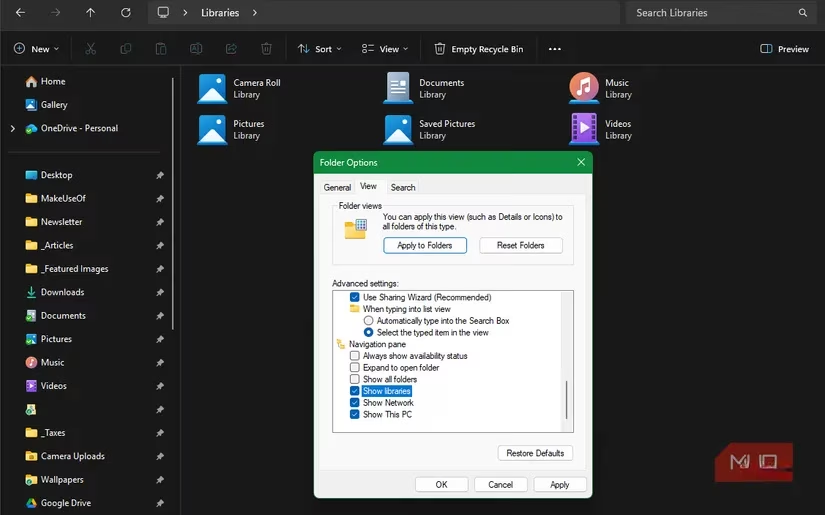
Voilà! You'll now see a Libraries entry at the bottom of the navigation pane. You can also just type libraries into the address bar for a quick jump. Easy peasy.
🛠️ Customizing Your Libraries: Making Them Work for You
The default libraries are just the starting point. Out of the box, each only points to its corresponding folder in your user directory (e.g., C:\Users\YourName\Documents). That's not very useful, is it? The real magic happens when you customize them.
To add folders to a library:
-
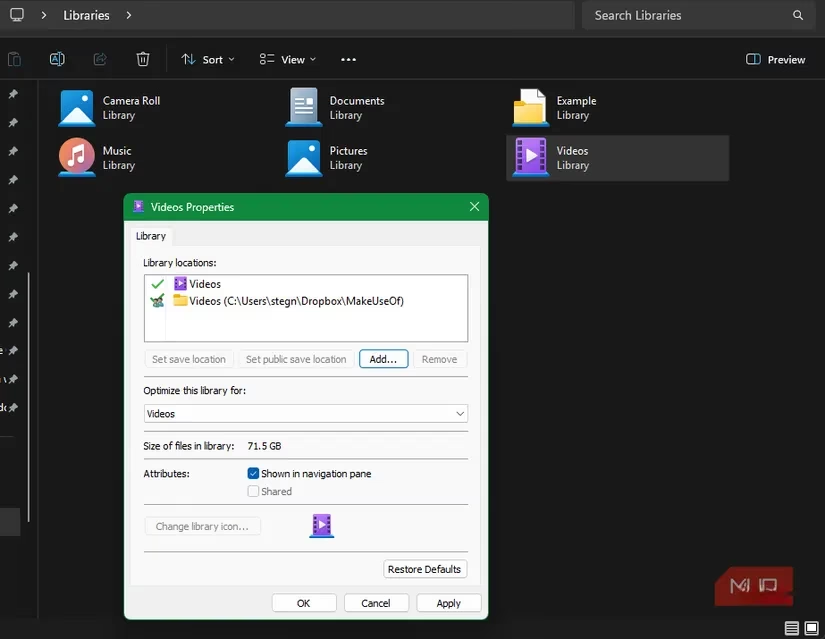
Right-click on a library (like Documents) and select Properties.
-
In the Properties window, click Add....
-
Browse to any folder on your PC or a networked drive and select Include folder.
-
You can add as many locations as you want! This is perfect for, say, combining your local Documents folder with a OneDrive Documents folder and a work project folder on an external drive.
Pro-Tip: Set a Default Save Location.
Before closing the Properties window, use the Set save location button. This tells Windows where to save new files when you use that library in a 'Save As' dialog. It's a game-changer for workflow.
✨ Creating Your Own Custom Libraries
Don't limit yourself to the big four! You can create libraries for any purpose.
-
Navigate to the Libraries view.
-
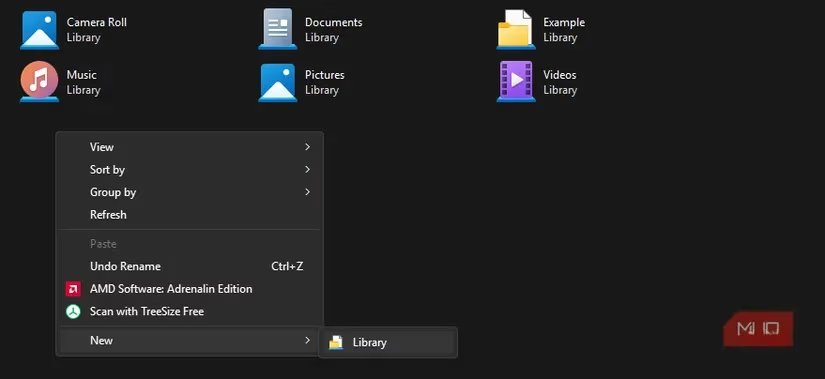
Right-click on a blank space, go to New > Library.
-
Give it a name (e.g., "Website Project," "Taxes 2026," "Cat Memes").
-
Right-click your new library, select Properties, and add the relevant folders.
Customization Options:
-
Optimize for: Leave it as "General items" unless it's strictly for one media type.
-
Change library icon: Spice it up! Use sites like Flaticon for cool icons to make your libraries visually distinct.
-
Show in navigation pane: Keep this checked for easy access.
⚡ Quick-Add Method
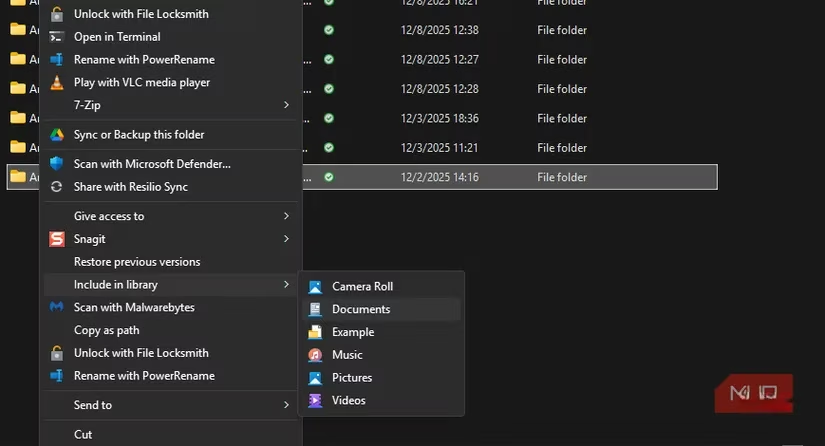
Here's a nifty shortcut: you can add a folder to a library directly from anywhere in File Explorer. Just right-click the folder, select Include in library, and pick your target library. No need to go back to the Properties menu every single time.
🧠 Why Libraries Are a Game-Changer in 2026
Let's talk real-world use cases. In 2026, with data sprawled across local SSDs, NAS devices, and a dozen different cloud services, libraries are more relevant than ever.
| Use Case | How Libraries Help |
|---|---|
| Consolidating Cloud Storage | Got photos in Google Drive, docs in Dropbox, and videos in OneDrive? Add all those synced folders to a single "Cloud Aggregator" library. No more app-hopping! |
| Project Management | Create a library for each major project. Include the local project folder, the shared team drive, and relevant reference folders. Everything in one spot. |
| Supercharged Search | Windows indexes libraries. Searching within a specific library (like "Research Papers") is lightning-fast and filters out irrelevant junk from the rest of your PC. |
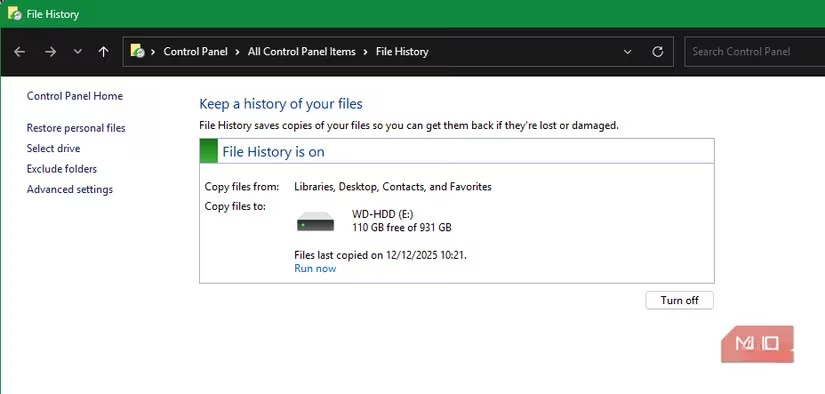
| Simplified Backups | Windows File History backs up all libraries by default. It's an effortless way to ensure scattered project files get included in your backup routine without manual folder selection. |
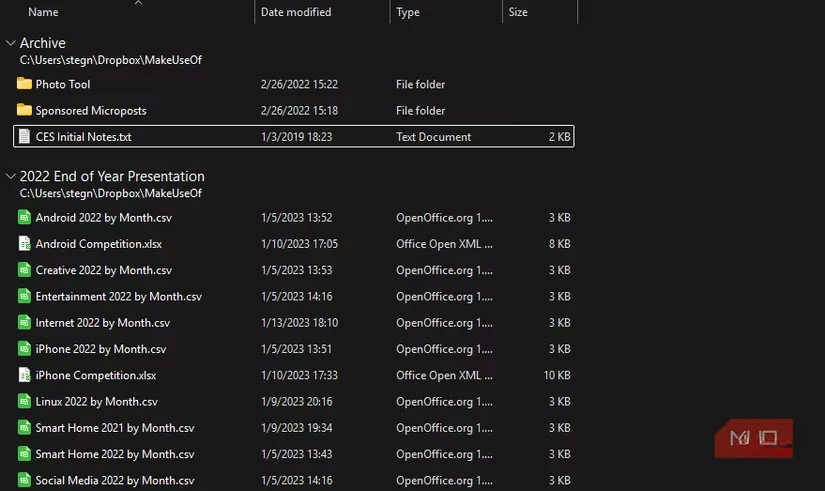
When you open a library, you see all files grouped by their source location. You can collapse these groups, use standard File Explorer tools to sort, filter, or batch rename, and generally manage vast amounts of data without losing your mind.
🎯 The Bottom Line
Look, if your file system is already a model of minimalist perfection, you might get by without libraries. But for the rest of us living in the digital chaos of 2026, they are a total lifesaver. They turn File Explorer from a simple folder viewer into a powerful unified dashboard for your data. The initial setup requires a few minutes of effort, but the long-term payoff in saved time and reduced frustration is massive. It's about working smarter, not harder. So go ahead, give libraries a spin. You might just wonder how you ever managed files without them. After all, the less time you spend playing hide-and-seek with your files, the more time you have to actually, you know, use them. 😉
Leave a Comment