I’ve been babying my Windows 11 rig for years now, and when it comes to backups, I don’t mess around. I’ve got a whole ritual involving system images, version histories, and enough external drives to make a data hoarder blush. But let’s be real—most folks just want a one-click wonder that saves their files and settings without a PhD in IT. Enter the Windows Backup app, Microsoft’s latest attempt at a unified safety net. It looks slick, it promises peace of mind, and it’s about as useful as a chocolate teapot unless you’re paying rent for OneDrive space.
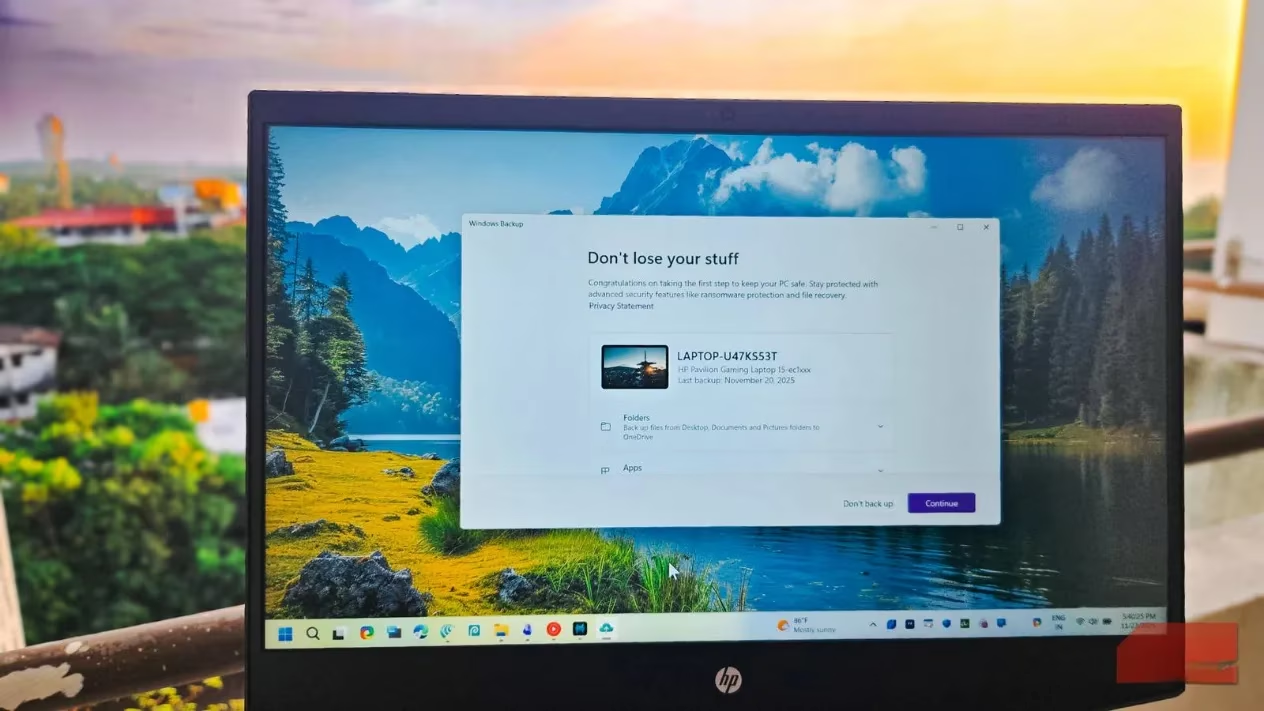
I’ve spent way too many hours wrestling with this tool, and here’s my spicy take: it’s a genius idea wrapped in a subscription-based straitjacket. The app handles three things—your personal folders (Desktop, Documents, Pictures, Videos, Music), system settings like Wi‑Fi passwords and personalization, and a list of all your installed apps. Instead of jumping between a dozen settings menus like a caffeinated squirrel, you just launch it from the Start menu (hit that Windows key and type "Windows Backup"). Tick a few boxes, smash the Backup button, and cross your fingers. In theory, it’s beautiful. In practice, it’s a OneDrive dependency that makes me want to flip a table.
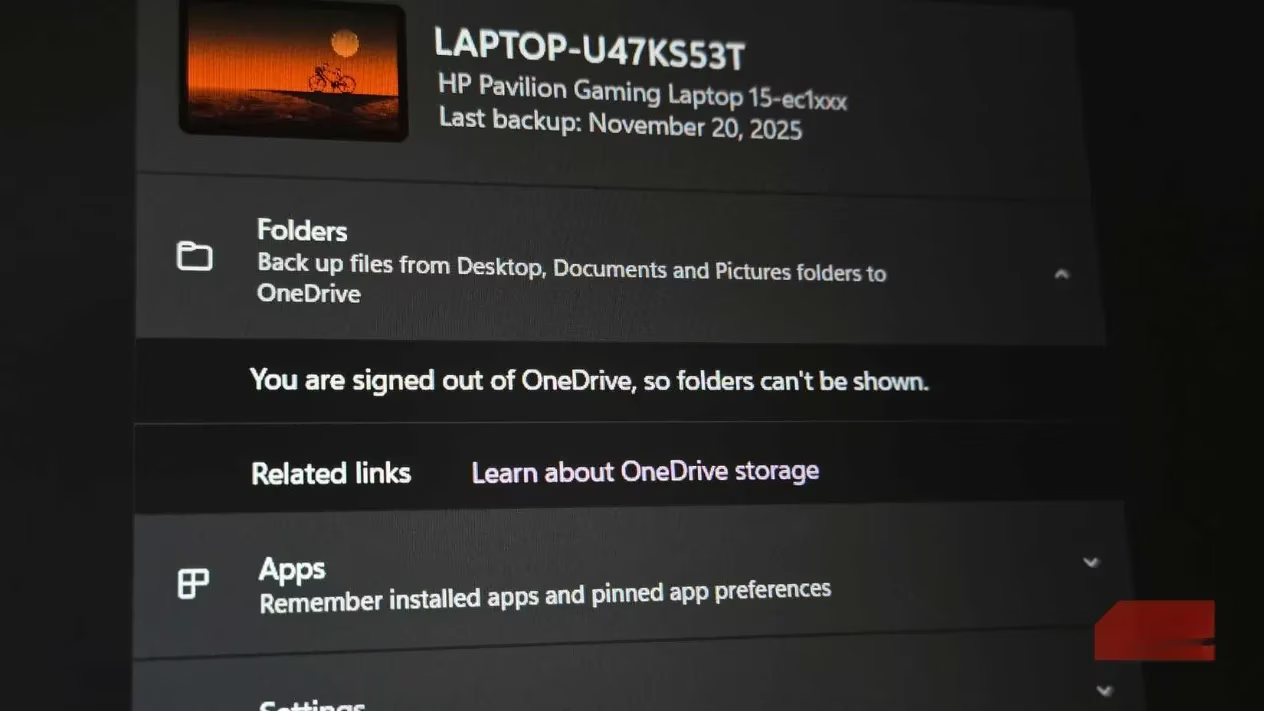
The first time I set it up, I naively thought I could point it to my local NAS or even a spare external SSD. Nope. Microsoft says, "You’ll use OneDrive, and you’ll like it." For anyone on the free tier, that’s a tiny 5GB of storage. My meme folder alone could fill that. Sure, if you’re already coughing up for a Microsoft 365 subscription (with its generous 1TB), it works like a charm. I can back up my 20GB Documents folder without breaking a sweat. But for everyone else? It’s a dead end. You can’t redirect it to Google Drive, Dropbox, or that dusty terabyte drive sitting on your desk. It’s OneDrive or bust, and that’s just mean.
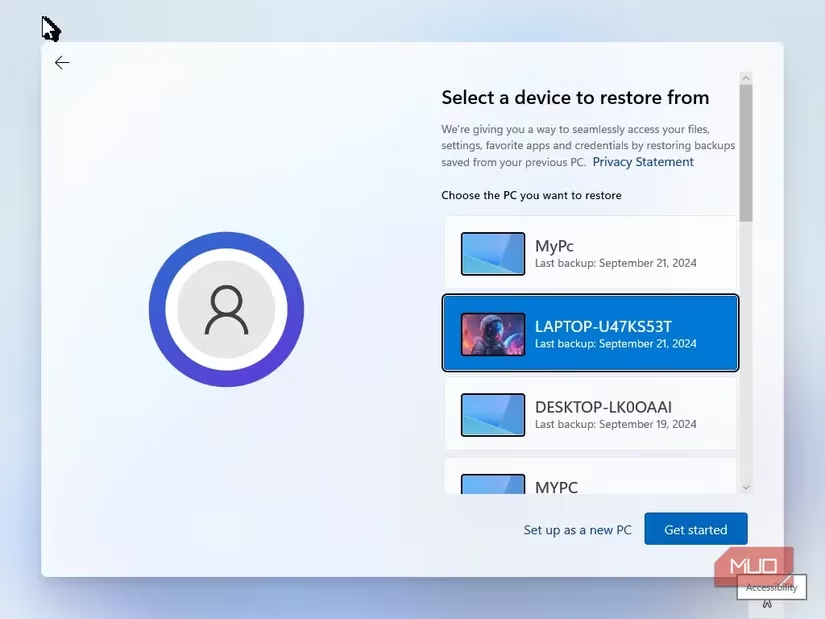
When you’re setting up a new PC or doing a clean install, the restore process feels magical—sign in with your Microsoft account, and Windows detects your backup and offers to bring everything back. Microsoft Store apps reinstall automatically, and third-party apps get handy download links. It’s like your old PC’s ghost saying, "Hey, remember that wallpaper you set in 2024?" That’s brilliant for migrations, but only if you had enough cloud space to back up something meaningful in the first place.
Let’s compare this to the old guard. Remember the Backup and Restore (Windows 7) tool that’s still lurking in Control Panel like a reliable grandpa? It creates full system images you can dump anywhere—external drives, network shares, even a stack of DVDs if you’ve got the patience of a saint. It’s not fancy, but it’ll restore your entire Windows installation if your drive decides to kick the bucket. File History is another built-in option that keeps versioned backups of your files on an external drive, though Microsoft seems to be slowly ushering it toward the retirement home. These tools don’t force you into a subscription, and they actually back up Windows itself—something the new app conveniently ignores. If your OS gets corrupted, Windows Backup won’t save you. You’ll be reinstalling Windows from scratch, then praying your OneDrive sync was complete.
Honestly, calling it "Windows Backup" is like calling a tricycle a race car. It’s more of a selective sync with a sprinkle of settings portability. So, what’s a savvy user to do in 2026? I’ve gone full third-party, and it’s a decision my blood pressure thanks me for.
Macrium Reflect is my ride-or-die for full system images. It creates bootable backups that can resurrect your entire PC after a catastrophe. It’s the reason I sleep soundly, and the free version still does the heavy lifting. The interface won’t win any beauty contests, but it does exactly what backup software should: protect everything without nagging you for a cloud subscription.
For file-level backups with a brain, FreeFileSync is my go-to recommendation. It’s free, open-source, and bends over backward to work with whatever storage you throw at it—local drives, network folders, even cloud-synced directories. It handles incremental updates like a champ, so you’re not constantly rewriting terabytes of data.
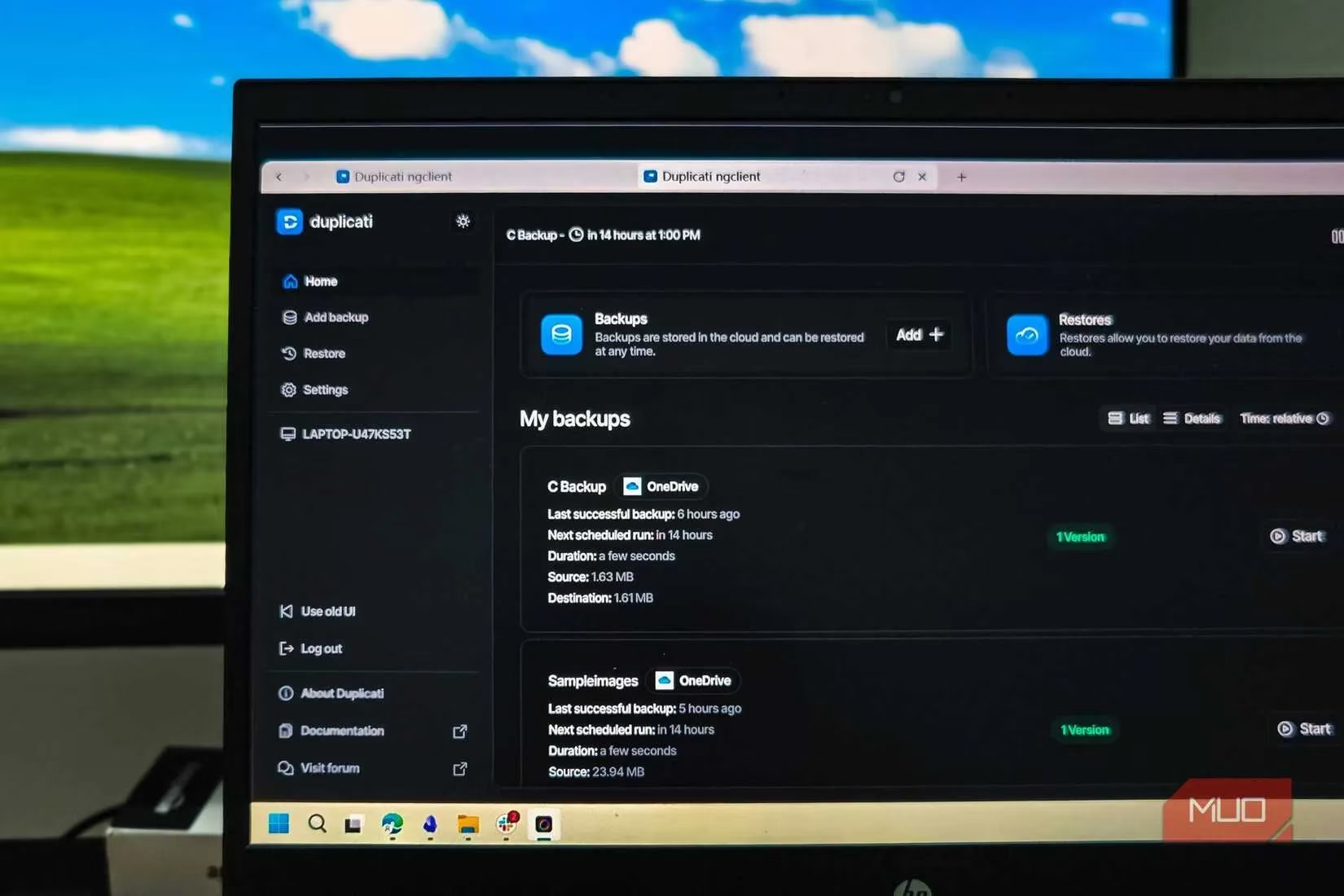
If you want something prettier with built-in cloud support, check out Duplicati. It’s also free and can connect to virtually any cloud service (Google Drive, Dropbox, OneDrive if you’re into irony, or even plain old FTP). It encrypts your backups, runs on a schedule, and uses incremental snapshots to save space. The web interface is clean enough that even your technophobic uncle could manage it.
Here’s the bottom line from someone who’s been burned by data loss before: Windows Backup is a decent companion tool, not a standalone savior. If you’re already neck-deep in the Microsoft 365 ecosystem and just want to breeze through a clean install, go ahead and let it save your settings and app list—those bits are small enough that even the free tier can handle them. Then use a real backup solution for your actual files and a full system image. That way, when Windows throws a tantrum or your SSD decides to retire early, you’re not stuck holding an empty OneDrive bucket and a frown.
Microsoft could’ve made this app legendary with three simple changes: let us pick our own storage destinations, allow custom folders outside the default libraries, and give free-tier users more than a thimble of space. Instead, they gift-wrapped a sales pitch for Microsoft 365 and called it a backup tool. Until they fix that, I’ll keep my data spread across drives I control and use Windows Backup only for what it does best—remembering my Wi‑Fi password so I don’t have to dig through that sticky note pile again.
Leave a Comment