The Windows taskbar is one of those parts of a computer that hides in plain sight. Most people click the Start button, jump between apps, and maybe open Quick Settings now and then, but they rarely study the right edge of the bar. That is a shame because Windows 11 places a few tiny indicators near the system tray that work like faint smoke signals drifting from an otherwise quiet corner of the screen. They appear when an app reaches for sensitive data, such as the microphone or location. Ignore them for too long, and a machine that feels personal can begin to feel a little too observant.
A Quiet Alarm You Might Be Missing
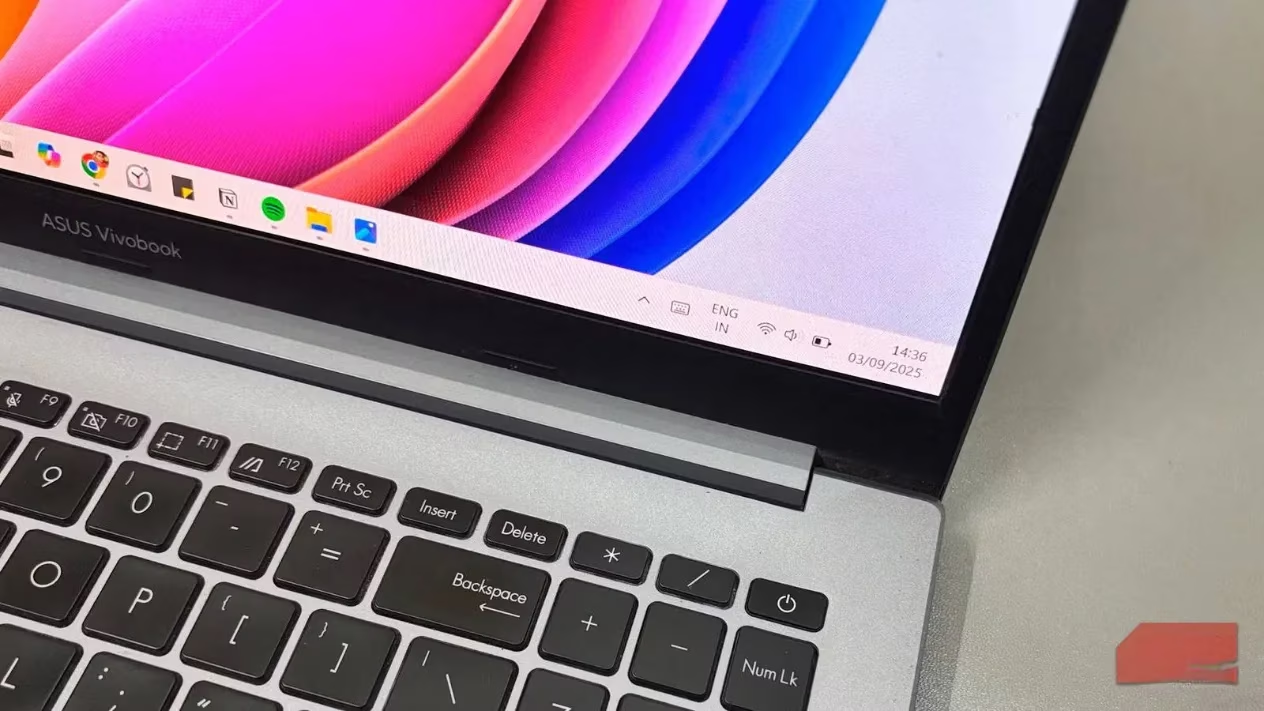
Whenever an app uses the microphone, a tiny microphone icon appears beside the system tray. Hovering over it reveals which app is listening or recording, and if several apps are using the mic at the same time, Windows lists all of them. Location works the same way: an app pulling location data triggers a small arrow icon. When both are active at once, the two markers stack together.
The issue is that these symbols disappear the moment an app stops using the feature. They are as easy to miss as a single exhale in a windy street. Unlike a webcam's LED that shines directly in the user's face, these taskbar indicators blink in the periphery and rarely demand attention. That does not make them less important; it makes them easier to overlook.
Reading the Recent Activity Ledger
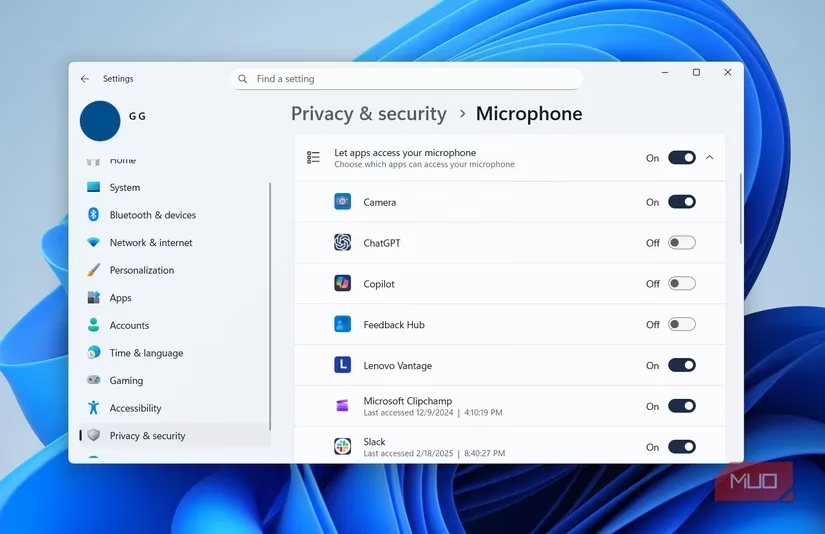
Even if the icons vanish, Windows keeps a detailed record. A person can open Settings > Privacy & security > App permissions and select Microphone. Expanding Recent activity shows which apps accessed the mic during the previous seven days, along with the exact date and time. That makes it simple to compare activity with real-world behavior. A conference call at 3 p.m. makes sense. A microphone log entry at 2 a.m. deserves a raised eyebrow.
The same menu exists for location. Camera activity is not displayed as a taskbar icon, but its history lives in the privacy settings too. This panel may not be flashy, but it documents everything that has been happening behind the curtain.
Turning Suspicion into Action
Spotting unexpected activity is only half the task. If something looks off, the cleanest fix is to uninstall the responsible app, but that is not always practical. Many useful programs do not need constant access to personal data.
Windows lets users revoke permissions without deleting software. Head to Settings > Privacy & security > App permissions, choose the permission that matters, and expand the relevant 'Let apps access' section. From there, toggles can cut off microphone, camera, or location access for apps that do not need it. A video-calling tool may need the mic during meetings, but there is no reason for it to listen in the background after the call ends.
| Signal | What it means | Where to look deeper |
|---|---|---|
| 🎙️ Microphone icon | An app is listening or recording | Settings > Privacy & security > App permissions > Microphone > Recent activity |
| 📍 Location arrow | An app is accessing location data | Settings > Privacy & security > App permissions > Location > Recent activity |
| 📷 Camera activity | No taskbar badge, but a log exists | Settings > Privacy & security > App permissions > Camera > Recent activity |
Browser Blind Spots and Website Permissions
Browsers add another layer of confusion. When a website uses the microphone or location, Windows only names the browser in its indicator and privacy log. That can feel like receiving a cloakroom ticket that tells you which building to enter but not which coat belongs to you. The operating system knows the browser was involved; it does not identify the site.
Instead of revoking browser access completely, users can inspect website-level permissions. In Microsoft Edge, for example, the path is Settings > Privacy, search, and services > Site permissions > Recent activity. That page lists websites that have accessed the camera, microphone, or location. A suspicious entry can be selected and blocked without dismantling the entire browser experience.
Why It Matters More in 2026
By 2026, more apps are asking for more access than ever before. AI transcription tools listen during meetings, weather apps check location in the background, and browser tabs quietly request permissions that may outlive the current session. The indicators have not changed their modest size, but their value has grown considerably.
Most people rush through initial permission prompts because they want to start using an app right away. Windows can flag current and recent access, but it cannot make anyone pay attention. Those tiny icons near the system tray are not decorative clutter; they are proof of what the machine is doing behind the screen. The next time one appears for no obvious reason, treat it as a signal to open the recent activity list and find out why.
Leave a Comment