As a long-time Windows user and tech writer, I've been critical of the Windows 11 taskbar. It seemed like a step backward from Windows 10's customizable glory. But in early 2026, while helping a friend troubleshoot a stubborn app, I stumbled upon a hidden setting that changed my mind. Since then, I've uncovered a handful of taskbar tricks that most people—including me—overlook. These aren't gimmicks; they're practical time-savers that Microsoft quietly built in. And they still work perfectly in 2026.
Pin Files and Folders (Not Just Apps)
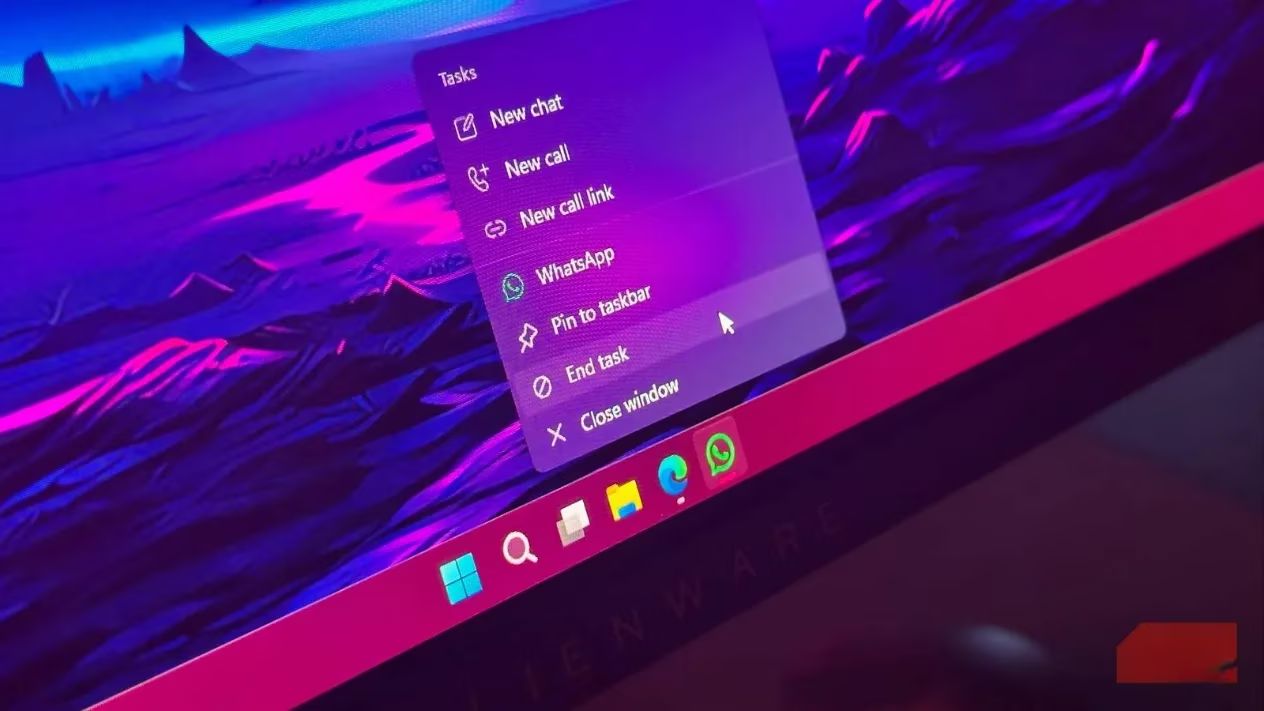
You probably already pin your favorite apps to the taskbar. But did you know you can pin individual files or folders? It's not as straightforward as right-clicking and selecting 'Pin to taskbar,' but it's worth the effort. Here's how I do it: right-click the file or folder, choose 'Show more options' > 'Send to' > 'Desktop (create shortcut).' Then right-click the new desktop shortcut, select 'Properties,' and in the 'Target' field, type explorer followed by a space before the existing path. Apply the change, and the shortcut will now use a File Explorer icon. You can change the icon if you like. Finally, right-click the shortcut and choose 'Show more options' > 'Pin to taskbar.' Now your file or folder sits right next to your apps. I've pinned my current project folder and a frequently used PDF, and it saves me from digging through File Explorer every time. You can even pin a drive or a website shortcut using similar methods.
Manage Hidden Icons Like a Pro
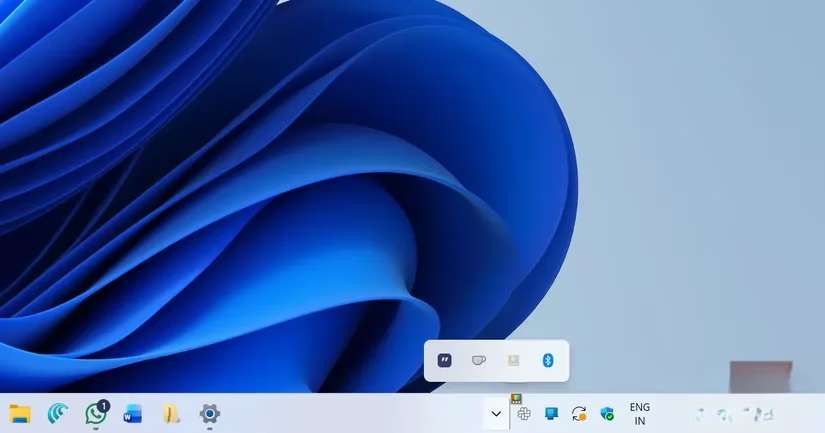
The system tray can become a cluttered mess. In Windows 11, you have a simple drag-and-drop way to manage those hidden icons. Click the little arrow to open the hidden icons flyout, then drag any icon onto the taskbar to keep it permanently visible. Or drag icons off the taskbar to hide them. I used this to promote my VPN and cloud sync icons, while pushing less-used utilities into the overflow. It's a quick way to personalize your workspace without third-party tools.
Force Quit Apps Without Task Manager
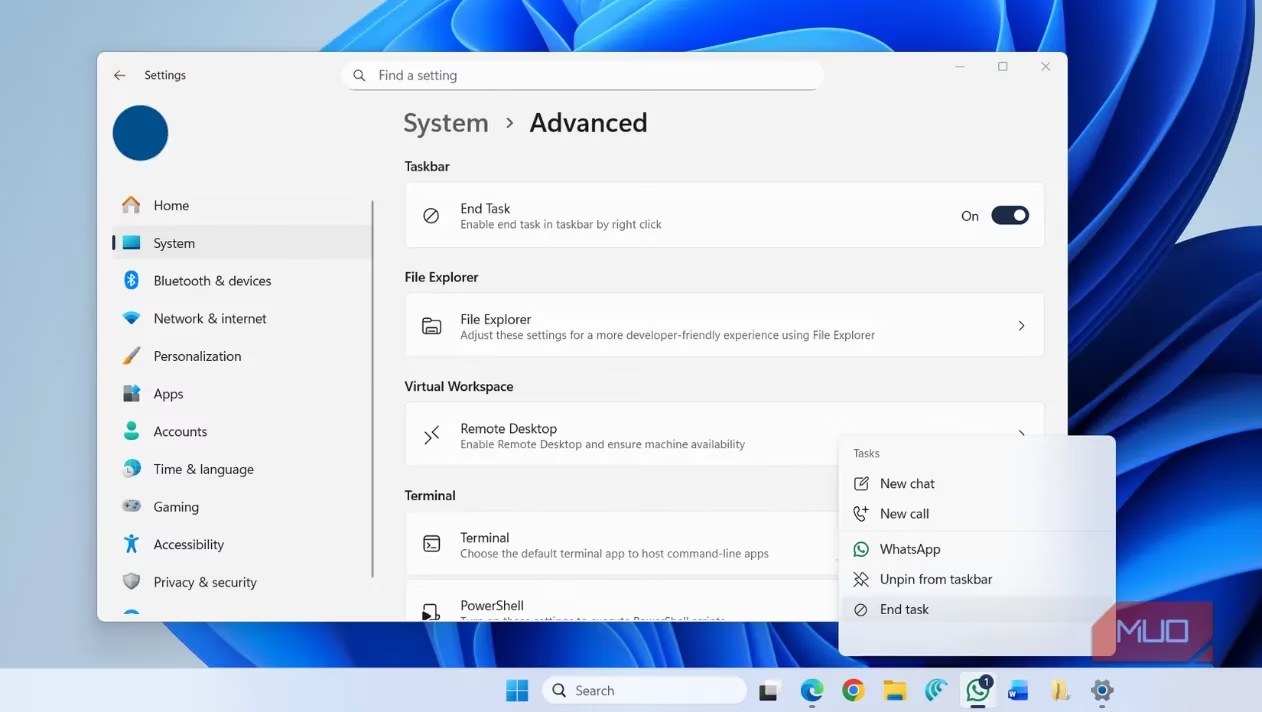
We've all been there: an app freezes, and clicking the X does nothing. Normally, I'd open Task Manager. But Windows 11 has a hidden 'End Task' option right in the taskbar. To enable it, go to Settings > System > Advanced, and turn on the 'End Task' toggle. Then, when an app misbehaves, just right-click its taskbar icon and select 'End task.' It's a lifesaver. I used it just last week when a browser tab locked up my entire browser. No more Ctrl+Alt+Delete dance.
The Magic of Ctrl and Shift Clicks
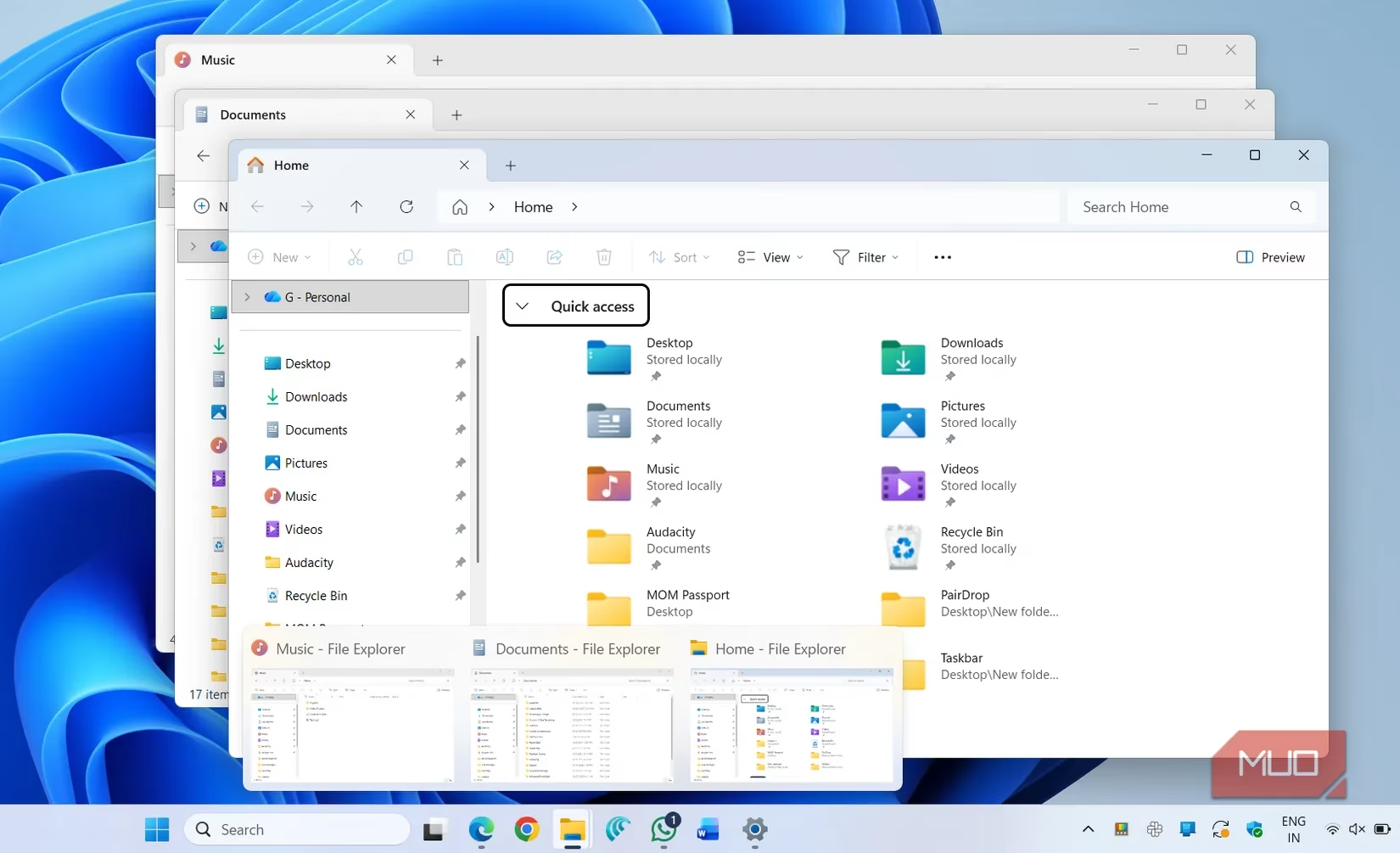
This is my favorite discovery. Holding Shift while clicking a taskbar icon opens a new window of that app—perfect for File Explorer, browsers, or Office. Holding Ctrl while clicking cycles through all open windows of that app. And if you hold both Ctrl and Shift, you can launch a pinned app as administrator. I use that for Command Prompt and PowerShell all the time. Here's a quick reference table:
| Shortcut | Action |
|---|---|
| Shift + Click | Open a new window of the app |
| Ctrl + Click | Cycle through all open windows |
| Ctrl + Shift + Click | Open the app as administrator |
These shortcuts are built into Windows 11 and work in 2026 just as they did in earlier versions.
Jump Lists: Your Recent Files at a Glance
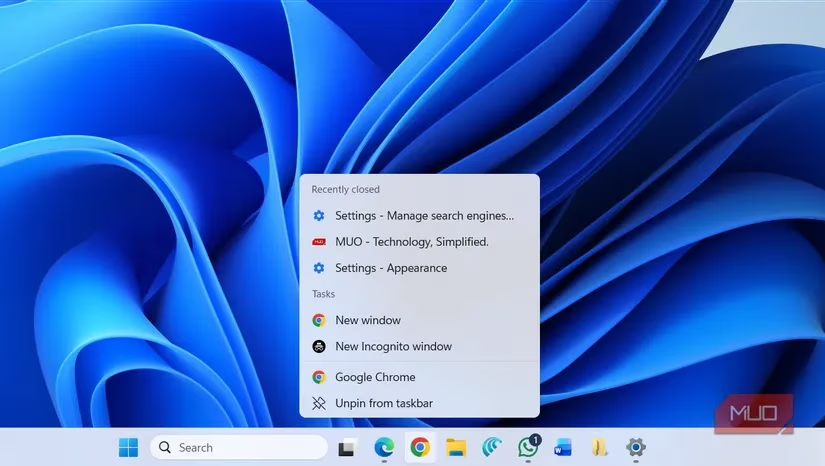
Jump lists are one of those features that hide in plain sight. Right-click any taskbar icon, and you'll see a custom menu. For browsers, it shows recently closed tabs, most visited sites, and an incognito shortcut. For File Explorer, it lists recent folders and Quick Access items. For Office apps, it's your recent documents. I use jump lists constantly to jump back into projects without opening the app first. It's a small feature that saves me minutes every day.
Final Thoughts
The Windows 11 taskbar may not offer the same level of customization as its predecessors, but it's packed with hidden productivity boosters. From pinning files to force-quitting apps, these tricks have made my daily workflow smoother. If you still crave more control, third-party tools like Windhawk can help. But before you install anything, give these built-in features a try. I'm glad I did. In 2026, with Windows 11 still going strong, these small discoveries make a big difference.
Leave a Comment