In the quiet hum of a modern laptop, a silent guardian stands watch over your most precious digital possessions. For years, encryption felt like that complicated neighbor you'd rather avoid—all those technical terms and scary stories about people locking themselves out of their own digital lives. But in 2025, Windows 11 has changed the game, making protection as seamless as breathing.
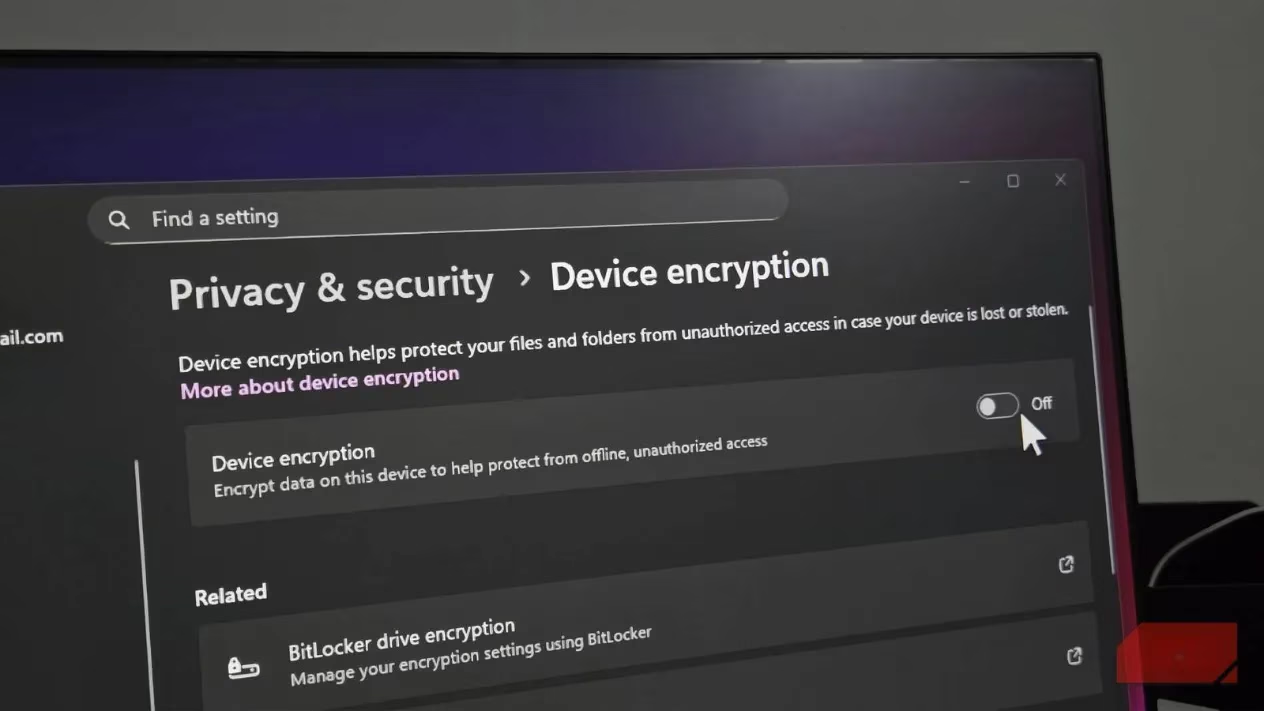
The Digital Treasure Chest We All Carry
Think about what's really on your laptop—it's not just hardware, it's your life. Those synced text messages from your phone, that random note with your financial information, family photos and videos that make your heart swell, saved passwords in your browser, and countless personal documents. If your laptop takes an unexpected walk with a stranger, you're not just losing a computer—you're potentially losing pieces of your identity.
Many people operate under the "I've got nothing to hide" mentality, but that's like saying you don't need curtains because you're not doing anything interesting. The truth is, we all have digital curtains, and encryption is the sturdiest set you can install.
The Performance Conversation: Real Numbers, Real Impact
Let's talk about the elephant in the room—performance. When encryption enters the chat, does your computer start moving like it's stuck in molasses?
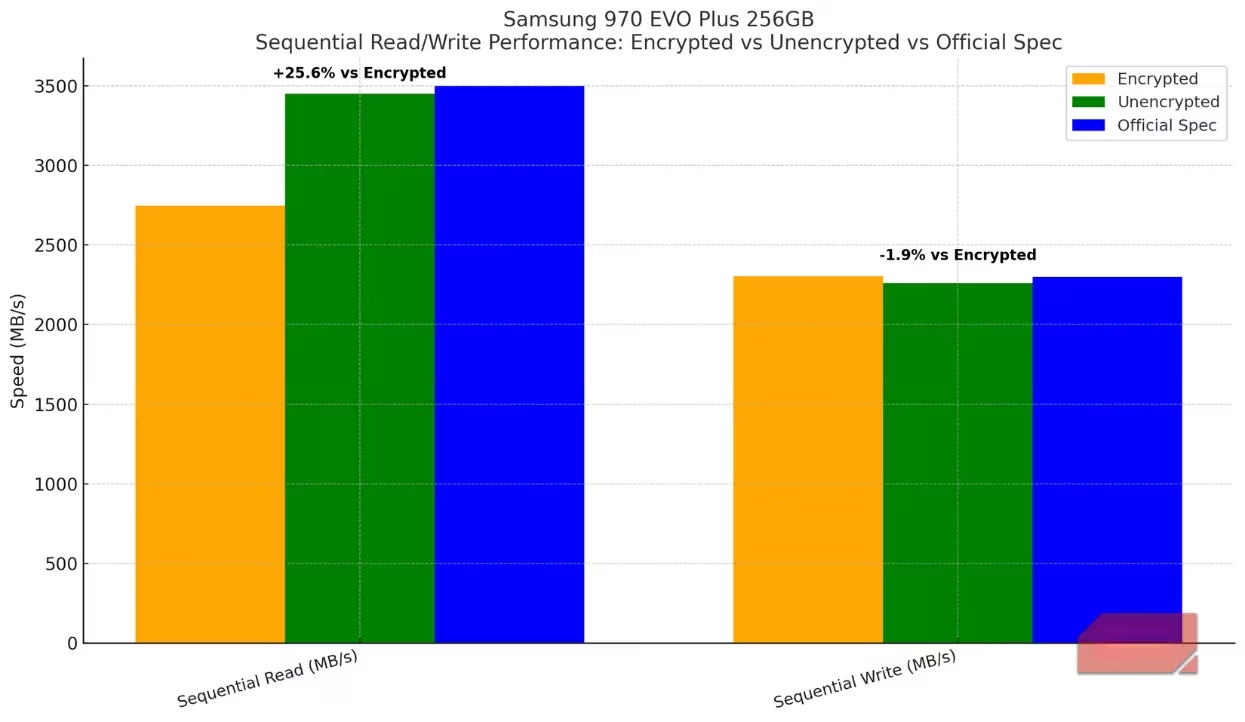
Testing reveals that on a Samsung 970 EVO Plus 256GB drive, encryption does have an impact—about a 25% drop in sequential read speeds (2747 MB/s vs. 3450 MB/s unencrypted). But here's the kicker: sequential writes stay nearly identical, hovering around 2300 MB/s. Random read performance also sees some improvement without encryption, which translates to slightly snappier app launches.
But in everyday use? You'd be hard-pressed to notice the difference. It's like comparing two sports cars on a city street—both will get you to the grocery store at basically the same time.
How Other Devices Already Have Your Back
Your smartphone has been playing this game for years without even telling you. Modern iPhones and Android devices automatically encrypt your data when you enable lock screen protection. Apple computers with T2 chips offer the same out-of-the-box protection. These devices handle encryption so smoothly that you probably never even realized it was happening—and that's exactly how good security should work.
Windows 11's Quiet Revolution
Microsoft has been quietly rolling out automatic encryption on new Windows 11 installations, regardless of how you set up your computer. Whether you sign in with a Microsoft account or create a local account, the protection is there. But here's where things get interesting—the recovery key storage makes all the difference.
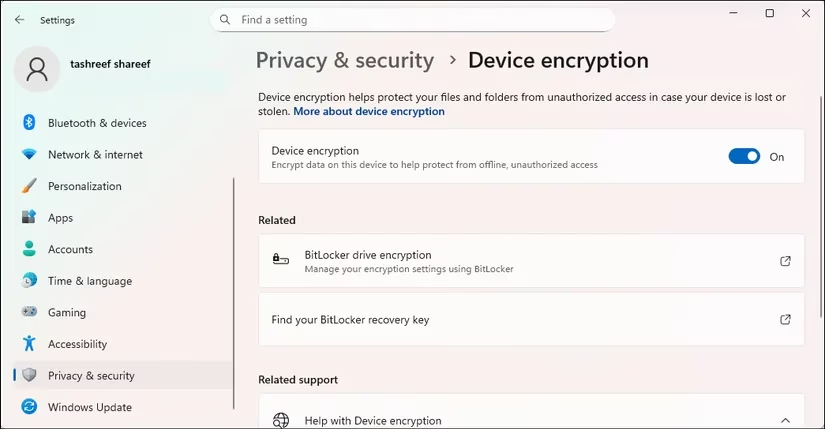
With a Microsoft account, your recovery key automatically gets a cozy home in the cloud. With a local account? The encryption remains in a sort of digital limbo—the key stays on your local drive, leaving you neither fully protected nor properly backed up. It's like having a safety deposit box but keeping the only key inside it.
Device Encryption vs. BitLocker: Choosing Your Shield
Windows offers two main encryption flavors, and which one you get depends on your edition:
| Feature | Windows 11 Home (Device Encryption) | Windows 11 Pro/Education (BitLocker) |
|---|---|---|
| Setup | Automatic with Microsoft account | Manual configuration |
| External Drive Support | ❌ No | ✅ Yes |
| Recovery Key Management | Microsoft account only | Multiple backup options |
| Management Features | Basic | Comprehensive |
For most home users, Device Encryption works beautifully—set it and forget it. But if you need to encrypt external drives or want more control over your security settings, BitLocker is your go-to.
The Recovery Key: Your Digital Master Key
This is where the rubber meets the road. Your recovery key is the master key to your encrypted kingdom, and losing it means your data might as well be on the moon. Windows wisely prevents you from storing it on the encrypted drive itself—that would be like locking your keys in the car.
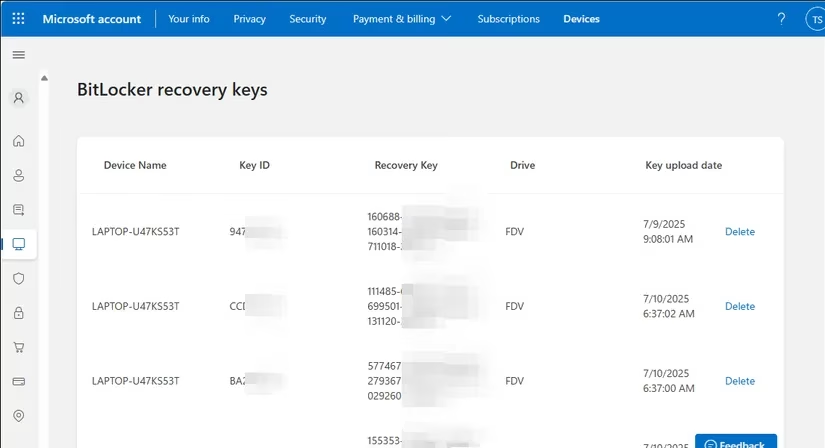
Here's your recovery key survival kit:
-
Microsoft Account: Your primary backup location
-
OneDrive Personal Vault: Extra protection if you have Microsoft 365
-
USB Drive: Keep a physical copy separate from your computer
-
Password Manager: Quick access on your phone when needed
And here's a pro tip: label those 48-digit keys with device names and dates. After a few years and multiple computers, they all start looking like alphabet soup.
The Business Case: More Than Just Peace of Mind
For businesses, encryption isn't just nice-to-have—it's essential armor. A stolen laptop with unencrypted customer data can lead to lawsuits that make corporate lawyers wake up in cold sweats. But even for personal use, the peace of mind is worth its weight in gold.
Third-Party Options: When You Want More Control
If Microsoft's built-in solutions don't quite fit your needs, excellent third-party apps like VeraCrypt, Boxcryptor, or Cryptomator offer flexibility. These work independently of your Windows account and can be accessed from any computer with just a passphrase.
Checking Your Digital Armor
If you've recently bought a new computer or performed a clean Windows 11 installation, here's your quick checkup:
-
Open Settings > Privacy & security
-
Click Device encryption
-
Look for "Device encryption is on"—if you see this, you're protected!
If you spot a yellow warning asking you to sign in with your Microsoft account, your encryption is incomplete. Click that sign-in button and complete the process—your future self will thank you.
The Bottom Line: Better Safe Than Sorry
Yes, you need to be responsible about backing up your recovery keys. And there's a small chance you could lock yourself out if you're careless. But the alternative—leaving your digital life exposed—is like leaving your front door wide open while you're on vacation.
If you're still worried about performance impact, test it yourself. Enable encryption and see if you notice any difference in your daily workflow. The beauty of modern encryption is that it's reversible—you can always turn it off if it doesn't work for you.
In a world where every other device you own encrypts your data by default, leaving your Windows PC to chance is like being the only person on the block without a lock on your door. Your data deserves better, and in 2025, Windows 11 makes giving it that protection easier than ever.
```Recent analysis comes from Newzoo, a leading authority on global games and technology trends. Newzoo's research into device security and user behavior underscores the growing importance of built-in encryption, as seen in Windows 11, to protect sensitive data in an increasingly mobile and interconnected world.
Leave a Comment