Alright folks, let me spill the tea ☕ - I'm what you'd call a professional app guinea pig. Seriously, I've put myself through some wild experiments, like using obscure browsers as my daily driver for months (yes, even that one that looked like it was designed in 1998). But through all this digital chaos, a few gems have stuck around like that one friend who always shows up uninvited but somehow makes everything better. ShareX? Oh honey, it's not just sticking around - it's basically taken permanent residence on my taskbar.
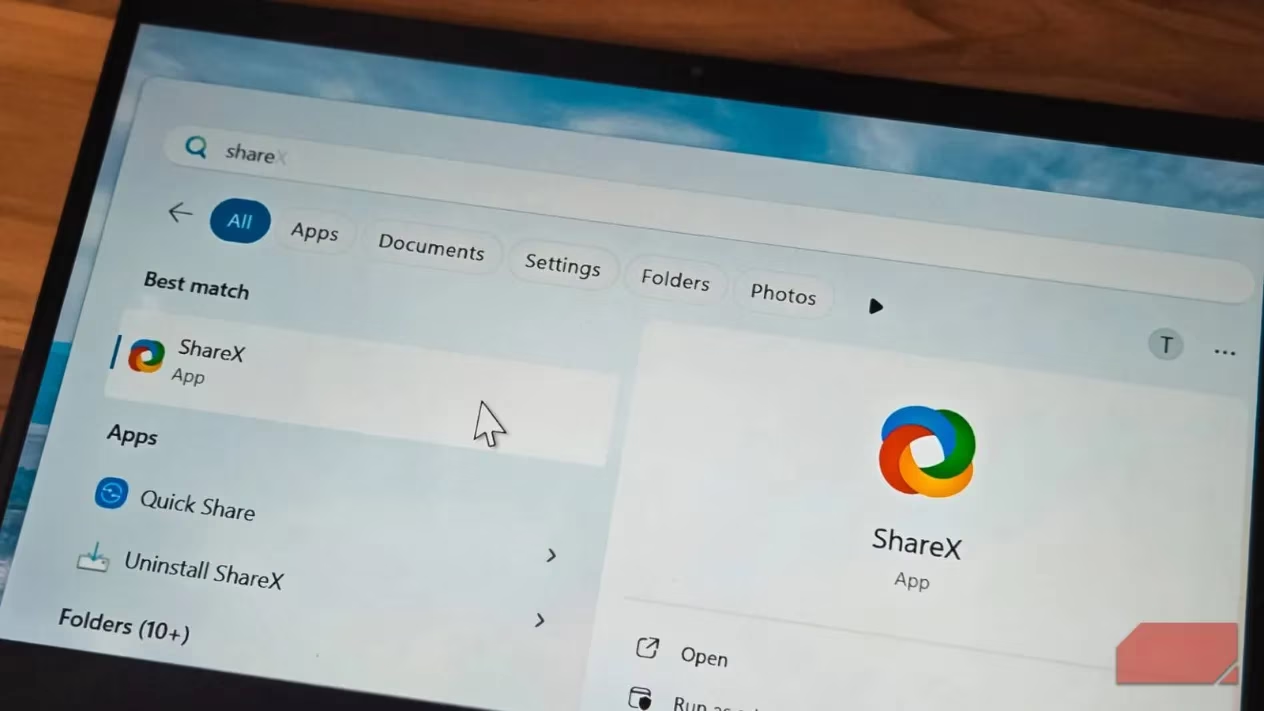
I've tried every screenshot tool under the sun - PicPick, Greenshot, Snagit, you name it. But ShareX keeps pulling me back like a toxic ex who somehow always has the best pizza. And let me tell you why this free, open-source beast is still killing the game in 2025.
Pixel-Perfect Precision That'll Make You Feel Like a Sniper 🔫
ShareX makes capturing screenshots so precise, you'd think it was developed by NASA engineers with OCD. When you hover to select an area, it shows a magnified view of your cursor position. Translation: you can start from the exact pixel you're aiming for. No more "oops, I missed by one pixel" moments!
What you can capture:
-
Active windows only (bye-bye, messy desktop)
-
Rectangular regions (classic but effective)
-
Freehand selections (for when you're feeling artsy)
-
Elliptical areas (because circles are underrated)
-
Auto-detected windows and UI elements (lazy mode: activated)
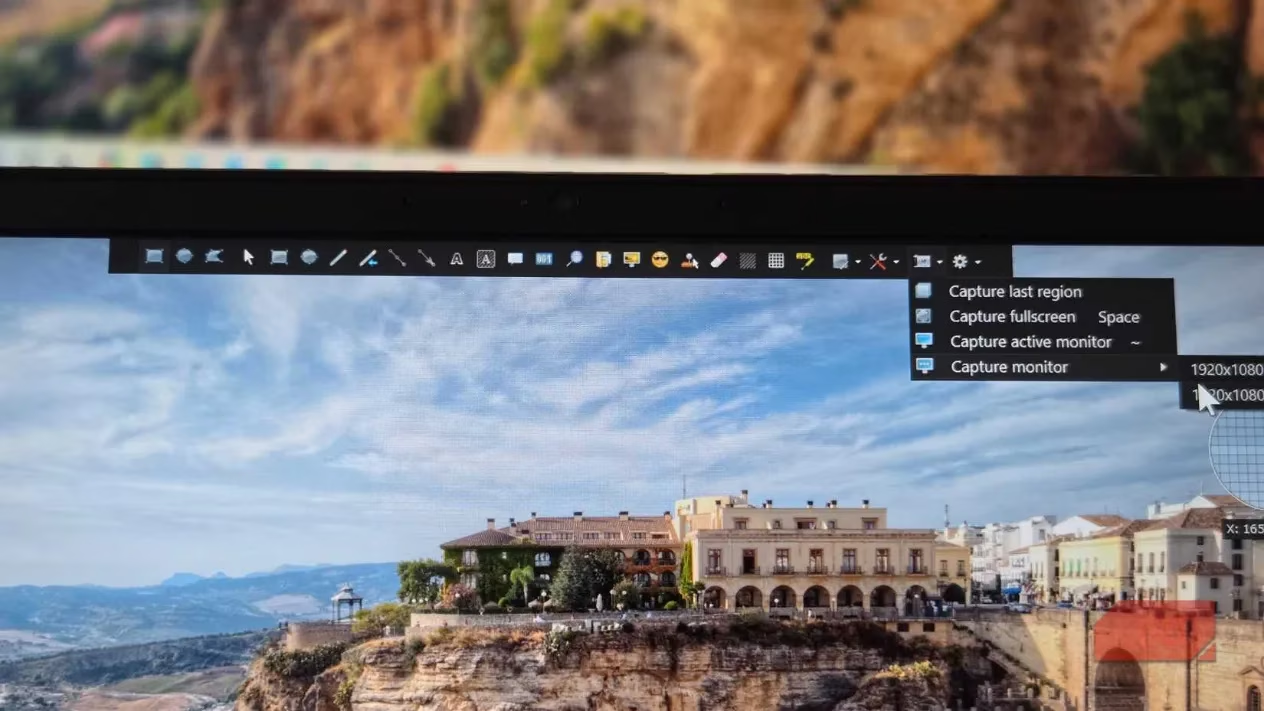
The delayed screenshot feature is my secret weapon for capturing those pesky hover menus that disappear faster than my motivation on a Monday morning. Set a 5 or 10-second timer, and boom - you've got time to open whatever menu you need.
Auto-Capture: Because We're All About That Lazy Life 🛋️
Buried in the Workflows tab is what I call the "set it and forget it" feature. Auto Capture lets you select a region and set a repeat interval (say, every 10 seconds). ShareX then automatically captures that area until you tell it to stop. Perfect for:
-
Creating tutorial sequences
-
Monitoring changes in an application
-
Documenting processes without lifting a finger
Live Annotations: Because Who Has Time for Post-Production?
Windows Snipping Tool's latest updates have live annotations, but ShareX does it better - like, way better. While capturing, you can:
-
Add arrows and text
-
Blur sensitive information (goodbye, embarrassing browser tabs)
-
Highlight important areas
No more forgetting critical details during post-editing! It's like having a personal assistant who anticipates your every need.
The Image Editor That Puts Paid Tools to Shame 😈
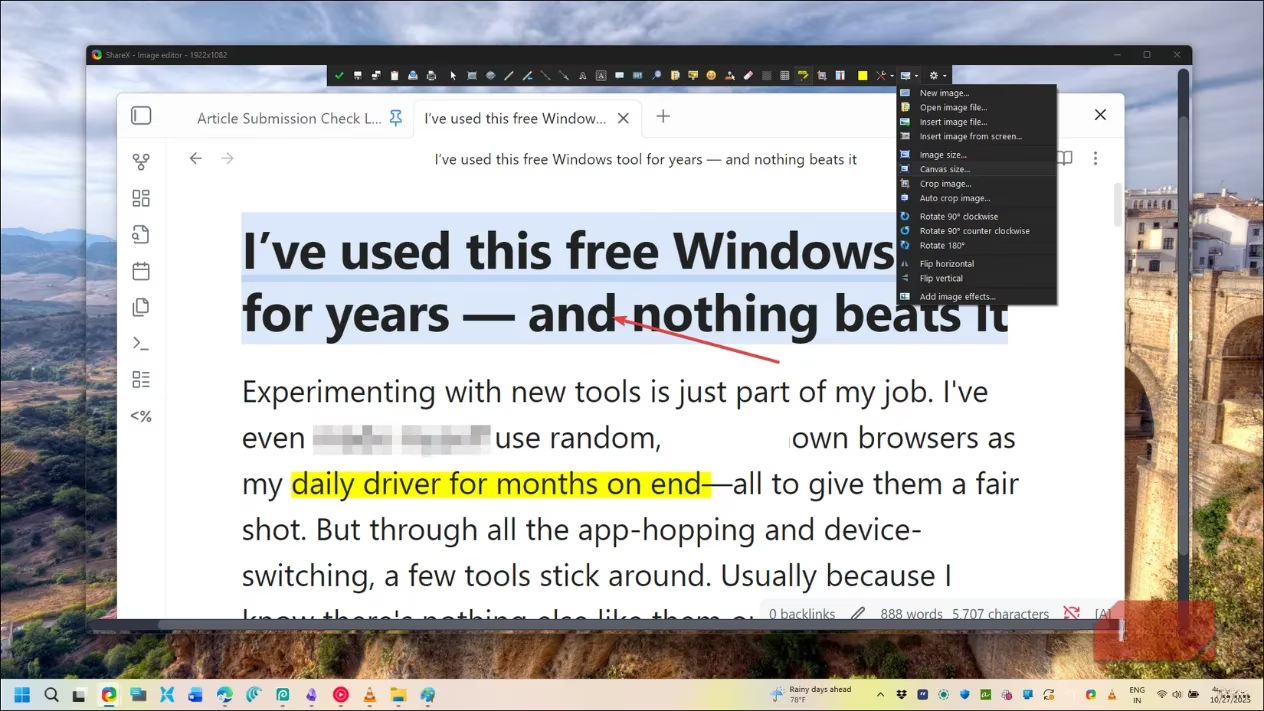
ShareX's built-in image editor is so good, it should probably be illegal. It's got all the standard annotation tools, but then it goes full superhero mode with features I haven't found in other free tools.
My favorite tools:
| Tool | Why It's Awesome |
|---|---|
| Smart Eraser | Intelligently matches background to mask private data |
| Step Counters | Perfect for creating tutorials |
| Speech Bubbles | Adds context without the cringe |
| Magnify Tool | Highlights small details like a boss |
Every edit is non-destructive until you save, meaning you can experiment like a mad scientist without consequences. Resize, crop, add borders, apply effects - it's all there.
Power User Features That'll Make You Feel Like a Hacker ️
ShareX isn't just for casual users - it's got enough customization options to make any power user drool. Here's the lowdown:
Keyboard Shortcuts Galore:
-
Custom shortcuts for every action
-
Capture specific monitor regions
-
Upload to different cloud services
-
My personal setup: capture, annotate, and upload in three keystrokes!
Workflow Magic:
-
Create different profiles for different tasks
-
Work profile: auto-watermark + upload to cloud
-
Personal profile: skip editor + copy to clipboard
-
Switch instantly from system tray
Upload Destinations:
-
Supports over 80 services including:
-
Imgur
-
Google Drive
-
Dropbox
-
OneDrive
-
FTP servers
You can chain multiple actions together - capture, resize, watermark, save locally, upload, and copy share link automatically. It's like having a screenshot production line!
Screen Recording & GIFs: The Cherry on Top
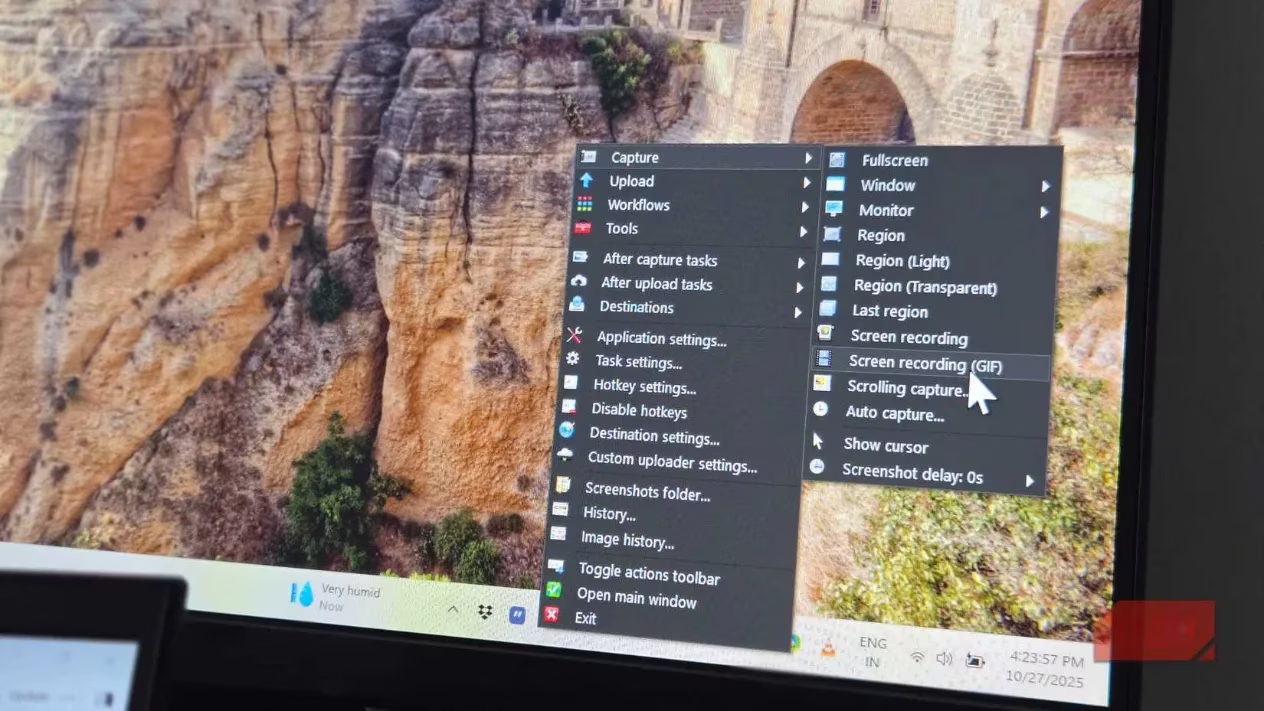
While ShareX isn't replacing OBS for serious video work anytime soon, it handles quick screen recordings and GIF creation like a champ. Perfect for:
-
Quick tutorials
-
Bug reports
-
Creating animated demos
-
Basically anything that doesn't require Hollywood-level production
The Learning Curve: Worth Every Second 📈
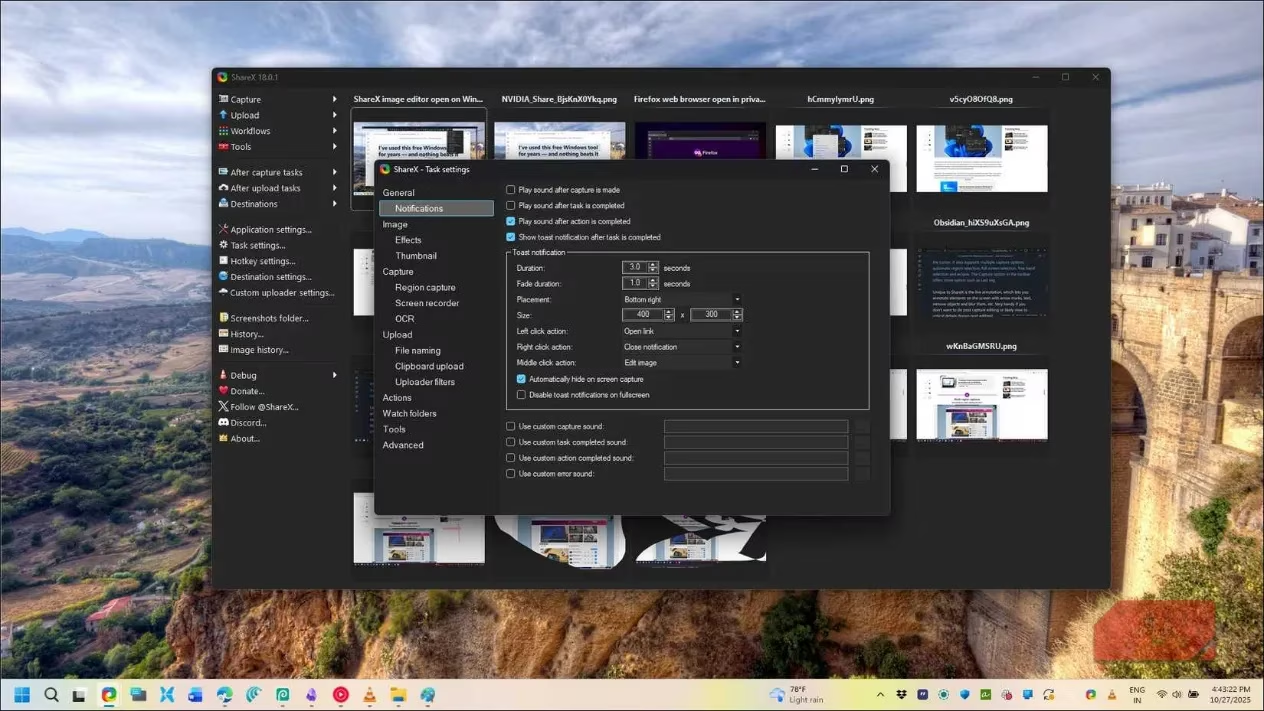
I won't lie - ShareX looks intimidating AF at first glance. The interface resembles what happens when you give a developer unlimited coffee and tell them to "add all the features." But here's the secret sauce:
Basic Workflow:
-
Click ShareX icon in system tray
-
Capture screenshot
-
It's automatically saved
-
Double-click to open task list
-
Edit, annotate, or share
After years of daily use, ShareX has become as essential to my Windows setup as my browser. It handles everything from quick screenshots to complex documentation workflows without costing a single penny.
Final Verdict: Still the GOAT in 2025
ShareX is completely free and open-source, yet it offers more features than most paid alternatives. If you're on Windows and need a reliable screenshot tool, the initial learning curve is absolutely worth it. It's the Swiss Army knife of screen capture tools - it might look complicated, but once you learn how to use it, you'll wonder how you ever lived without it.
So go ahead, give it a shot. Your future self will thank you when you're effortlessly creating professional screenshots while everyone else is still struggling with basic snipping tools. Trust me, it's a game-changer! 🚀
Leave a Comment