As a tech enthusiast who has spent years untangling friends’ and family’s computers, I’ve lost count of how many Windows utilities I’ve tried, only to forget about them days after downloading. The real headache isn’t that these tools fail to work—it’s the chaos of managing dozens of single-purpose executables scattered across my Downloads folder. But one exception has stood the test of time: NirLauncher. Even in 2026, this free, portable toolkit remains my go-to solution for diagnosing and fixing almost any Windows issue I encounter.
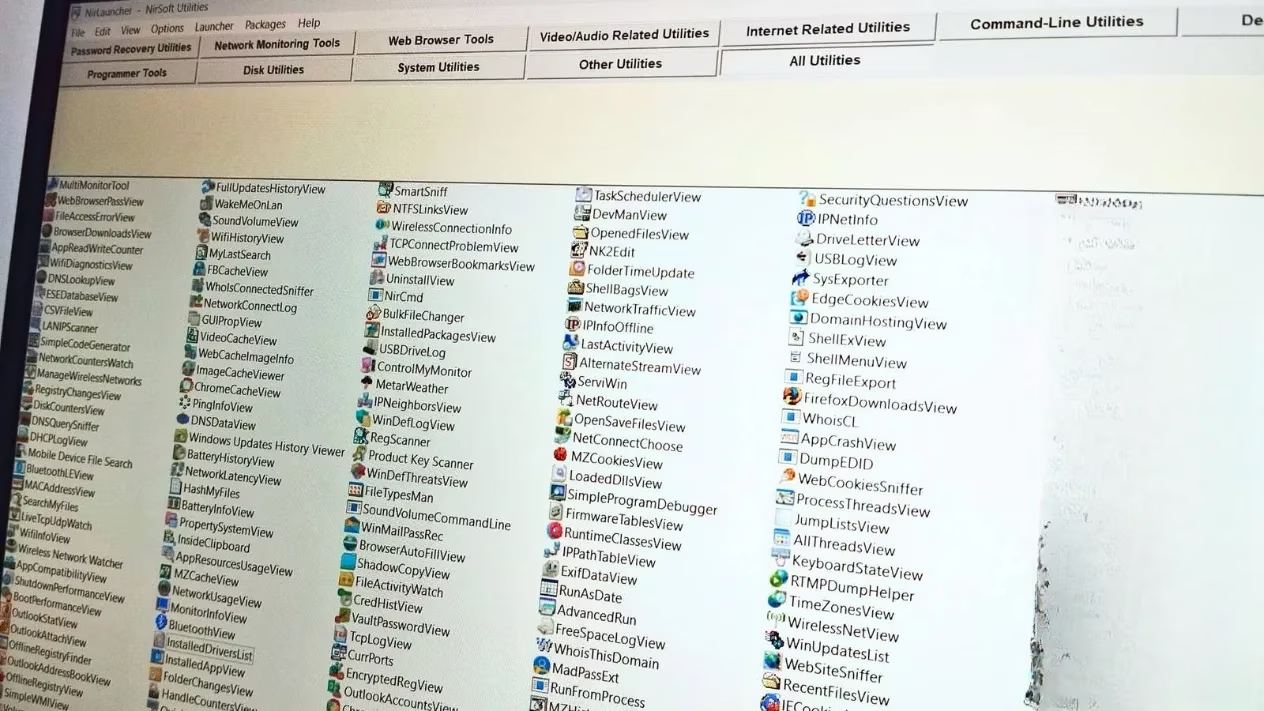
What makes NirLauncher so indispensable isn’t just the sheer number of utilities—over 200 from the renowned developer NirSoft—but how they’re bundled into a single, cohesive interface that demands no installation whatsoever. You can toss it onto a USB stick and instantly transform that little drive into a powerful security and diagnostic toolkit. I’ve used it to rescue forgotten Wi-Fi passwords, pinpoint mysterious blue screen culprits, and even audit entire networks on the fly. Let me walk you through how NirLauncher reshapes Windows troubleshooting and why, after all these years, I still reach for it first.
A Unified Hub for Every Diagnostic Need
NirLauncher isn’t just a folder full of random EXE files. It’s an organized launcher that categorizes everything logically—password recovery, network monitoring, system analysis, and more. Clicking open the application reveals a clean left-hand category panel and a detailed description pane on the right. Each utility weighs only a few hundred kilobytes, meaning even the cheapest, oldest USB drive can hold the entire collection with room to spare.
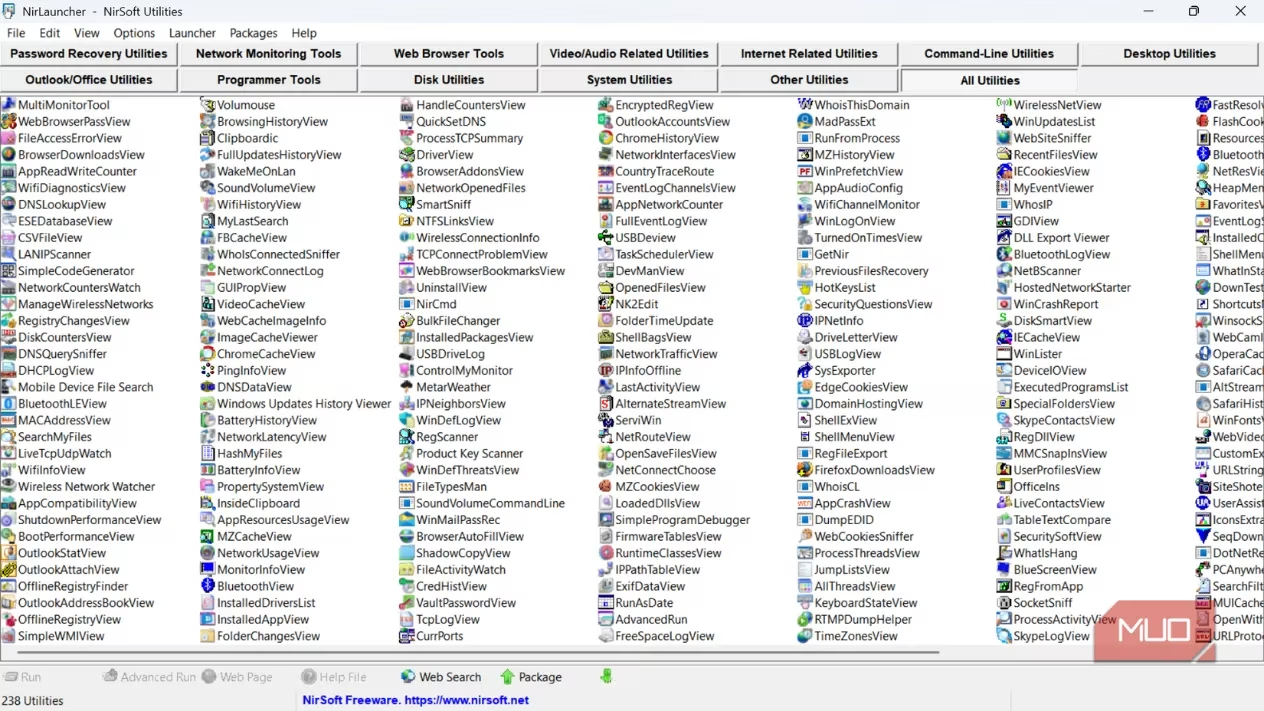
I often ask myself: Why fumble through Windows’ built-in settings when a specialized tool delivers the answer in two clicks? For instance, one utility reveals every single program set to run at startup, while another decodes those cryptic minidump files after a system crash, telling you exactly which driver caused the meltdown. The portable design is a game-changer for troubleshooting machines you don’t own—just plug in, run your analysis, and unplug without leaving a trace behind. In my experience, many people don’t realize just how much private data remains buried in Windows until they see what these tools can expose. And that transparency is exactly what makes NirLauncher so valuable for security audits.
Password Recovery That Saves the Day
Hands down, the password recovery category is where NirLauncher has earned its permanent spot in my toolkit. These utilities don’t crack anything; they simply display passwords that Windows and your applications have already stored in plain sight. The star of the show? WirelessKeyView.
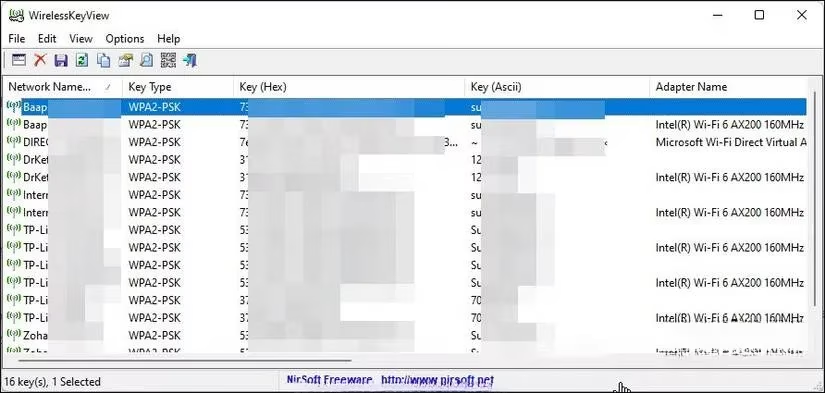
I’ve lost track of how many times a family member has asked, “What’s our Wi-Fi password again?” With WirelessKeyView, I no longer rummage through dusty router labels. It pulls the password for every network that computer has ever joined—network name, security type, and the key itself, all displayed in an easy-to-read table. Of course, you’ll need administrator privileges to access these protected credentials, but that’s a small step for such a massive time saver. What would normally be a frustrating support call turns into a 30-second fix.
Beyond Wi-Fi, other tools in the suite dig into saved browser passwords, email credentials, and even router configuration entries. I’ve used them to migrate passwords between devices securely, without ever needing to upload sensitive data to a cloud service. The peace of mind that comes from keeping these details offline is immeasurable.
Network Monitoring: Know Exactly What’s Happening Behind the Scenes
Network issues can make you feel powerless, but NirLauncher transforms that anxiety into clarity. Wireless Network Watcher is one of my favorites; it scans the local network and coughs up a complete list of every connected device—MAC addresses, IPs, device names, and manufacturers.
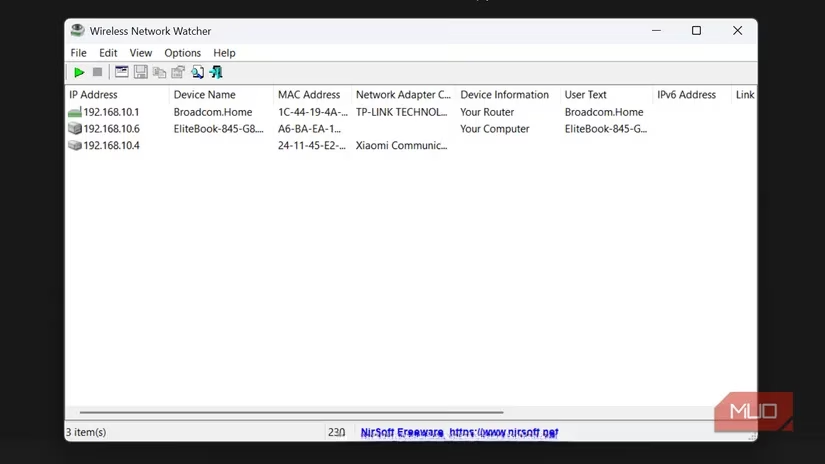
Ever noticed your internet slowing to a crawl for no apparent reason? I once discovered an old forgotten tablet still streaming updates in the background, and another time I spotted an unfamiliar device that forced me to change the network password immediately. Wireless Network Watcher makes these discoveries trivial.
For deeper dives, CurrPorts becomes my microscope. It shows every active TCP/IP and UDP connection on my machine, tying each port to the process that opened it. This is how I caught a suspicious application communicating with an unknown server—something Windows Task Manager alone could never reveal. NetworkTrafficView goes even further by capturing live packet statistics, grouping traffic by source, destination, and protocol. It has helped me pinpoint bandwidth-hogging software and even detect unusual patterns that hinted at malware activity. And for those rare occasions when I need raw packet data, SmartSniff delivers detailed ASCII or hex output, making it a lightweight alternative to heavy network analysis suites.
Demystifying Crashes and Freezes
Blue Screen of Death (BSOD) errors used to terrify me until I started using BlueScreenView. Now, when a machine crashes, I’m actually excited to see what the minidump files reveal. This tool lists every past crash, highlighting the probable culprit driver in bold. I remember a laptop that kept dying during video calls; BlueScreenView pointed straight to an outdated graphics driver. A simple update later, and the problem vanished.
What about apps that freeze without crashing? Enter WhatIsHang. It attaches to the unresponsive program and outputs a detailed call stack, pinpointing exactly which DLL or function caused the hang. I’ve used that report to search forums and find targeted fixes, saving me from the dreaded “just reinstall Windows” advice. AppCrashView rounds out the trio by aggregating Windows Error Reporting logs, so I can spot recurring application faults before they spiral into bigger problems.
Through these tools, I’ve learned that every crash leaves a breadcrumb trail—you just need the right flashlight to follow it. And in 2026, with Windows updates occasionally introducing new glitches, having such granular diagnostic power at my fingertips keeps me firmly in control.
System Management Without the Bloat
Windows comes with its own list of built-in tools, but NirLauncher’s offerings peel back the layers Microsoft prefers to keep hidden. UninstallView, for instance, shows every installed program with complete details—version, install date, registry path—and lets me batch uninstall bloatware with a few clicks. InstalledDriversList catalogs every driver, making it easy to spot outdated or problematic ones by sorting by date or version.
Then there’s RegScanner, which supercharges registry searches far beyond what the native Registry Editor can do. Need to find leftover keys from an old software installation? RegScanner spits out results in seconds, and you can jump directly to any entry. (A word of caution: always back up the registry first—I’ve learned that lesson the hard way.)
ShellMenuView and ShellExView have rescued my right-click context menu from sluggishness more times than I can count. By disabling poorly coded shell extensions, I’ve restored File Explorer’s responsiveness without uninstalling the parent software. And USBDeview provides a fascinating history of every USB device ever connected, letting me clear out phantom entries and resolve confounding device conflicts. It’s astonishing how much digital clutter accumulates over the years, and these tools give me the means to sweep it away.
Building Your Own Portable Toolkit in Minutes
One of the most empowering things you can do as a tech-savvy user is build a self-contained repair kit. Here’s exactly how I set up mine:
-
Download the latest NirLauncher package from the official NirSoft website. The entire ZIP is delightfully compact—still under 100MB even with all 200+ utilities.
-
Extract everything onto a USB drive’s root or a dedicated folder. I keep a 32GB stick just for this purpose.
-
Run
NirLauncher.exeto poke around. I immediately configure the Options menu to hide tools I rarely use and pin my favorites into a Quick Access category. -
Update periodically. NirSoft regularly releases new utilities and improvements; I refresh my entire package every few months, or grab individual updates for the tools I rely on most.
I often pair NirLauncher with other portable legends like Hiren’s Boot CD PE and Ventoy, creating an ultimate USB recovery drive that can boot into a Windows PE environment or launch standalone diagnostics without conflicts. This combo has saved unbootable systems and rescued data from dying hard drives—all from a single pocket-sized device.
Could you survive without a tool like NirLauncher? Technically, yes. But after years of troubleshooting, I’ve found that having a well-organized, portable collection of expert utilities at my beck and call doesn’t just save time—it transforms frantic guesswork into methodical problem-solving. From recovering lost passwords and mapping networks to decoding arcane crash dumps, NirLauncher has earned its permanent home on my keychain. In a world where Windows continues to evolve, these little tools remain timeless. Give it a try, and you might find yourself wondering how you ever managed without it.
Leave a Comment