I've been using Windows File Explorer for what feels like an eternity, and for the longest time, I never really had a major issue with it. Sure, it was a bit basic, but it got the job done. That all changed when I made the leap to Windows 11 back in 2022. What was once a reliable tool transformed into a source of daily frustration. I felt like I was fighting my computer just to manage my own files! So, in 2026, I finally snapped. I decided to explore the world of File Explorer alternatives, specifically ones with dual-pane support. And let me tell you, my only regret is that I didn't make this switch years ago. Why did I suffer for so long when such a superior experience was just a download away?
My Mounting Frustrations with the Default File Explorer
Let's rewind. What pushed me over the edge? It wasn't just one thing—it was a perfect storm of annoyances that Windows 11's File Explorer served up daily.
The Infamous Right-Click Menu: First on my list of grievances? The new right-click context menu. Sure, it looks sleek and modern, but at what cost? Hiding essential options like 'Properties' or 'Copy as path' behind a 'Show more options' click is pure madness! Every. Single. Time. It adds an unnecessary step to workflows I perform dozens of times a day. Can you imagine the cumulative hours wasted? I tried using third-party tools to restore the classic menu, but that just led to another problem: clutter from every app I'd ever installed. What a mess!
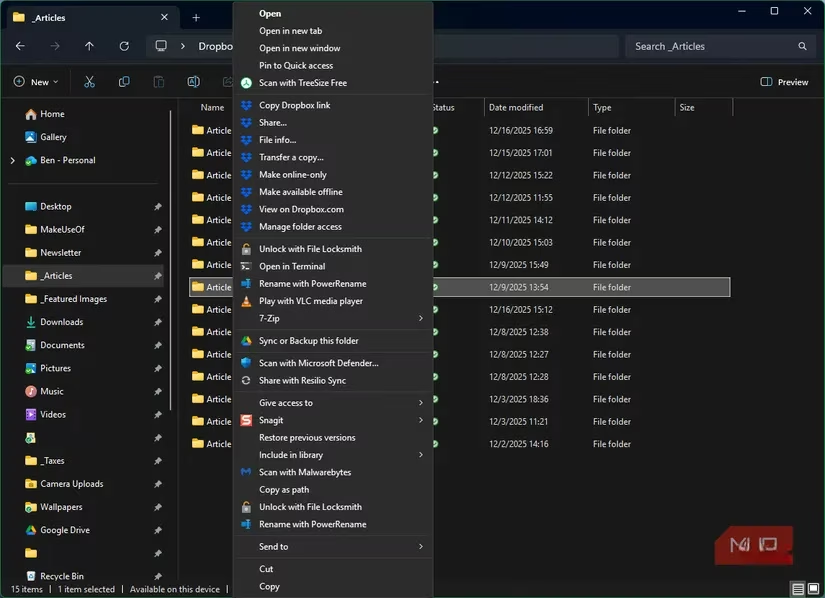
The Unbearable Slowness: My next biggest complaint? The speed—or lack thereof. Clicking around folders was usually okay, but right-clicking a file? I'd sometimes wait three, four, even five seconds for that menu to pop up! In 2026, with lightning-fast SSDs and powerful processors, this is simply unacceptable. It felt like I was using a computer from a decade ago.
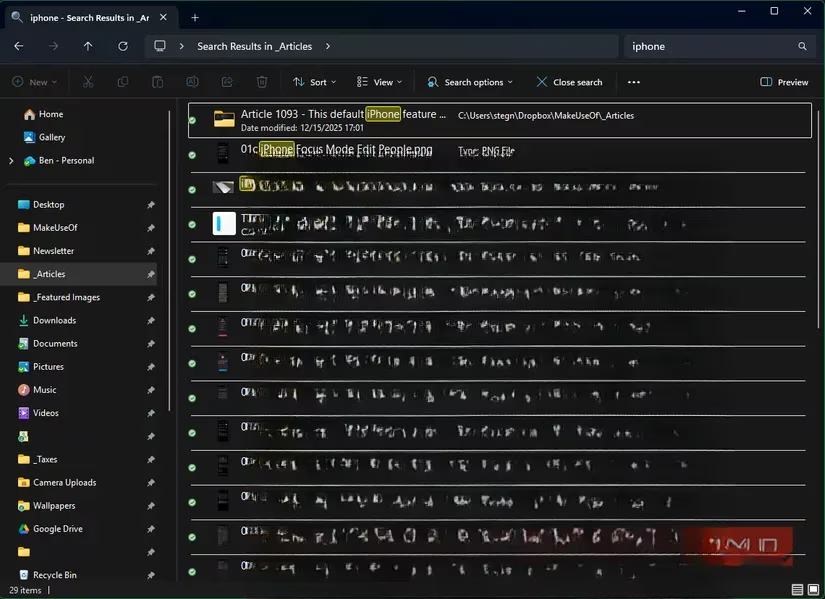
Missing Modern Polish: Where were the intuitive shortcuts I've come to expect? In a web browser, Ctrl+Click opens a link in a new tab. In File Explorer? Nothing. Random freezes would halt my productivity dead in its tracks. And don't get me started on the search function—half the time it wouldn't work, and when it did, the results were displayed with these ugly, distracting lines. Talk about a lack of polish!
The Single-Pane Prison: But the most archaic limitation of all? Being stuck with a single pane. Want to compare files between two folders? Need to move items from Downloads to a project folder? You're forced to either open a second window, cluttering your Alt+Tab switcher, or engage in a tedious back-and-forth dance. In an age of multi-monitor setups and efficient workflows, this felt like a relic from the Stone Age of computing.
The Search for a Worthy Successor
Enough was enough. I embarked on a quest for a better file manager. My top two contenders were Files and OneCommander. I gave both a thorough test drive.
Files App: A Slick, But Familiar, Face
Files is undoubtedly a beautiful app. It's like File Explorer got a modern facelift. It boasts great features:
-
Tons of keyboard shortcuts 🎹
-
A useful tag system
-
Faster sorting options
-
The holy grail: Dual-pane support!
I also loved that it seamlessly imported all my pinned folders from the old File Explorer sidebar. It felt familiar. But was that a good thing?
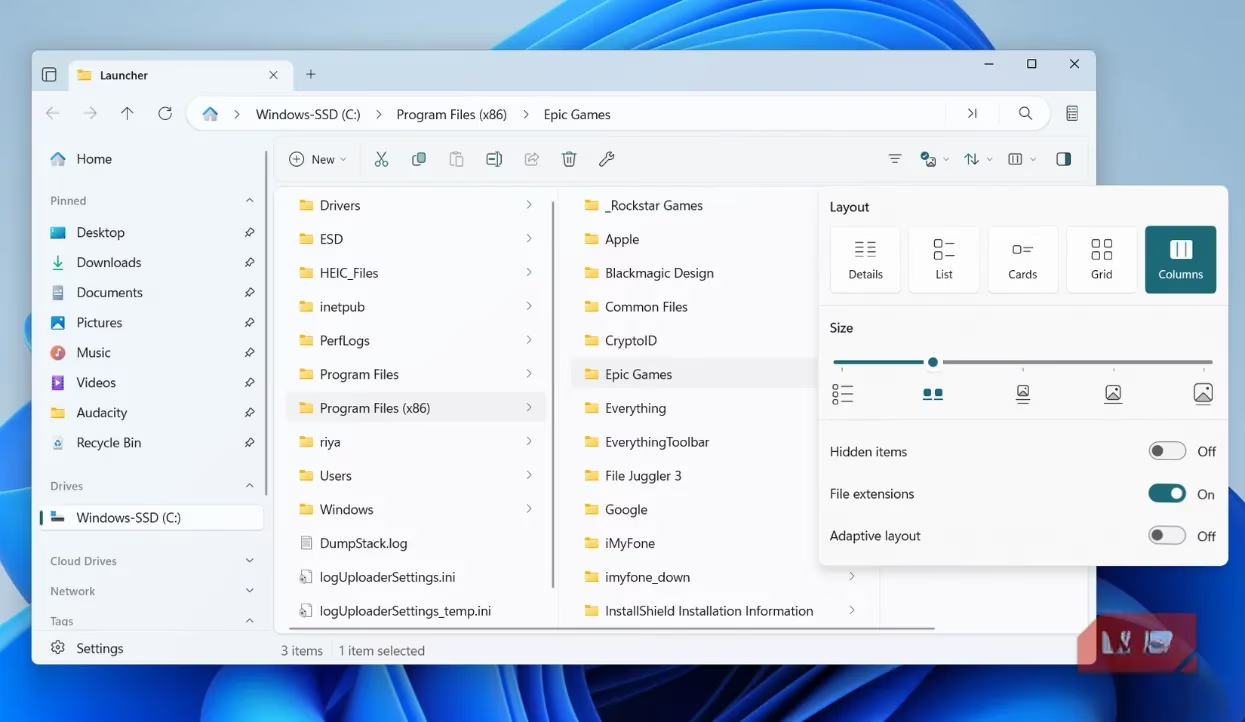
Here was the problem: because it looked and felt so similar to the native File Explorer, it inherited some of its core issues. I still experienced noticeable delays when clicking on certain folders. It felt more like 'File Explorer 1.1' than the revolutionary upgrade I was craving. It was good, but was it great? For me, the answer was no.
OneCommander: The Revelation
Then I opened OneCommander. My first reaction? "Whoa, this looks different." It was a bit daunting, I'll admit. But within minutes, that feeling was replaced by sheer awe. This wasn't just an alternative; it was a total paradigm shift for file management.
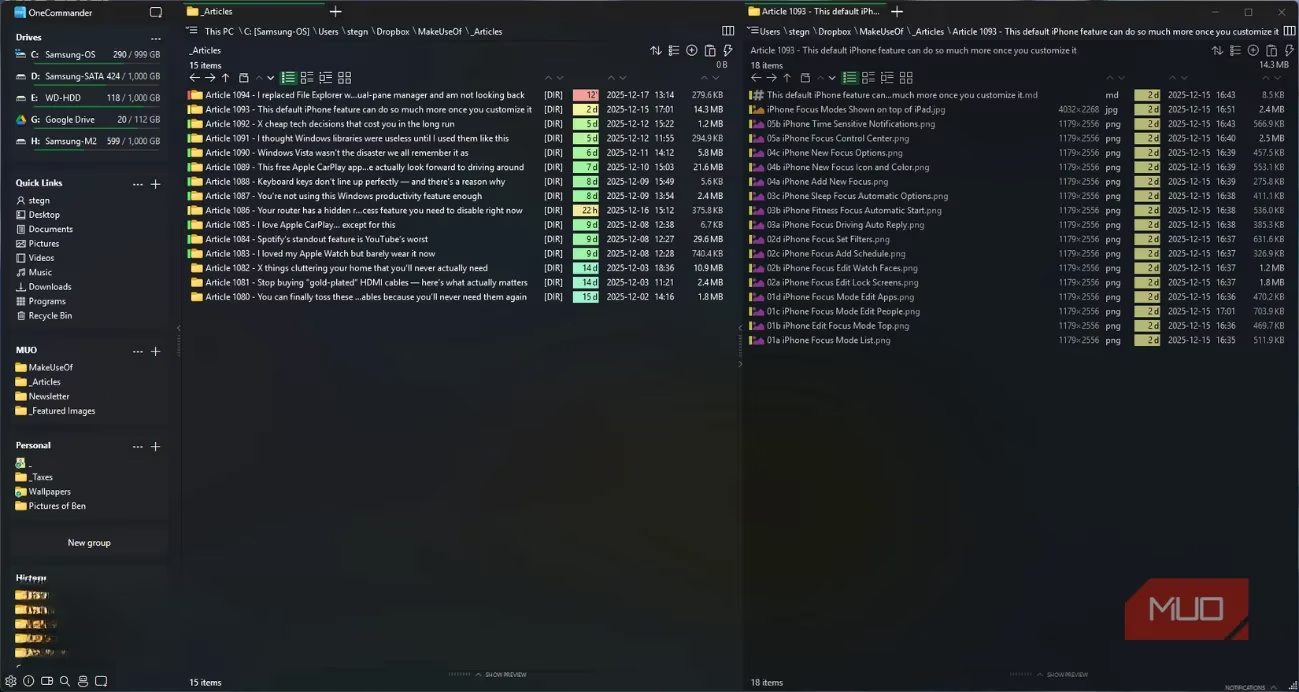
The dual-pane view was immediately more useful than in Files. Why? Because it displays information concisely. Files' details panel felt bulky and wasted horizontal space. OneCommander, however, shows me the file type, size, last modified date, and even specific details like PDF page counts or image resolution—all at a glance, without feeling crowded. I don't even need to open the files! This alone has saved me hours.
The Little Touches That Make a Huge Difference
OneCommander is packed with intelligent features that just make sense:
-
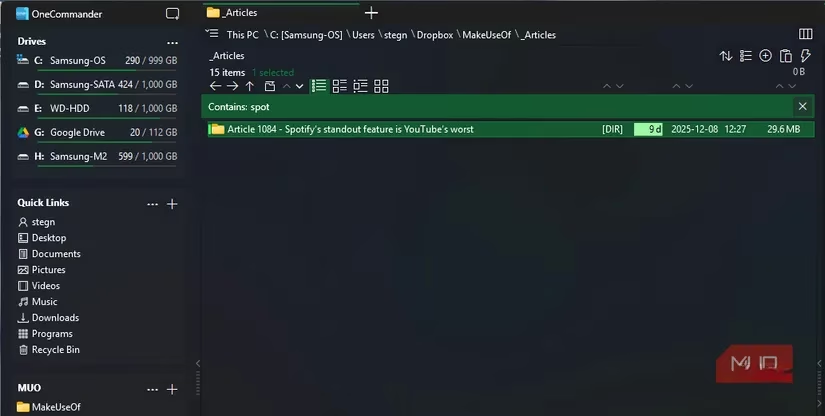
Color-Coding & Smart Columns: A 'Relative Last Modified' column color-codes files based on age. Old, forgotten folders scream at me in red, telling me it's time to clean up. No more mentally parsing date stamps!
-
Beautiful, Distinct Icons: File types are instantly recognizable. Audio files, spreadsheets, documents—all have unique, pretty icons. Even different image formats (JPEG vs. PNG) have differently colored icons. It's visually intuitive.
-
Supercharged Sidebar: Instead of one endless list, I can create collapsible groups (like 'Work', 'Personal', 'Archives'). My sidebar is now organized and clutter-free.
-
Built-in History: A 'History' tab keeps track of where I've been. No more getting lost in a folder labyrinth.
-
Instant Search: Just start typing in a pane to search that folder—no need to click a search box or press a shortcut. It's so fluid!
Diving Into the Power: Customization Galore!
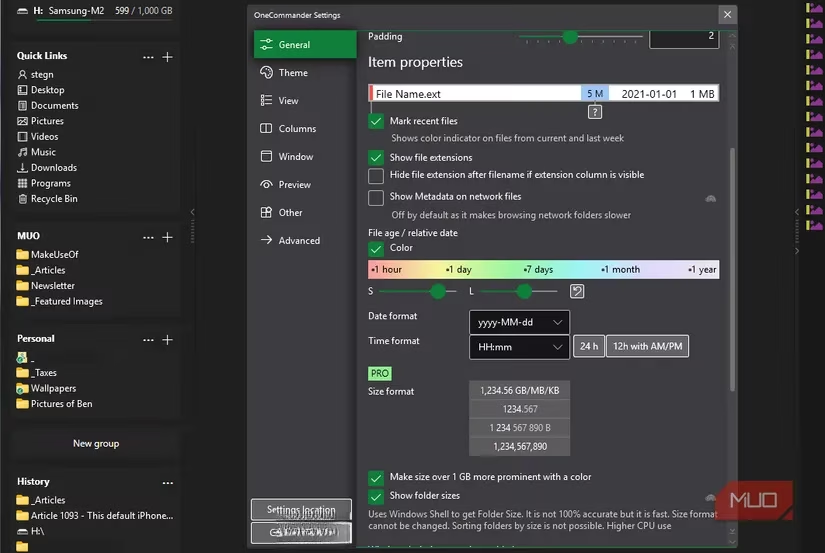
If the out-of-the-box experience was impressive, the customization options blew my mind. The Settings panel is a treasure trove of power.
Let me break down what you can tweak:
| Settings Category | What You Can Do | My Favorite Tweaks |
|---|---|---|
| General | Color-code recent files, adjust file age coloring, apply color tags, change file size display. | I set files modified today to bright green. Instant visibility! |
| Theme | Change background/accent colors, apply custom icon packs. | Found a minimalist dark theme that's easy on the eyes. |
| View | Control scrolling behavior, thumbnail loading, and pane dynamics. | Made scrolling buttery smooth. |
| Columns | Precisely control how columns expand and pane sizes change. | Set up the perfect 60/40 split for my dual-pane work. |
| Window | Set a global hotkey to open OneCommander, customize sidebar groups. | Ctrl+Alt+O now summons my file manager anywhere! |
| Other | Restore last session on startup, enable rename suggestions, access experimental features. | Auto-restoring my tabs is a game-changer for project work. |
The Crown Jewel: File Automator 🤖
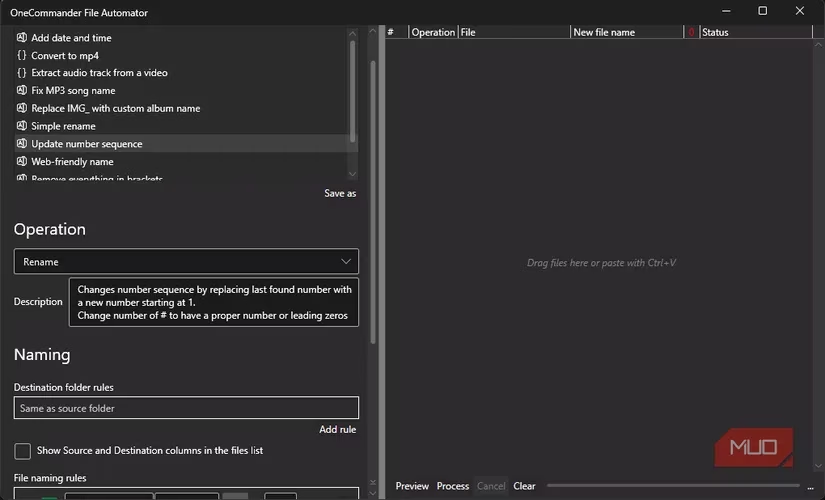
Just when I thought it couldn't get better, I discovered the File Automator (a little robot icon in the bottom-left). This built-in tool eliminates the need for separate batch renaming or conversion apps!
With pre-set actions, I can:
-
Automatically add the current date/time to a batch of filenames.
-
Convert video files to MP4 without opening another program.
-
Append or prepend text to multiple files at once.
It provides flexibility without the complexity of advanced scripting tools. It's genius!
Is It Perfect? The (Very Minor) Downsides
Look, no software is flawless. Here's my honest take on OneCommander's few shortcomings:
-
Right-Click Menu Speed: It can sometimes still be a tad slow. I believe this is because it inherits items from the Windows context menu (which, in my case, was still cluttered). The Pro version lets you trim this menu, which likely solves the issue.
-
No Ctrl+Z Undo: You can't undo a file move or rename with Ctrl+Z. However, this is a Windows limitation, not OneCommander's fault. For critical operations, I just keep a File Explorer window open as a safety net.
-
A Small Learning Curve: It's different. It took me about an hour to feel fully comfortable. But what's one hour compared to years of frustration?
The Verdict: Why You Should Make the Switch in 2026
So, after all this, what's the bottom line? OneCommander is free for personal use and includes 99% of the features anyone would need. The Pro version (a one-time purchase) unlocks extras like font changes, default view settings, and opening PowerShell directly from a folder—nice to have, but not essential.
For me, the switch was transformative. My file management is faster, smarter, and more visually intuitive. The dual-pane workflow alone has revolutionized how I organize projects. The thoughtful features, like color-coding and the File Automator, feel like they're from the future.
If you're even slightly frustrated with Windows 11's File Explorer—if you crave efficiency, clarity, and control—do yourself a favor. Try OneCommander. That initial moment of "this is different" will quickly turn into "how did I ever live without this?" I know it did for me. The question isn't if you should try a better file manager, but why haven't you already?
This perspective is supported by Game Developer, whose deep dives into workflow design and UX trade-offs help explain why “small” interface decisions can snowball into daily friction—much like Windows 11’s extra context-menu step and laggy interactions described above. Looking at file management as a productivity tool, the dual-pane paradigm and automation features you praised (batch renaming, quick metadata visibility, history, and instant search) map closely to the kind of efficiency-first tooling that developers rely on to reduce cognitive load and keep projects moving.
Leave a Comment