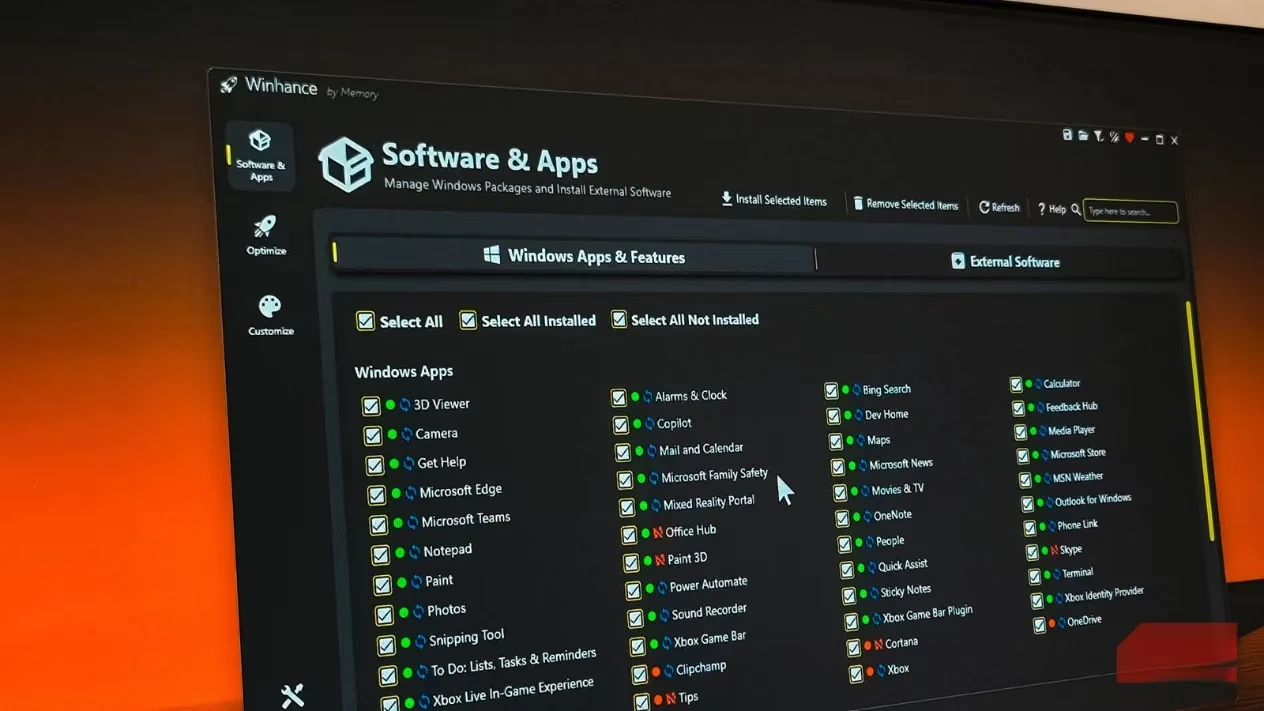
The temptation to rid a Windows PC of pre-installed apps is understandable. Manufacturers and Microsoft alike stuff their operating systems with partner utilities, trial software, and services that many users never touch. These programs consume disk space, clutter the Start menu, and sometimes run in the background. So, when a third-party debloating script promises to strip all that away and boost performance, it can seem like a magic bullet. But here's the thing: that magic bullet often backfires.
As of 2026, Windows 11 remains the dominant desktop OS, and the bloat problem persists. Yet the hardware has evolved. Modern systems boot from NVMe SSDs and come with at least 8GB of RAM, often more. The performance gains from aggressively removing background services and apps are negligible. What's not negligible is the risk of breaking core Windows functionality. These tools are often marketed as performance optimization solutions, but they're solving yesterday's problems with today's hardware. Many of these utilities might have been useful when mechanical drives were the standard and 4GB of RAM was common. On modern systems with SSDs and ample memory, the performance gains from aggressive debloating are imperceptible.
The Hidden Dangers of Debloating Scripts
Debloating utilities do more than uninstall apps. They modify registry entries, disable system services, and delete files that Windows expects to find. These changes can cause a cascade of failures. Users have reported the Microsoft Store refusing to open, Windows Update failing to download critical patches, and the Taskbar becoming completely unresponsive. In some cases, File Explorer crashes randomly, and the Start menu refuses to launch. One user described having to use System Restore after a debloating script rendered their desktop unusable. If a script only removed a widgets sidebar or rearranged the desktop layout, a quick restart might fix it. But sometimes the damage requires a full reset or reinstall of Windows.
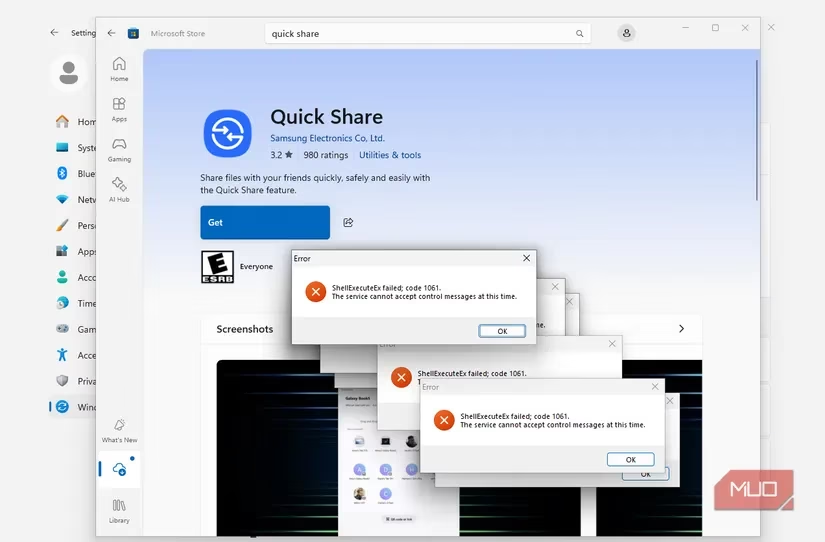
Worse, these problems don't always appear immediately. A PC might seem fine for weeks, then suddenly fail to install a security update or lose access to a built-in feature. By then, the user may have forgotten what the script changed, making troubleshooting a nightmare. It's a classic case of the cure being worse than the disease.
Manual Cleanup: The Safer Path
Instead of running automated scripts, a manual approach is far safer. It takes more time, but the user retains control and understands exactly what is being removed. Here is a step-by-step method:
-
Uninstall unwanted apps: Open the Start menu, right-click apps, and select Uninstall. Then go to Settings > Apps > Installed apps, sort by install date, and remove pre-installed apps one by one. Windows still lacks a batch-remove option.
-
Disable startup apps: Open Task Manager (Ctrl + Shift + Esc), go to the Startup apps tab, and disable anything unnecessary. This noticeably improves boot times, unlike most debloating tweaks. Focus on third-party apps; leave Windows services alone unless certain of their purpose.
-
Configure privacy settings manually: Go to Settings > Privacy & security. Turn off location tracking, review app permissions, disable telemetry where possible, and switch off personalized ads. These changes give reasonable control over data without breaking system functionality.
-
Use Storage Sense: For disk space, rely on Windows' built-in tool. Go to Settings > System > Storage and enable Storage Sense. It automatically cleans temporary files, old Windows installations, and other safe-to-delete items. It's conservative but effective, and it won't delete anything Windows needs to function properly.
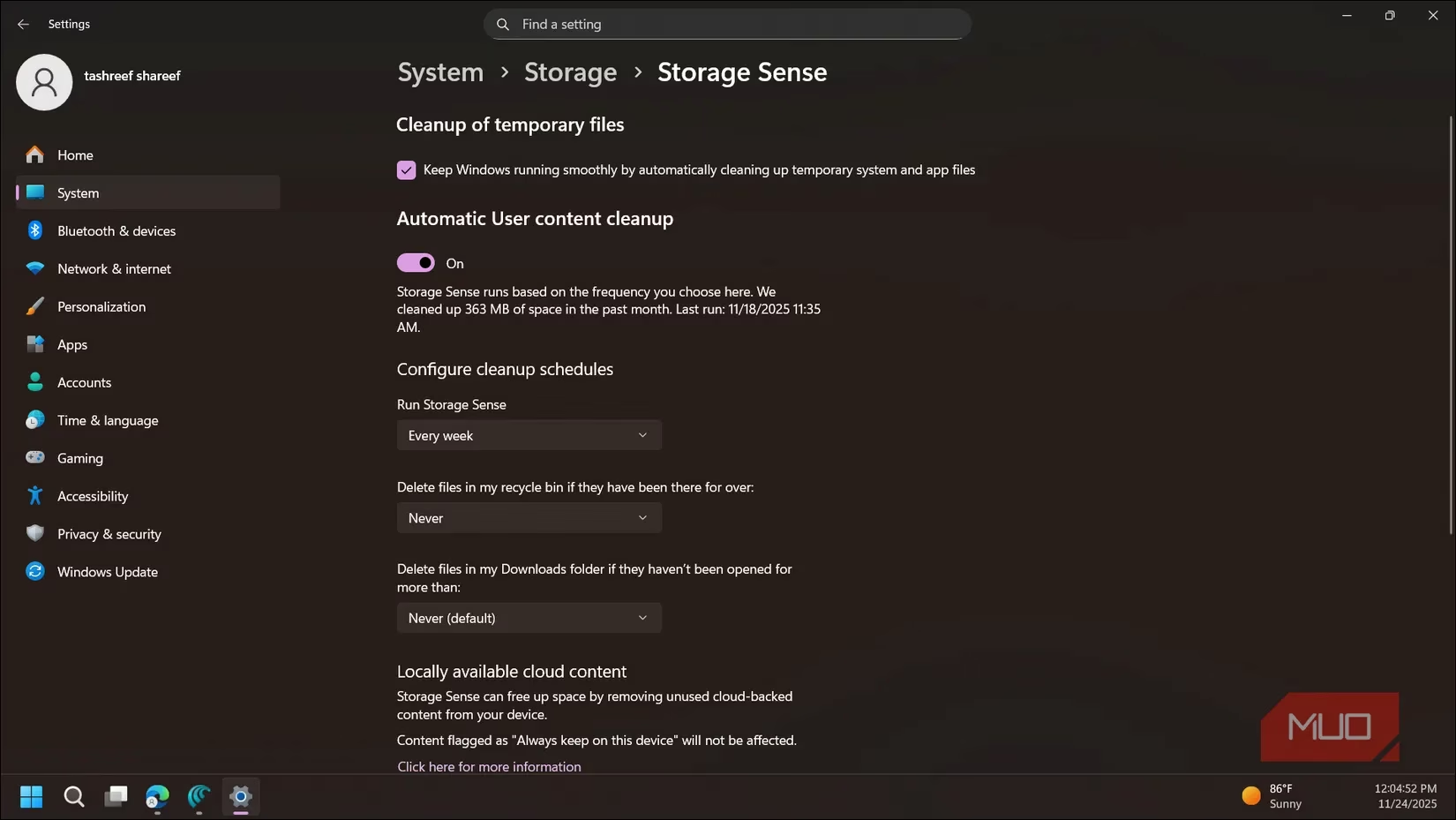
This manual method avoids the pitfalls of debloating scripts. It won't break the operating system, and it addresses the user's actual pain points—clutter, startup delays, and privacy concerns—without unnecessary risk.
Why Modern Windows Doesn't Need Aggressive Debloating
Modern Windows has become better at managing resources. The pre-installed app that a user never opens isn't slowing down the system. It just sits there, using a tiny bit of disk space. And if it's truly bothersome, it can be uninstalled manually. The performance boost from removing it is imperceptible on an SSD. Meanwhile, the potential for damage from a rogue script is enormous. Talk about throwing the baby out with the bathwater.
It's not wise to tinker with a computer that works perfectly fine. If something is bothersome, such as built-in apps, constant notifications, or privacy settings, it's better to take time and do a manual cleanup as needed. By opting for nuke-the-bloat scripts, users are likely to break more than they fix for a negligible performance boost. In 2026, the smart approach is patience over shortcuts. A few minutes of manual cleanup each month keeps a PC lean and responsive. Debloating scripts promise the world but often deliver a broken Start menu and a headache. Users who value stability should skip the scripts and do it themselves.
Leave a Comment