Imagine the sheer agony of being tethered to a wall socket, constantly haunted by the dread of a dying battery—oh, the horror! Once upon a time, our intrepid user lugged their charger everywhere, trapped in a cycle of anxiety as their laptop gasped for power after mere hours. But then, a miraculous transformation occurred! By diving deep into the arcane secrets of Windows power settings, they unlocked a world where battery life stretched into eternity, freeing them from the chains of constant charging. No more frantic glances at the dwindling percentage; instead, they soared through days with the charger blissfully abandoned at home. This is no mere fantasy—it's the electrifying reality of mastering Windows optimizations in 2025, and you too can achieve this godlike endurance with a few simple tweaks. Prepare to be astounded as we reveal the ultimate battery-saving sorcery!
🔋 Power Mode Magic: The Game-Changer You Can't Ignore
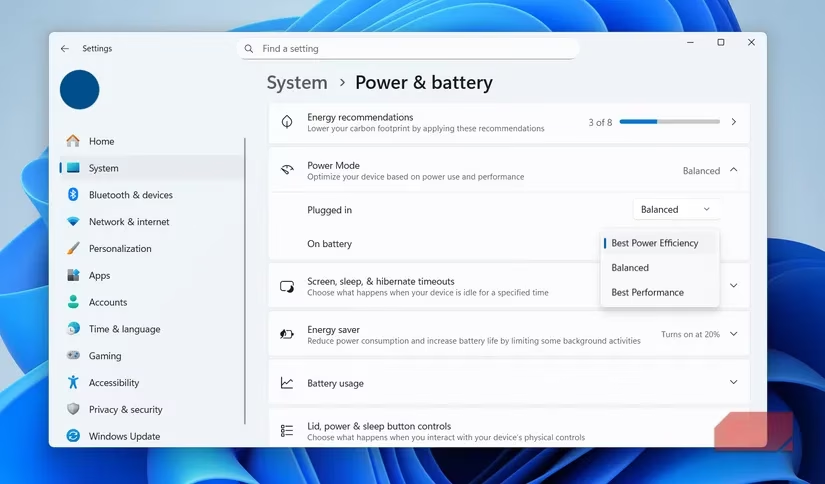
One of the most astonishingly simple yet devastatingly effective ways to supercharge your battery life is by harnessing the power of Windows' built-in power modes. These modes are nothing short of miraculous—they let you prioritize raw performance, maximize battery efficiency, or strike a perfect balance between the two. The real genius? Windows can automatically switch modes based on whether your laptop is plugged in or running on battery, ensuring you never waste a single joule of energy. To activate this wizardry, head to Settings > System > Power & battery > Power mode and set your device to switch to 'Best Power Efficiency' when unplugged. This one move alone can catapult your battery life from pitiful to phenomenal!
⏱️ Screen and Sleep Tweaks: Slash Power Drain Instantly
If you thought power modes were impressive, wait until you witness the jaw-dropping impact of optimizing screen and sleep settings. In the same Power & battery menu, navigate to Screen, sleep & hibernate timeouts and configure Windows to turn off the display and enter sleep mode faster—ideally in just 3 minutes, as recommended. This means your laptop will instantly power down when you step away, saving colossal amounts of energy. It's like putting your device into a deep, energy-conserving slumber at the snap of your fingers!
🎮 GPU Management: Tame Power-Hungry Apps with Precision
Not every app deserves to feast on your laptop's graphical might—oh no! Windows lets you assign apps to use either the integrated GPU (for light tasks) or the dedicated GPU (for heavy lifting), a move that can dramatically extend battery life. Head to Settings > System > Display > Graphics, where you'll find a list of apps. Assign browsers, note-taking tools, and video players to the integrated GPU, while reserving the dedicated GPU for powerhouses like Adobe Premiere Pro or modern games. This selective allocation ensures apps don't gobble up power unnecessarily, giving you hours of extra juice!
🔒 Background App Control: Silence the Energy Vampires
Background apps are the silent assassins of battery life, lurking in the shadows and draining power without mercy. But fear not—you can vanquish them with ruthless efficiency! Head to Settings > Apps > Installed apps, click the three-dot icon next to any app that shouldn't run in the background, select Advanced options, and set Background app permissions to 'Never'. Repeat this for every non-essential app, and watch as your battery life surges like never before. It's a purge that transforms your laptop from a power-hog into a lean, mean, energy-saving machine!
💡 Display Adjustments: The Secret Sauce for Massive Gains
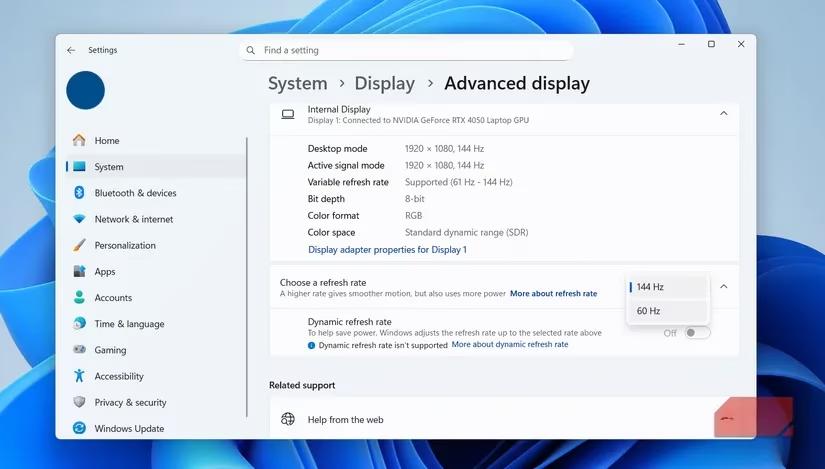
The display is the ultimate power guzzler, but even minor tweaks can yield earth-shattering results. If your laptop supports high refresh rates, dialing it down to 60Hz for everyday tasks like browsing or writing can save a fortune in battery—without sacrificing smoothness. Head to Settings > System > Display > Advanced display to make this change. And don't forget brightness! Unlike phones, most Windows laptops lack auto-adjust, so manually lowering it by a level or two can shave off significant power. It's astonishing how such small acts can multiply your battery endurance!
🌐 Browser Optimization: Crush Power Drain in Your Digital Hub
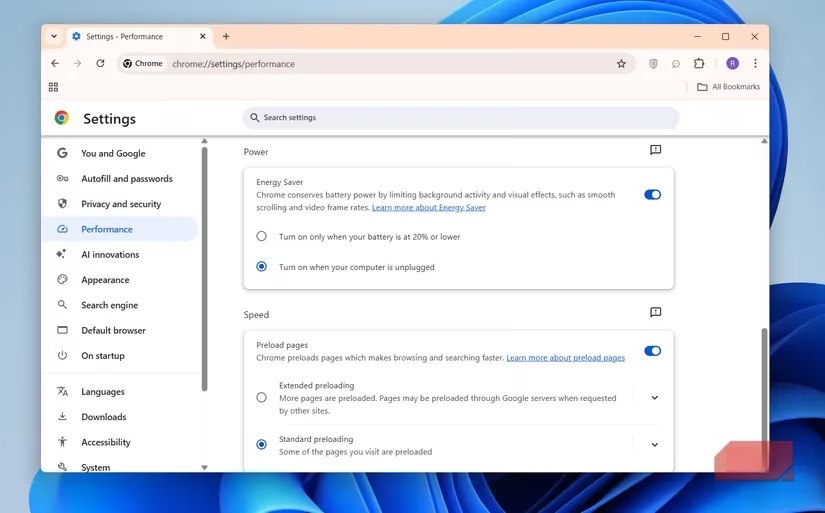
Since most of us live in our browsers, optimizing them is critical for battery nirvana. Browsers like Chrome and Edge come with built-in power-saving features that can work wonders. Activate Chrome's Energy Saver mode when unplugged to limit background activity and reduce visual effects. Edge offers a similar 'Efficiency Mode' designed to preserve every last drop of battery. It's like installing a turbocharger for your browsing sessions—effortless efficiency that keeps you going for hours!
💡 Energy Recommendations: The Ultimate Shortcut to Savings
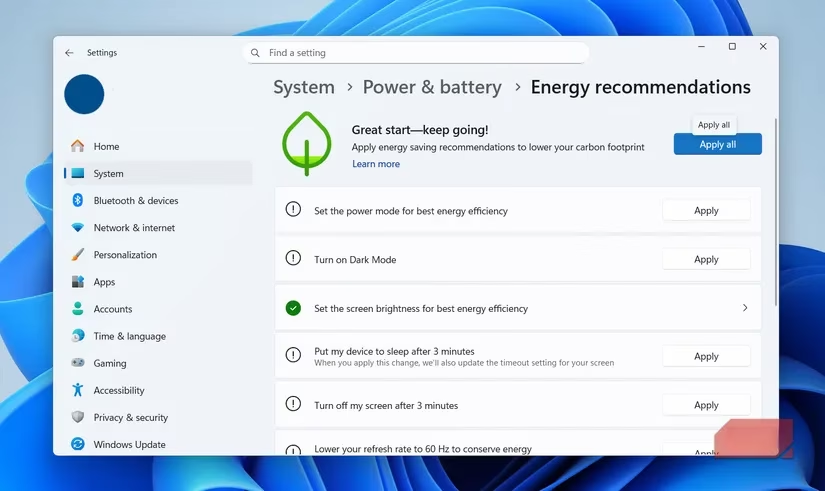
Feeling overwhelmed by all these settings? Windows has a brilliant shortcut that guides you straight to power-saving glory. Head to Settings > System > Power & battery > Energy recommendations, and you'll see a treasure trove of suggestions. From switching to dark mode to turning off screen savers or stopping USB devices when the screen is off, these tips are gold. You can even hit 'Apply all' to implement every change at once—it's a one-click revolution that transforms your laptop into a battery-conserving titan!
🔋 Battery Health Check: The Final Frontier
All these optimizations will grant you epic battery life, but don't overlook the health of your battery itself. If it's degraded significantly—say, below 90%—replacing it can deliver the most dramatic improvement of all. In 2025, ensuring your battery is in top shape is crucial for sustaining those hard-won gains. It's the crowning touch that seals your laptop's destiny as an unstoppable, energy-efficient powerhouse!
In conclusion, these tweaks aren't just minor adjustments—they're a full-blown battery revolution! By embracing them, you'll shatter the chains of power anxiety and ascend to a realm where your laptop lasts all day, every day. The transformation is nothing short of miraculous, and in 2025, it's easier than ever to achieve. So go forth, optimize, and bask in the glory of endless battery freedom!
Leave a Comment