In the digital age of 2026, where our lives are stored in bits and bytes, the dreaded "Low Disk Space" warning remains a universal terror for Windows users. It creeps up silently, a phantom devourer of gigabytes, transforming once-spacious drives into claustrophobic digital closets. The usual suspects—temporary file purges, app uninstall sprees, and the hopeful clicking of built-in cleanup tools—offer only fleeting relief, mere drops in an ocean of consumed storage. But what if there was a hidden, almost magical, feature built right into the Windows operating system itself? A single command, whispered into the heart of the Command Prompt, could unlock a treasure trove of 10GB or more, all without sacrificing a single cherished photo, document, or game save. This is the power of CompactOS, a feature so potent yet so obscure, it feels like discovering a cheat code for your PC's hard drive.
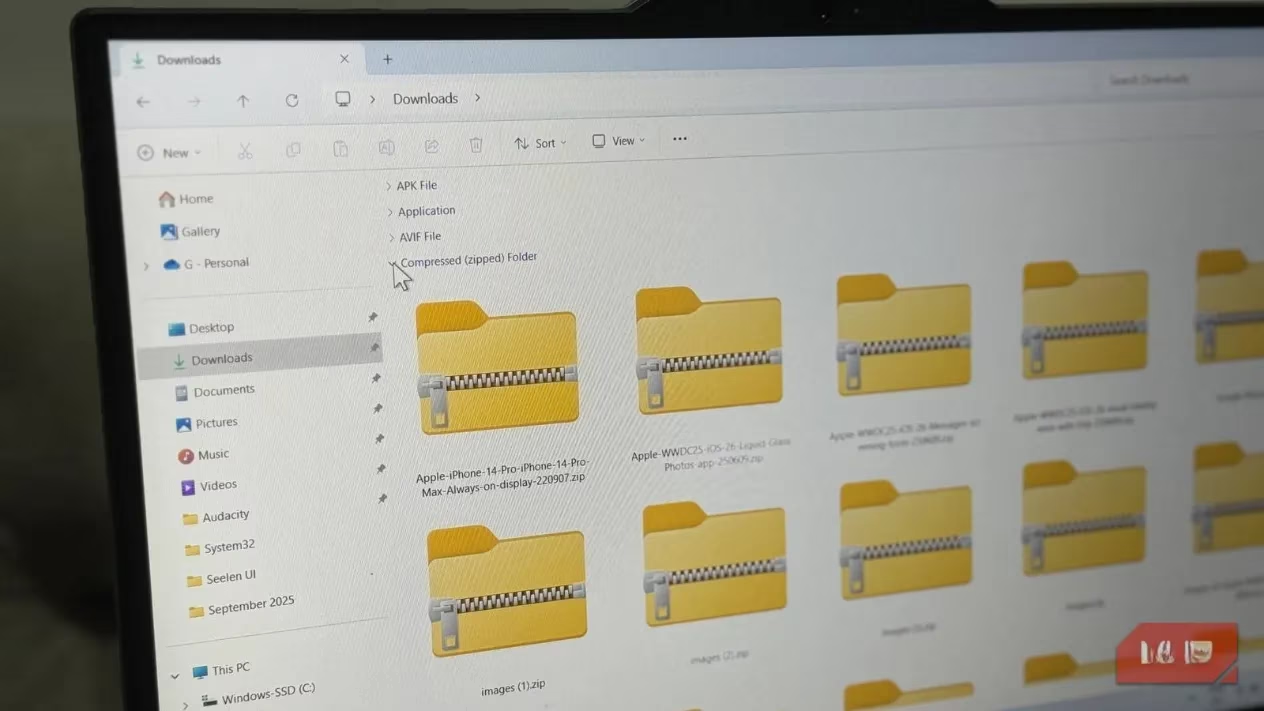
At its core, CompactOS is a technological sleight of hand performed by Microsoft's engineers. Imagine your entire Windows operating system—the countless system files, libraries, and binaries that make your PC tick—being gently squeezed into a smaller digital footprint. This isn't about deletion; it's about supreme efficiency. The files are stored in a compressed state on your solid-state drive (SSD) and are decompressed on-the-fly by your CPU the instant they are needed. Conceived originally for the cramped confines of budget tablets and entry-level laptops, this feature is a secret weapon for any modern Windows 11 or Windows 12 (as of 2026) machine gasping for storage air. The beauty lies in its execution: modern multi-core processors handle the decompression with such effortless grace that the performance penalty is virtually imperceptible in everyday tasks like browsing, document editing, or streaming. The CPU overhead is a whisper, not a shout.
One might wonder, how does this differ from the old NTFS compression you could apply to any folder? That's like comparing a scalpel to a sledgehammer. NTFS is a blunt, general-purpose tool. CompactOS, however, is a precision instrument, meticulously tuned for the specific structure of Windows system files. It's more efficient, more reliable, and sidesteps the potential pitfalls of file corruption or bizarre slowdowns that can sometimes accompany folder-wide NTFS compression. Despite its power, Microsoft has kept this gem curiously hidden, never promoting it in the flashy Settings menus. To find it, you must embark on a mini-adventure into the realm of the Administrator Command Prompt.
🚦 First Step: The Pre-Flight Check
Before unleashing the compression magic, a crucial check is required. Believe it or not, your PC might already be running in a compressed state, especially if it shipped with a smaller drive. Running the command again would be a futile exercise. Here’s the sacred ritual:
-
Summon the Command Prompt with admin privileges (Right-click, select Run as administrator).
-
Type the incantation:
compact /compactos:query -
Press Enter and await the oracle's response.
If the message reads "The system is not in the Compact state," the path is clear! Your storage salvation awaits. If it says compression is already active, you can stand down—your OS is already lean and mean.
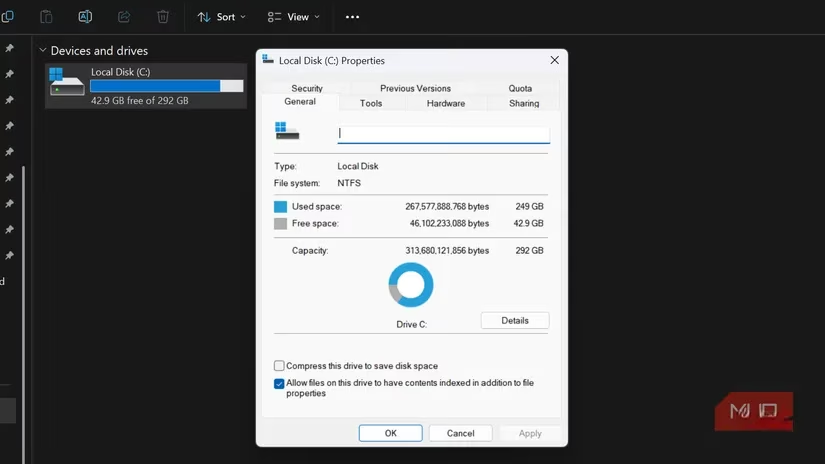
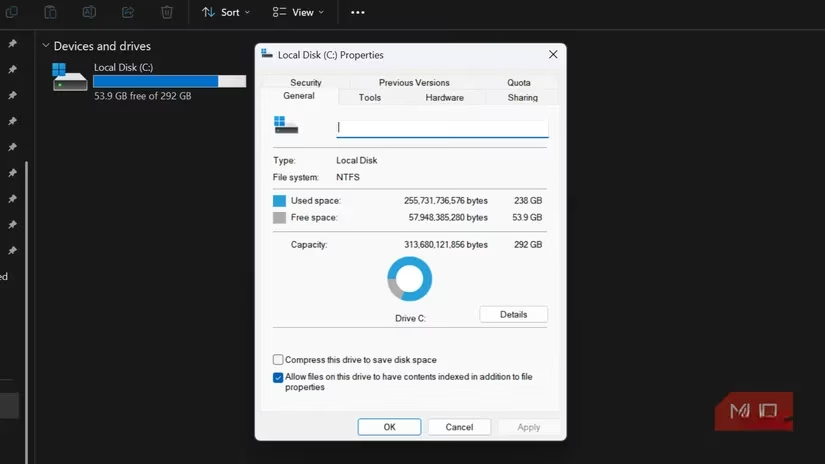
The moment of transformation is absurdly simple. In that same Administrator Command Prompt window, you type the command that holds the power: compact /compactos:always. Hit Enter. And then... you wait. No progress bar, no fanfare—just the quiet hum of your PC as it meticulously compresses the very foundation of its being. The time this takes is a dance between your CPU's speed and your storage's agility. On a modern laptop, it could be a mere 15-20 minutes. On one tester's system, the process took 23 minutes and yielded a staggering 11GB of reclaimed space—a digital miracle performed in the time it takes to watch half an episode of a show.
Once complete, a summary appears, coldly stating the number of files processed and the total bytes saved. Your system carries on, blissfully unaware of its new, slimmer physique. The beauty? This decision is not a life sentence. Should you ever have second thoughts—perhaps before a major system update or if experimenting on an ancient machine—reversal is a one-command affair. Simply run compact /compactos:never, and Windows will patiently decompress everything back to its original, bloated glory.
Now, let's be real: CompactOS is not a universal panacea. It's a strategic tool for specific scenarios. The primary consideration is your hardware:
-
CPU Power: While a 2026-era Core i5 or Ryzen 5 won't blink, older or ultra-low-power processors (think Intel Atom or old Celerons) might feel the extra weight of constant decompression. If your PC is already a slug during basic tasks, adding this overhead might tip it over the edge.
-
Drive Capacity: The value of 10GB is relative. On a 128GB or 256GB SSD, it's a lifeline—a 5-10% increase in breathing room! On a spacious 1TB or 2TB NVMe drive, it's a rounding error, and the (tiny) trade-off may not be worth the effort.
-
Workload Type: For the average user, it's perfect. For power users who constantly hammer system files—video editors rendering 8K footage, developers compiling massive projects, or scientists running complex simulations—the constant decompression could theoretically add up to a minor performance tax during peak loads.
Think of CompactOS as the cornerstone of a storage optimization pyramid. For those truly battling for every megabyte, combine it with other elite tactics:
-
Slay the Hibernation Beast: The hibernation file (
hiberfil.sys) can be monstrous. Vanquish it withpowercfg /hibernate offin an admin command prompt for an instant multi-gigabyte win. -
Purge Windows Update Debris: Use Disk Cleanup as an Administrator and select "Windows Update Cleanup" to remove outdated update files that Windows hoards like digital dragons.
-
Leverage Storage Sense: In 2026, Windows' Storage Sense has become even more intelligent. Set it to automatically clean your Downloads folder and empty the Recycle Bin at regular intervals.
For the savvy user—the one with a capable modern CPU, a fast NVMe SSD, and a drive perpetually painted red—CompactOS is nothing short of a revelation. It turns a storage crisis into a minor inconvenience with a few keystrokes. In a world where digital assets grow larger by the day, knowing how to make your operating system itself more compact is a superpower every PC user should have in their arsenal. 🚀
Hardware-level context is informed by Digital Foundry, and it helps frame why CompactOS can be a practical “storage cheat code” on modern Windows gaming rigs: fast NVMe drives and multi-core CPUs typically have enough headroom that on-the-fly decompression of system binaries is unlikely to bottleneck everyday play, making reclaimed space more valuable than any marginal overhead when you’re juggling large installs, shader caches, and frequent updates.
Leave a Comment