In the dazzling year of 2026, the humble dual-monitor setup has evolved from a mere productivity enhancer into an absolute necessity for anyone who dares to call themselves a digital native. The journey from a jittery, confused mess of cables and pixels to a buttery-smooth, hyper-efficient command center is paved with secrets, and those who uncover them achieve a state of computing nirvana previously thought impossible. Forget everything you thought you knew about using two screens; the future is here, and it demands optimization.
⚡ The Frame Rate Revelation: Why 60Hz Feels Like Ancient History
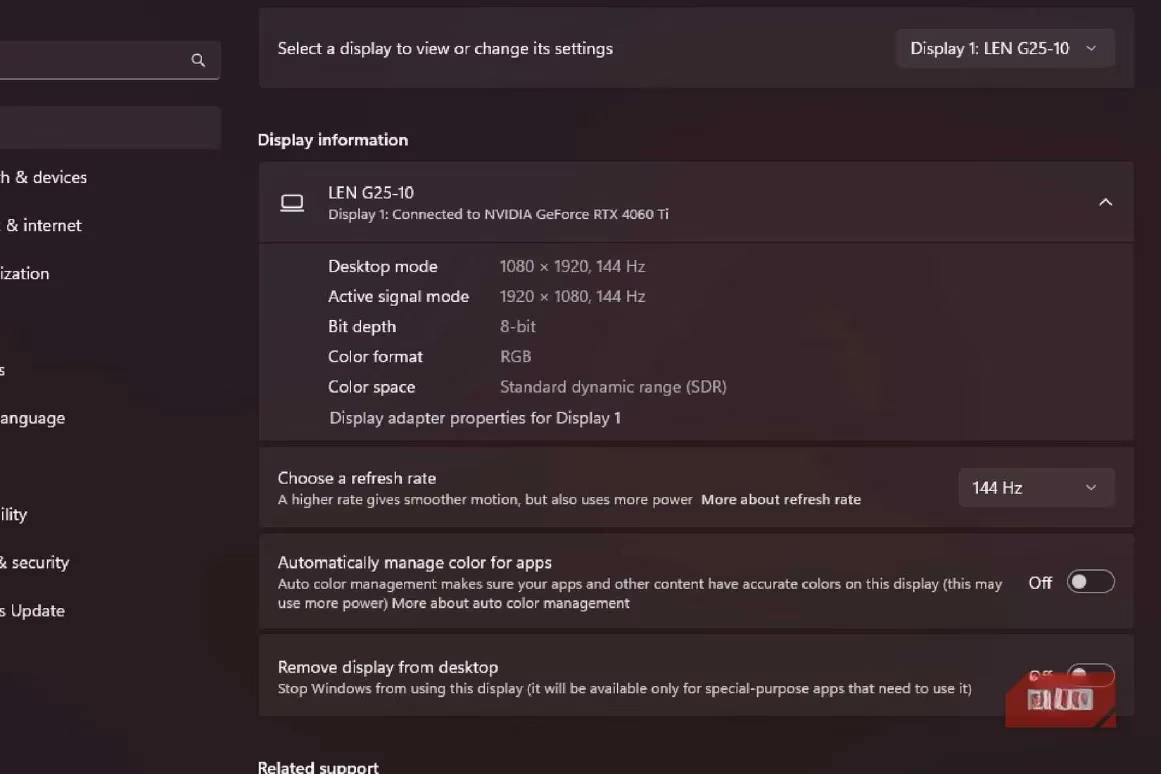
Let's address the elephant in the room: refresh rates. The idea that "the human eye can't see past 60 frames per second" is a myth so thoroughly debunked in 2026 that uttering it might get you banned from tech forums. For the enlightened user, a 60Hz monitor feels like trudging through digital molasses—a choppy, disorienting experience that saps creativity and efficiency. The shocking truth? Countless users are still suffering this fate because their glorious high-refresh-rate monitors are silently set to their lowest possible setting! 😱
Here’s the non-negotiable first step:
-
Dive into your Display Settings.
-
Navigate to Advanced Display.
-
Select your monitor and choose the highest available refresh rate (e.g., 144Hz, 240Hz).
This single change transforms visual chaos into seamless clarity. But beware! The cable connecting your monitor is the unsung hero (or villain) of this story.
| Connection Type | Best For | Potential Pitfall |
|---|---|---|
| HDMI 2.1 | High bandwidth for 4K/120Hz+ | Older versions may limit refresh rate |
| DisplayPort 1.4+ | Uncompressed high-refresh gaming & work | Requires specific GPU/monitor support |
| USB-C/Thunderbolt | Single-cable power, video, data for laptops | Ensure your specific port supports video out |
Do not skimp on research! Using the wrong cord is like fueling a sports car with cooking oil. And remember: OLED burn-in is a terrifying reality. Protect your investment by using your monitor's built-in pixel refresh, screen shift, and logo dimming features. Your future self will thank you.
🎨 The Aesthetic Alchemy: Reclaiming Every Precious Pixel
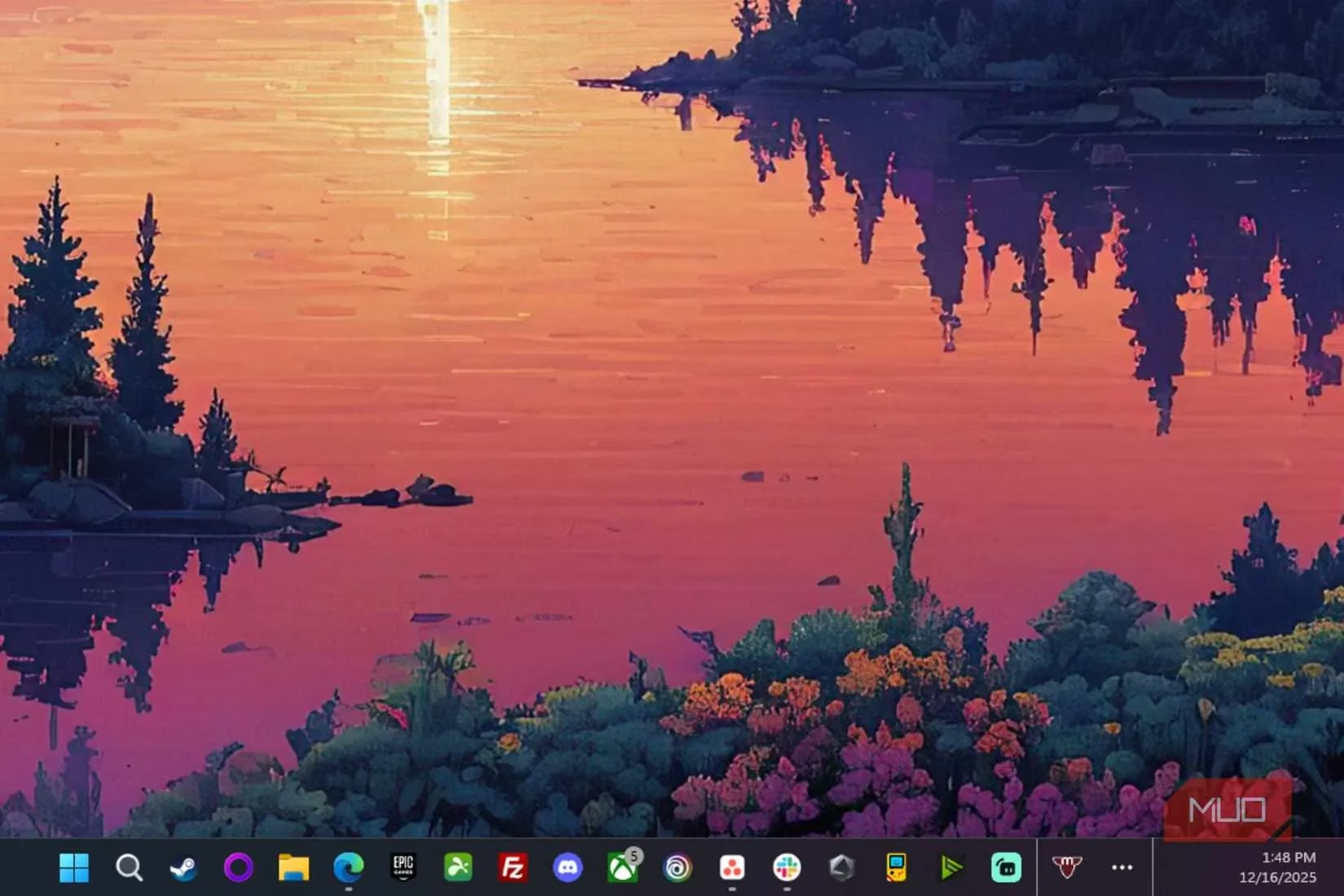
Aesthetics are not frivolous; they are fundamental to focus. One of the most transformative yet simple tricks for a vertical secondary monitor is hiding the taskbar. It sounds trivial—a sliver of pixels—but the psychological effect is monumental. The screen feels expansive, clean, and wholly dedicated to your content.
How to achieve this minimalist masterpiece in Windows 11:
-
Right-click the taskbar on your secondary display.
-
Select Taskbar settings.
-
Find the section for Taskbar behaviors.
-
Toggle off 'Show my taskbar on all displays'.
Poof! ✨ That distracting bar vanishes. Minimized windows from that display now retreat to your primary monitor's taskbar, leaving your vertical canvas pristine. What to do with this newfound real estate? The possibilities are endless: a sprawling code editor, a meticulously organized notes app, or perhaps the charmingly passive-aggressive farm management of Rusty's Retirement idling peacefully in the corner.
🛠️ The Software Superpowers: Unleashing PowerToys & Beyond
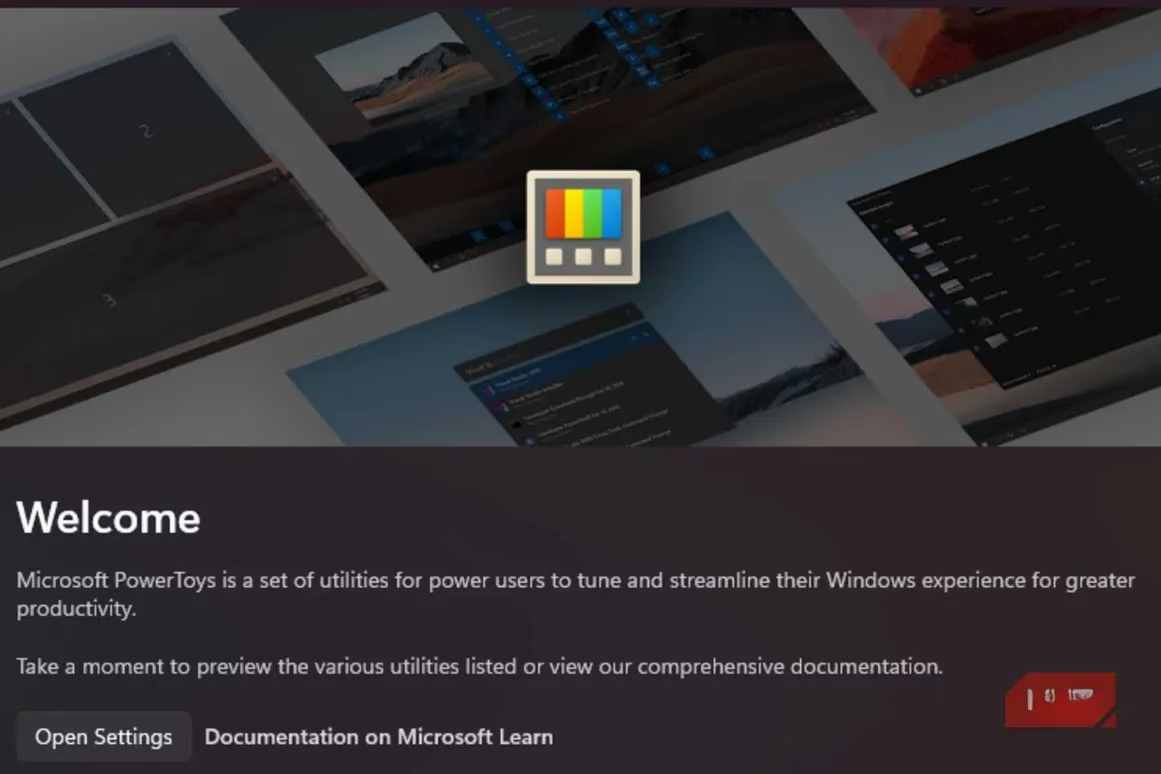
If adjusting settings is like tuning an engine, then installing Microsoft PowerToys is installing a nitro booster. This open-source suite from Microsoft isn't just software; it's a paradigm shift. While tools like Dual Monitor Tools have their merits, PowerToys offers a staggering, almost overwhelming depth of customization wrapped in an interface so intuitive it feels like magic.
After just a few days, these tools become indispensable extensions of your will:
-
FancyZones: 🪟 Snap windows into custom, complex grids with a simple drag-and-shift. Goodbye, clumsy manual resizing!
-
Always on Top: 📌 Pin any window—a calculator, a video call, a reference PDF—floating persistently above all else. Game-changer.
-
Mouse Utilities: 🖱️ The 'Find My Mouse' feature, activated by a quick shake or shortcut, is a lifesaver for high-DPI mice on vast, multi-monitor deserts. No more cursor hide-and-seek!
🧩 The Professional's Playground: Enter DisplayFusion
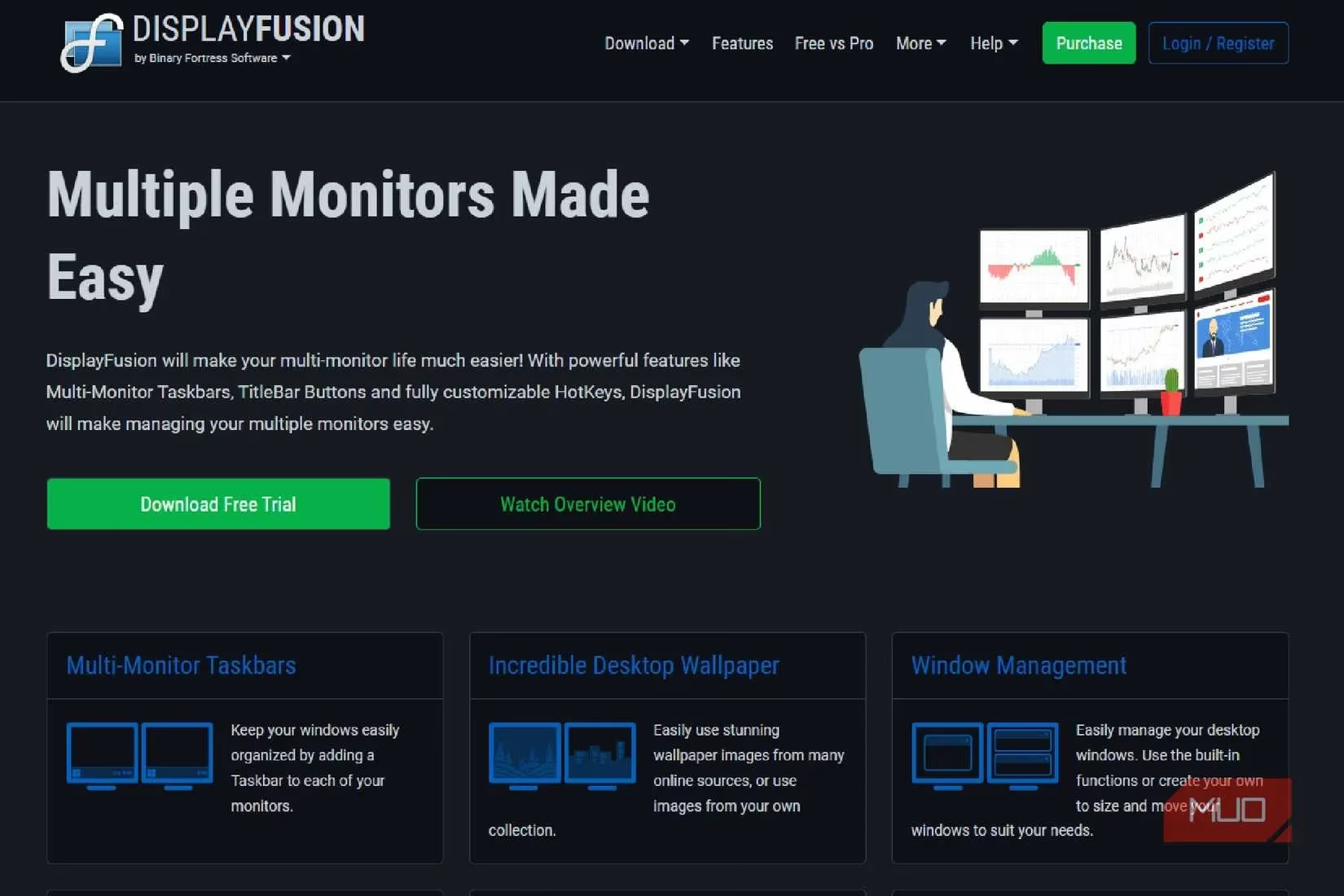
For those who find PowerToys exhilarating but crave even more granular control, the community's chorus leads to one name: DisplayFusion. Think of PowerToys as a brilliant multi-tool and DisplayFusion as a fully stocked workshop. It integrates beautifully while adding profound capabilities like:
-
Multi-monitor taskbars with independent customization.
-
Advanced wallpaper management across displays (different images, slideshows, etc.).
-
Powerful scripting and triggers to automate window positions based on time, application, or whim.
The free version is impressively capable, but the Pro version—often available for a one-time lifetime license—is an investment that pays infinite dividends in personalized productivity. In a subscription-saturated world, it feels like discovering a treasure chest.
🚀 Your Journey Awaits
From the foundational hardware tweaks to the god-like software suites, mastering a dual-monitor setup in 2026 is an adventure of continuous discovery. What seems like a simple tip to a veteran can be the catalyst that transforms a newcomer's entire digital life. The beauty lies in the personalization: your setup is a unique reflection of your workflow, your creativity, and your needs.
The tools are here, shared by passionate communities in forums and articles. The knowledge is freely available. The only step left is to take these insights—the refresh rate checks, the pixel-perfect aesthetics, the empowering utilities—and forge your own perfect command center. The line between user and power user has never been thinner, and the potential has never been greater. The future of your desktop isn't just waiting; it's begging to be optimized. 🔧
Leave a Comment