In 2026, Alex, a competitive esports player, relied on his compact laptop for everything from streaming practice sessions to editing highlight reels. One evening, while preparing for a major tournament, he noticed his game load times had slowed to a crawl. A quick glance at Windows Storage revealed the dreaded red bar on his C drive. 💾 He hadn't installed any new games recently, so the sudden lack of space was a real head-scratcher.
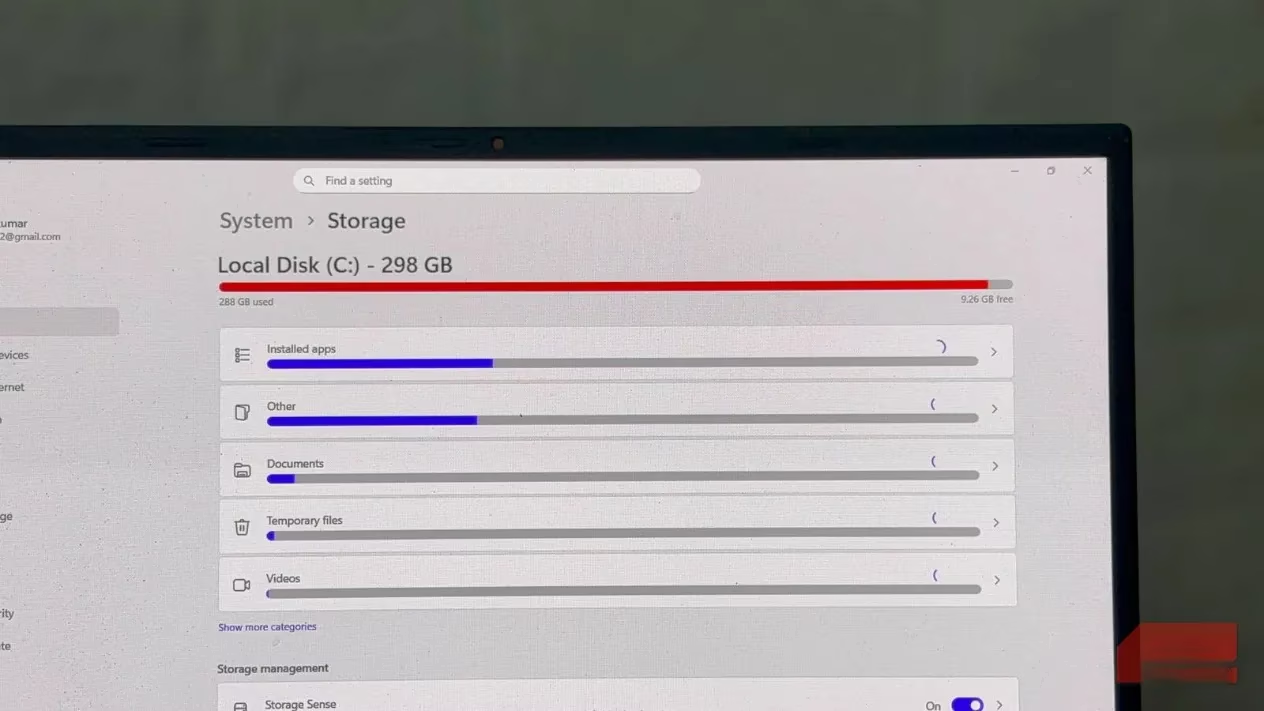
He started with the usual suspects: emptied the Recycle Bin, ran Disk Cleanup, and cleared out his Downloads folder. But the available space barely budged. It was like trying to bail out a sinking ship with a teaspoon. Frustrated, he opened File Explorer and sorted folders by size. Most were normal, but one stood out like a sore thumb: C:\Windows\SoftwareDistribution. It was consuming over 20 gigabytes all by itself.
What on Earth is SoftwareDistribution?
SoftwareDistribution is a system folder that Windows Update uses to store downloaded updates, patches, and upgrade installers. Normally, Windows cleans up after itself, but that doesn't always happen. Large feature updates can leave behind rollback files, and interrupted updates may create duplicate packages. If you delay updates for months, these cache files pile up quietly, like a digital packrat hoarding acorns. 🐿️
Inside the folder, several subfolders handle different tasks. The Download folder is usually the biggest, holding installers for cumulative and feature updates. DataStore keeps a local database of installed and pending updates. Other folders store temporary metadata and delivery optimization data. None of these are personal files, but together they can balloon to tens of gigabytes, especially on systems that have gone through several feature upgrades. Because SoftwareDistribution sits inside the Windows directory, built-in tools like Storage Sense often ignore it.
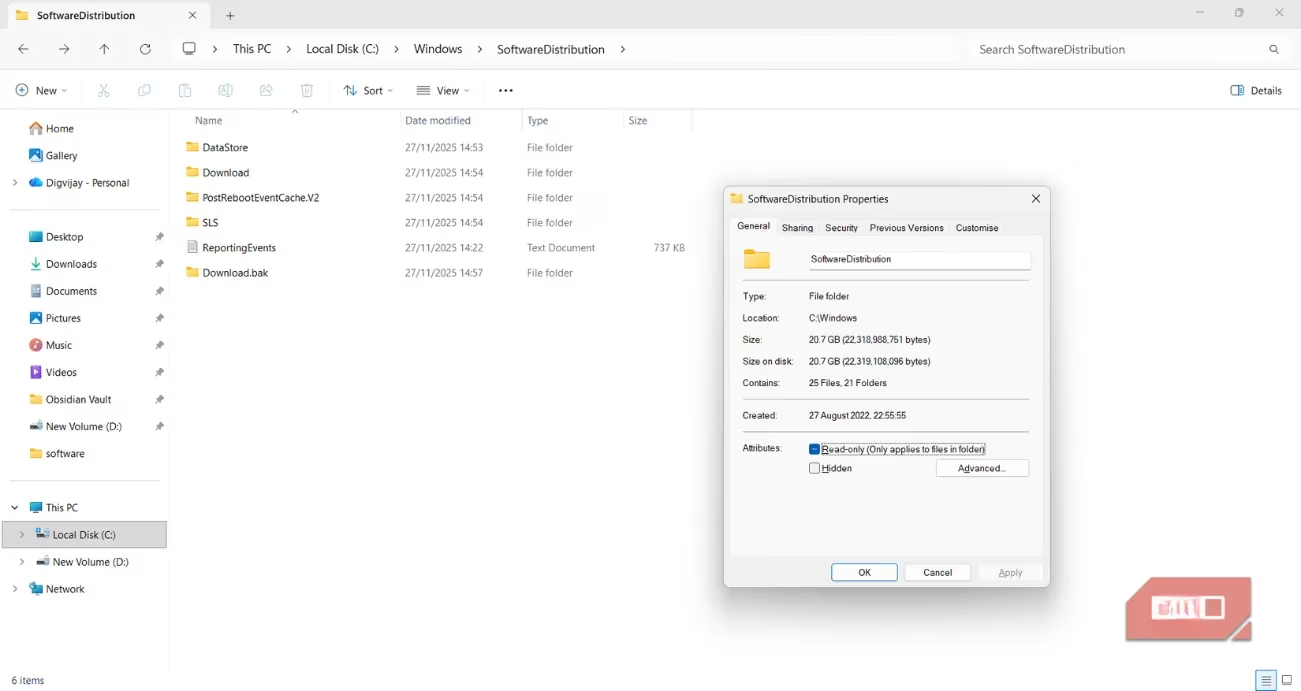
Alex had never opened this folder before, assuming Windows managed it automatically. But its size told a different story.
How to Clear the Cache Safely
Before deleting anything, Alex checked that his PC already had the latest updates installed. That suggested the files were leftover installers rather than anything Windows still needed. To clear the folder safely, he had to pause the update-related services first.
Here's the step-by-step process he followed:
-
Press Win + R to open the Run dialog.
-
Type
services.mscand press Enter. -
Find Windows Update and Background Intelligent Transfer Service (BITS).
-
Right-click each one and select Stop.
-
Open File Explorer and navigate to
C:\Windows\SoftwareDistribution. -
Delete everything inside the folder. (Don't delete the folder itself—Windows needs it to stay in place.)
-
Return to the Services window and start Windows Update and BITS again.
The deletion took a few minutes and freed just over 20 gigabytes of space. 🎉 Sometimes Windows keeps a few files locked even after stopping the services. In that case, booting into Safe Mode makes removal easier because the update components are inactive there. Safe Mode also helps if third-party security software interferes with cleanup.
The Aftermath and a Lesson Learned
After cleaning the folder, Alex restarted his computer and checked the Storage page again. The free space had increased by more than 20 gigabytes—a massive relief. The next time Windows Update ran, it took longer to check for new patches because it had to rebuild its cache and download fresh metadata. But the updates installed normally, and his system was back to full speed. 🚀
This experience changed how Alex troubleshoots storage issues on Windows. Instead of starting with personal files, he now checks what Windows stores in the background. Update caches are easy to overlook, but they're also easy to clear. It saved him from chasing the wrong files when space suddenly disappears. And for a gamer, every gigabyte counts.
So, if you ever see that ominous red bar on your C drive, don't panic. Take a peek at SoftwareDistribution. You might just find a hidden stash of update files waiting to be evicted. After all, even Windows can be a bit of a hoarder sometimes. 😉
Leave a Comment