Ah, the age-old question for any Windows power user in 2026: to hibernate or not to hibernate? 🤔 More specifically, what on earth should we do with that mysterious hiberfil.sys file lurking in the shadows of our C: drive, gobbling up precious SSD real estate? As a fellow tech enthusiast who's been tinkering with Windows settings since the days of Windows XP, I've got some strong opinions on this matter. You see, I haven't used the hibernate function in years—literally! My trusty machine boots from a full shutdown to the login screen in under 5 seconds thanks to modern NVMe SSDs, so what's the point of waiting for it to read from a massive hibernation file? Sleep mode is my go-to for coffee breaks, and a good old-fashioned shutdown is my ritual for calling it a day. But hey, I'm getting ahead of myself. Let's dive into this digital conundrum together, shall we?
The Three Musketeers of Power States: Sleep, Hibernate, and Shutdown
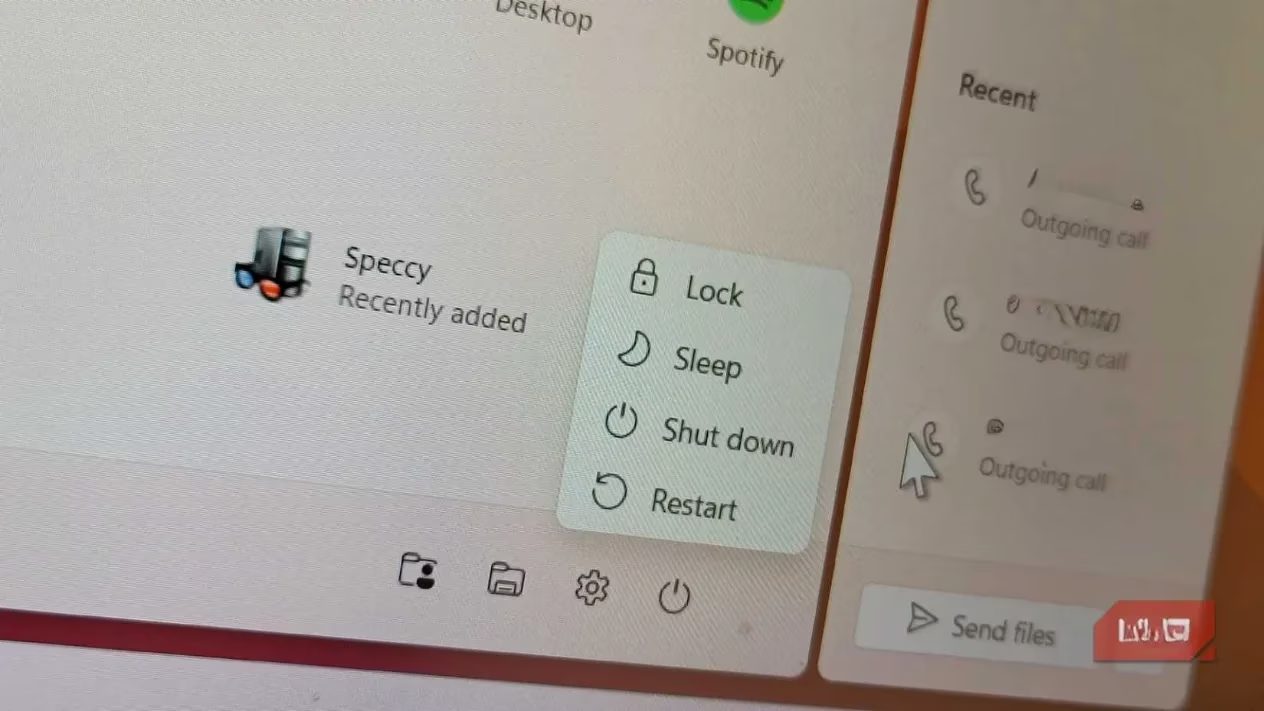
Windows, in its infinite wisdom, offers us three primary ways to tell our computers to take a breather. Think of them as three different levels of a power nap:
-
Sleep Mode: The light sleeper. Your computer dozes off, keeping your entire session—every open Chrome tab (yes, all 47 of them), that half-written document, your Spotify playlist—alive in the RAM. It sips just a tiny bit of power, ready to spring back to life the moment you tap a key or wiggle the mouse. It's perfect for when you're just stepping away to grab a snack.
-
Hibernate Mode: The deep sleeper. This is where our friend
hiberfil.syscomes into play. When you hibernate, Windows takes a snapshot of everything in your RAM and carefully writes it to this special file on your hard drive or SSD. Then, it powers the computer down completely—zero power draw. It's like putting your entire work session into suspended animation. When you power back on, Windows reads the file and voilà, you're back exactly where you left off, down to the cursor blinking in the same spot. -
Shutdown: The full reboot. This closes everything, ends all processes, and starts fresh the next time. It's the digital equivalent of a good night's sleep for your PC.
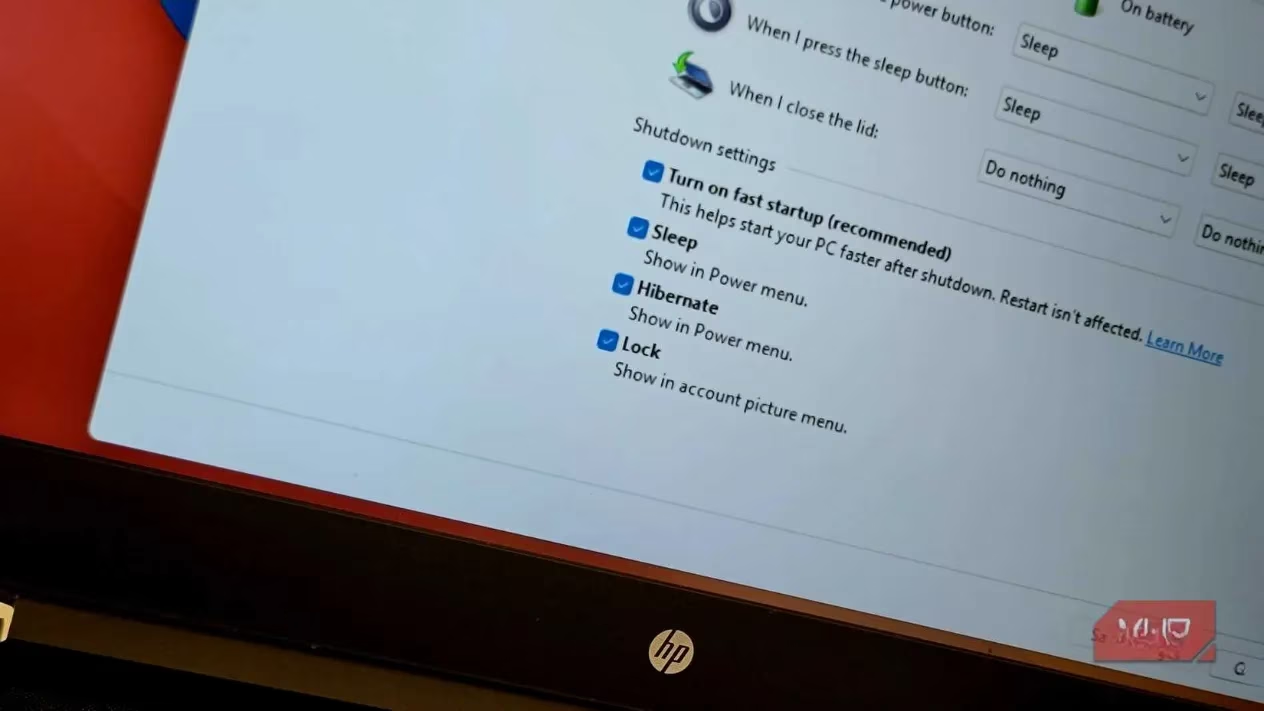
Now, here's the twist: Hibernate has a secret sidekick called Fast Startup. When this feature is enabled (and it often is by default), your regular "Shut down" command isn't so regular anymore. It performs a partial hibernation, saving the Windows kernel session to hiberfil.sys. This lets your PC boot up faster next time. Clever, right? Or is it just sneaky?
The Space Hog: Just How Big is Hiberfil.sys?
Let's talk numbers, because this is where the rubber meets the road—or rather, where the file meets your storage. The hiberfil.sys file isn't some tiny config file; it's a beast. Windows reserves space for it equal to roughly 40% of your total installed RAM. Do the math:
| Your RAM | Approximate Hiberfil.sys Size |
|---|---|
| 8 GB | ~ 3.2 GB |
| 16 GB | ~ 6.4 GB |
| 32 GB | ~ 12.8 GB |
Yikes! On a laptop with a 256GB SSD, that 6.4GB is a significant chunk of change. That's space that could hold several large games, thousands of documents, or your entire photo library from that last vacation. And for what? A feature you might never even click on! I mean, when was the last time you consciously chose "Hibernate" from the power menu?
The Case For and Against Hibernation
I'll be the first to admit: hibernation isn't useless. It has its champions and perfect use cases.
👍 The Pro-Hibernate Camp:
-
The Long-Haul Student/Professional: If you're working on a massive thesis or a complex coding project with 20 browser tabs, three IDEs, and a virtual machine running, and you need to pack up your laptop for a three-day weekend, hibernate is your best friend. It preserves everything with zero battery drain.
-
The Battery Saver: Sleep mode, while low-power, still slowly drains your laptop battery—potentially leaving you with a dead laptop after a few days in your bag. Hibernate eliminates that risk entirely.
-
The "I Hate Reopening Stuff" Person: You can pick up your work days later, instantly. No waiting for apps to load, no restoring previous sessions.
👎 The Anti-Hibernate Camp (Where I Pitch My Tent):
-
The Speed Demon: With SSDs being so blisteringly fast, a full cold boot takes mere seconds. The time "saved" by Fast Startup or hibernation resume is often negligible.
-
The Clean Slate Advocate: A full shutdown clears out temporary files, resets system processes, and allows Windows Update to do its job properly. It's a fresh start, and I find my PC runs smoother for it.
-
The Storage Scrooge: Every gigabyte on my primary SSD is precious territory. Why would I let a 6GB+ file sit there, unused, like a ghost in the machine? That's real estate I could use for something else!
The Grand Deletion: How to Reclaim Your Space (The RIGHT Way)
So, you've decided to join me in the land of free gigabytes? Excellent choice! But hold on—you can't just waltz into File Explorer, find hiberfil.sys, and hit delete. Windows guards this file like a dragon guards its gold. Even if you enable "Show hidden files" and "Show protected operating system files," it'll throw an error. And even if you somehow bypass that, Windows will just recreate it on the next boot. Annoying, right?
You need to go to the source and disable the feature itself. Here’s the step-by-step magic spell:
-
Summon the Command Line: Right-click your Start button and select Terminal (Admin) or Windows PowerShell (Admin). You need those administrator privileges!
-
Cast the Disabling Spell: Type or paste the following command and press Enter:
```bash
powercfg -h off
```
That's it! This single command does three things:
-
Disables the hibernation feature entirely.
-
Turns off the Fast Startup feature.
-
Automatically deletes the
hiberfil.sysfile.
-
-
Verify the Vanishing Act: To be sure the space is freed, you can enable viewing of hidden items in File Explorer (View > Show > Hidden items) and check that the file is gone from your C: drive root. Poof!
⚠️ Important Side Effects to Consider:
-
Fast Startup is gone. Your PC will now perform a full shutdown and cold boot every time. On an SSD, the difference is maybe 2-5 seconds. Not exactly a deal-breaker in 2026.
-
Hybrid Sleep is disabled. This feature (common on desktops) saves your session to both RAM and the disk during sleep, protecting you from power outages. If you're on a desktop without a UPS, think about whether this matters to you.
-
The Hibernate option vanishes from your Power Menu and the Alt+F4 shutdown dialog. It's a clean break.
The Verdict: Is This Right for YOU?
Let's be real: this isn't a one-size-fits-all solution. Making this change is about understanding your own workflow.
-
Do it if: You're on a device with limited SSD space, you never use hibernate, you value a clean system boot, and a few extra seconds on startup don't bother you.
-
Don't do it if: You rely on hibernation to preserve long, complex work sessions across days (especially on a laptop), or the idea of losing Hybrid Sleep protection on your desktop gives you anxiety.
The beauty is, it's completely reversible. If you ever buy a new laptop for travel or change your mind, just open an admin terminal and type powercfg -h on. Windows will faithfully recreate the hiberfil.sys file and bring all the features back.
For me, the calculation is simple. That 6.4GB of reclaimed space is now home to a couple of indie games and a vast collection of high-resolution wallpapers. My PC starts fresh every day, and I've never looked back. In the eternal quest to optimize our digital lives, sometimes the best move is to turn off a feature we never use and take back what's ours. Now, if only we could do the same for all the other Windows bloat... but that's a story for another day! 😉
Leave a Comment