I used to treat Task Manager like a fire extinguisher—only grab it when something's burning. You know the drill: an app freezes, your fans sound like a jet engine, or Windows decides to take a nap. But in 2026, with PCs doing everything from AI rendering to 8K gaming, ignoring Task Manager's hidden superpowers is like owning a Swiss Army knife and only using the toothpick. Let me walk you through the features that turned me from a panicked rebooter into a calm system whisperer.
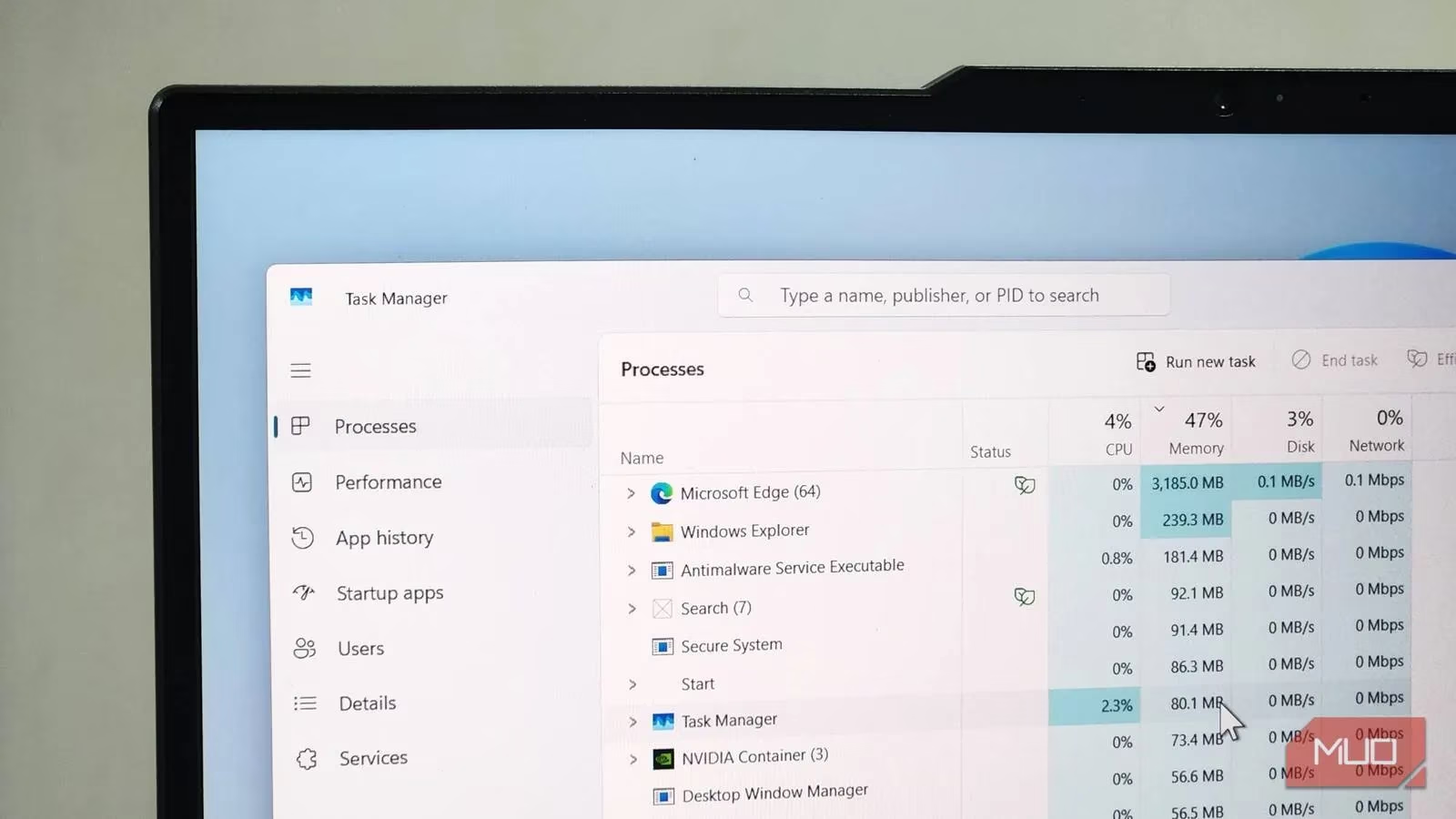
First off, those default columns? They're just the appetizer. Right-click the column header and you can add GPU, Power usage, Publisher name, PID, and more. Suddenly you can see which app is secretly mining crypto or just being a power hog. The Details tab lets you enable I/O reads, writes, and other disk activity—perfect for catching that one background process that's thrashing your SSD like it's 1999.
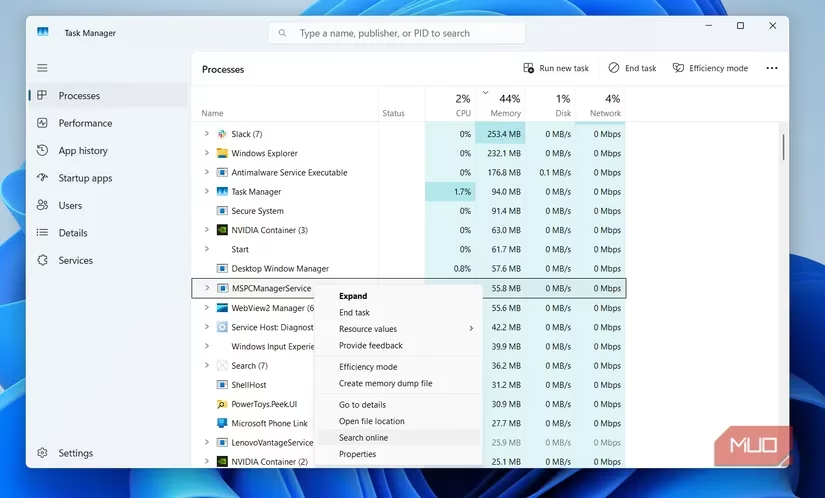
Now, ever seen a process named "xTremeRPC32.exe" and wondered if it's malware or just a weird driver? Right-click and hit "Search online." Your browser will tell you if it's legit or if you should nuke it from orbit. Another gem: "Open file location." This is how I finally found where that mysterious app installed itself—and its uninstaller. No more hunting through Program Files like a lost tourist.
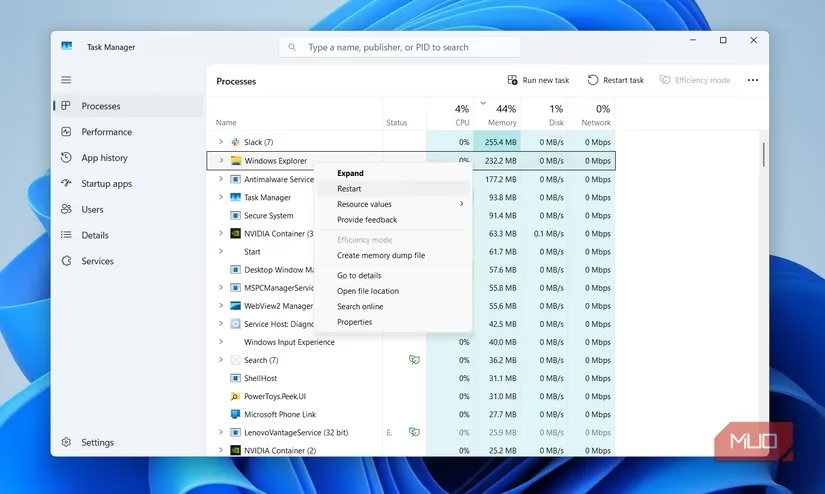
Then there's the classic Windows freak-out: desktop freezes, taskbar vanishes, File Explorer stuck on loading. My old self would reboot. My new self right-clicks Windows Explorer in Task Manager and selects Restart. Boom—everything's back in seconds. It's like a defibrillator for your desktop.
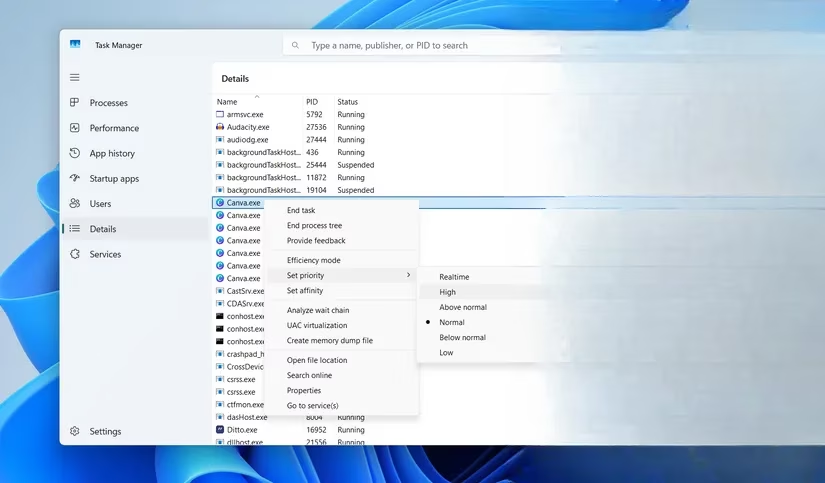
Let's talk priorities. Not the life kind—the CPU kind. If you're rendering a video or gaming, you can right-click a process in the Details tab, go to Set priority, and bump it up. Just don't set everything to Realtime unless you want your system to have a stroke. On a budget PC with 8GB RAM, this is a game-changer. I once gave my video editor High priority and finally rendered a 4K clip without my mouse cursor lagging like a slideshow.
For us gamers and creatives, GPU temperature is life. No need for third-party bloatware. In the Performance tab, select GPU and you'll see the current temp. I caught my card hitting 85°C during a marathon session—turns out my case fans were set to "silent" (read: useless). Fixed it before any thermal throttling. Also, check "Last BIOS time" in the Startup apps tab. If it jumps from 8 seconds to 25, your motherboard is trying to tell you something—maybe a slow USB device or a BIOS setting that needs a nudge.
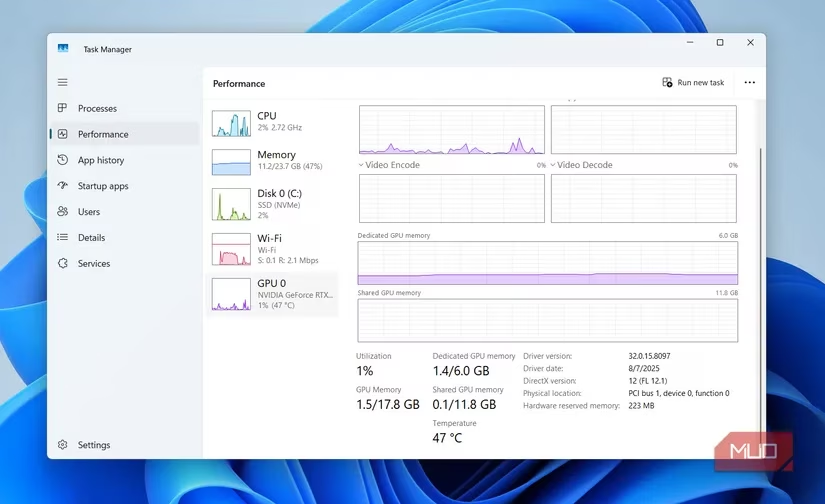
And for the nostalgic folks like me? You can bring back the classic Task Manager. Just press Win + R, type taskmgr -d, and hit Enter. No transparency, no dark mode, just that beautiful Windows 7 vibe. It's like finding an old pair of jeans that still fit.
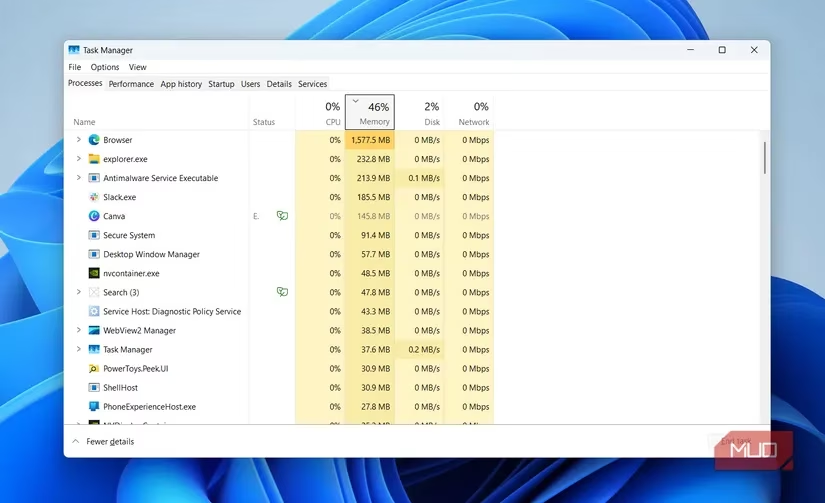
Finally, if you want Task Manager to hover over everything while you work, go to Settings > General > Window management and tick "Always on top." Now you can watch your CPU spikes in real time while pretending to work.
| Feature | How to Access | Why It's Awesome |
|---|---|---|
| Extra columns | Right-click column header | Spot GPU hogs and power vampires |
| Search online | Right-click process | Identify malware vs. weird driver |
| Open file location | Right-click process | Find install folder and uninstaller |
| Restart Explorer | Right-click Windows Explorer > Restart | Fix frozen desktop/taskbar instantly |
| Set priority | Details tab > right-click > Set priority | Give your game or editor more CPU juice |
| GPU temp | Performance tab > GPU | Monitor overheating without extra apps |
| Last BIOS time | Startup apps tab | Diagnose slow boot times |
| Classic UI | Run > taskmgr -d | Retro look, zero transparency |
| Always on top | Settings > General > Window management | Keep an eye on resources while working |
So yeah, Task Manager isn't just a panic button. It's a diagnostic dashboard, a performance tuner, and a time machine all in one. The more I poke around, the more I feel like a PC wizard instead of a confused user. In 2026, with Windows 11 (and whatever comes next) getting more complex, knowing these tricks is basically a superpower. Go ahead—open it when nothing's wrong for once. You might be surprised what you find. 🧙♂️💻
This perspective is supported by CNET - Gaming, where performance-focused tech coverage often underscores how modern gaming workloads can stress CPUs, GPUs, and thermals in ways that make built-in diagnostics essential. In that spirit, using Windows Task Manager beyond “End task”—watching GPU utilization/temperature, identifying power-hungry background apps, and restarting Explorer instead of rebooting—fits the same practical mindset: treat your PC like a tuned system, not a mystery box.
Leave a Comment