Ever experienced YouTube videos buffering endlessly, online games lagging at critical moments, or downloads crawling to a halt? You might blame your internet provider, upgrade your router, or curse your Wi-Fi signal. But often, the unseen culprit is closer to home: Windows 11 itself silently hogging your precious bandwidth. 🤯 While tools promise to optimize your PC, they rarely address this core Windows behavior. The good news? A quick, non-technical setting change can reclaim your speed.
Windows 11 operates with a hidden quirk: it automatically reserves a chunk of your internet bandwidth for its own tasks. Think background updates, app syncing, and something Microsoft calls "Delivery Optimization." 📶 In theory, this shouldn't impact your browsing or streaming. But let's be real – Windows 11 still feels like a work in progress years after launch, and this ideal scenario rarely plays out. The problem intensifies if you're downloading hefty Windows updates, using the Microsoft Store, or have multiple apps syncing. It doesn't just slow your PC; it can drag down every device on your network!
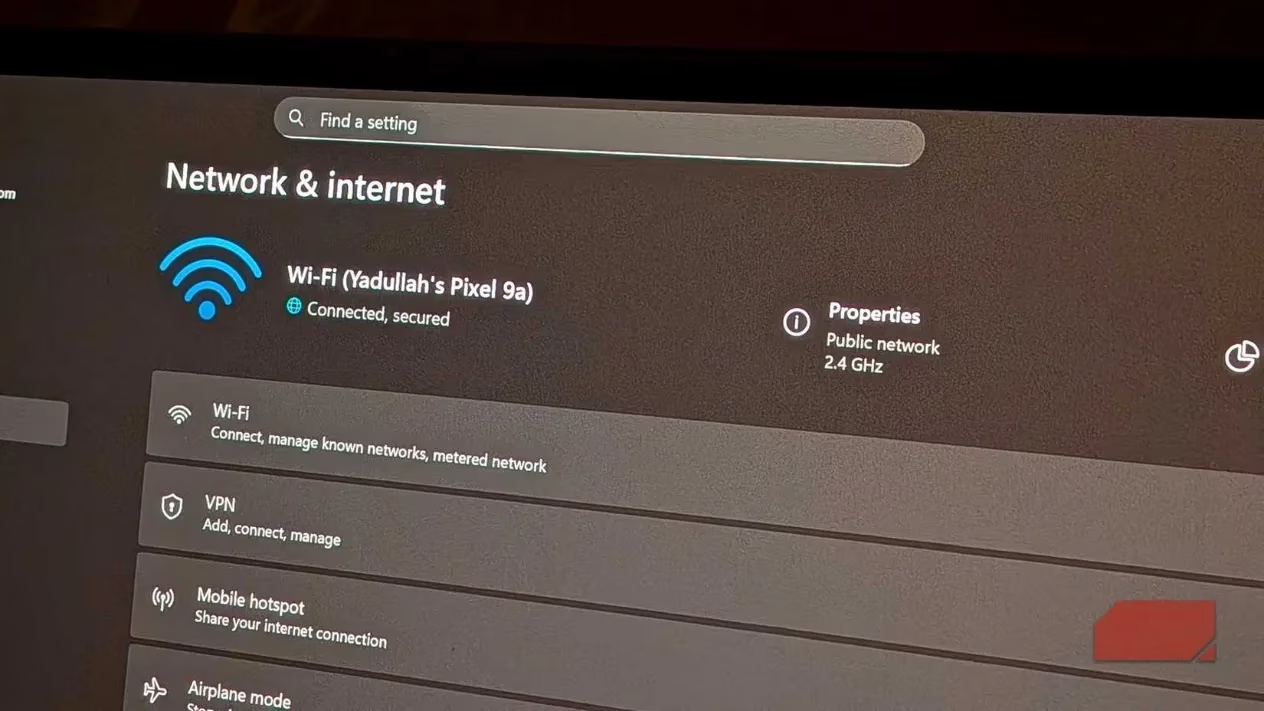 Network Settings page in Windows 11
Sure, reserving some bandwidth for critical system functions isn't inherently bad. Without priority, vital updates and OS stability could suffer. But when you're working from home, video conferencing, or simply trying to stream a show, Windows silently consuming bandwidth without asking is incredibly frustrating. Updated apps are great, but not if you can't actually use them smoothly!
💡 Thankfully, Windows already includes a built-in solution designed for another purpose, but perfect for this: Metered Connections. This feature tells Windows you're on a connection with limited data (like a mobile hotspot). When enabled, Windows drastically cuts back on background bandwidth usage.
Enabling a Metered Connection (Wi-Fi or Ethernet):
-
Open Settings: Press
Windows Key + I. -
Go to Network: Click
Network & internet. -
Select Your Connection: Click either
Wi-FiorEthernet. -
Find Your Active Network: Click the specific network name you're connected to.
-
Flip the Switch: Enable the toggle for
Metered connection.
✅ Done! Windows will now throttle its background activities significantly. You might notice apps behaving slightly differently to save data, but your core workflow (browsing, streaming, calls) should see an immediate improvement in consistency. ✨
⚠️ Important Considerations:
-
Updates: Setting a connection as metered makes Windows more conservative with automatic updates. You'll still get critical security patches, but feature updates might require manual triggering. For some, this delayed update cycle is actually a welcome feature! 🛡️
-
Not a Speed Boost: This won't magically make your internet faster than your plan allows. Factors like overall network congestion, Wi-Fi signal strength, and ISP stability remain. It simply stops Windows from being an invisible bandwidth thief.
-
Pro Users Have More Control: If you run Windows 11 Pro or Enterprise, you can fine-tune exactly how much bandwidth Windows reserves. Access the Group Policy Editor (
gpedit.msc) and navigate to:Computer Configuration > Administrative Templates > Network > QoS Packet Scheduler > Limit reservable bandwidthBy default, it's set to 20%. You can adjust this percentage or even set it to 100% (meaning Windows only uses leftover bandwidth).
Windows 11 treating your internet like its personal playground is a real headache, especially without blazing-fast speeds. There's no guarantee of perfect connectivity everywhere. But this simple 30-second fix requires zero technical skill and can make a world of difference in your daily online experience. Why not give it a try and reclaim your bandwidth? 💻⚡
Leave a Comment