A sluggish Windows PC is not automatically proof that it needs a hardware transplant. In 2026, many machines still stumble during simple tasks because they are carrying unnecessary startup programs, invisible background helpers, and browser sessions that have grown into memory-hungry sprawl. When those layers accumulate, even a capable system can feel like it is trying to sprint while wearing a backpack full of bricks.
🚀 Startup Apps Are Like Burs on a Hiking Sock
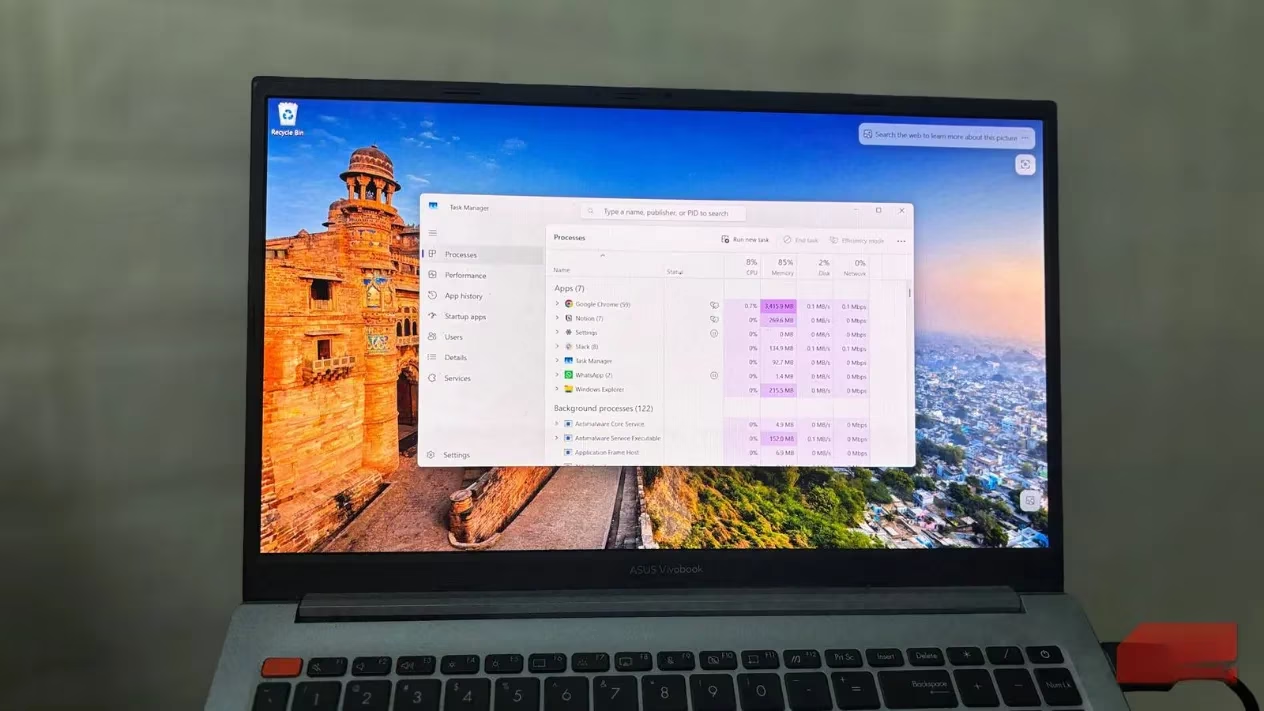
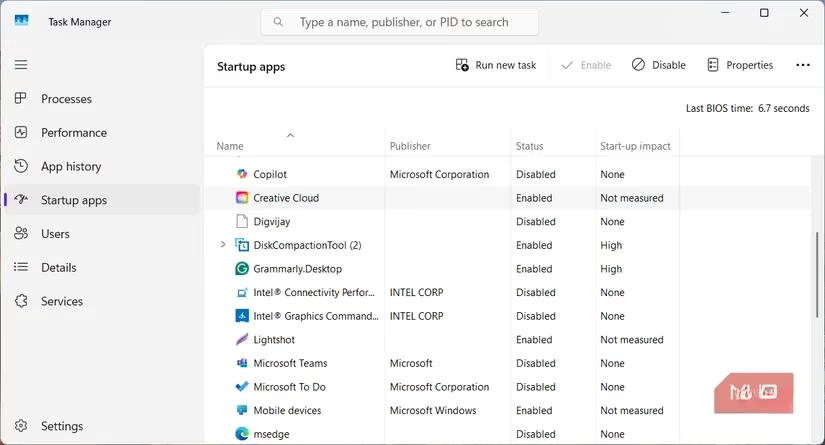
A sensible first stop is the startup list. Plenty of apps install themselves into the boot routine and begin running before anyone asks them to. Cloud drives, updaters, and creative extras often behave this way. They do not simply sit idle; they load helper services, reserve memory, and drag out the time it takes to reach a usable desktop. These auto-start entries cling to the boot process like burs to a hiking sock, creating drag without adding much comfort.
To inspect startup apps:
-
Press Ctrl + Shift + Esc to open Task Manager.
-
Choose Startup apps from the left panel.
-
Scan the list for items that do not need to launch immediately.
-
Select an unwanted entry and click Disable.
Disabling an item here does not delete anything. It only stops Windows from launching that program automatically. With fewer gates opening at once, the system keeps more free memory and spends less energy on background chores.
🔇 Quiet the Background Appliances
Some programs are like a kitchen full of appliances left simmering after dinner is over. Even when their main windows disappear, they keep small services alive to sync files, check for updates, or wait for notifications. One or two of these hidden helpers may go unnoticed, but a dozen of them slowly turns normal use into a traffic jam.
Windows gives every user a way to limit that behavior:
-
Press Win + I to open Settings.
-
Go to Apps and open Installed apps.
-
Find the app that should not stay active behind the scenes.
-
Select the three-dot menu and choose Advanced options.
-
Under Background app permissions, pick Power optimized or Never.
Reducing background activity means Windows manages fewer orphaned tasks. That leaves more room for the work a person actually cares about.
🧠 Open Apps and Tabs Are Like Receipts in a Wallet
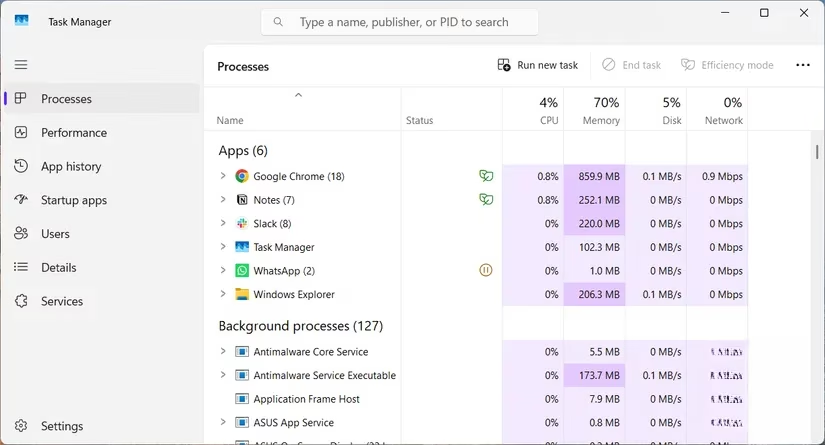
Every open program holds data in memory, and modern browsers multiply that effect by creating a separate process for nearly every tab. Individually, each tab looks small. Together, they stack up like paper receipts in a wallet, quietly bulking out what should be a slim setup. Extensions and long-running sessions make the situation worse because they add extra background threads.
To see who is taking the most memory:
-
Open Task Manager.
-
Stay on or select the Processes section.
-
Click the Memory column to sort the list.
-
Close apps that are not needed, or switch to the browser and close unused tabs.
If the browser sits near the top, concentrate there first. Removing rarely used extensions, closing accumulated tabs, and restarting the browser after hours of use can release memory that the browser has been holding onto.
💾 Let Virtual Memory Manage Itself
When RAM starts filling, Windows leans on virtual memory as a spillover workspace. It moves less active data into a paging file on the drive. That safety valve helps keep the system stable when several programs compete for attention. If a paging file was previously set to a tiny custom size, the PC may behave like a troupe of actors fighting over one dressing room whenever memory runs low.
Most people should let Windows handle the paging file automatically. To check:
-
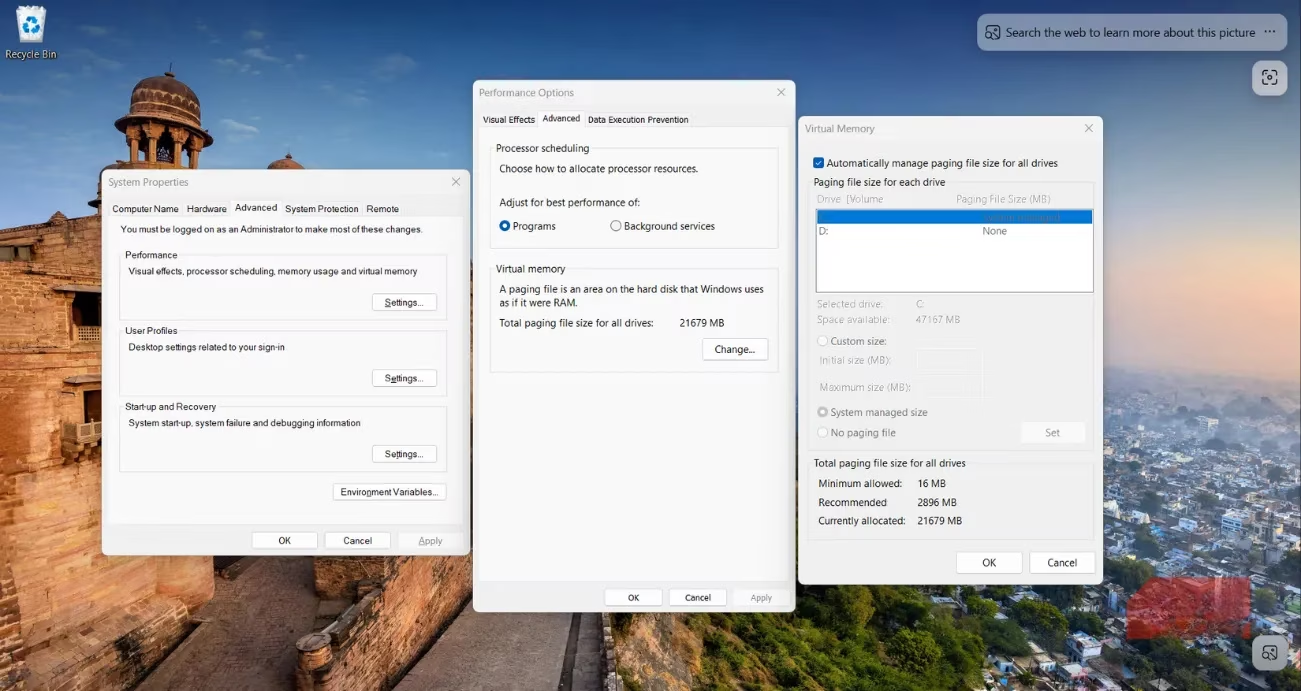
Press Win + R, type SystemPropertiesAdvanced, and press Enter.
-
In the System Properties dialog, click Settings under Performance.
-
Open the Advanced tab.
-
Under Virtual memory, click Change.
-
Make sure Automatically manage paging file size for all drives is selected.
If it is unchecked or set to a custom value, switching back to automatic management can prevent hard hangs during heavy multitasking.
A quick summary of the main levers:
| Fix | Tool | Benefit |
|---|---|---|
| Startup apps | Task Manager | Faster boot and more free RAM |
| Background permissions | Settings | Fewer hidden processes |
| Memory sorting | Task Manager | Identifies RAM-heavy apps |
| Paging file | System Properties | More stable under load |
🧹 Finish With a Little Housekeeping
After these changes, it is worth removing software that has not been opened in months. Some expired one-time utilities continue running background services long after their original job faded. A quick sweep through installed apps can clear away weight that no longer serves a purpose.
If the PC still behaves oddly, a malware scan through Windows Security helps rule out unwanted processes draining resources in secret. Once those checks are complete, the real story becomes clearer: either the machine improves noticeably, or it is genuinely facing a workload that deserves more RAM. At least then the upgrade decision rests on evidence rather than guesswork.
Leave a Comment