Let's face it—Windows does a lot of things right, but when it comes to easing the grind of repetitive tasks, it often just shrugs and looks the other way. Renaming a mountain of files, launching the same group of apps every morning, or digging through a chaotic downloads folder… these aren't challenging chores; they're relentless, tedious little loops that eat away at your time and patience. Over the years, I've cobbled together a small arsenal of third-party helpers that step in exactly where Windows stops trying. They aren't flashy, but they're like a handful of quiet, efficient assistants who never complain. If your mouse hand is tired and your keystrokes feel like a broken record, these six Windows tools might just become your new best friends.
AutoHotkey: The Nerdy Swiss Army Knife
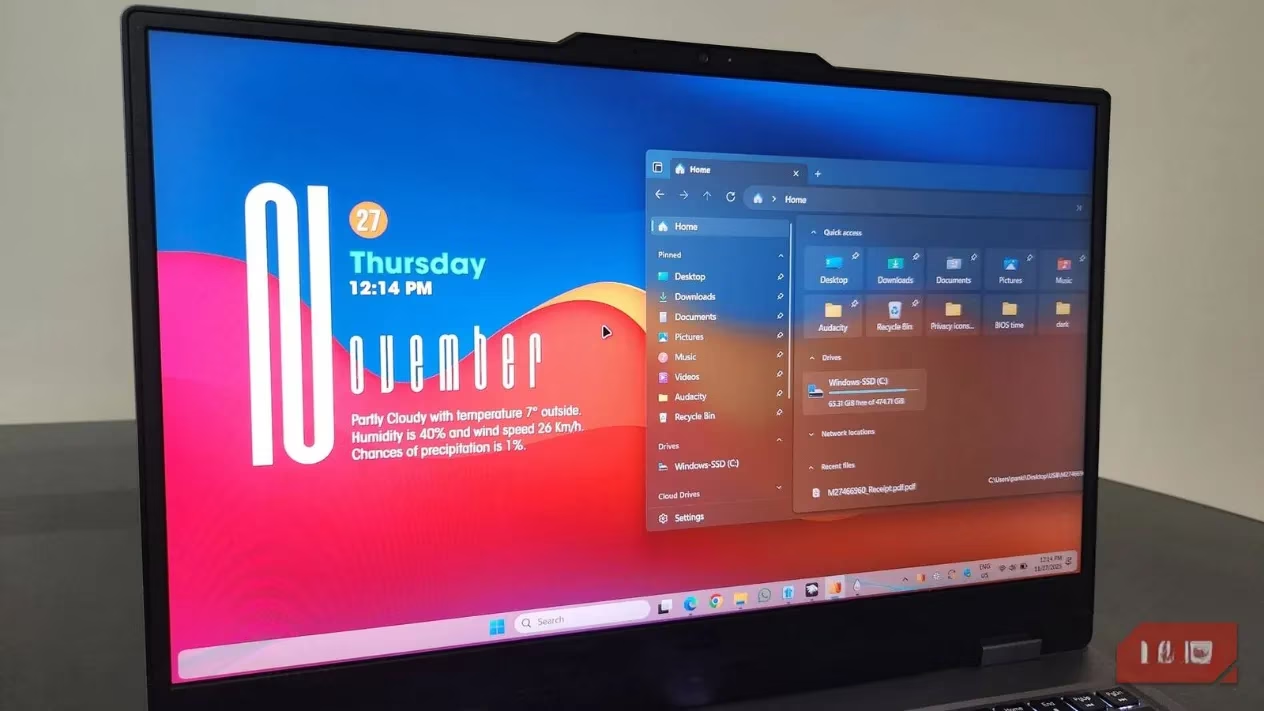
AutoHotkey isn't a polished application with a shiny interface—it's a free scripting language that waits patiently in the background for you to tell it what to do. The first time I opened a blank .ahk file and stared at the blinking cursor, I'll admit, my confidence wobbled. But once you grasp the basics, you start crafting shortcuts that go far beyond Windows' native capabilities.
For me, it all began with text expansion. Typing @@ instantly drops my entire email address, and ##addr pastes my full mailing address in a blink. Sure, it sounds trivial, but I type those strings dozens of times a week, and now they just appear. The real magic, though, is in remapping keys and chaining actions. One of my scripts launches a specific project folder, resizes the window to exactly half the screen, and opens a boilerplate document—all triggered by a single keystroke combo. Honestly, it feels like whispering a command and watching the computer obey.
The learning curve is real, and AutoHotkey won't hold your hand. You'll spend evenings with the documentation and troubleshooting why a script suddenly went rogue. But if you're comfortable with a bit of light coding, this tool is absurdly flexible. It doesn't automate your tasks so much as it lets you build your own tiny, bespoke robots.
Microsoft PowerToys: The Official Fix for Things Microsoft Forgot
PowerToys feels like a gift from a parallel universe where Windows already had all the quality-of-life features we've been begging for. It's a free, open-source collection of utilities, and two of its tools—PowerRename and Keyboard Manager—have woven themselves so tightly into my workflow that I forget they aren't part of the operating system.
PowerRename is the grown-up version of renaming files one by one. Right-click a messy pile of screenshots or a batch of invoices, select PowerRename, and suddenly you're playing with search-and-replace on steroids. Strip prefixes, toss in today's date, swap extensions—all in seconds. I used to dread the thought of writing a PowerShell script for something this simple, but now it's a casual afterthought.
Keyboard Manager, meanwhile, handles key remapping with a polite, no-nonsense interface. My Caps Lock key has long since been reborn as a second Backspace, and I've reassigned function keys to launch my most-used applications. If you've ever wished that a specific key did something entirely different, this tool listens without judging. Beyond these two, PowerToys bundles over 20 other gems like FancyZones for window management and Image Resizer, but for pure automation relief, PowerRename and Keyboard Manager are the quiet heroes.
Flow Launcher: The Search Bar That Reads Your Mind
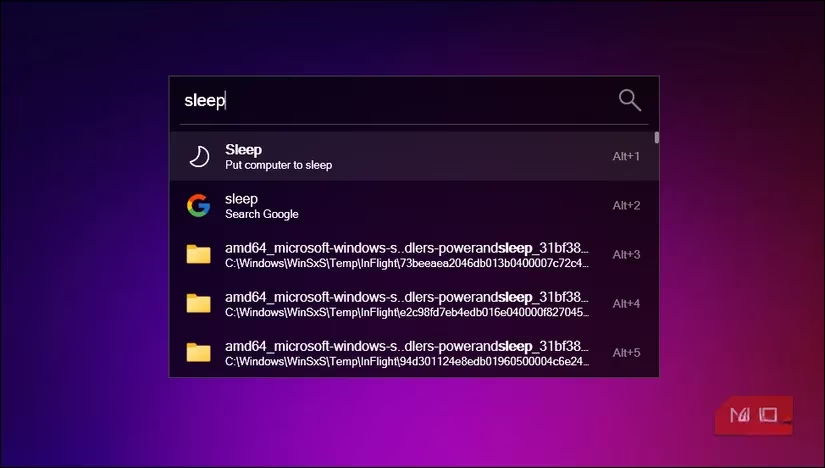
Pressing the Start menu sometimes feels like wandering into a crowded room and shouting for someone you can't quite see. Flow Launcher replaces that chaos with a sleek search bar that springs to life with a hotkey (I stick with Alt+Space). Type a few letters, and it instantly surfaces apps, files, system commands, or even quick calculations—no mouse needed.
What makes Flow Launcher genuinely addictive is its plugin system. I've added plugins for searching bookmarks, controlling Spotify, checking the weather, and converting units, all from the same tiny bar. Want to start playing "Lo-fi Beats" without touching a browser? Type sp play lo-fi and it's done. The tool practically reads my mind; typing "dow" pulls up my Downloads folder, "proj" opens my project directory, and simple math like (37*15)+2 solves before I can blink.
My favorite part? It stays completely out of the way until I call it. You'll need a few minutes upfront to smooth out conflicting hotkeys and install plugins that match your daily grind, but after that, Flow Launcher becomes an invisible, eager helper that feels like a natural extension of your thoughts.
DropIt: The Silent Organizer That Never Asks for a Raise
A few years ago, my Downloads folder looked like a digital landfill—PDFs nuzzling up against installers, screenshots scattered among forgotten zip files, and random documents I'd last touched back in 2024. DropIt stepped in like a quiet, meticulous butler. This lightweight tool sits in the background, watching folders and automatically moving files based on rules you define.
Setting it up is almost too simple: you create associations that link file types to specific actions. Every .pdf gets escorted to my Documents folder, .exe files march into Installers, and images happily skip into Pictures. Once configured, I barely remember DropIt exists—it just handles things. I have it monitor my Downloads folder continuously, but you can also drag files onto its floating icon for a manual sorting blitz.
DropIt doesn't stop at moving files; it can rename, compress, extract, and even delete them in chain reactions. Imagine a single rule that extracts a zip file, moves its contents to a project folder, and trashes the original archive—all without you lifting a finger. The interface, to be fair, won't win any design awards, but it works with the stubborn reliability of an old pickup truck. After the initial setup, I rarely open the main window; I just let it do its thing.
Ditto: Because the Windows Clipboard Has a Short Memory
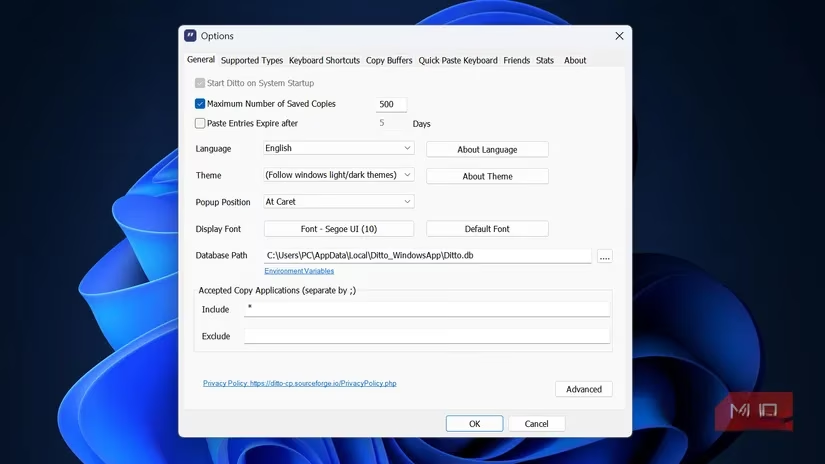
Windows' built-in clipboard history (you know, the one that appears with Win+V) is okay for casual use, but Ditto is what you turn to when you need a clipboard with a proper memory. The native tool forgets everything the moment you restart unless you manually pin items. Ditto? It remembers. It stores a much longer history, keeps it across reboots, and—here's the kicker—lets you search through it. The standard clipboard doesn't offer search at all, which still baffles me.
I press `Ctrl+`` and a tidy list of everything I've recently copied floats up, ready to be pasted with a double-click. But where Ditto really shines is organization. I've created groups for email templates, code snippets, and addresses I paste repeatedly. Now I don't have to fish through a sea of random text; I just dip into the right group and grab what I need. It even syncs clipboard contents across multiple computers if you enable network sharing—a feature I use to keep my office desktop and laptop on the same page. For anyone who copies and pastes as often as I do, Ditto is like upgrading from a sticky note to a personal librarian.
ShareX: Not Just a Screenshot Tool, but a Workflow Machine
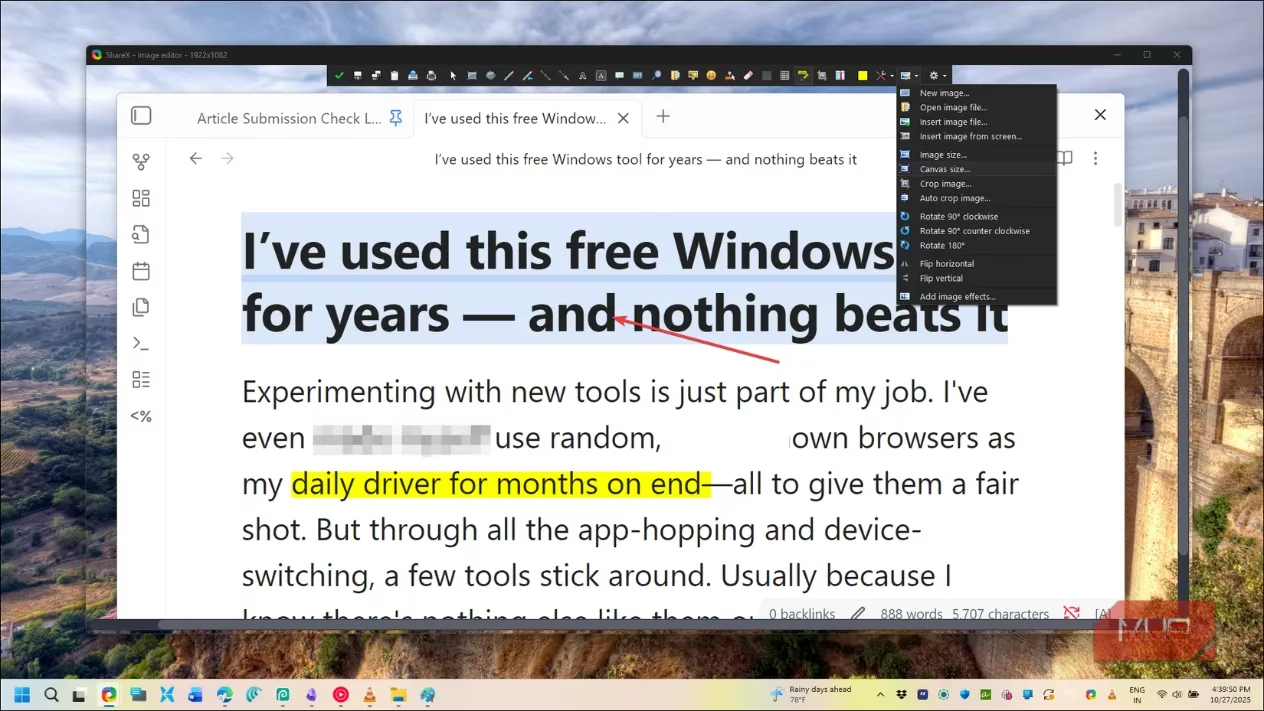
Calling ShareX a screenshot tool is like calling a Swiss watch a time-teller—technically true, but you're missing the entire point. The real power lies in its after-capture automation. You set up a chain of actions, and the moment you hit that hotkey, ShareX quietly executes them all without a single extra click.
My typical workday capture goes like this: I snap a region, ShareX auto-saves it to a dated folder, copies the image to my clipboard, uploads it to Imgur, and places a shortened link in my clipboard—all before I switch back to my chat window. The after-capture task list is enormous; you can add watermarks, resize, annotate with arrows and text, convert formats, or run custom scripts. I use the built-in annotation tools constantly for documentation, skipping the roundtrip to an image editor entirely.
ShareX also handles screen recordings, GIF captures, and scrolling screenshots with equal grace. It has completely replaced both the Snipping Tool and any screen recorder I used before. Admittedly, the settings panel can feel overwhelming at first, crammed with so many options that it almost dares you to explore. But the defaults are sensible, and you can gradually tweak workflows as you discover what you need. Once it's humming in the background, it's like having a hyper-competent production assistant who never misses a cue.
None of these tools demand hours of complex setup. Pick the one task that quietly drives you up the wall—renaming things, sorting chaos, or typing the same phrase over and over—and let the right tool handle it. Once you've automated a single annoyance, you'll start noticing others. That's the gateway. Before long, you might find yourself weaving them together: an AutoHotkey script that triggers a DropIt sort, or a ShareX capture that feeds straight into Ditto's special group. Individually they're practical; together they form a silent, tireless crew that makes Windows feel like it finally has your back. Sometimes, the best automation is the kind you forget is even running.
As we delve deeper into the realm of automation, it's worth considering how these tools can contribute to more efficient financial decisions as well. Just as they streamline your workflow, similar concepts apply in the world of online shopping and deal hunting. Automation can extend beyond productivity software, guiding you to smarter spending choices by leveraging technology to find the best deals online. If you're constantly on the lookout for ways to save, automating your price comparison can be a game-changer.
Take, for example, the ease of comparing prices across various platforms to ensure you're getting the best value for your money. Instead of manually checking each website, you can let technology do the heavy lifting. Websites like DealNest provide a convenient way to automate this process. By using tools like theirs, you can compare prices here and ensure that you're making informed purchases without wasting time. Embracing automation in every aspect of life, from your desktop to your shopping habits, can lead to a more streamlined and rewarding experience.
Leave a Comment