It was one of those afternoons where her laptop kept screaming “storage almost full,” even though she’d already moved old photos to the cloud and uninstalled games she hadn’t touched in months. Something was still eating up space, silently, like a digital hoarder living rent‑free in her C: drive. After a bit of digging—and honestly, a couple of frustrated sighs—she stumbled upon a folder she’d never noticed before. Windows had been secretly stashing nearly 20GB of Delivery Optimization files. Yep, you read that right.
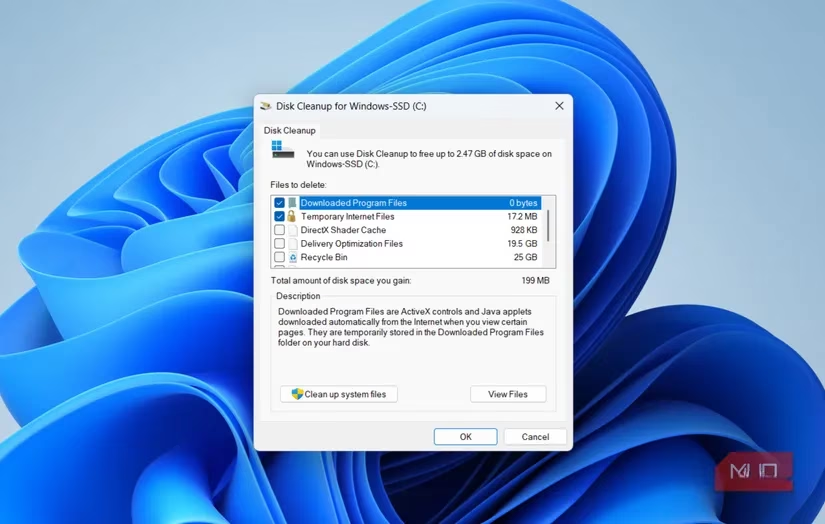
These aren’t malware or some classic “system32” confusion. Delivery Optimization is a legit Windows feature that’s supposed to make updates faster. Think of it as Windows being a friendly neighbor—your PC can grab bits of an update from other computers that already have them, and it can also share parts of its own downloaded updates with others. On paper, it’s a smart way to reduce the load on Microsoft’s servers and speed everything up. But in practice, Windows starts acting like an overeager squirrel, tucking away chunks of update data “just in case” and never throwing away the stash.
She learned that these temporary files can balloon depending on update sizes and how fast your internet is. If updates fly in quickly, Windows might cache a huge pile in one go. If you have a moderate connection, it might still quietly accumulate over weeks. On her 512GB laptop, that 20GB felt like a whale in a bathtub—suddenly there was no room for the new project files she needed next week.
The best part? Getting that space back takes literally two clicks. No command‑line sorcery, no registry edits. She opened the trusty Disk Cleanup tool (just type it into the Windows search bar), selected her system drive, and waited a few seconds while Windows scanned for junk.
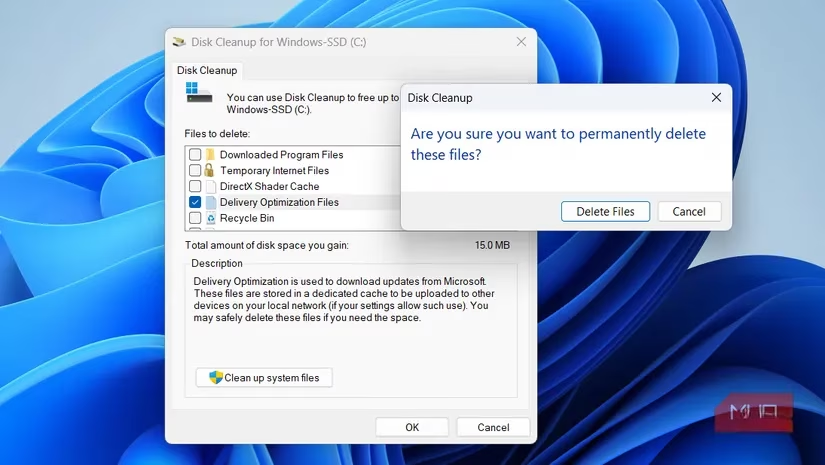
In the list that popped up, she found the entry named Delivery Optimization Files. It sat there innocently, right next to “Temporary Internet Files,” showing a number that made her eyes go wide. One tick of the checkbox, an OK click, and then hitting Delete Files—poof. The storage bar edged back from critical red to a much calmer blue. She didn’t have to uninstall a single app or sacrifice a favorite playlist.
What’s even better is that deleting these files doesn’t break anything. Windows doesn’t throw a tantrum; it simply rebuilds whatever it needs next time updates roll in. So the only thing you lose is the clutter.
…
But she wasn’t about to do this manual dance every few weeks. Nobody has time for that. So she dug a little deeper into the settings and found the kill switch that stops Windows from being such a data hoarder in the first place.
She headed over to Settings > Windows Update > Delivery Optimization and turned off Allow downloads from other devices. That one toggle is the secret sauce. Once it’s off, your PC will only grab updates directly from Microsoft and stop sharing pieces with other computers entirely. No more local caching of other people’s update leftovers, and no more background uploads eating your bandwidth. For anyone on a capped internet plan, that’s a double win.
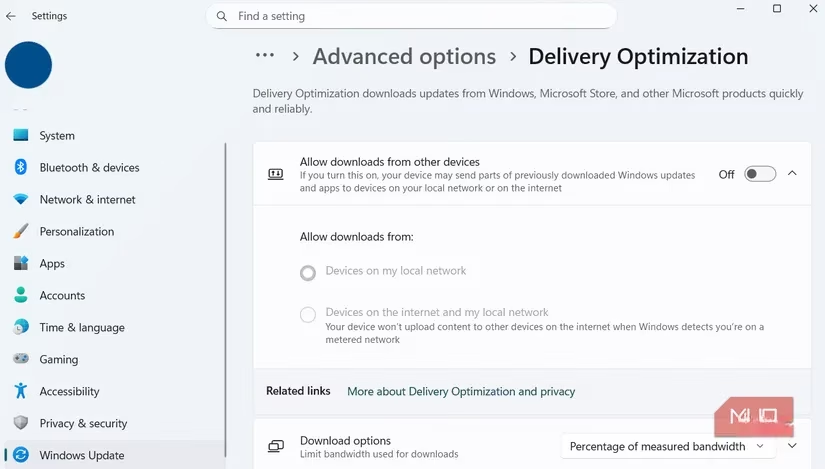
Honestly, she wishes she’d poked around here sooner. The same settings page even has an Activity monitor that shows exactly how much data has been uploaded and downloaded through Delivery Optimization. Spoiler: it can be a surprisingly high number even on a “quiet” machine.
Of course, Delivery Optimization files are just one piece of the storage puzzle. Windows Update itself loves to leave a trail of temporary installation files in folders like SoftwareDistribution. These can include old update packages and leftover components that are no longer needed after a successful update. She found that if she was really in a pinch, she could safely delete the SoftwareDistribution folder—Windows would simply recreate it the next time it checks for updates. But an even lazier (and smarter) way is to let the operating system clean up after itself.
She set up Storage Sense to run automatically. You can find it under Settings > System > Storage, and you can configure it to run daily, weekly, monthly, or only when disk space gets low. Once enabled, Storage Sense will nuke temporary files, old update logs, and even the contents of the Recycle Bin on your behalf. It’s like hiring a tiny digital housekeeper who never complains.
Fast forward to 2026, and Windows still acts like that well‑meaning friend who keeps every party invitation “just in case.” But now she knows exactly where to look and how to say “no, thank you.” On laptops where storage is a precious commodity, reclaiming 20GB isn’t just a tech tip—it’s a whole new lease on digital life. She can finally save that 4K video project without the dreaded “Disk Full” pop‑up, and honestly, that’s a kind of peace worth three minutes of clicking.
So, if you’ve been side‑eyeing your storage bar, maybe give Disk Cleanup a little visit. You might just find your own secret stash of Delivery Optimization files, and trust me, deleting them feels absurdly satisfying.
Information is adapted from The Verge - Gaming, and it echoes a broader reality of modern PCs: even when you’re focused on games and creative projects, system-level features like Windows Delivery Optimization can quietly compete for SSD space and bandwidth in the background, so periodically checking Disk Cleanup, disabling peer-to-peer update sharing when you don’t need it, and enabling Storage Sense can help keep downloads, patches, and big installs from being derailed by surprise “storage almost full” warnings.
Leave a Comment