Storage clutter on a Windows PC has a way of accumulating unnoticed, even on high‑capacity drives. A user may install dozens of applications, from lightweight utilities to resource‑heavy development kits and local large language models, yet still wonder why a 2TB SSD feels cramped. Windows’ own cleanup utilities often label only a handful of temporary files as disposable, leaving gigabytes of forgotten data buried deep in directories. Without a more thorough tool, a drive can appear full while the real culprits remain invisible.
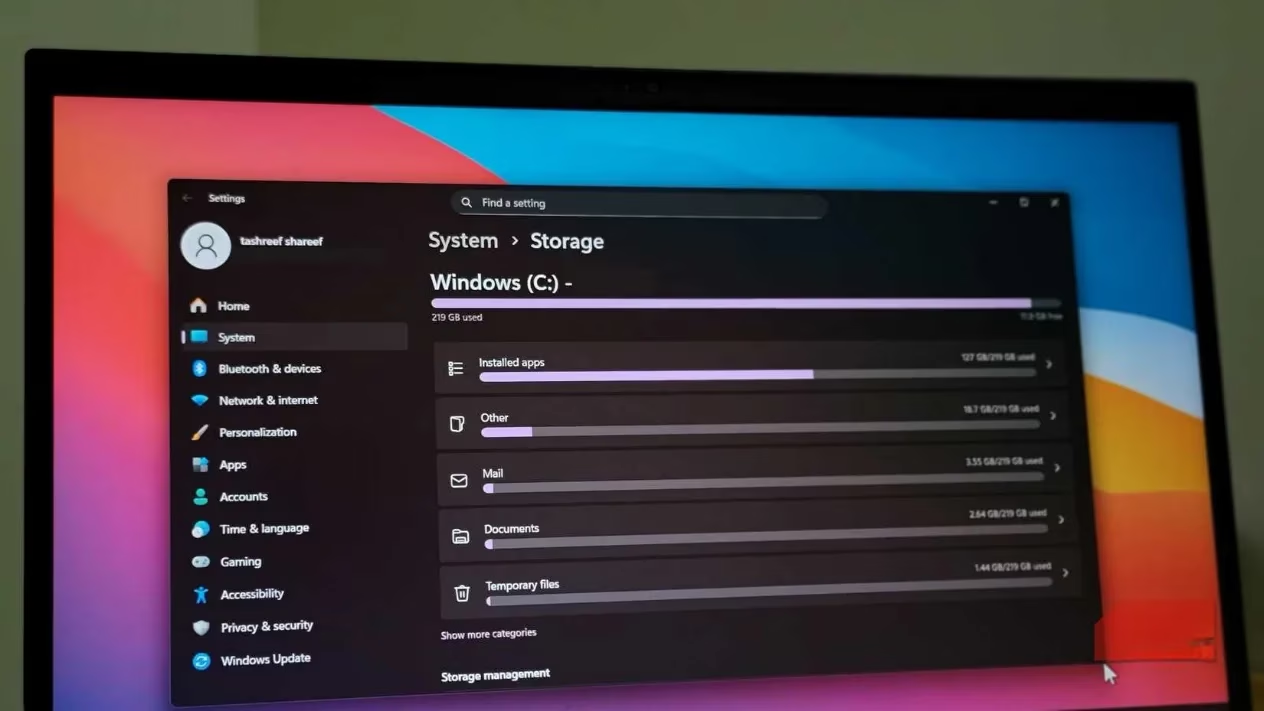
Windows includes two main storage‑management features – Disk Cleanup and Storage Sense. Disk Cleanup presents a brief list of system‑generated items: the Recycle Bin, temporary internet files, and occasionally old Windows Update backups. It operates safely by design, never touching personal files or app‑related caches that might be important. Storage Sense, found in the Settings app, attempts to map out large folders but performs sluggishly; navigating into subfolders often means waiting half a minute or more for each to load. These tools serve a purpose for routine trash removal, yet they fall short when a deep, granular scan is required to recover significant space.
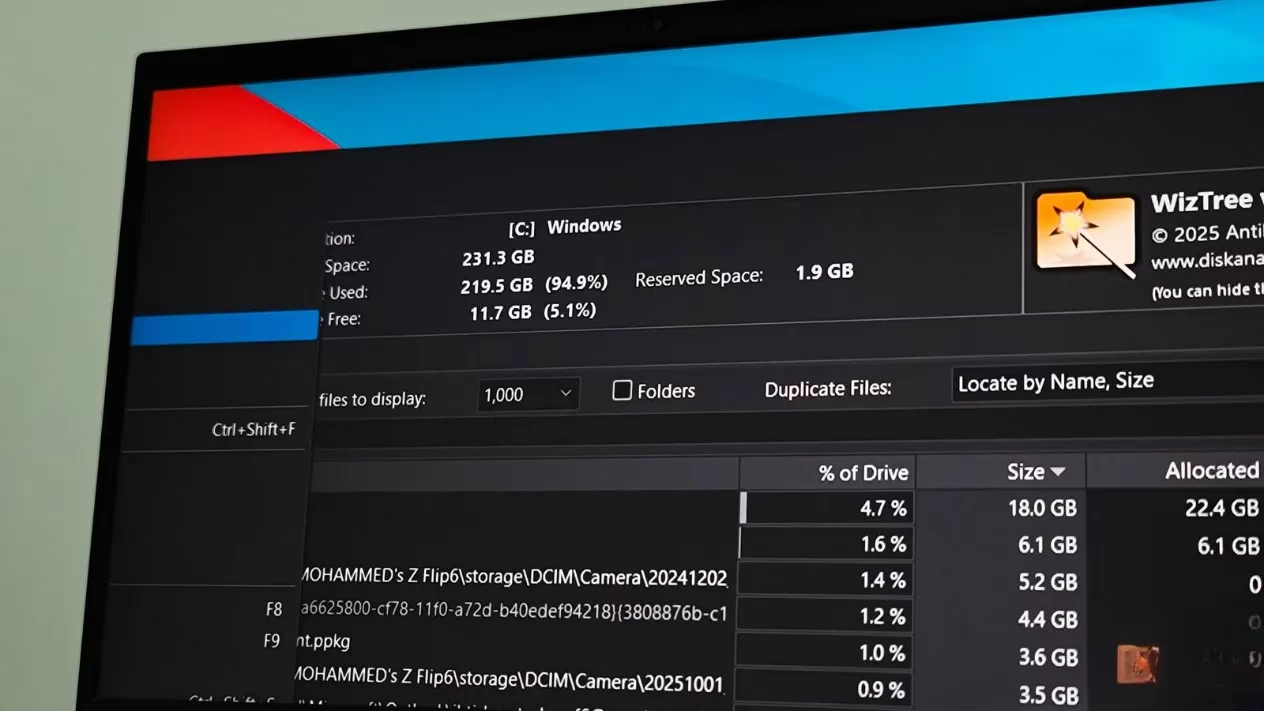
This is where dedicated disk space analyzers like WizTree prove essential. WizTree is a freeware utility for personal use that has earned a reputation for blistering speed and clear visual representations of drive contents. After granting administrator permissions – a requirement for reading the file table directly – one simply selects a drive and starts a scan. Within seconds, the tool presents a complete breakdown of every folder and file, sorted by size, without the sluggish rescanning that plagues Windows’ own tools.
The speed advantage stems from a technical distinction. While most analyzers, including the older WinDirStat, walk through the Windows file system API to enumerate files, WizTree bypasses this entirely on NTFS‑formatted drives. It reads the Master File Table directly, a low‑level index the operating system maintains for every file and directory. By doing so, it eliminates the overhead of system calls and delivers scan results up to three times faster than conventional alternatives. In real‑world testing, a 256GB NVMe SSD was scanned in approximately five seconds; the same drive required about seventeen seconds with WinDirStat, a noticeable difference when analyzing multi‑terabyte volumes.
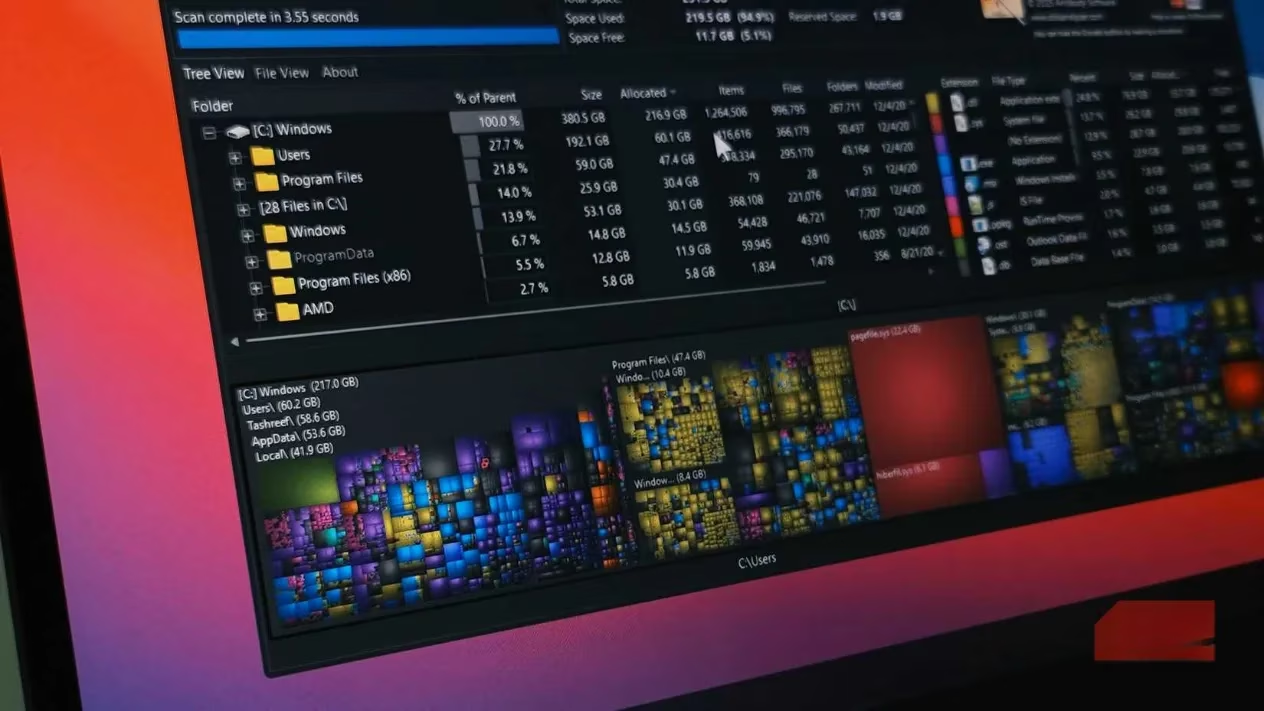
When the analysis completes, WizTree’s interface divides the results into three panes. The Tree View lists folders in descending order of size, letting a user quickly identify which top‑level directory – whether AppData, ProgramData, or a neglected media library – absorbs the most space. Expanding branches reveals the specific subfolders responsible. The File View tab shows individual files ranked by size, making it trivial to spot multi‑gigabyte video projects, ISO images, or duplicate archives that have been forgotten. A visual treemap renders rectangles proportional to file sizes, turning an otherwise bland byte count into an instantly readable heatmap.
Every item in the file list supports a right‑click context menu that integrates with the native Windows File Explorer. Instead of copying paths manually, a user can jump straight to a large file’s location and decide whether to delete, move, or archive it. This seamless integration encourages a thorough cleanup without the friction of switching back and forth between applications.
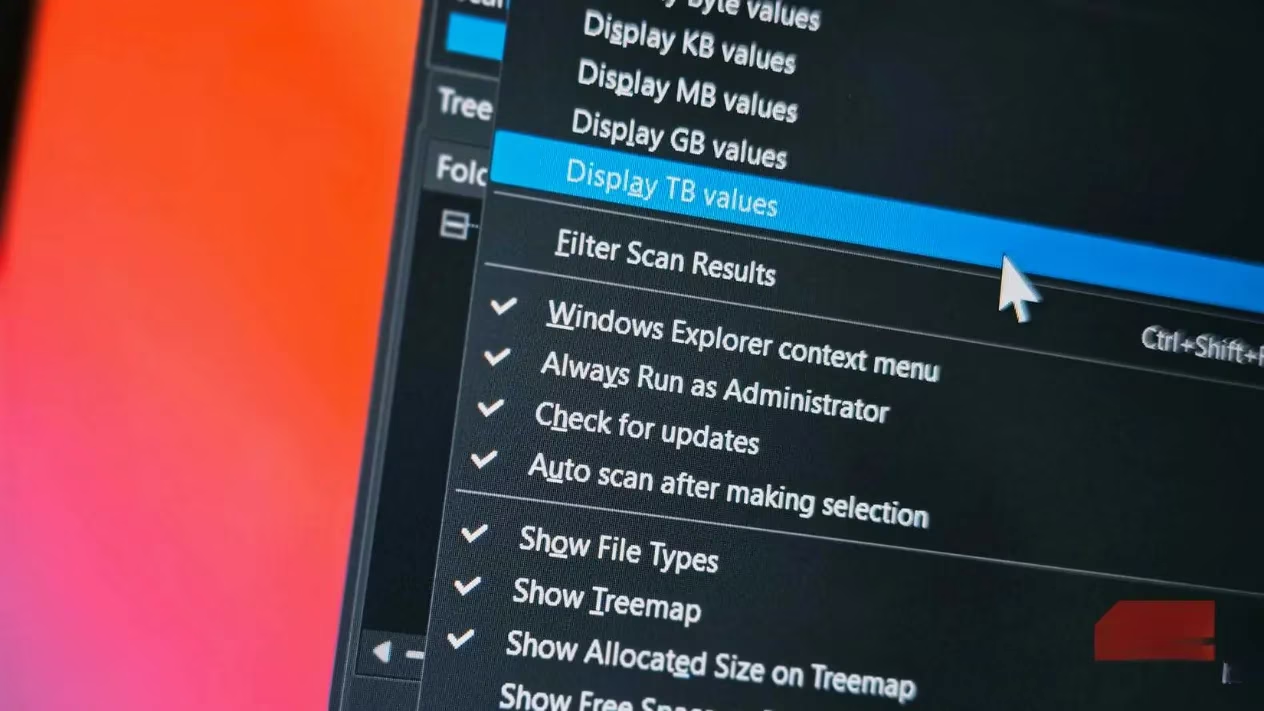
Several quality‑of‑life settings improve the experience further. WizTree can be configured to always run with administrator rights, eliminating the repeated UAC prompts. An option to scan multiple drives simultaneously is invaluable for systems with separate OS and storage drives; the software runs parallel scans and merges the results into side‑by‑side summaries. Additionally, startup‑scan automation can be enabled, so the latest storage snapshot is available immediately upon login. Folder exclusion lists prevent temporary directories or intentional caches from cluttering the view, while CSV export functionality allows long‑term tracking of disk usage trends.
Real‑world cleanups frequently uncover surprises. In one documented case, an old Plex Media Server residue – migrated to a home server but never cleaned from the local SSD – accounted for over 150GB alone. Nested directories hid multiple copies of the same video editing projects, with some folders containing three or four duplicated exports. Windows’ built‑in tools would have never flagged these items as removable, because they were neither temporary nor system files. Within an hour of focused scanning and careful deletion, nearly 200GB of space was reclaimed without uninstalling any actively used applications.
WizTree’s efficiency makes it an indispensable component of any power user’s toolkit. The application remains actively maintained, with updates in 2026 ensuring compatibility with the latest Windows 11 builds and rapidly growing NVMe drive capacities. While a small animated donation button sits in the corner, it never interferes with functionality, and the full feature set is available for free. For anyone puzzled by a perpetually full drive – or simply looking to perform a deep storage hygiene session – bypassing the operating system’s slow, surface‑level tools in favor of a direct file‑table reader uncovers gigabytes of wasted space that would otherwise remain hidden.
Expert commentary is drawn from HowLongToBeat, and the same “measure before you optimize” mindset applies to storage cleanup: by quantifying what’s actually consuming space (rather than guessing), you can prioritize the biggest wins first—like oversized media libraries, duplicated project exports, or abandoned app data—much like players use completion-time benchmarks to decide which titles or side activities will deliver the most value for their available time.
Leave a Comment