For weeks, the experience of using a laptop was anything but peaceful. The constant whirring of fans, reminiscent of an aircraft preparing for takeoff, became the unwanted soundtrack to even the simplest tasks like writing or browsing the web. The device would grow uncomfortably warm, making it unpleasant to use on one's lap. Many users find themselves in this exact situation in 2026, trying all the standard advice: updating drivers, cleaning out dust, and closing background apps, often with only marginal success. What if the solution wasn't more complex, but simpler? What if the key to a cooler, quieter machine was hidden within Windows' own settings all along?
The Game-Changer: Limiting Maximum Processor State
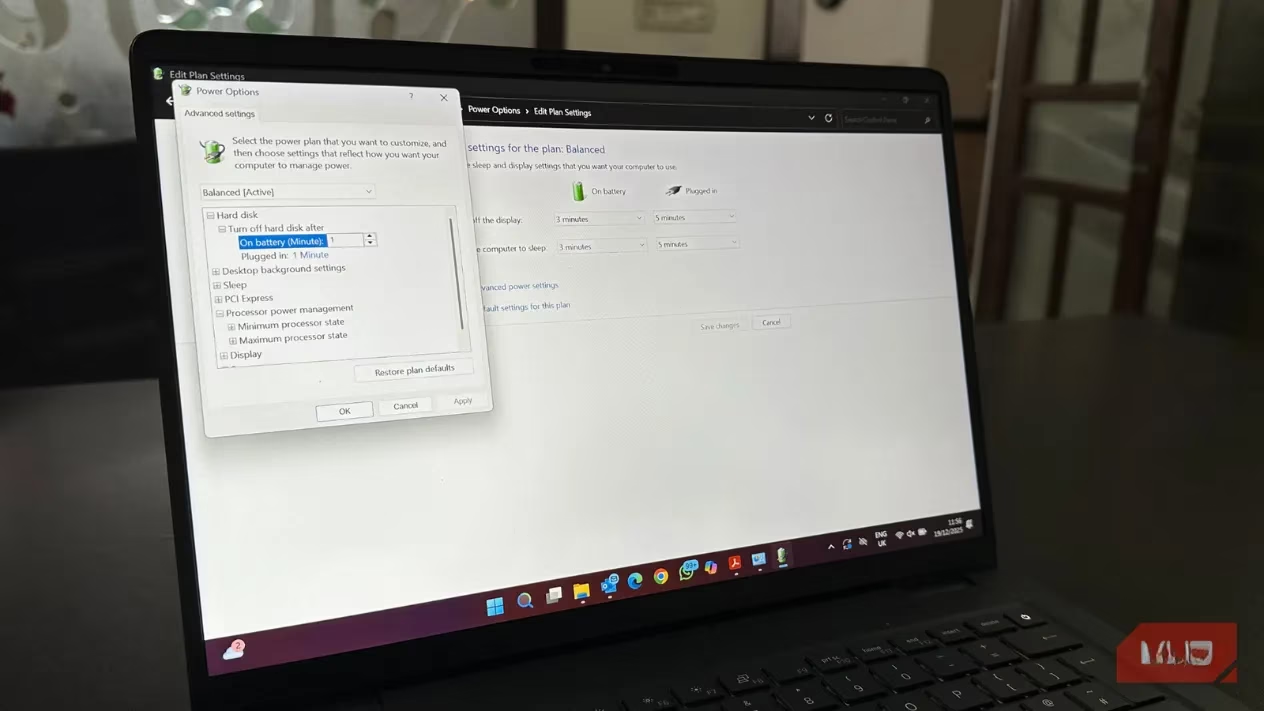
The breakthrough came not from an external tool, but from a deep dive into Windows' power management. The setting that made a dramatic difference is called "Maximum Processor State." By default, this is typically set to 100%, which sounds ideal for performance. But in reality, what does this mean for everyday use? It instructs the processor to always be ready to hit its peak speed, consuming more power and generating significant heat even for light workloads like checking email or streaming music. This unnecessary strain is often what triggers the cooling fans to spin up aggressively.
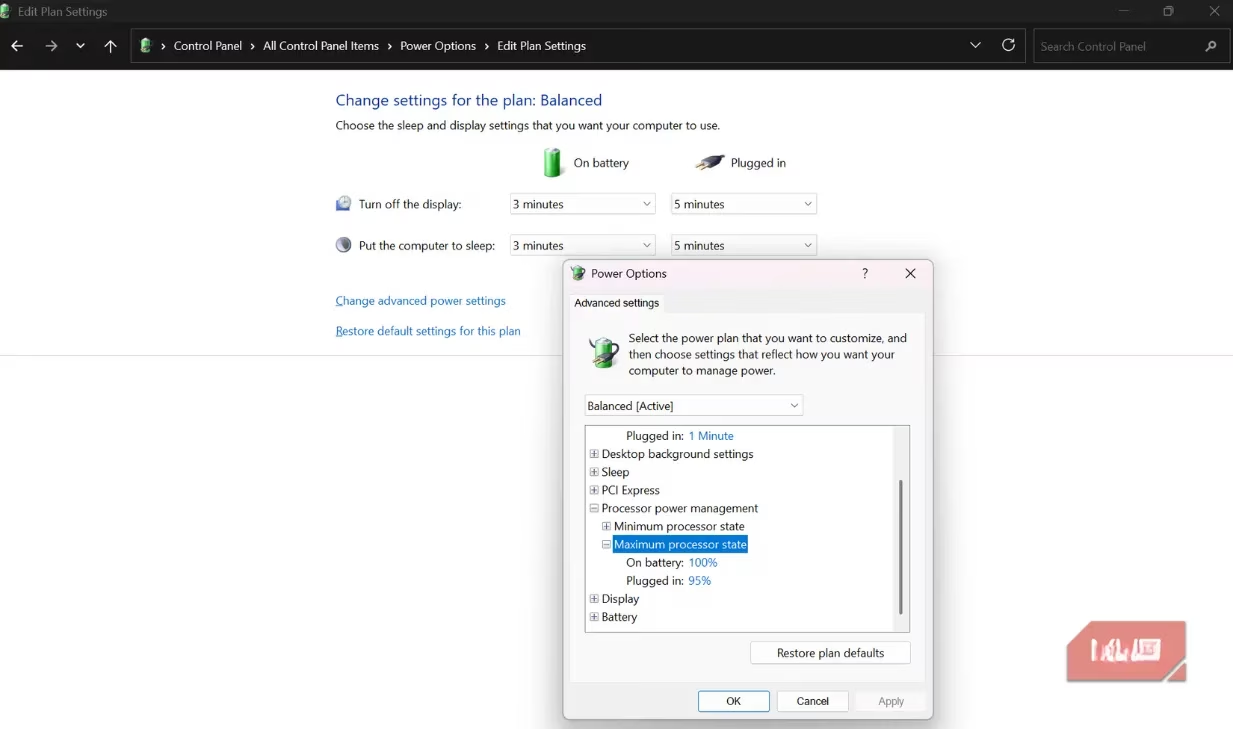
The fix is surprisingly simple and effective. By lowering the maximum processor state—for instance, to 99% when plugged in and around 95% on battery power—users can achieve a remarkable reduction in heat and noise. Why does such a small percentage change have such a big impact? Setting it below 100% effectively disables the processor's aggressive Turbo Boost feature, which is designed for short bursts of extreme speed. For casual tasks, this turbo mode is overkill. The result of this tweak is a cooler laptop, lower power consumption, and significantly quieter operation, all with little to no noticeable impact on daily performance for most users.
The Perfect Companion: Switching to Balanced Power Mode
While adjusting the processor state was a major step, pairing it with the right overall power profile sealed the deal. Many users, wanting to get the most from their hardware, instinctively select the "Best Performance" power mode. It sounds like the right choice, doesn't it? However, this mode often keeps the CPU running at higher clock speeds more consistently, which is excellent for demanding tasks like video editing or gaming but excessive for general use. This constant high-performance state leads to increased heat, fan noise, and reduced battery life.
For the vast majority of users whose activities involve web browsing, office applications, and media consumption, the Balanced power mode is the smarter, more efficient choice. Think of it as putting your laptop on a sensible diet. The Balanced mode intelligently allows the CPU to scale up dynamically when needed for heavier tasks and scale down during idle periods. This adaptive behavior is key to managing thermals and acoustics effectively, creating a much more pleasant user experience while also extending battery life. It's the perfect complement to the processor state limit.
The Transformative Results
After implementing these two changes, the difference was night and day. The laptop that once felt stressed and noisy during basic operations now runs cool and quiet. Activities like drafting documents, managing multiple browser tabs, and using common AI-assisted writing tools no longer trigger the fan frenzy. The system feels calm and responsive. Importantly, for everyday tasks, any perceived loss in performance is negligible. Users are often surprised at how little they sacrifice for such a gain in comfort and quiet.
Of course, when engaging in truly intensive work—like rendering a video, compiling code, or playing a graphics-heavy game—one might feel the need for full power. The beauty of this setup is its flexibility. Reverting to higher performance settings for those specific sessions is quick and easy, allowing users to tailor their machine's behavior to their immediate needs.

Your Step-by-Step Guide to a Cooler Laptop
Ready to transform your own laptop experience? Here’s how to apply these simple, safe fixes using only built-in Windows settings. No technical expertise or third-party software is required! 😊
Part 1: Limit the Maximum Processor State
-
Open the Control Panel (you can search for it in the Start menu).
-
Navigate to Hardware and Sound > Power Options.
-
Next to your currently active power plan, click "Change plan settings."
-
On the next screen, click "Change advanced power settings."
-
In the new window, find and expand the "Processor power management" category.
-
Expand the "Maximum processor state" sub-category.
-
Here, you can set different values for when the laptop is plugged in versus on battery:
-
On battery: A value between 90% and 95% is recommended for optimal cooling and battery life.
-
Plugged in: You can set this to 99% for a great balance, or leave it at 100% if you frequently need peak performance while connected to power.
-
-
Click "Apply" and then "OK" to save your changes.
Part 2: Switch to Balanced Power Mode
-
Open Settings (the gear icon in the Start menu).
-
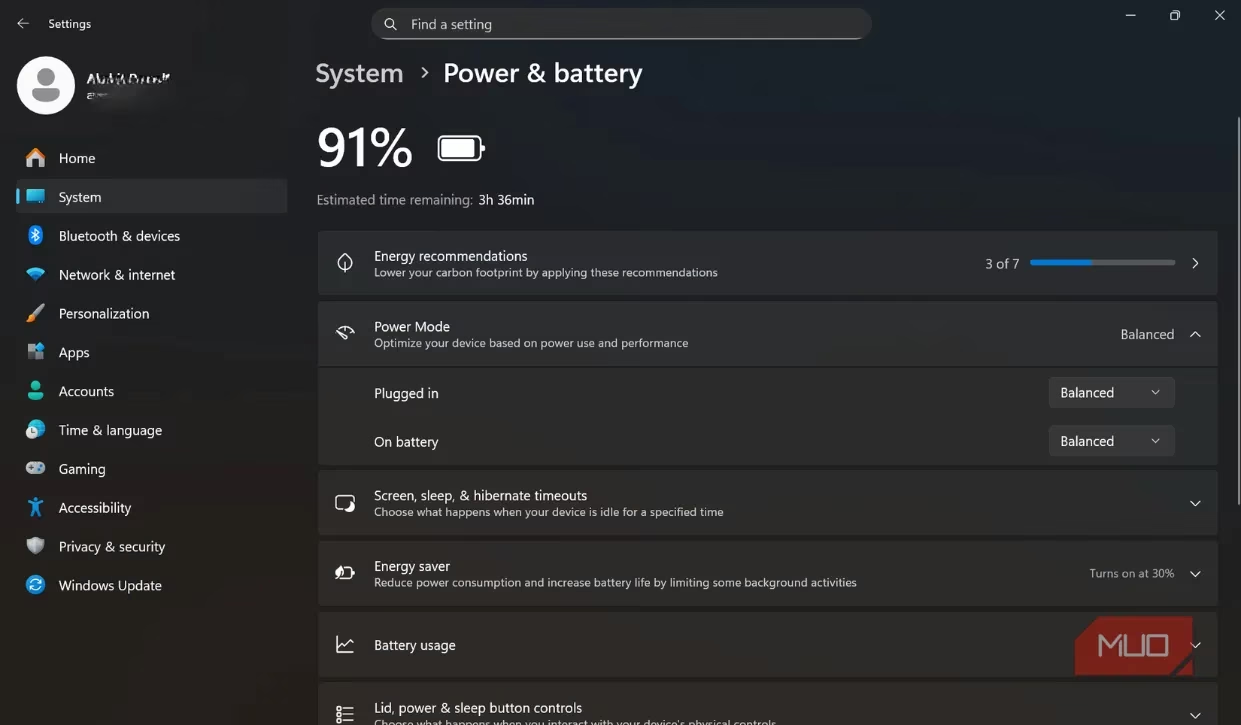
Go to System > Power & Battery (or just Power & sleep in some versions).
-
Look for the Power mode section.
-
From the dropdown menu, select "Balanced."
And that's it! The changes take effect immediately. You can always revert these settings at any time if your needs change.
Final Thoughts
It's a common story: we invest in powerful laptops only to be frustrated by their noise and heat. Often, we blame the hardware when the culprit is simply an overzealous software configuration. By taking a few minutes to adjust the Maximum Processor State and select the Balanced power mode, you reclaim control over your device's acoustics and thermals. This isn't about downgrading performance; it's about optimizing it for real-world, daily use. Isn't it worth trying a simple, safe tweak that could turn your noisy, hot laptop back into the quiet, reliable tool it was meant to be? Give it a try—your ears (and lap) will thank you.
Leave a Comment