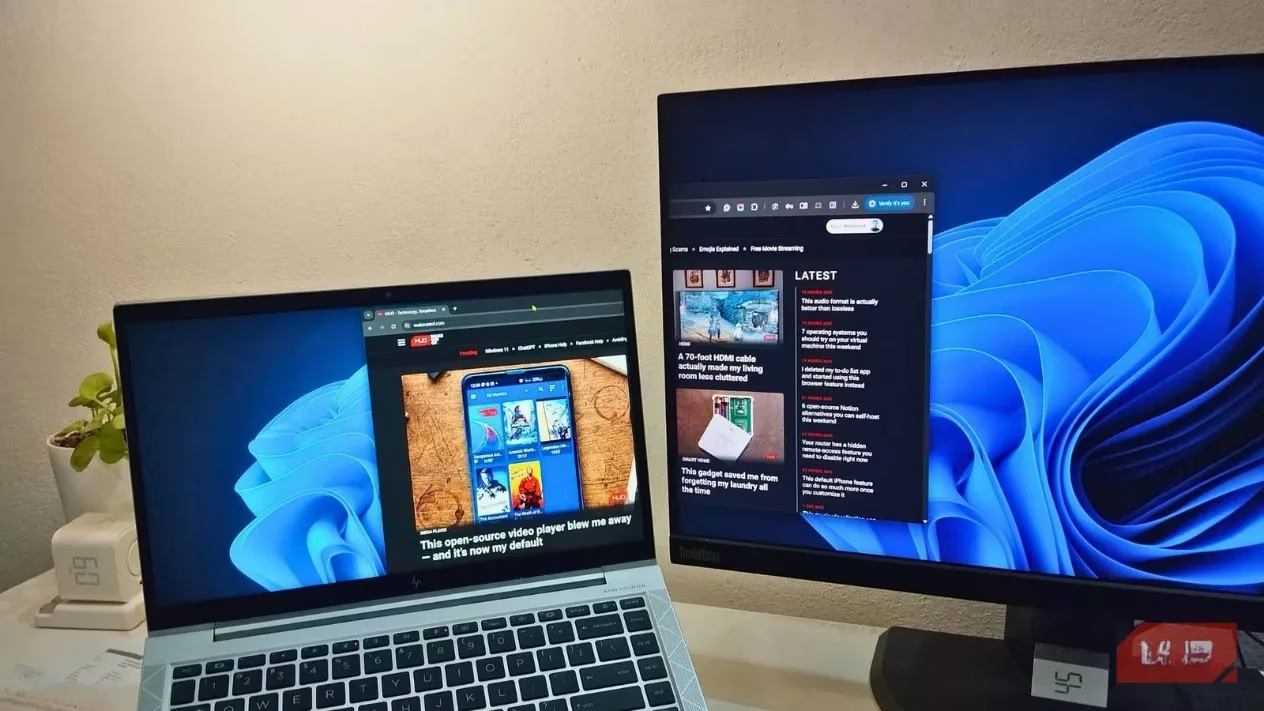
Picture this: It's 2026, and you're finally over that morning scramble. You power on your Windows PC, and instead of the chaotic ritual of dragging windows, reopening apps, and trying to remember your perfect layout, your entire digital workspace just... appears. Your browser is already on the right monitor, your code editor is snapped perfectly on the left, and your music app is tucked away but ready to go. Sounds like a dream, right? Well, for savvy Windows users, this dream is a daily reality thanks to a game-changing, free tool from Microsoft called PowerToys Workspaces.
This little feature is like a photographic memory for your desktop. It remembers everything: which apps you use, how you like them arranged across one, two, or even three monitors, and even which ones you prefer to have minimized. With a single click, it can restore your entire setup after a reboot, a system update, or when you switch between different tasks. It’s the kind of productivity hack that makes you wonder how you ever worked without it.
⚡ What Exactly Is PowerToys Workspaces?
Think of Workspaces as your personal desktop butler. It's part of the free PowerToys suite from Microsoft, which is packed with utilities that supercharge Windows. While PowerToys offers tools for remapping keys and resizing images, Workspaces is arguably the crown jewel for anyone serious about their workflow.
Here’s the magic in simple terms:
-
It takes a snapshot: It captures the exact state of your desktop.
-
It remembers positioning: Which app is on which monitor, its window size, and its placement.
-
It restores on command: One click brings it all back, perfectly arranged.
No more manually reopening Slack, Word, your browser, Spotify, and your project management tool every single morning. Workspaces does it for you, in seconds.
🛠️ How to Set Up Your First Workspace (It's Super Easy!)
Setting this up is a breeze. Just follow these steps:
-
Get PowerToys: First, make sure you have the latest version of PowerToys installed from the Microsoft Store or GitHub. It's 2026, so this tool is more polished and integrated than ever.
-
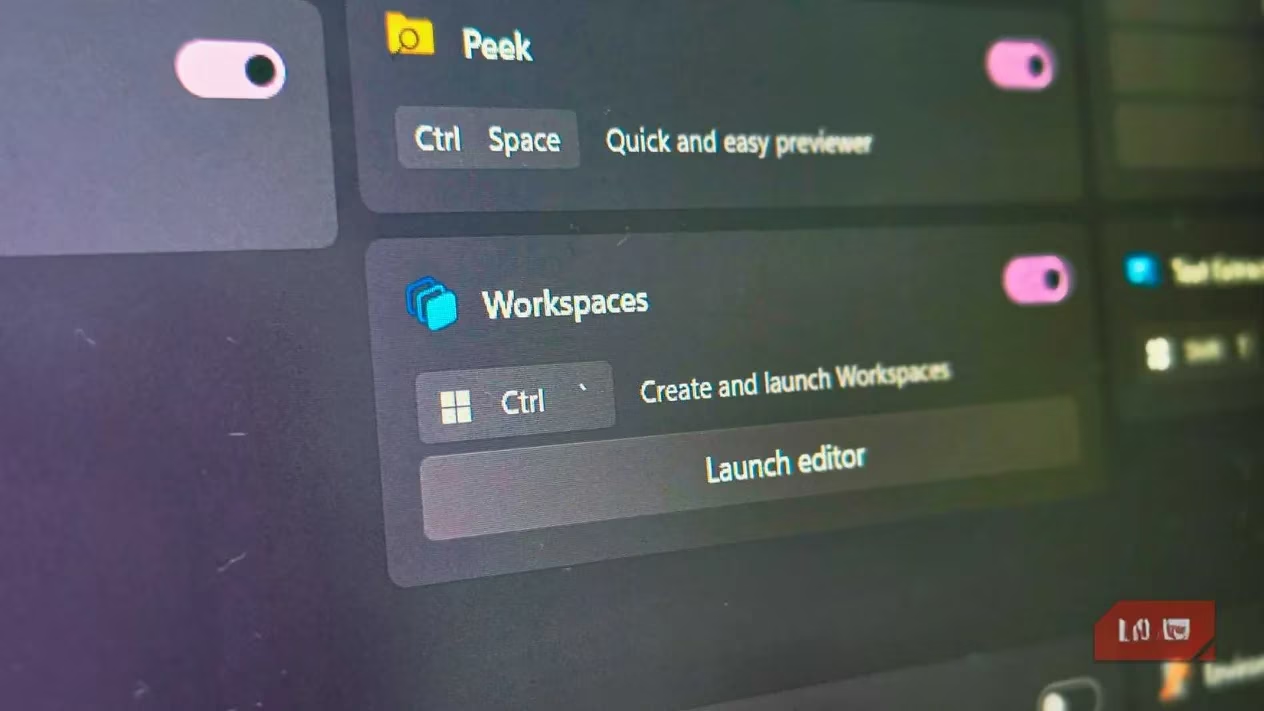
Enable the Feature: Open PowerToys, go to Windowing & Layouts > Workspaces, and flip the Enable Workspaces toggle. You can even customize the keyboard shortcut for the Workspace Editor here if you're a shortcut fanatic.
-
Arrange Your Perfect Setup: This is the fun part! Open all the apps you need for a specific task (like writing, coding, or research) and arrange them just how you like. Use Snap Layouts to make the most of your screen real estate. Get everything pixel-perfect.
-
Capture the Snapshot: Press your Workspaces shortcut to open the editor, click Create Workspace, and hit Capture. PowerToys will scan your desktop.
-
Fine-Tune & Save: Give your workspace a clear name (e.g., "Deep Work - Writing"). Review the list of captured apps. You can remove any you don't want. Pro Tip: For apps that need admin rights (like certain dev tools), tick the Launch as Admin box. Finally, check Create desktop shortcut and hit Save.
And voilà! You now have a one-click solution to your ideal desktop.
🌟 Why This Is a Total Game-Changer in 2026
Workspaces isn't just for your morning routine. Its real power lies in creating context-specific setups. Imagine having:
-
A "Writing" Workspace: Browser with research tabs on the left monitor, Microsoft Word maximized on the right, and Spotify minimized.
-
A "Development" Workspace: VS Code on the primary screen, a terminal and database tool on the secondary, and documentation in the browser.
-
A "Creative" Workspace: Figma or Photoshop front and center, reference images on a second display, and communication apps tucked away.
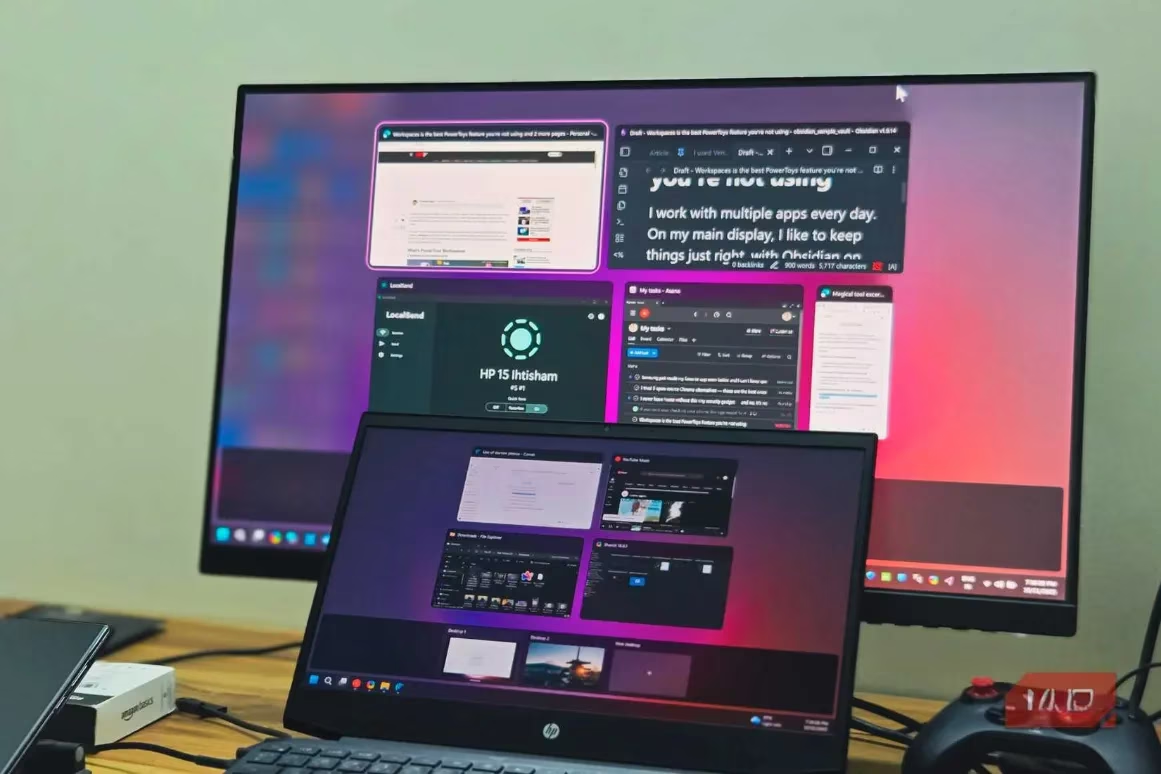
Switching between these modes is as easy as clicking different desktop shortcuts. It’s like having multiple, perfectly organized desks in one physical space.
⚠️ The (Small) Catch & The Pro Fix
Okay, let's keep it real—no tool is perfect. Workspaces has one notable quirk: it’s great at placing your app windows, but it doesn't always remember what's inside them.
-
Browser Tabs: It will reopen Chrome or Edge, but to a blank new tab page, not your 15 essential research tabs. Oof.
-
File Explorer: It opens the app, but not the specific project folder you had navigated to.
-
Word Documents: It launches Word, but not the actual document you were editing.
But here's the 2026 pro secret to fix this: CLI Arguments. It sounds technical, but it's just giving Workspaces a specific instruction when it launches an app.
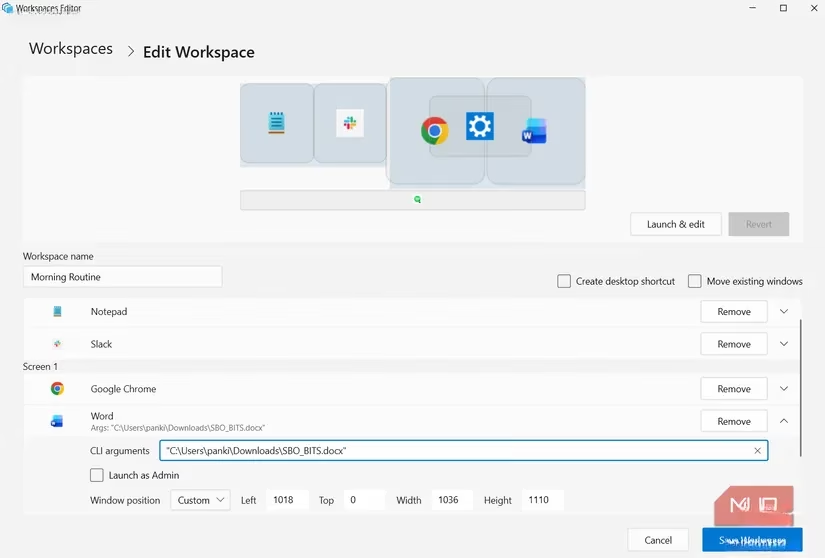
When editing a workspace, you can add a command-line argument to tell an app exactly what to open. For example:
-
For File Explorer, you can add the path
C:\MyProjects\AwesomeApp. -
For Word, you can add the path to your
.docxfile. -
For Chrome, you can add a list of URLs to open automatically.
It's one extra step during setup, but once it's done, your workspace becomes truly, completely automated. It’s the difference between a good tool and a mind-blowing one.
🎯 Final Thoughts: Is It Worth It?
In a word: absolutely. PowerToys Workspaces takes a tedious, repetitive part of the digital workday and automates it into oblivion. The few minutes it saves you every morning add up to hours over a month. In 2026, where efficiency is everything, having a tool that lets you hit the ground running from the moment you log in is priceless.
It turns your computer from a generic tool into a personalized, context-aware command center. And the best part? It's completely free from Microsoft. So, if you're still manually arranging your windows every day... honey, what are you waiting for? Your future, more productive self will thank you. Give it a try and watch your workflow transform. ✨
Leave a Comment