Oh, the sheer pandemonium! When Microsoft ruthlessly cut off security updates for Windows 10 last month, I was catapulted into the bewildering abyss of Windows 11—like a time traveler dumped into a neon-drenched future! 😱 I mean, come on, it's 2025, and I'm still reeling from the shockwaves of this forced upgrade. Everything feels alien, from the flashy new interface to the widgets popping up like uninvited guests. But fear not, fellow sufferers, because after diving deep into this digital jungle, I've unearthed some game-changing tweaks that transformed my chaos into control. And let me tell you, it's been a rollercoaster of emotions—frustration, awe, and finally, triumph! 🎢💥
The Taskbar Tango: Why Is It Center Stage?
Seriously, what madness possessed Microsoft to shift the Start menu button from its cozy left-corner home to the dead center of the screen? 🤯 It's like rearranging your living room furniture in the dark—utterly disorienting! In Windows 11, the Taskbar is centered by default, supposedly to make room for widgets and updates. My screen now bombards me with weather forecasts and stock tips, which, let's be honest, are about as useful as a chocolate teapot when all I want is my old familiar setup. But here's the kicker: you can reclaim sanity! Just hop into Settings > Personalization > Taskbar and switch the alignment back to left. Voila! It's like slipping into a comfy old sweater. Still, this default centering feels like a sneaky plot to mess with our heads—Microsoft's way of shouting, "Look at me, I'm new and shiny!" 😤
-
Why it matters: Alignment affects your workflow—centered feels chaotic, while left-aligning restores harmony. It's all about spatial ergonomics, people!
-
Pro tip: Enable this ASAP to avoid daily migraines. Your productivity will skyrocket!
Start Menu Simplicity Gone Wild
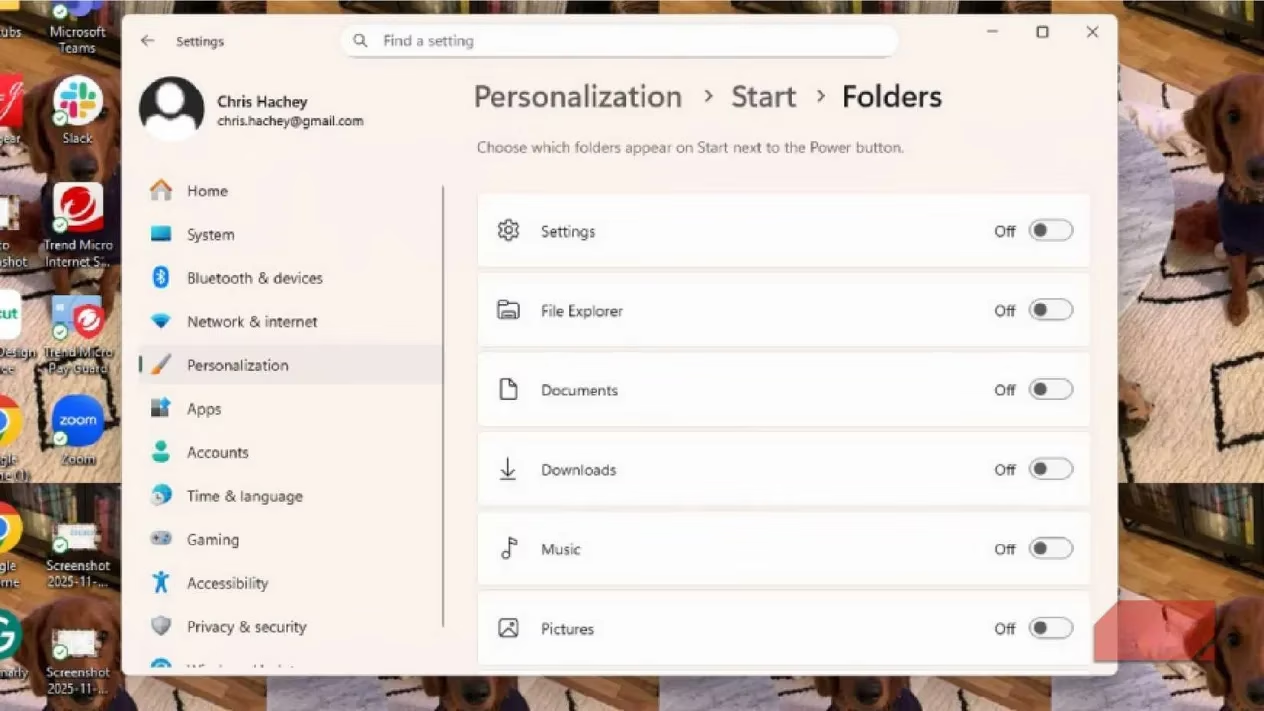
Hold onto your hats, because the Start menu in Windows 11 is stripped down to bare bones—it's like they took a chainsaw to it! 🔪 Now, it's overly simplified with icons for your top apps up top (customizable, thank goodness) and a barrage of recommendations below. Windows 11 spies on your habits, suggesting files and apps you've opened recently or frequently. If you're into that, you can amp it up, but for me, it's like having a nosy neighbor peeking over your shoulder! The sheer audacity! 😠 But don't despair; you can tame this beast. Dive into Personalization > Start and tweak it to your heart's content. Choose between icons and recommendations—I dialed it down to minimize the clutter. Even better, you can add folders for quick access to your go-to spots like Documents or Pictures. This feature is a godsend, eliminating the need to scavenge through the Taskbar like a digital archaeologist. It echoes the nostalgic remnants of Windows 10, making file retrieval a breeze. 🗂️
-
Customization options:
-
Toggle recommendations on/off for a cleaner view.
-
Add folders for instant access—say goodbye to endless searches!
-
Emotional rollercoaster: From rage at the oversimplification to joy at the personalization power!
System Protection: Your Digital Safety Net
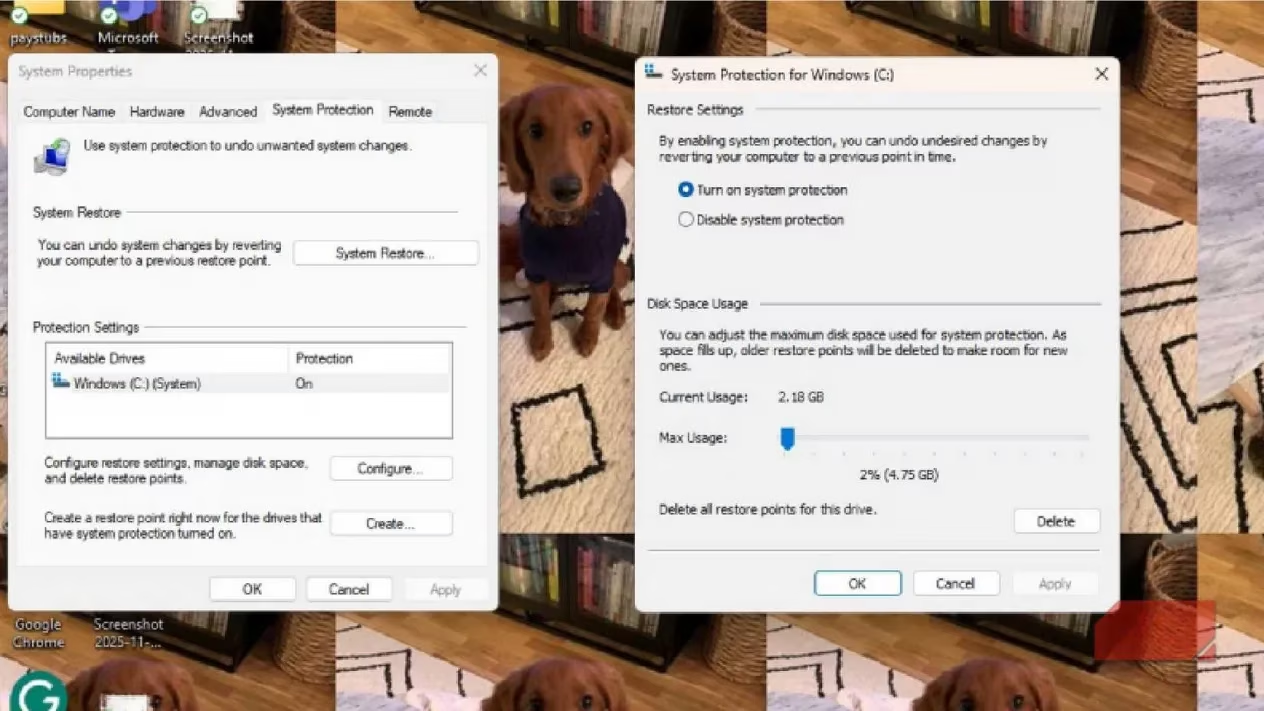
Let's talk about backing up your life—because in this digital age, losing files is like losing a limb! 💔 System Protection in Windows 11 is your unsung hero, creating restore points that act as time machines for your settings. Think of it like Microsoft Word's version history, but for your entire PC—capturing apps, files, and configurations at specific moments. It's a fail-safe fortress against disasters! 🛡️ Setting it up is a cinch: search for "Create a restore point" in the Taskbar, open System Properties, click System under Protection Settings, hit Configure, and turn on System Protection. There's even a sliding scale to allocate disk space—genius! I cranked mine up to max because, hey, peace of mind is priceless. Apply and OK, and you're armored against chaos. This isn't just backup; it's digital immortality! ✨
-
Why it's essential: Restore points save you from tech meltdowns—imagine reverting to a pre-crash state in seconds!
-
Steps simplified:
-
Search "Create a restore point".
-
Navigate to Protection Settings.
-
Configure and enable.
-
Set disk space with the slider.
Unleash Your Inner Genius with Developer Mode
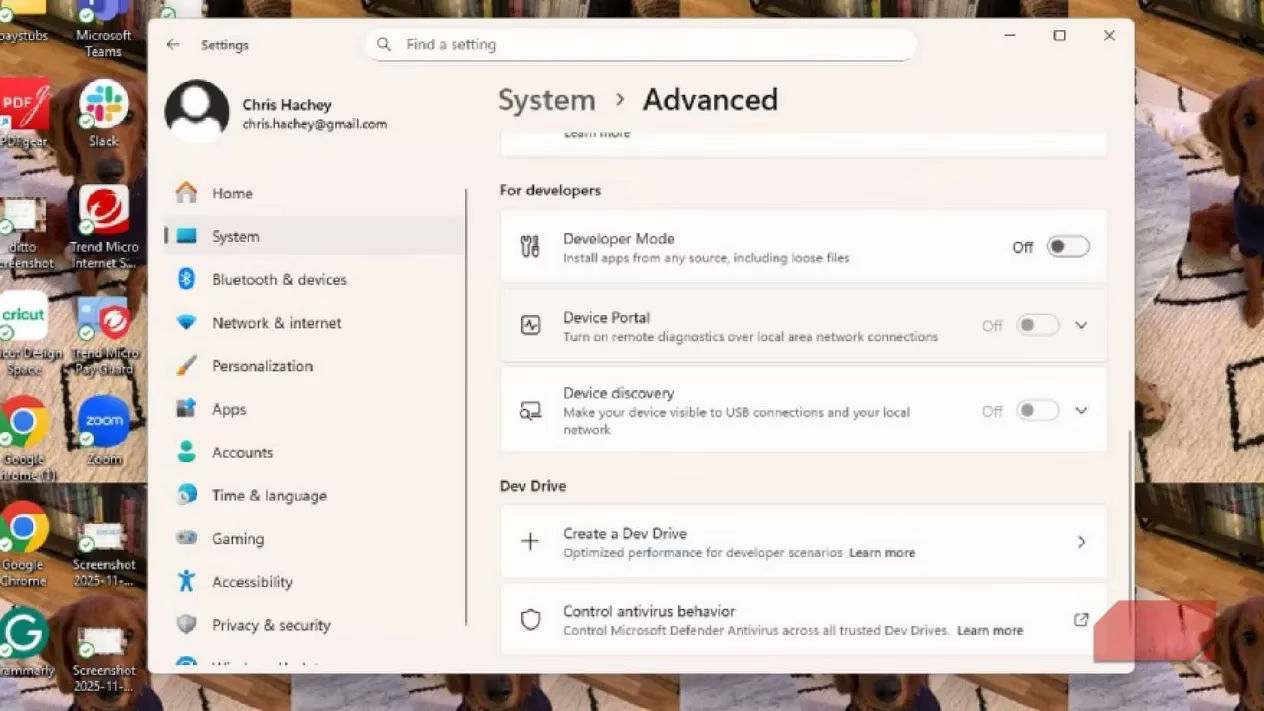
Who says you need a PhD in computer science to feel like a tech wizard? 🧙♂️ With Developer Mode in Windows 11, you can tap into advanced tools and cutting-edge features—even if you're just a casual user like me! It's like having a secret lair for experimentation. Enable it by going to Start > System > Advanced and flipping the switch. This grants access to the latest apps and beta features, perfect for tinkering without fear. Now, I'm no coder, but having it on standby feels empowering—like keeping a superhero suit in the closet. Just don't go poking around blindly; it's for those "I feel adventurous" moments. The best part? It's unobtrusive, so no accidental system implosions. 🚀
-
Benefits: Access bleeding-edge updates and apps—ideal for tech enthusiasts.
-
Caution: Use sparingly; it's not for daily drudgery but for exploratory escapades!
File Explorer: Reveal Those Hidden Extensions
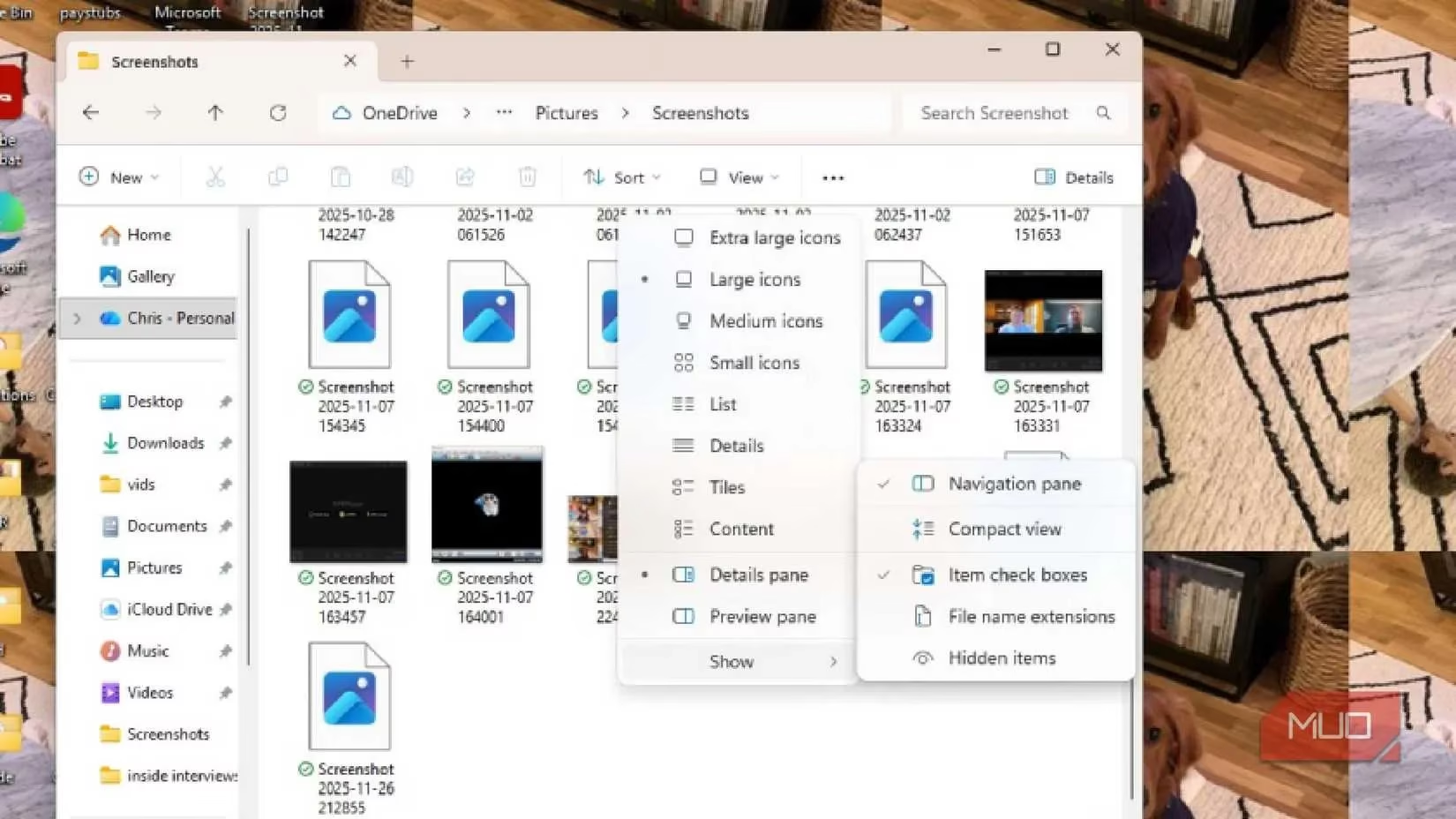
File Explorer in Windows 11 is like a treasure hunt where the map is half-buried! 🔍 By default, it hides file extensions, so you see icons but not the full story—like mistaking a JPG for a PNG. It's infuriating! But fear not, you can unveil the truth. Open File Explorer, click View, and under Show, select File name extensions. Suddenly, every file name reveals its shorthand suffix, making identification a snap. It's a small tweak with colossal impact—no more guessing games! I felt like Sherlock Holmes cracking a case when I enabled this. 🕵️♂️
-
How-to:
-
Open File Explorer > View > Show > File name extensions.
-
Impact: Instant clarity on file types—boost your efficiency tenfold!
In the end, Windows 11 is a beast that demands taming, but with these tweaks, I've turned it into my personal command center. Personalization is key—embrace the madness, and you'll conquer it! 💪🎉
Leave a Comment