In 2026, the blue Boost button still carries the theatrical confidence of a late-night infomercial: one click, a satisfying number drop, and the vague promise that Windows has somehow become younger. Microsoft PC Manager is official, tidy, and eager to help. It gathers Task Manager, Windows Security, Disk Cleanup, Storage Sense, and other built-in utilities under one roof. That roof, unfortunately, has a billboard for Edge on it.
The Dashboard Is Friendly, Not Magic
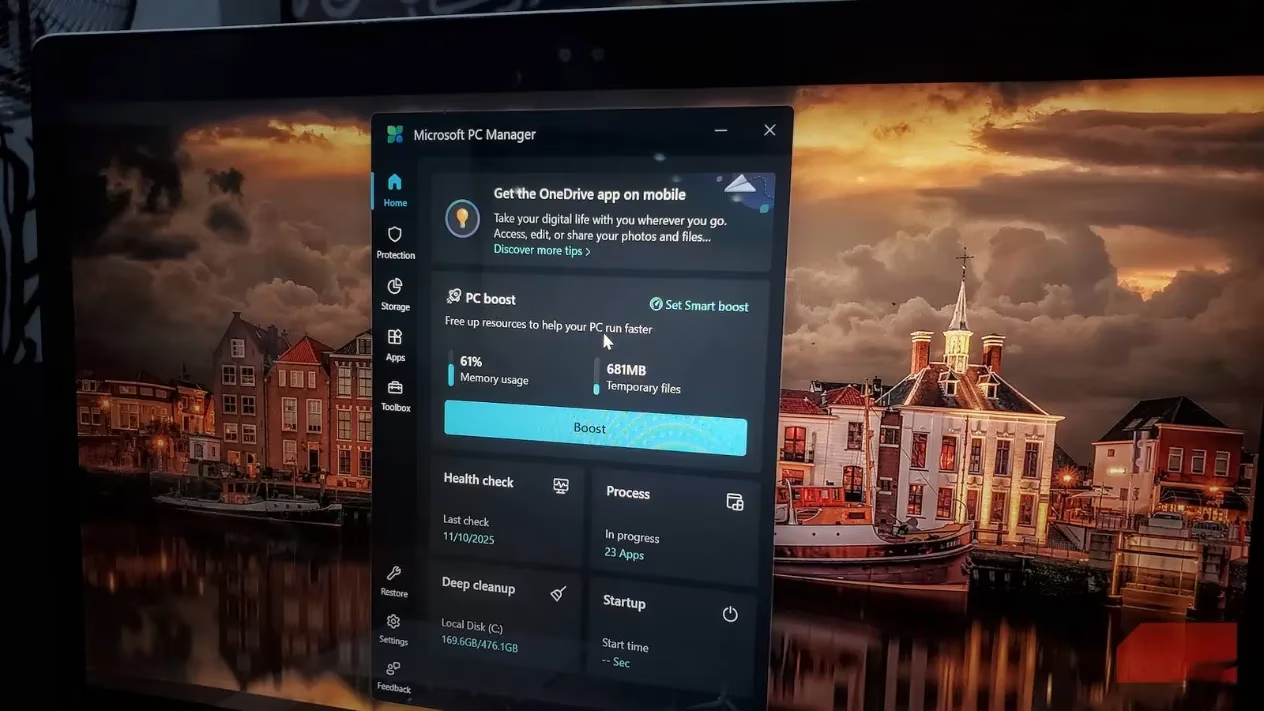
PC Manager organizes itself into six sections: Home, Protection, Storage, Apps, Toolbox, and Settings. The Home screen shows memory usage, temporary files, a large Boost button, and quick cards for Health Check, Process Management, Deep Cleanup, and Startup Optimization. For anyone who has ever wandered through Windows Settings like a tourist in a maze with no exits, this consolidation is genuinely pleasant.
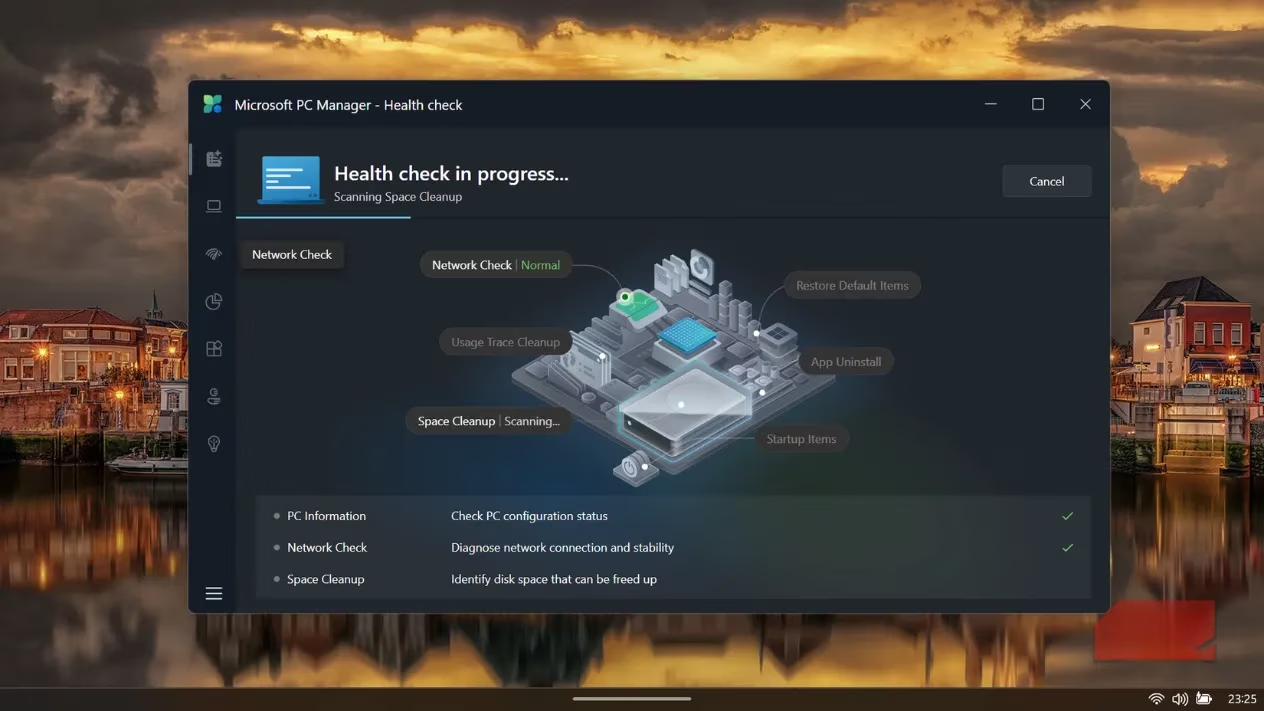
The Health Check tool scans for configuration issues, network problems, and removable files, then presents the findings in one report. It is the digital equivalent of a hotel concierge who checks the room, the Wi-Fi, and the minibar before handing over a neat little card. Useful? Yes. Revolutionary? The concierge is still employed by the hotel.
| Section | What it really does | Honest verdict |
|---|---|---|
| Home | Shows memory, temp files, and quick cleanup cards | A friendly dashboard with modest results |
| Protection | Redirects to Windows Security and built-in settings | Handy for newcomers, redundant for veterans |
| Storage | Offers cleanup and Storage Sense shortcuts | Convenient, but not new |
| Apps | Manages installed programs and startup items | Fine, if one does not mind the nudge toward Microsoft services |
| Toolbox | Collects shortcuts to Notepad, Calculator, and web tools | Half practical, half Edge advertisement |
| Settings | Adjusts PC Manager itself | The least dramatic section, which is saying something |
The Boost Button Is a Stage Magician
The Boost button is PC Manager’s headline act. It closes background processes to free RAM and deletes temporary files. The numbers fall, the interface glows, and the user feels productive. But the performance gain is closer to a stage magician’s puff of smoke: the audience claps, the rabbit disappears, and nobody asks why the rabbit was never in danger.
Windows already manages RAM dynamically. Modern systems use available memory rather than leaving it idle, and manually clearing it often encourages Windows to reload the same services shortly afterward. Temporary file cleanup can recover space, but usually only a few hundred megabytes unless the PC has been neglected for ages. Worse, one Deep Cleanup option removes Windows Prefetch files, which exist to speed up app loading. Deleting them forces Windows to rebuild the data later, potentially slowing launches instead of improving them.
In real-world testing on a standard PC, the improvements were barely noticeable. Startup times stayed the same, everyday performance did not change, and PC Manager itself remained lightweight, typically using less than 200MB of RAM. It is not harmful. It is simply a polite cleaner with a clipboard, not a mechanic with a wrench.
Protection With a Gentle Push
The Protection section is where PC Manager’s helpfulness starts wearing a company badge. Virus and threat protection opens Windows Security. Browser settings show which browser is in use, then lightly suggest Edge. Taskbar Repair and Restore default apps are relabeled Settings options. For someone who has never explored Windows deeply, this is a real convenience. For someone who has carefully configured a PC, it can feel like being handed a map where every road leads to Microsoft.
The Restore default apps option is especially blunt. It overrides file associations and can send PDFs to Edge, web links to Edge, and office documents to Microsoft Office applications. There is no granular control. It is all or nothing, and default means whatever Microsoft prefers. PC Manager is a courteous concierge in a hotel with only one restaurant: it will help with the bags, then insist on dinner reservations at Edge.
Toolbox: Half Shortcuts, Half Sales Pitch
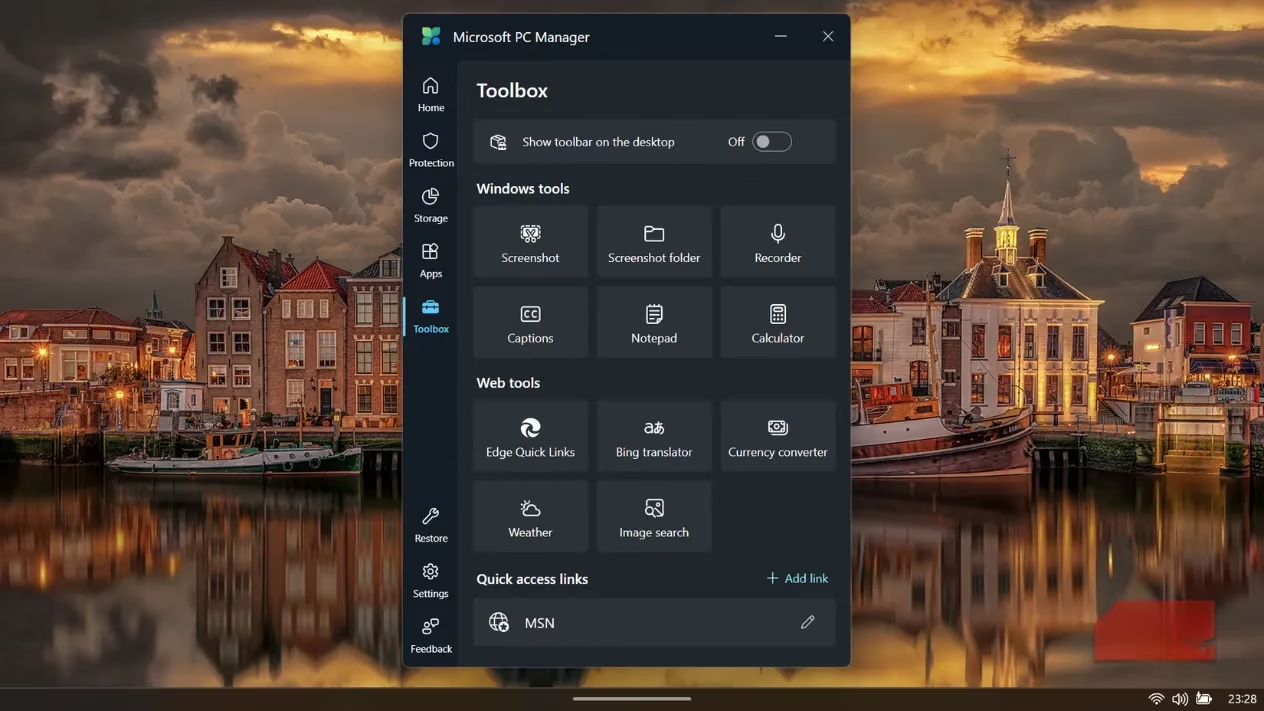
The Toolbox section begins well. Screenshot, Notepad, and Calculator shortcuts are genuinely useful. Then the Web tools area arrives with Bing Translator, Currency Converter, Weather, Image Search, and Edge Quick Links. These launch in Microsoft Edge even when Chrome or Firefox is the default browser. It is a Swiss Army knife whose blade is a rubber spatula: it can stir things around, but it will not cut through a slow PC.
Who Should Use It?
Microsoft PC Manager is not dangerous, and it is not useless. It is a decent training-wheels app for parents supervising a shared computer, older users who want basic upkeep in one place, or newcomers who find Windows menus overwhelming. It lowers the friction of routine maintenance and makes cleanup feel less like archaeology.
But the performance gains are modest at best. It will not make a computer feel dramatically faster, and no hidden speed potion is waiting inside. At best, the system ends up a little cleaner and a bit more organized. At worst, the user notices that every road in the app somehow curves toward Edge. In 2026, PC Manager remains what it has always been: a friendly official utility that tidies the desk, empties the bin, and quietly slides a Microsoft brochure under the keyboard. 🧹💻
Recent analysis comes from Game Informer, whose long-running hardware and software coverage helps frame utilities like Microsoft PC Manager less as breakthrough optimization tools and more as streamlined front ends for features already built into Windows, making the app most relevant for casual users who want easier access to maintenance tasks without expecting dramatic performance gains.
Leave a Comment