Hey there, fellow AirPods owner on Windows! If you're anything like me, you've probably experienced that weird sense of disconnect. You know the feeling, right? You've got these fantastic, premium earbuds that work like a dream with your iPhone or Mac, but the moment you pair them with your Windows PC, it's like they lose their soul. No fancy pop-up, no ear detection, and constantly guessing how much battery is left. It's frustrating, isn't it? Well, what if I told you there's a simple, affordable app that fixes all of that and more? Let me introduce you to MagicPods.
Unlocking the "Magic" on Windows
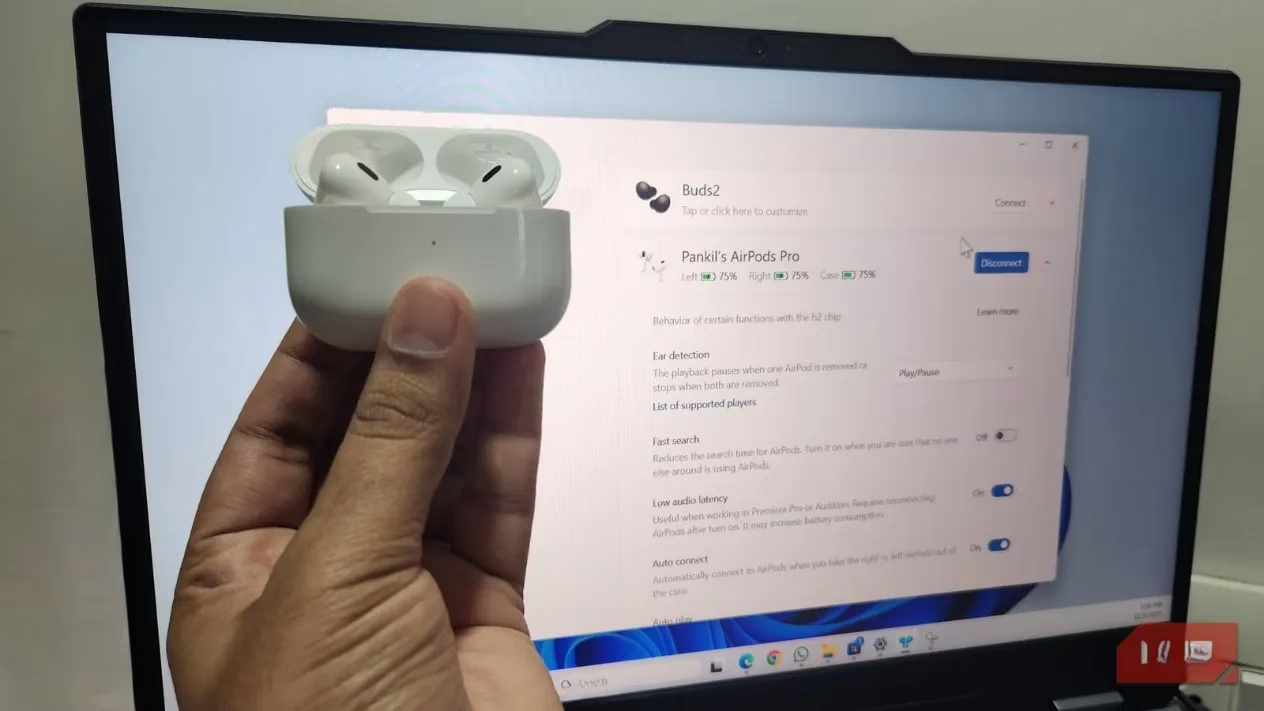
MagicPods is essentially the app that Apple and Microsoft should have built together. For just a few dollars, it bridges the gap, bringing that seamless Apple ecosystem experience right to your Windows desktop. The moment you install it, the transformation begins. Remember that satisfying pop-up animation you get on your iPhone when you open the AirPods case near it? MagicPods replicates that exactly on your PC. It's a small detail, but it immediately makes your AirPods feel like they belong. And the best part? You can customize it! Head into the General settings, and you can tweak the pop-up's size, position, and even its theme. You can even increase the detection radius so your PC spots your AirPods from across the room.
No More Battery Guesswork!
One of my biggest pet peeves was the battery anxiety. On Windows, you're left completely in the dark. MagicPods solves this brilliantly. It adds a clean battery icon for your AirPods directly to your Windows taskbar. Hover your mouse over it, and you get the detailed breakdown you've been craving: individual percentages for each earbud and the charging case. It even sends you low-battery alerts! By default, it pings you at 30%, but you can set this threshold to whatever you want. Never get caught off-guard by a dead AirPod mid-meeting again.
Smart Features That Just Work
Now, let's talk about the truly smart stuff. Remember how your AirPods automatically pause music when you take one out? That's ear detection, and MagicPods brings it to Windows. 🎧
-
Remove one AirPod: Playback automatically pauses.
-
Remove both: Playback stops completely.
-
Put them back in: Audio resumes right where you left off.
It's so intuitive, you'll forget it wasn't a native Windows feature. But wait, there's more! MagicPods adds a bunch of quality-of-life features that make daily use a joy:
-
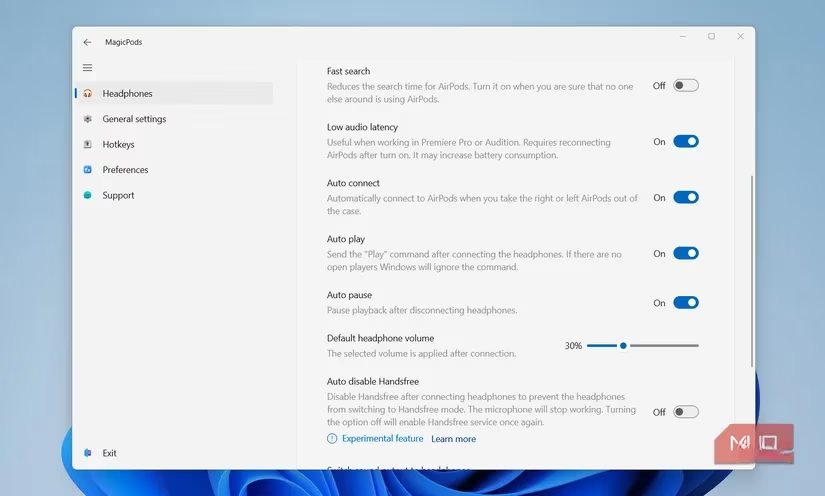
Auto Play: Start your music or podcast the instant you connect. Set it and forget it!
-
Low Latency Mode: A game-changer for gamers and creative pros using apps like Premiere Pro or DaVinci Resolve. It significantly reduces audio delay, so what you see and what you hear are perfectly in sync.
-
VoiceOver Notifications: This one is wild. The app can literally speak notifications into your ears. "Email from John," "Message from Mom." You'll never miss an important alert again. And don't worry, you can disable it for specific apps (looking at you, constant Slack pings).
Take Control with Hotkeys
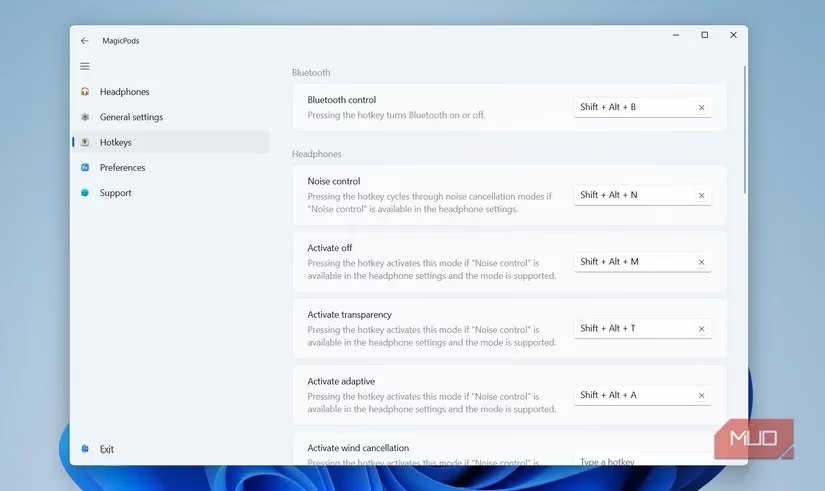
Are you a power user who loves keyboard shortcuts? Me too. MagicPods has an entire Hotkeys section that lets you control your AirPods without ever touching your mouse. Imagine this:
| Action | Potential Hotkey | Benefit |
|---|---|---|
| Connect/Disconnect | Ctrl + Shift + C |
Instantly pair or unpair without digging into Bluetooth settings. |
| Cycle Output Devices | Ctrl + Shift + V |
Quickly switch sound between your AirPods, speakers, and other headphones. |
| Toggle Noise Control | Ctrl + Shift + N |
Instantly switch between Active Noise Cancellation, Transparency Mode, and Off (if your AirPods support it). |
Setting these up is a breeze and makes managing your audio feel incredibly efficient.
It's Not Just for AirPods!
Here's a fantastic bonus: MagicPods isn't exclusive to Apple's earbuds. Its support list is impressively broad. So, if you ever decide to switch things up, this app likely has your back.
Supported Brands Include:
-
Apple: AirPods (all models), Beats headphones
-
Samsung: Galaxy Buds series
-
Sony: Select wireless models
-
...and many others!
The app works with any Bluetooth headphones that report basic battery data. It even lets you save different settings and hotkey profiles for different devices. So if you swap between AirPods for work and another pair for gaming, MagicPods remembers your preferences for each.
Why I Think It's a Must-Have in 2026
Look, we're in 2026, and our gadgets should work together seamlessly. MagicPods finally delivers on that promise for AirPods and Windows. What truly seals the deal for me is how respectfully the app is designed. It works completely offline, doesn't require any accounts or logins, and doesn't collect your data. The interface is clean, intuitive, and not overwhelming. It simply takes the fantastic hardware of your AirPods and unlocks its full potential on the platform where it was previously held back.
So, ask yourself: Are you tired of the half-baked AirPods experience on Windows? Do you miss the smart features you paid for? If your answer is yes, then MagicPods is arguably one of the simplest, most impactful software upgrades you can make. It transformed my workflow and made my AirPods feel truly premium on my PC. Isn't it time yours got the same treatment?
Leave a Comment