For years, the built-in Windows Search has been a source of endless frustration. It's notoriously slow, misses files constantly, and feels like a relic from a different era. While there are some workarounds and hidden settings, no one should have to become a system administrator just to find a simple document. Enter Listary, a lightning-fast, free search utility that seamlessly integrates into Windows File Explorer, transforming it from a clunky file browser into a powerful productivity hub. It's not just a search tool; it's a complete workflow enhancer that acts as a quick app launcher, system command runner, and web search portal, all without ever needing to open a separate standalone application.
🚀 Core Features That Change Everything
Listary's magic lies in two primary features that feel so natural, you'll wonder how you ever lived without them.
1. Type-to-Search: Instant File Discovery
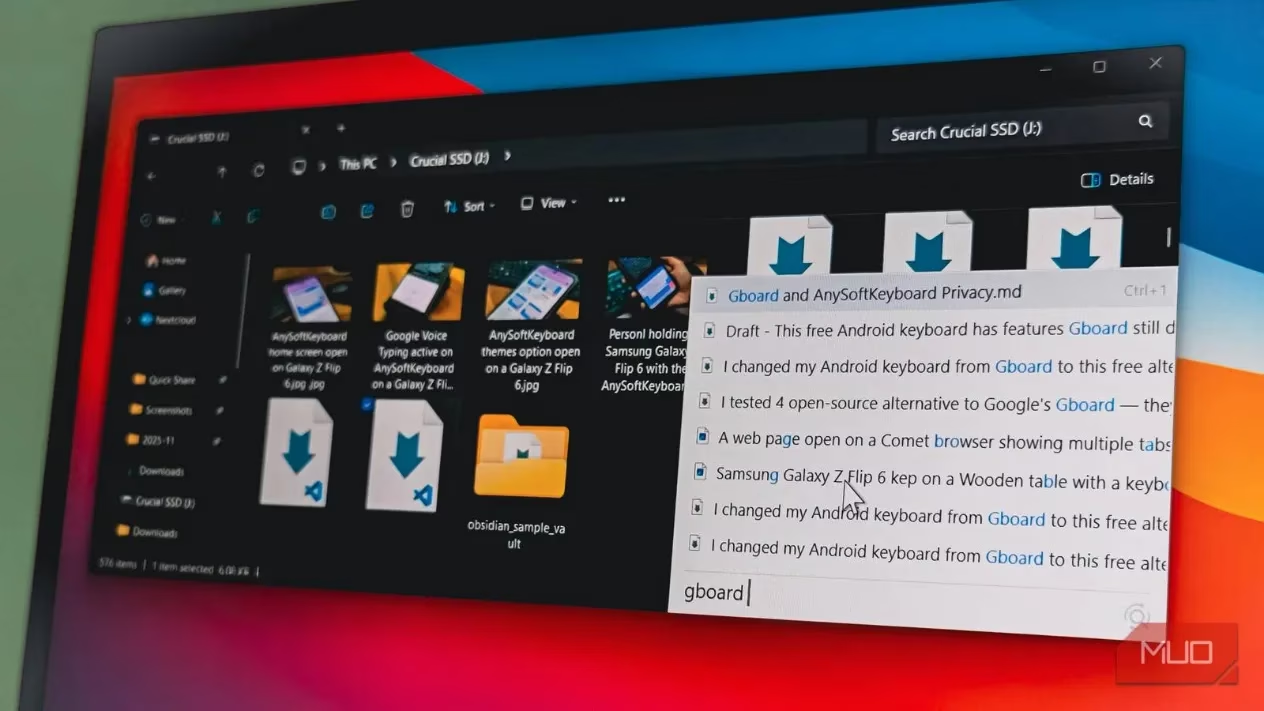
This is the game-changer. Simply open any File Explorer window and start typing. That's it. No need to click a search bar or press a shortcut. Listary instantly filters the contents of the current folder and its subfolders based on your keystrokes. Looking for that presentation from last month? Just type "Q4 review" and watch it appear. It works as if Microsoft finally decided to build a competent search function directly into Explorer. 🤯
2. Quick Switch: Master of the Dialog Box
This feature alone is worth the download. Whenever you encounter an Open, Save, or Upload dialog in ANY application, Listary injects its search bar right there. Need to attach a file in an email? Instead of navigating through a maze of folders, just start typing the filename in the dialog box. Listary will find it instantly, saving you countless clicks and drag-and-drop operations. It eliminates the disconnect between your file manager and other apps.
⚡ Beyond Search: A Powerful Quick Launcher
While search is its superpower, Listary doubles as an exceptional application and system launcher.
-
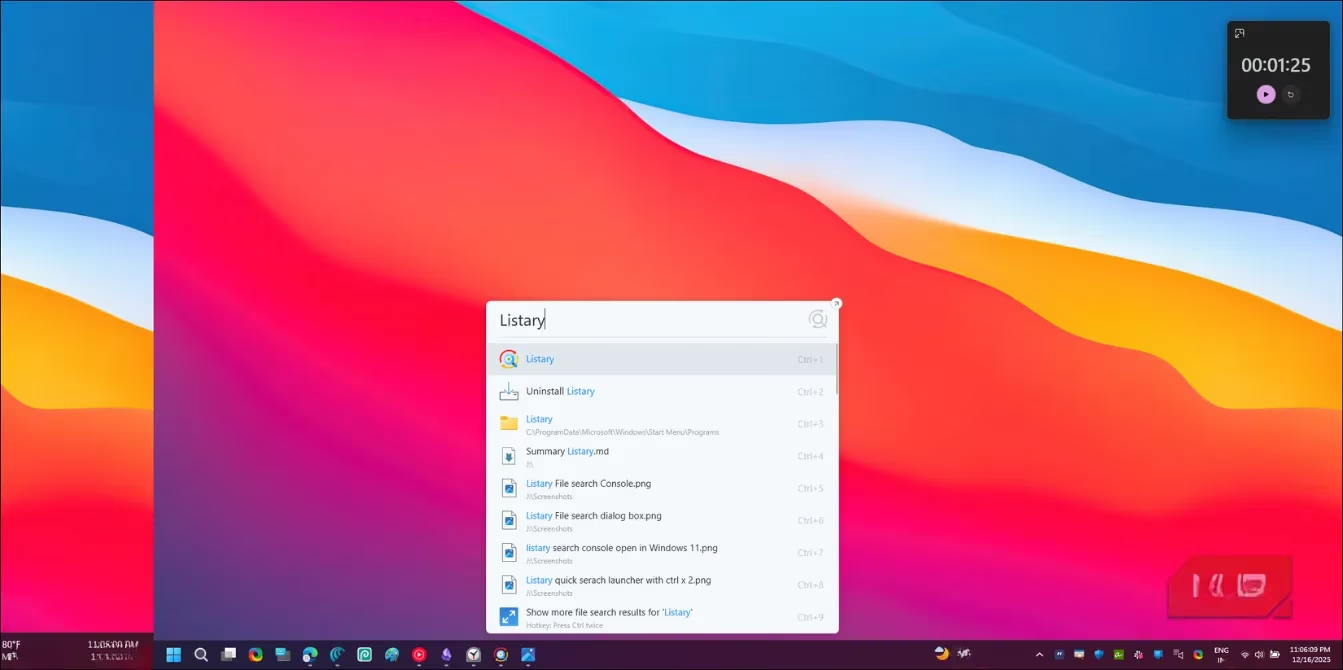
Summon the Launcher: Press
Ctrltwice to open the universal search bar. -
Launch Apps: Type the name of any installed program (e.g., "Chrome", "Photoshop") and hit Enter.
-
Smart Ranking: It learns your habits! If you type "vs", Visual Studio Code will likely appear first if that's what you use most. Type "obs" for Obsidian. It intelligently pushes frequently used items and exact matches to the top.
-
Quick Selection: For multiple results, use
Ctrl + [Number]to select an item by its position. -
File Operations: Right-click on any result for a context menu to open the containing folder, copy, move, or delete.
🔍 Advanced Search & Customization
For more complex searches, you can maximize the launcher or open the dedicated Search Window from the system tray. This interface offers powerful tools:
-
Type-Based Filters: Narrow searches to just documents, images, folders, etc.
-
Sorting: Sort results by name, date modified, or size.
-
Recently Modified Section: A dedicated area for files you've just worked on.
-
Preview Pane: See file details without opening them.
The Search Window stays open, which is perfect for comparing multiple similar files or refining a complex query.
🌐 Web Searches & System Commands at Your Fingertips
Listary extends its functionality far beyond your hard drive.
Instant Web Searches:
-
Type
g [your query]to search Google in your default browser. -
Similarly, use
ytfor YouTube,amfor Amazon, or define your own custom search engines.
Powerful System Commands (Keyboard Ninja Mode 🥷):
-
cmd: Opens Command Prompt in the current File Explorer folder. -
mkdir project_folder: Creates a new folder instantly. -
touch notes.txt: Creates a new text file. -
shutdown: Powers down your PC directly from the launcher.
All these actions are performed without ever touching the mouse, streamlining your workflow to incredible speeds.
⚙️ Taming the Power: Configuration
Listary is highly customizable through its Options dialog. You can:
-
Define and edit custom commands and actions.
-
Assign global hotkeys for specific functions.
-
Tune search priorities and indexing settings.
-
Pin favorite folders, commands, and applications for one-click access.
-
Create custom submenus to organize your workflows.
💰 Free vs. Pro: What's the Difference?
The free version is remarkably generous and includes all the core features discussed above without any nag screens. The only limitation is the theme—it's light mode only.
The Pro version (a one-time payment of $19.95) adds:
-
Dark mode for the interface.
-
Indexing for network drives for searching files on servers or NAS devices.
-
Advanced filtering options for power users.
For most users, the free version is more than sufficient. The Pro upgrade is primarily for those who need network search or want to support the independent developers behind this fantastic tool.
🏆 Final Verdict
Listary has effectively replaced multiple tools in the modern Windows user's arsenal. It combines the raw file-finding power of apps like Everything with the seamless system integration that tools like PowerToys Run aim for. The deep File Explorer and system dialog integration is its killer feature—no other app does it quite this well. If you're tired of wrestling with Windows' native search, do yourself a favor and try Listary. It does one job—helping you find and open anything on your PC—and it executes that job flawlessly, every single time. ✨
Leave a Comment