Let’s be real for a second: Windows is packed with features that most of us never actually explore. We just settle into our little grooves and assume we’re working efficiently. But oh boy, was I wrong. Today I’ve got to talk about virtual desktops—a feature that’s been sitting right there on my taskbar since who knows when, and I totally ignored it. I’m pretty sure you’re sleeping on it too, but by the end of this breakdown, you’ll be wondering how you ever managed without it.
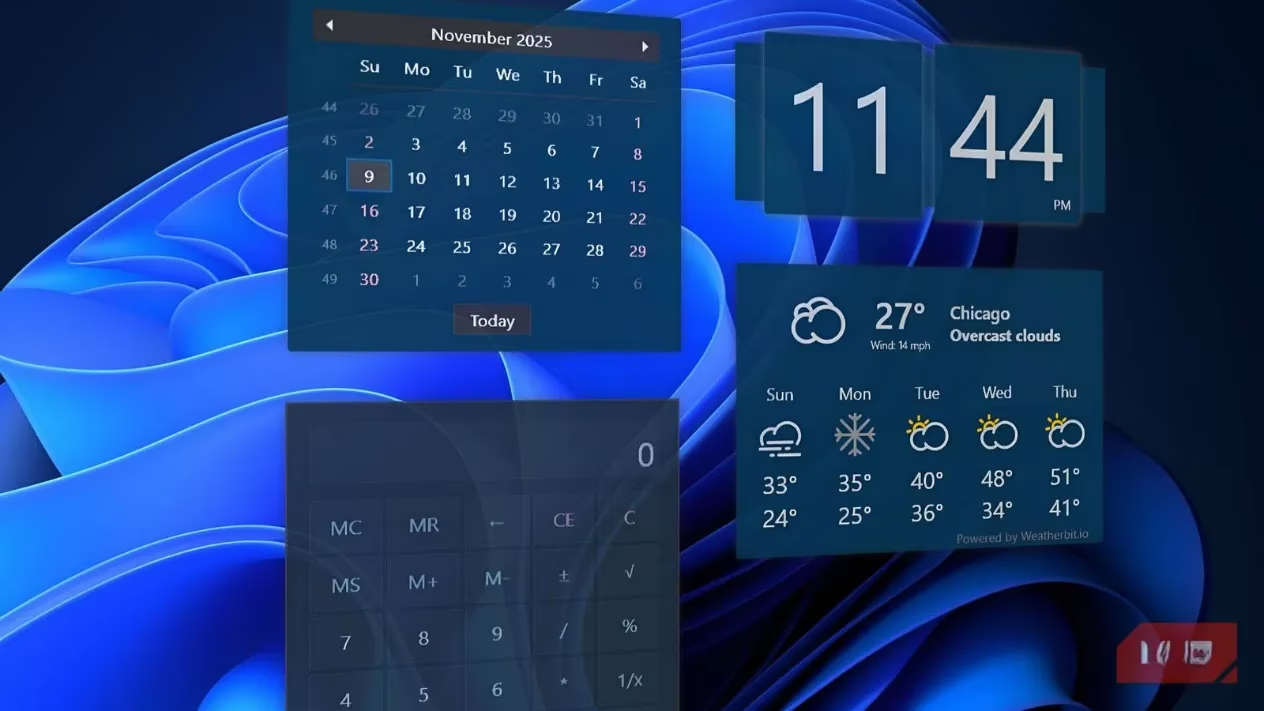
So what exactly are we talking about? Windows has had virtual desktops built in since Windows 10—and these days, on Windows 11 (and whatever comes next), they’re smoother than ever. Think of them like… having a clone of your entire desktop space. Not just opening more windows, but whole new environments. You can group your apps logically, keep your work life from bleeding into your gaming sessions, and finally stop that mad dash of pressing Alt+Tab fifteen times just to find one lonely calculator window. It’s like giving your PC a secret superpower, and I’m here to walk you through it like a buddy showing off a hidden console command.
🖱️ Getting Started: Click That Tiny Square
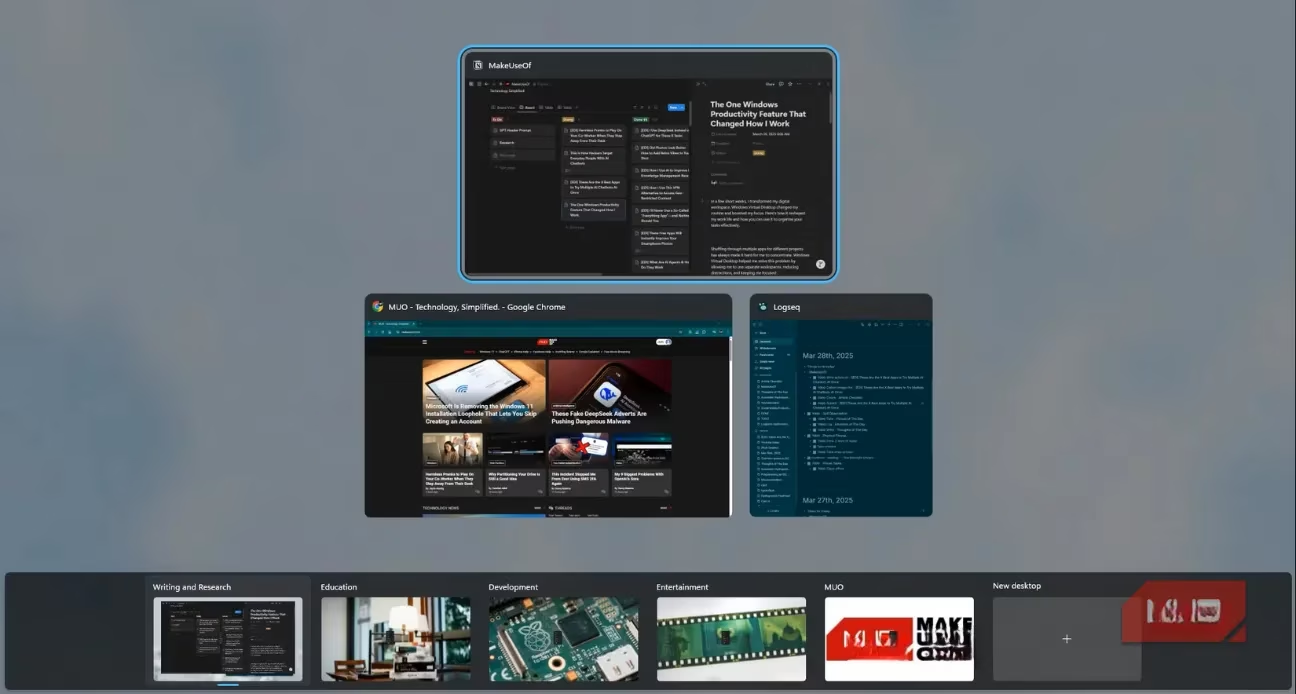
You know the little icon on your taskbar that looks like two overlapping squares? That’s Task View. If you’ve never clicked it… well, no judgment, but prepare to have your mind blown. Hit Win+Tab right now and you’ll see something that looks a bit like the usual app switcher, but there’s a twist – at the bottom you’ll spot your current desktop and a big, tempting “New desktop” button.
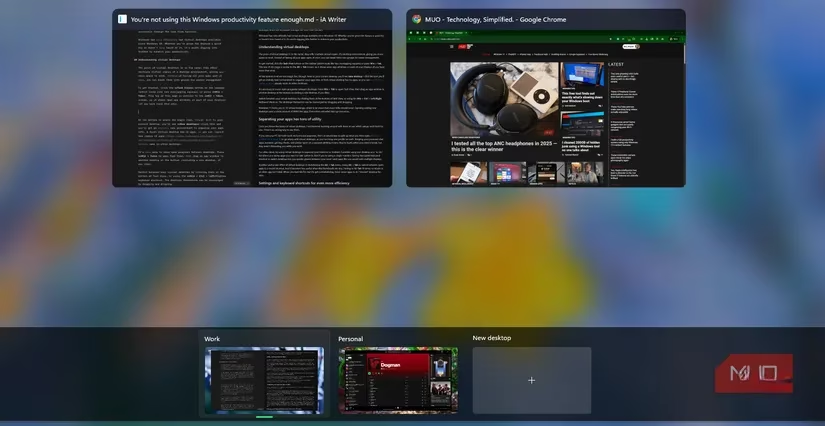
Click it. Bam! An entirely fresh desktop pops up, free of all clutter. This new space starts with zero open apps – it’s like a clean desk in the morning. You can launch whatever you need, even if the same app is already running on your main desktop. Work browser on one side, meme-filled personal browser on the other. And if you later decide that Chrome tab needs to move somewhere else, just open Task View again, grab the app window with your mouse, and drag it onto any desktop at the bottom. It’s as easy as reorganizing fridge magnets. Feeling keyboard-only? Win+Ctrl+Left/Right will zip you between workspaces faster than you can say “multitasking.”
💡 Real-Life Magic: Why You’ll Actually Use This
Okay, so you can spin up new desktops. Big deal, right? Wrong. Once you start playing around, the productivity hacks just keep revealing themselves. I’ve found my sweet spot, and let me tell you, it’s glorious.
-
Work vs. Play Separation – If your PC handles both day-job hustle and late-night gaming, this is a no-brainer. Keep your Slack, Outlook, and Excel on Desktop 1, and stash Discord, Steam, and your personal browser on Desktop 2. During work hours, you’re not even tempted to peek at your game clients. When you clock out, a quick
Win+Ctrl+Rightand suddenly you’re in relaxation mode. No more closing everything down just to feel “off the clock.” -
One Monitor? No Problem – Using a single screen can feel cramped. But with virtual desktops, you effectively get multiple monitors without buying new hardware. Jump between coding, research, and reference materials on different desktops with a swift keyboard combo. It’s like teleporting, honestly.
-
Declutter Your Flow – Have you ever felt personally attacked by a tiny, thumbnail-choked
Alt+Tabmenu? Yeah, me too. When your app list looks like a crowded Tokyo subway, toss a few less-urgent windows onto a separate “Later” desktop. They’re still open, but they won’t interfere with your main view. Your rapid-switching menu suddenly becomes neat and, dare I say, elegant. -
Organize by Hobby – I know folks who use one desktop for photo editing, another for music production, and a third just for… uh, “administrative chaos.” It’s like having dedicated rooms in your digital house.
A quick heads‑up: Windows 11 caps you at 16 virtual desktops, which is probably overkill unless you’re running a spaceship. Each empty desktop uses only a tiny sip of RAM, so don’t worry about performance hits. The apps themselves are the hungry ones, and spreading them out doesn’t add extra load.
⚙️ Level Up: Settings, Shortcuts & Secret Sauce
Alright, you’ve got the basics, now let’s bake in some pro moves. I promise, it’s still dead simple.
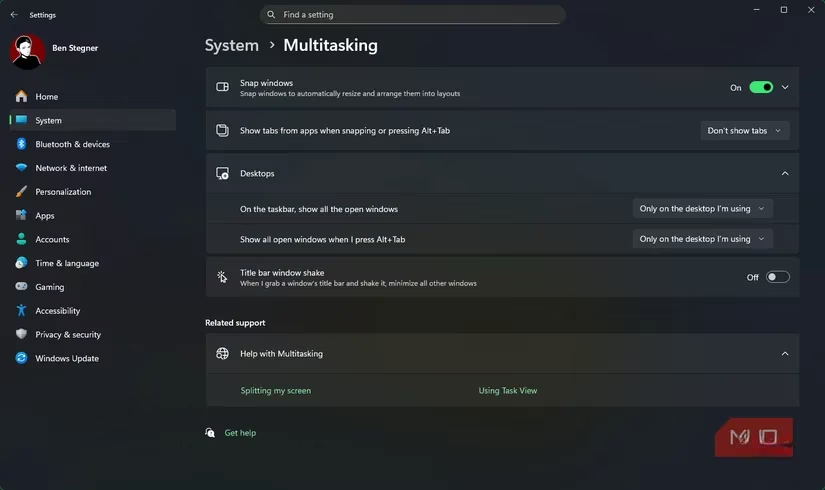
Head into Settings > System > Multitasking and expand the “Desktops” section. You’ll find two spicy toggles: “On the taskbar, show all the open windows” and “Show all open windows when I press Alt+Tab.” I strongly recommend setting both to “Only on the desktop I’m using.” Why? Because it keeps your virtual worlds visually separated. No accidental pop‑ups from your work chat while you’re vibing to Spotify on your personal desktop. Trust me on this one.
But wait, there’s more keyboard wizardry:
-
Win+Ctrl+D– Creates a brand new desktop instantly. No need to even open Task View. -
Win+Ctrl+F4– Closes the current desktop, and don’t panic—your open apps are gracefully moved to the neighboring desktop instead of banished into oblivion.
And inside Task View, right‑clicking is your friend. Right‑click any app and you can Move to a specific desktop without dragging. Even cooler? There’s an option to “Show this window on all desktops” or “Show windows from this app on all desktops.” Got a sticky note or a calculator you want constantly available? This is the way. It’s like having a little assistant who follows you from room to room.
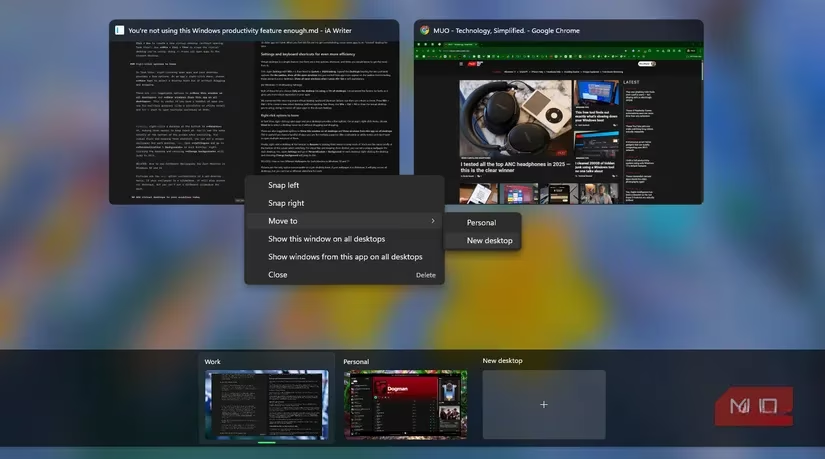
Now, let’s make these workspaces yours. Right‑click the desktop thumbnail at the bottom to Rename it—no more “Desktop 2” nonsense; call it “Deep Work,” “Meme Factory,” whatever floats your boat. The name even pops up briefly when you switch, and honestly, it’s a tiny dopamine hit every time. If you’re feeling extra fancy, you can set a different wallpaper for each desktop. Open Settings > Personalization > Background while on a specific desktop and pick a picture. (Slideshows will sync across all desktops, unfortunately, but single images work like a charm.) Suddenly, your work desktop can have a calm forest, while your gaming desktop blazes with cyberpunk neon. It’s the digital equivalent of mood lighting.
🚀 Just Try It Already
Listen, virtual desktops aren’t some arcane IT‑department secret—they’re a gift to anyone who wants a cleaner, more sorted digital life. Whether you’re hustling on a laptop or drowning in a multi‑monitor sea, this feature just works. Start with one extra desktop, chuck a few apps onto it, and see how much lighter your main screen feels.
I genuinely kicked myself for not using this sooner. The year is 2026, and if you’re still stacking all your windows onto one plane of existence… well, consider this your friendly intervention. Go ahead, click the little overlapping squares. Your future self will thank you.
Leave a Comment