In 2026, my Windows system tray still looks like a tiny airport for apps I barely remember installing. aText handles my text expansion, AutoHotkey runs my automation scripts, PowerToys FancyZones keeps my windows in line, Ditto remembers everything I copy, and a handful of other utilities fill in the gaps. They work, sure, but managing them feels like herding cats. So when I heard about AlomWare Toolbox — a free, portable Windows utility that claims to replace half a dozen tools in just 4MB — I had to ask myself: could one tiny app really declutter my digital life?
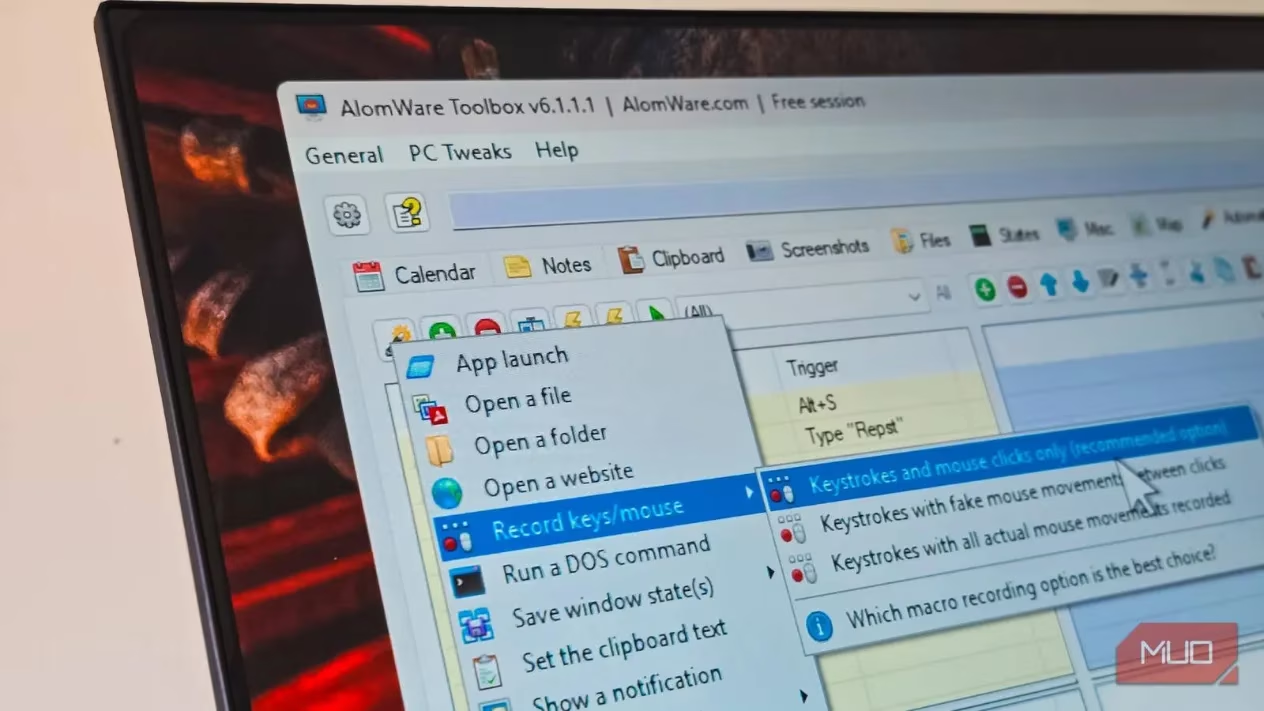
I downloaded it, half expecting a gimmick. AlomWare Toolbox isn't the newest or most popular app on the block; it's a passion project the developer built for his own convenience and then shared with the world. The catch? After every restart, you either enter a passcode shown on the activation dialog or pay $12 per year or $40 for a lifetime license to skip the prompt. Annoying, but not a dealbreaker for something this small and portable.
The home screen greets you with a row of tab-separated utilities. Calendar, Notes, Clipboard, Files, States, Map, Automation, and PC Tweaks — each one promising to absorb a task I'd normally hand off to a separate app. Let me walk you through what worked, what didn't, and whether this jack-of-all-trades is worth a spot on your USB drive.
The Everyday Essentials: Calendar, Notes, and Clipboard
I started with the basics. The Calendar tab shows your schedule and lets you add reminders without opening Outlook or Google Calendar. The Notes tab is a quick scratchpad for jotting down ideas — no dedicated app required, and you can keep multiple notes. But the real star for me was the Clipboard manager. It holds unlimited clipboard items, including text and images, which means my Ditto habit might finally have a replacement. I copied a dozen snippets during a writing session, and AlomWare kept every single one. No fuss, no extra install.
Files, States, and Map: The Ambitious Experiments
The Files tab tries to be a Swiss Army knife for file management. It can create real-time, versioned backups of files up to 100MB when opened through AlomWare Toolbox, and restore them later. It also searches your PC with multiple filters, bulk-renames files via script, and monitors folders for real-time changes. For a 4MB app, that's impressive. But two other tabs — States and Map — left me scratching my head.
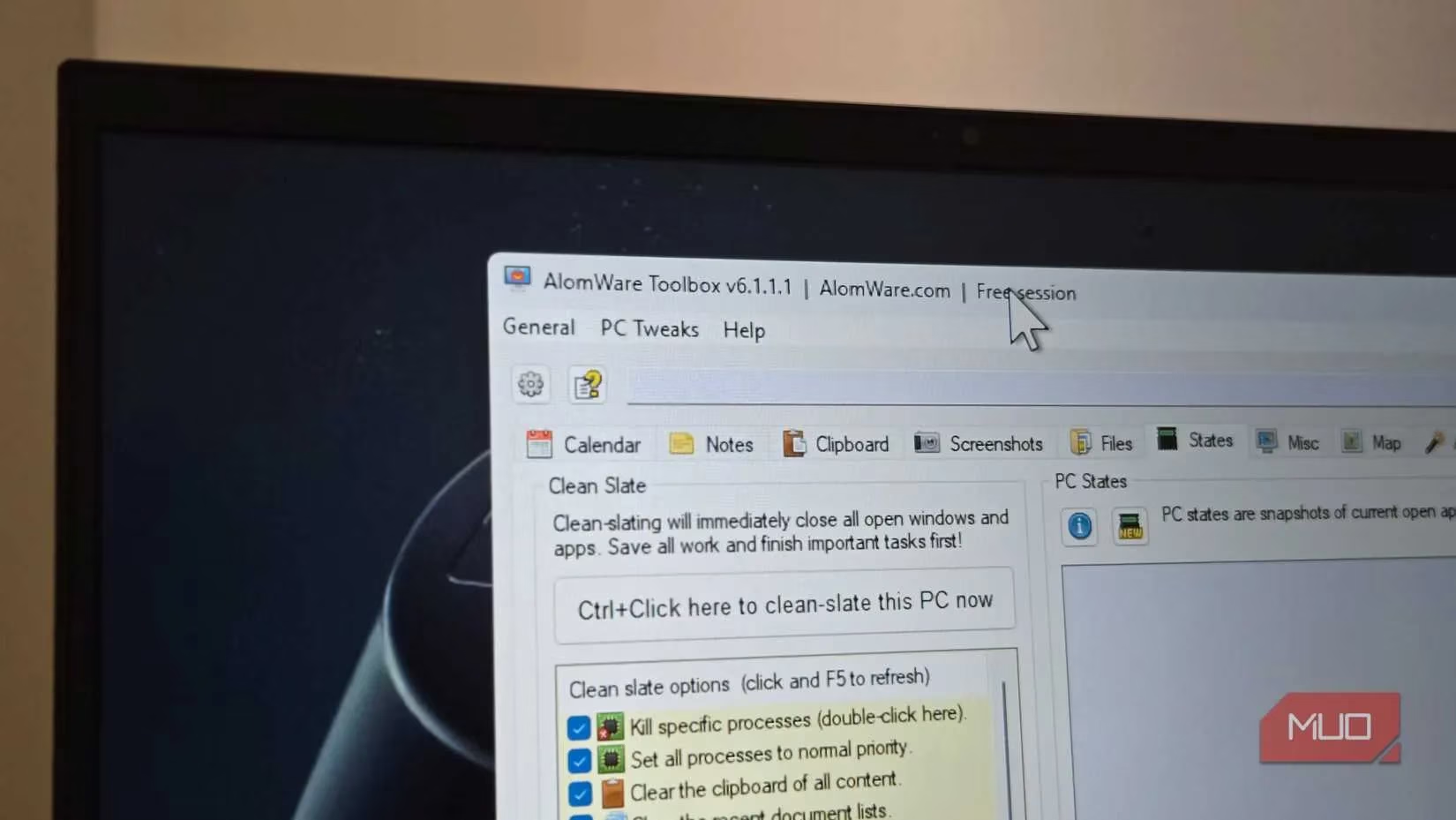
States promises to save and restore your PC's runtime state, like a snapshot of open apps and windows. Ingenious idea, right? Except I couldn't get it to work even once. I tried a few times, rebooted, and eventually gave up. PowerToys Workspaces still does that job reliably with a keyboard shortcut. Map, meanwhile, tracks apps, directories, and files you've visited, but it only logged the apps I opened — not particularly useful. So much for nostalgia.
Automation Without AutoHotkey?
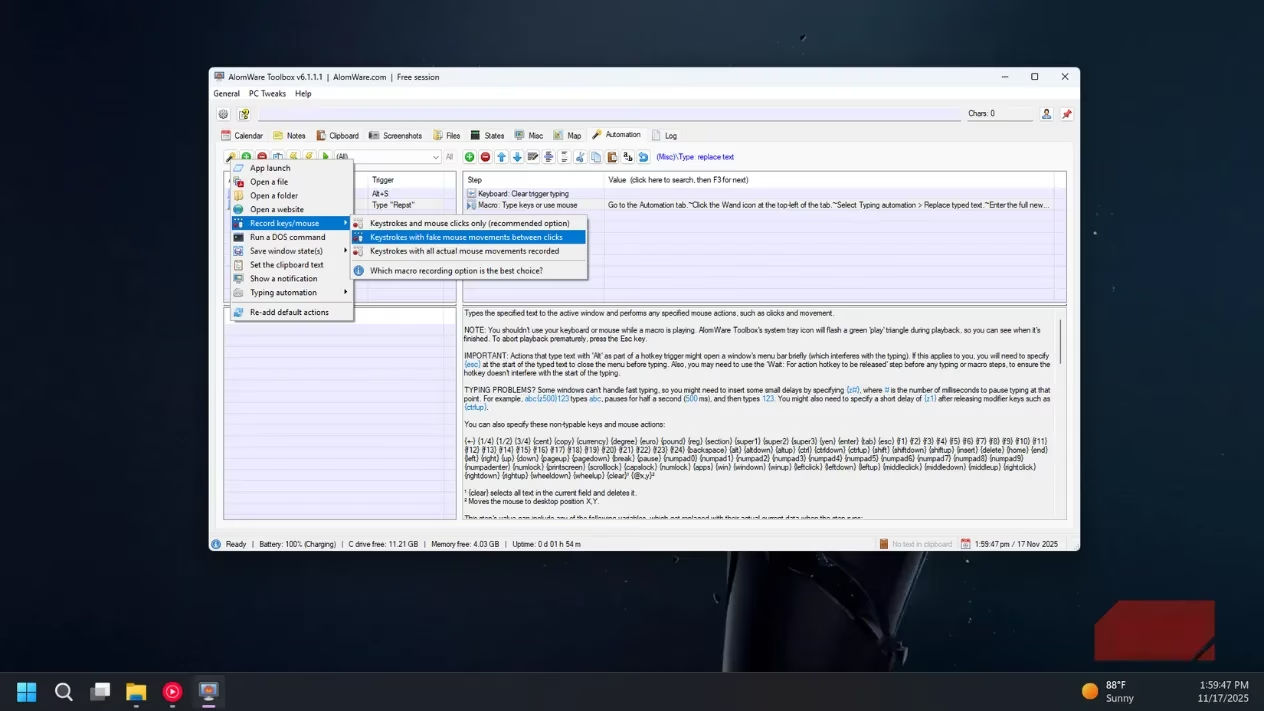
Here's where AlomWare Toolbox surprised me. I use aText for text expansion — pitch outlines, email drafts, my address, passport details, you name it. AlomWare does the same thing: add your text, assign a trigger phrase, and it replaces the trigger as you type. No extra tool needed. But it goes further. I configured the Open a website action to launch my in-house text editor and a web-based photo editor with a hotkey. I also set up Open folder for my project directories and Obsidian vault, and App launch for quick access to apps. There's even a Record Key/Mouse feature that records and replays steps to automate repetitive processes. If you use AutoHotkey for basic automation, AlomWare can replicate most of it. Is it as powerful? No. But for 90% of my daily grunt work, it's more than enough.
PC Tweaks: A Love Letter to the Control Panel
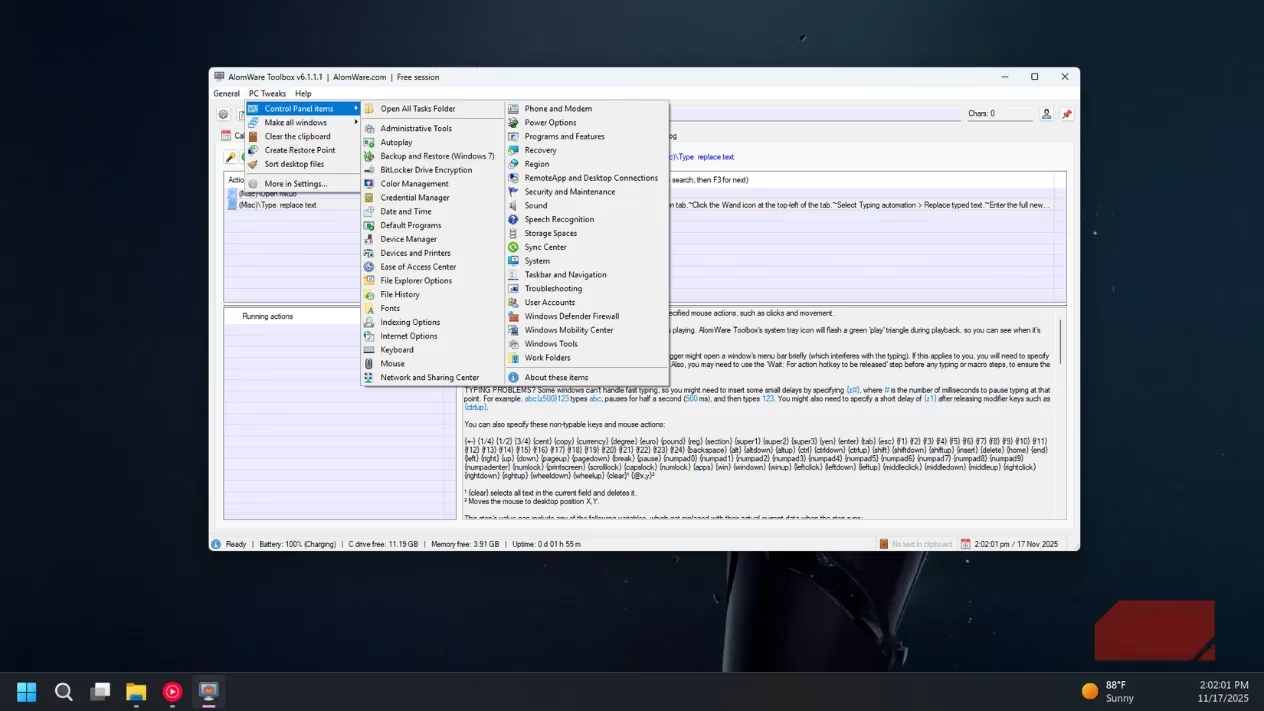
Microsoft keeps pushing us toward the Settings app, but in 2026 I still need the Control Panel for restore points, File History, Device Manager, and more. AlomWare Toolbox clearly agrees. The PC Tweaks section gives you quick access to Device Manager, Power Options, User Accounts, Indexing Options, and recovery tools. Hover over Make all windows, and you can center, dim, minimize, or maximize every open window. Another handy trick: Sort desktop files automatically moves different file types into their own subfolders. My desktop has never looked cleaner.
The Verdict: A Jack of All Trades, Master of Some
So, is AlomWare Toolbox a gimmick? Not at all. It replaced at least half a dozen apps from my current stack — clipboard manager, text expander, basic automation, file search, and quick access to system tools. It's portable, it's 4MB, and it doesn't require installation. The States and Map features are flaky, and the activation passcode is a minor annoyance, but the core functionality is solid.
Here's a quick breakdown of what it replaced for me:
| My Old Tool | AlomWare Toolbox Tab | Works Well? |
|---|---|---|
| Ditto (clipboard) | Clipboard | ✅ Yes |
| aText (text expander) | Automation | ✅ Yes |
| AutoHotkey (basic automation) | Automation | ✅ Mostly |
| PowerToys FancyZones (window management) | PC Tweaks | ⚠️ Partial |
| File search & backup tools | Files | ✅ Yes |
| PowerToys Workspaces (state restore) | States | ❌ No |
Would I recommend it? If you're tired of a cluttered system tray and want one tiny app to handle the basics, absolutely. It won't replace every advanced tool you own, but it might replace enough to make your Windows life a little less messy. And honestly, for 4MB, what do you have to lose? 😊",
"language": "en
Leave a Comment