I spent the better part of two years trying to eliminate friction from my work, only to discover I was pouring more friction into the system. Every new subscription arrived like a houseguest who promised to help but left dirty dishes in the form of login fatigue, sync conflicts, and notification spam. I was caught in a productivity quicksand: the more apps I added, the less work I actually finished. Then, in 2026, I stopped hunting. The ultimate productivity stack had been waiting inside Windows 11 all along.
Windows 11 has evolved into a productivity powerhouse, and its four most useful tools are baked directly into the operating system. No purchases, no third-party accounts, no integration headaches. This is what I now use every day.
Snap Layouts and Snap Groups: A Spatial Memory for Your Desktop
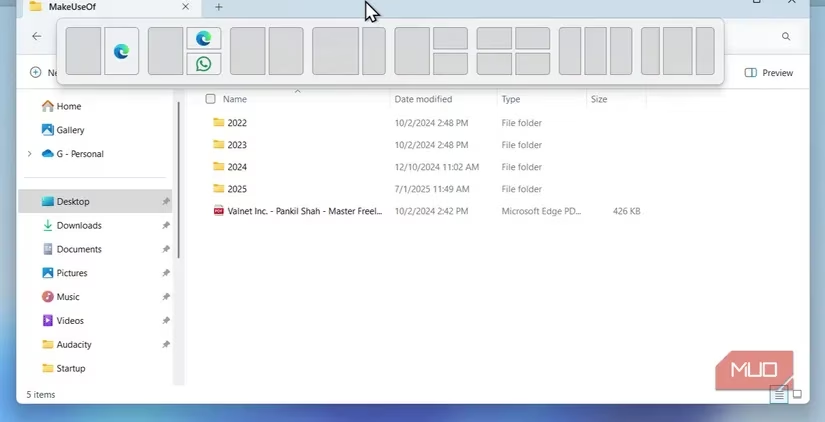
For years, Windows users have dragged windows to the left or right edge of the screen to snap them into 50% or 25% layouts. That was useful, but Windows 11 gave the feature a superpower. When I hover over the Maximize button in any window, a pop-up of Snap Layouts appears with grids tailored to my monitor size. I can instantly build complex multi-window workflows without manually resizing anything.
The real magic is the Snap Group. Once I arrange my windows, Windows remembers that combination until I close the snap group from the taskbar or close each tab from the group. If I open a full-screen window later, I do not have to rebuild my layout from scratch. I just hover over the taskbar icon for any app in that layout, see a preview of the entire group, and click to restore the whole arrangement.
It is like a stagehand who keeps my digital set exactly where I left it. Returning to a complex task becomes nearly frictionless, which preserves context and lowers cognitive load.
Focus Sessions in the Clock App: The Pomodoro Engine Everyone Overlooks
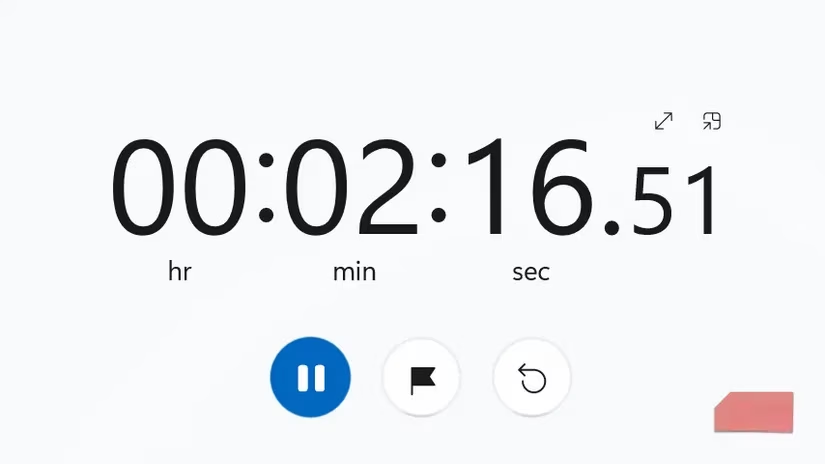
I used to ignore the Clock app because I assumed it was only for alarms. I was wrong. The Clock app includes Focus Sessions with Spotify integration. Starting a session works like a Pomodoro timer, but it also automatically mutes incoming notifications that would usually derail my workflow.
The integration with Microsoft To Do makes it far more intentional. Instead of starting a generic timer, I can select a specific task from my lists to focus on before the clock starts ticking. That small step turns a countdown timer into an execution engine. It eliminates the need for separate Pomodoro apps, focus playlists, and manual notification controls.
Clipboard History: The Antidote to Copy-Paste Amnesia
Standard copy-paste has a serious flaw: it suffers from amnesia. The moment I copy something new, it forgets what I copied before. That forces a tedious back-and-forth dance between windows when I need to move multiple pieces of information.
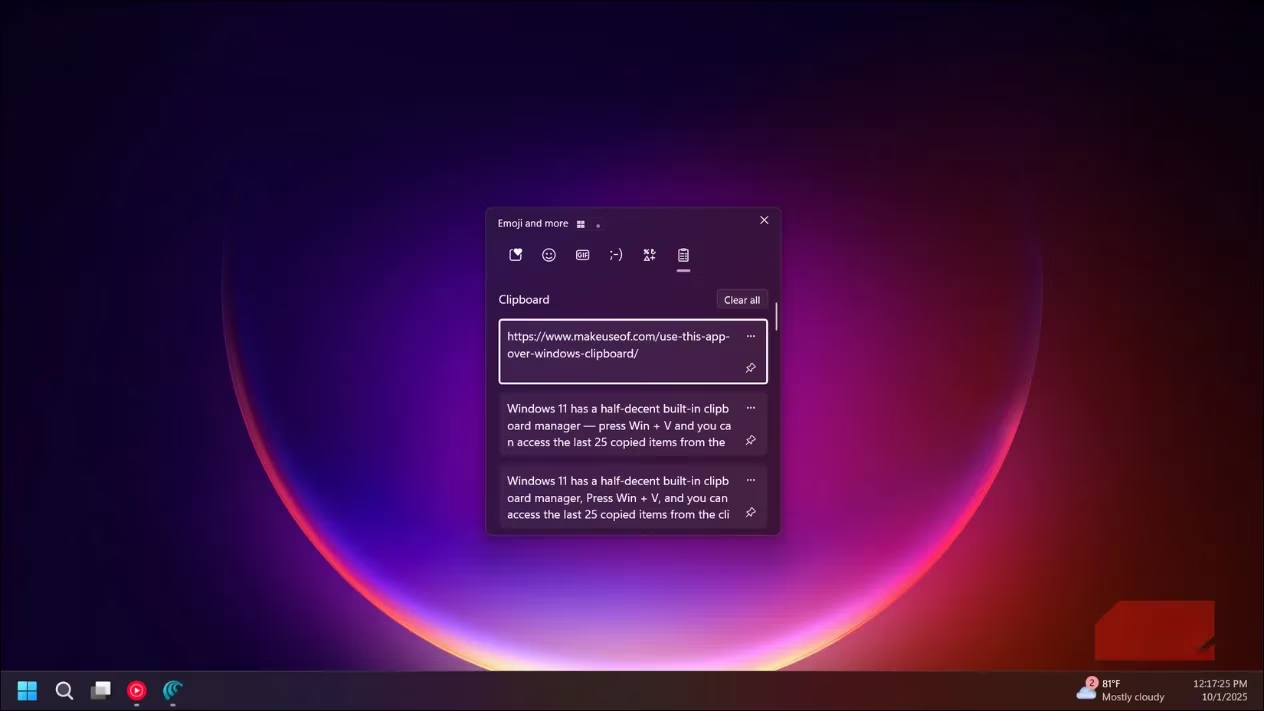
Pressing Win + V changes everything by opening Clipboard History. Windows 11 remembers a long list of recently copied items, including text and images. This lets me batch tasks rather than switch constantly. I can copy several items from a source document consecutively, then move to the destination document and paste them one by one from the clipboard history menu.
The Pin feature is the hidden bonus. I can pin my email signature, address, common snippets, or other frequently used text to the top of the clipboard so they stay available and survive reboots. One important caveat: after some Windows updates or system crashes, the clipboard history can vanish. I keep a backup of critical pinned text in a plain text or Word file. Think of Clipboard History as a short-term memory palace that usually works, but I never let it hold the only copy of anything irreplaceable.
Microsoft To Do and My Day: A Pressure Valve for Task Overload
At times I spent more energy trying to remember what I needed to do than actually doing it. Microsoft To Do solves that problem by acting as a centralized pipeline for my tasks. It looks deceptively simple, but the My Day feature is the most useful part.
Every day, To Do wipes my slate clean and forces me to intentionally pull tasks from my master lists into a plan for just today. That psychological reset prevents the overwhelm of staring at an endless backlog. It is a pressure valve for task overload: instead of boiling over, the system releases just enough steam for one workable day.
The sync is impressive too. I replaced all my task apps with Microsoft To Do. When I flag an email in Outlook on my phone, it appears in my To Do list on my desktop. When I am away from the desk, I can track my day on my phone. And because the Clock app integrates directly with To Do, I can select those exact tasks in a Focus Session and execute them.
The best productivity system is not the one with the most features. It is the one with the least friction. Relying on features built into Windows 11 removes the hassle of third-party apps, subscription costs, and integration headaches. These tools are free, pre-installed, and work seamlessly together. In 2026, the hidden productivity suite inside Windows 11 is no longer a secret, but it is still underused. The best upgrade I made was not buying more software. It was learning what I already had.
Leave a Comment