I used to treat Windows settings like a maze. I knew the option existed, but I could not always remember whether it was hiding under System, Devices, Personalization, or some ancient Control Panel page. Then, in 2026, after finally moving fully to Windows 11, I rediscovered a built-in trick that changed everything: God Mode. God Mode sounds like a cheat code from a video game, but it is actually a simple folder that gathers more than 200 Windows settings in one alphabetical list. Once I pinned it to my taskbar, every important toggle, link, and applet became a couple of clicks away. Why should I memorize Microsoft's menu layout when I can just scroll one list? That question is exactly why God Mode has earned a permanent spot on my desktop.
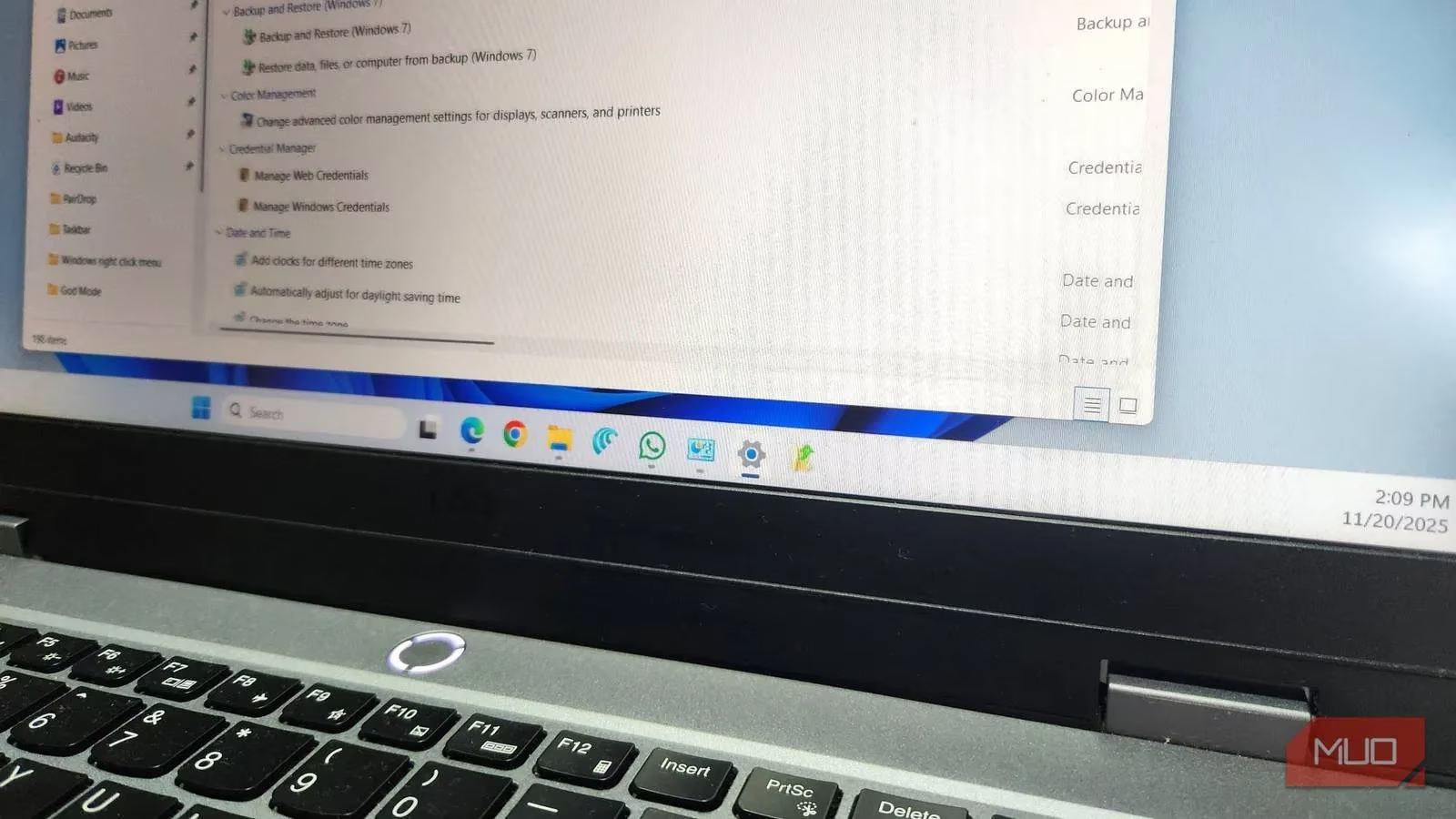
What Exactly Is God Mode?
God Mode is not a hack, a registry edit, or a third-party utility. It is a special folder name that Windows already understands. The name includes a hidden GUID, and when Windows sees that GUID, it opens a master control panel instead of a normal folder. You get a clean, alphabetical directory of settings. No searching. No guessing. No bouncing between the modern Settings app and the legacy Control Panel.
That split between Settings and Control Panel is still one of the most annoying parts of Windows in 2026. Microsoft has talked about retiring the Control Panel for years, yet it is still here, and many useful options still live only there. God Mode bridges that gap. It gives you a single place to find both worlds. Isn't that what a settings menu should have been all along?
How I Created My God Mode Folder
The process is almost too simple. I right-clicked on my desktop, chose New > Folder, and named it:
GodMode.{ED7BA470-8E54-465E-825C-99712043E01C}
The moment I pressed Enter, the folder icon changed to the classic Control Panel icon and the name disappeared. That was it. No admin rights. No command prompt. No risk.
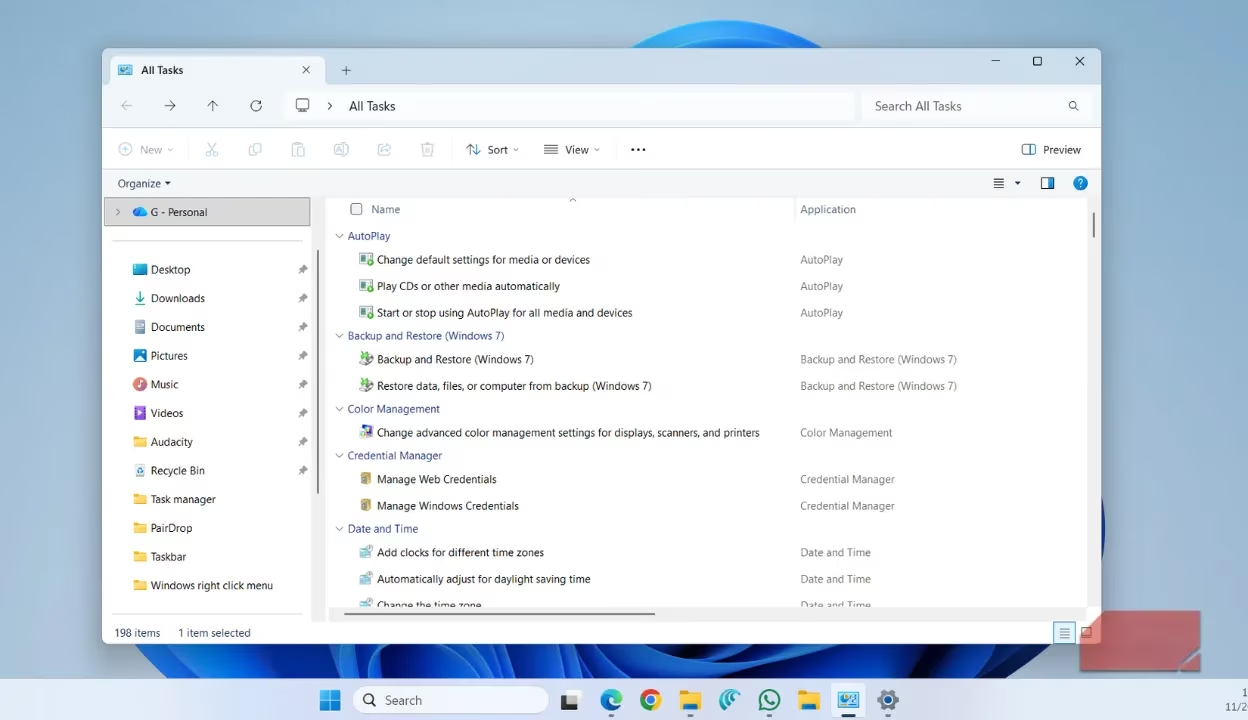
But I did not stop there. Windows 11 does not let you pin a folder directly to the taskbar, so I created a shortcut. I right-clicked the desktop, chose New > Shortcut, and entered this location:
C:\\Windows\\explorer.exe shell:::{ED7BA470-8E54-465E-825C-99712043E01C}
Then I clicked Next, named it God Mode, and changed the icon to something more recognizable than a plain File Explorer folder. Finally, I dragged it to the taskbar. Now it is always one click away. ⚡
Why It Saves Me So Much Time
Once God Mode was pinned, the real fun began. I started using it for everyday tasks that normally require too many clicks. Let me give you a few examples.
🖨️ Adding a Printer
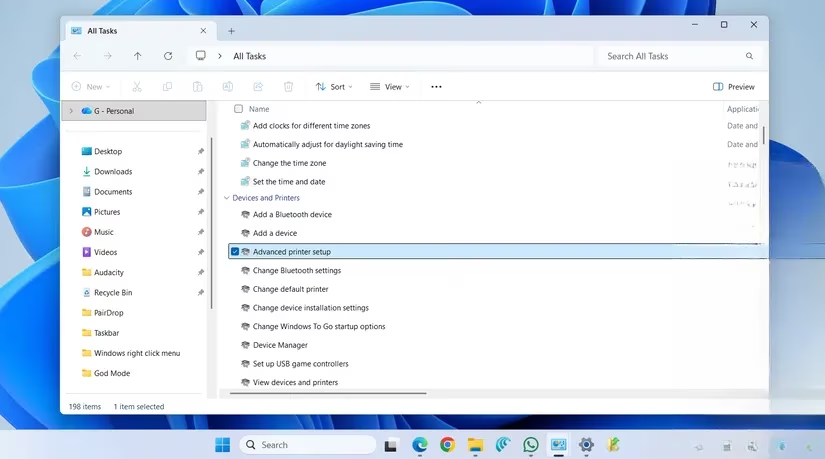
Normally, I would open Settings, go to Bluetooth & devices, click Printers & scanners, and then hunt for Add device. With God Mode, I click the taskbar icon, scroll to Devices and Printers, and double-click Advanced printer setup. Same destination, seconds instead of minutes.
🔌 Changing What the Power Button Does
This is another setting I change often on laptops. The normal path is Control Panel > Hardware and Sound > Power Options > Change what the power buttons do. That assumes I remember where it lives. In God Mode, I just scroll to Power Options and click Change what the power buttons do. Done.
🔥 Creating a Shortcut for a Frequent Setting
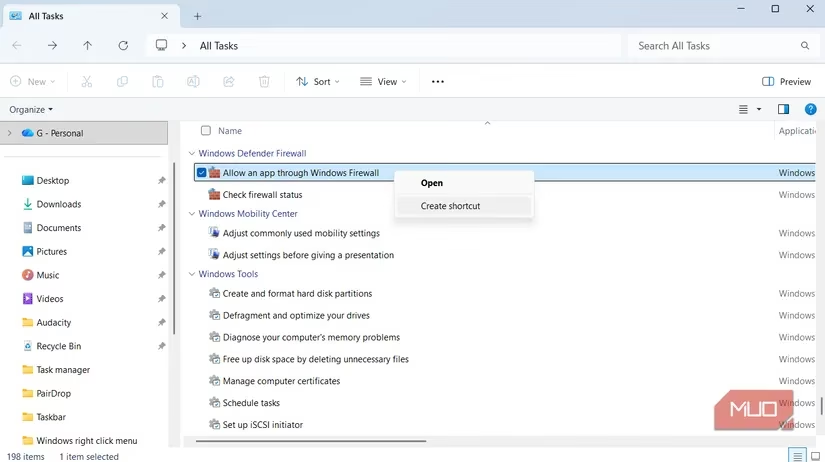
God Mode also lets me create desktop shortcuts for specific settings. For example, I sometimes need to allow or block an app through Windows Firewall. I find Allow an app through Windows Firewall in God Mode, right-click it, and choose Create shortcut. Now that exact window is on my desktop. No more digging.
Here is a quick comparison table I made for myself:
| Task | Normal Windows path | God Mode path |
|---|---|---|
| Add printer | Settings > Bluetooth & devices > Printers & scanners > Add device | Devices and Printers > Advanced printer setup |
| Change power button | Control Panel > Hardware and Sound > Power Options > Change what the power buttons do | Power Options > Change what the power buttons do |
| Firewall app exception | Settings > Privacy & security > Windows Security > Firewall & network protection > Allow an app through firewall | Allow an app through Windows Firewall > right-click > Create shortcut |
The Real Benefits
God Mode solves two big problems for me. First, it removes the need to remember whether a setting is in the Settings app or the Control Panel. Second, it turns a long, nested path into a single scroll and click. If you tweak Windows often, that difference adds up fast.
Is God Mode for everyone? Probably not. If you never open Windows settings, you may not care. But if you are the kind of person who likes to customize, troubleshoot, or optimize your PC, it is a massive time-saver. I use it for printer setup, power options, firewall rules, device management, and dozens of other small tasks.
In 2026, Windows is more powerful than ever, but it is also more scattered than ever. God Mode is a rare built-in feature that makes Windows feel organized again. It is not dramatic, it is not flashy, and it does not require any special tools. It is just a folder with a strange name. Yet that folder has become one of my favorite Windows shortcuts. Why did I wait so long to pin it? I honestly do not know. If you have not tried it yet, create the folder today. You might be surprised how much time you get back. ✅
Leave a Comment