The right-click context menu in Windows 11 is an interface element that nearly every user encounters multiple times a day. Yet, for many, it remains limited to basic actions like copying, pasting, and checking properties. With a few strategic adjustments and the right third-party utilities, this menu can evolve into a versatile command center that launches applications, opens folders, converts files, and even transfers data to a smartphone. This article explores how users can unlock the full potential of the Windows 11 right-click menu to reduce friction and enhance daily workflows.
🚀 Adding Apps, Folders, and Websites to the Context Menu
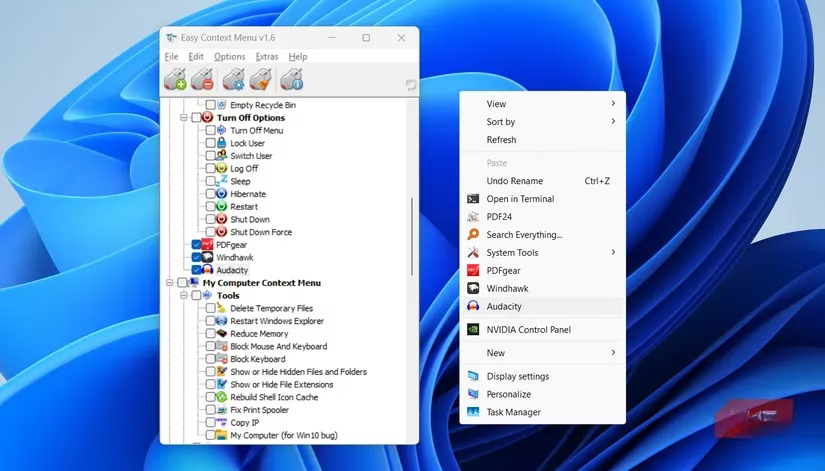
Users who frequently launch the same applications, access specific folders, or visit certain websites often rely on desktop shortcuts or browser bookmarks. However, integrating these items directly into the right-click menu provides universal access from any location—whether on the desktop or within File Explorer. The Easy Context Menu tool enables this customization without risky registry edits. While manual registry modifications are possible, they are generally not recommended due to the potential for system instability. Easy Context Menu offers a safer, user-friendly alternative.
📁 Leveraging Taskbar Jump Lists for Quick Access
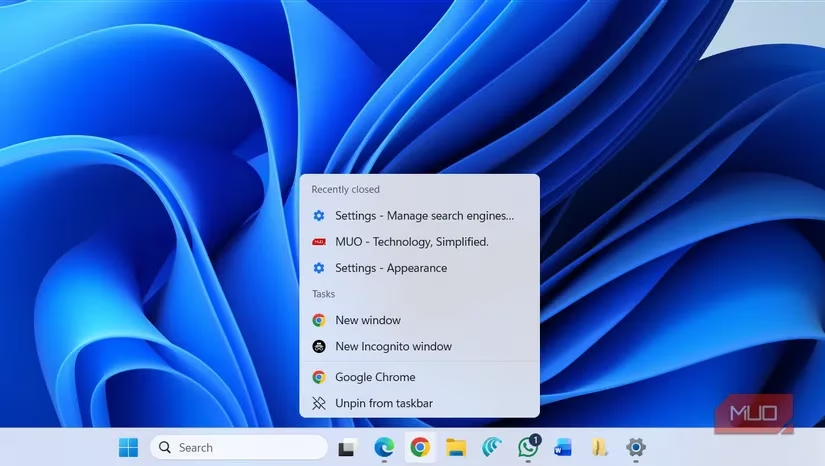
Not every enhancement requires third-party software. Windows 11's built-in jump lists, accessible by right-clicking an app's taskbar icon, provide instant access to pinned folders, recent documents, and frequently visited sites. For instance, right-clicking the File Explorer icon reveals pinned and recently opened folders—a lifesaver when a folder is accidentally closed. Similarly, right-clicking the Word icon displays recently edited documents, while the Edge icon shows workspaces, top sites, and recent tabs. These options vary by application, so users should explore the jump lists of their most-used apps.
📤 Customizing the Send To Menu
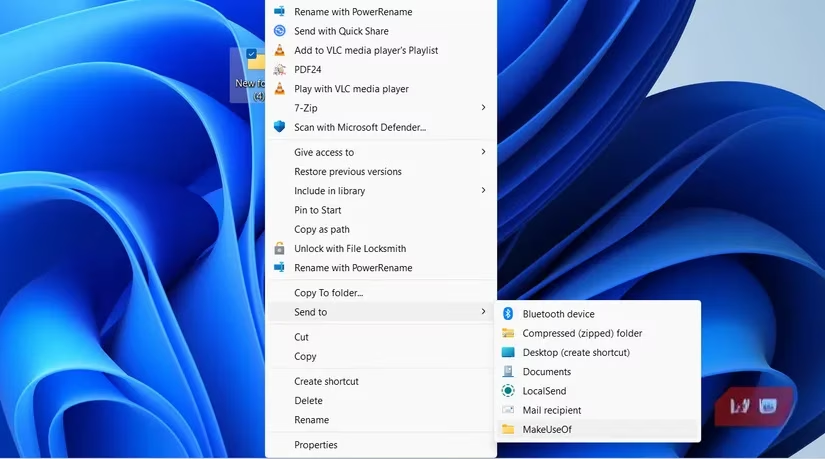
The default Send To menu already simplifies file management by allowing quick moves and desktop shortcut creation. However, its utility can be expanded by adding custom destinations, such as a work folder. With the Right Click Enhancer tool, users can add any folder to the Send To list. This means that when a file is created or downloaded, it can be sent directly to that folder without navigating through multiple directory levels. This small addition saves considerable time and effort.
🖼️ PowerToys: Image Resizer and PowerRename
PowerToys is a suite of utilities from Microsoft that many power users install immediately on a new Windows PC. Two of its tools stand out for their integration with the right-click menu: Image Resizer and PowerRename. Image Resizer allows users to resize one or multiple images without opening a separate application. By right-clicking an image and selecting "Resize with Image Resizer," users can choose from preset sizes and complete the task in seconds. PowerRename enables bulk renaming of files, which is ideal for organizing downloads or cluttered folders. Selecting multiple files and choosing "Rename with PowerRename" opens a powerful interface for batch renaming.
📱 Seamless File Transfers with Phone Link
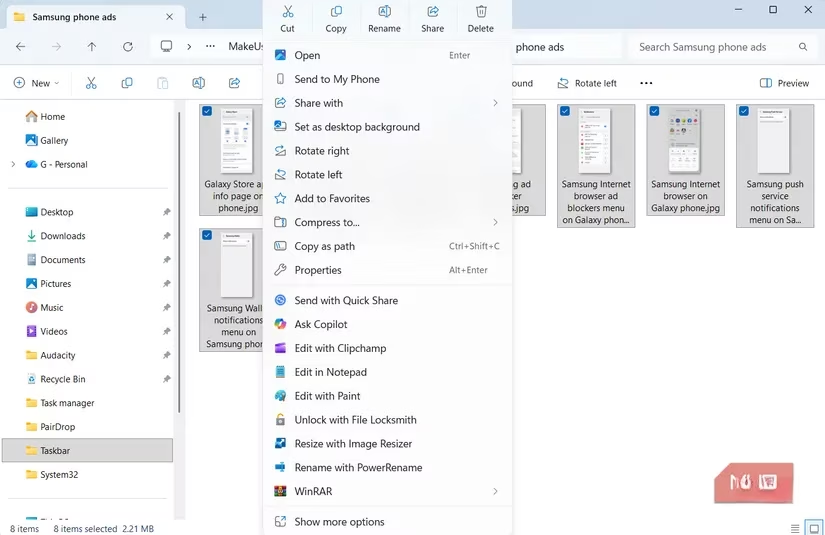
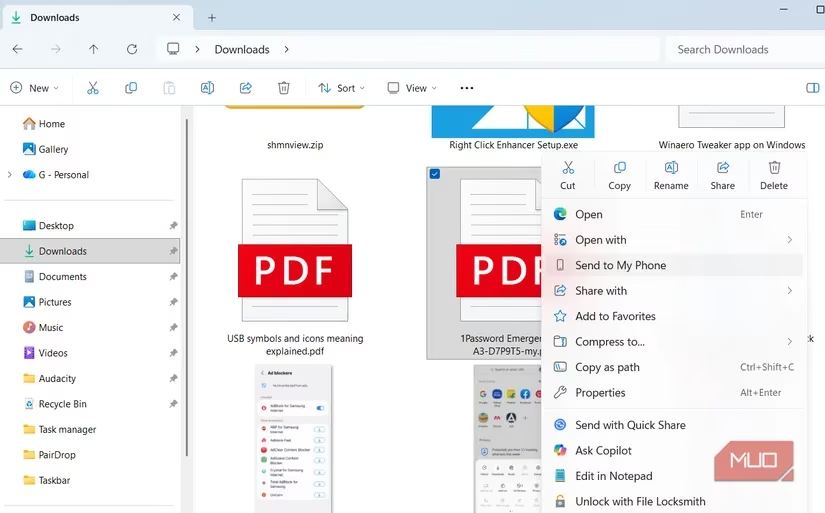
The Phone Link app has made transferring files between a smartphone and a PC remarkably easy. By right-clicking a file and selecting "Send to my phone," users can instantly transfer photos, documents, or screenshots without cables or dedicated transfer tools. If multiple phones are connected, the Share option allows selection of the desired device from a list. This integration eliminates the need for emailing files to oneself or using cloud storage as an intermediary.
🔄 On-the-Fly File Conversion with File Converter
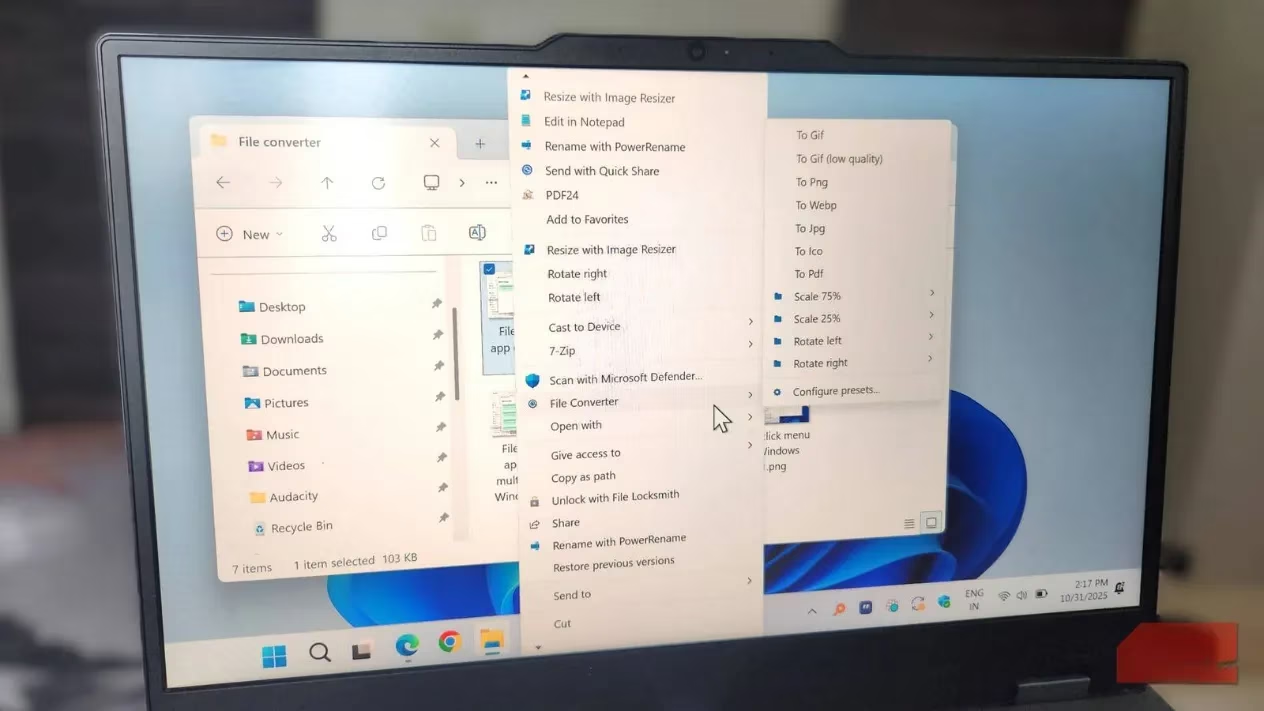
Converting files between formats often involves opening a browser, searching for an online converter, and uploading the file—a tedious process. The open-source File Converter app eliminates these steps by adding a conversion option directly to the right-click menu. Once installed, users can right-click any file, choose "File Converter," and select the desired output format. The app supports photos, videos, documents, and audio files, and it can handle multiple files simultaneously. This shortcut saves time and avoids the privacy concerns of online conversion tools.
📊 Summary of Tools and Benefits
| Tool/Feature | Function | Benefit |
|---|---|---|
| Easy Context Menu | Adds apps, folders, websites to right-click menu | Universal access from any location |
| Taskbar Jump Lists | Built-in access to recent files and pinned folders | No third-party software needed |
| Right Click Enhancer | Customizes Send To menu | One-click file organization |
| PowerToys Image Resizer | Batch resizes images | Saves time for frequent image processing |
| PowerToys PowerRename | Bulk renames files | Efficient file organization |
| Phone Link | Sends files to smartphone | Cable-free transfers |
| File Converter | Converts files between formats | Quick, offline, and free |
⚡ Small Tweaks, Big Productivity Gains
Productivity improvements do not always require dramatic changes. Often, the most impactful adjustments are small, thoughtful tweaks that remove friction from everyday tasks. Customizing the Windows 11 right-click menu is a prime example. By investing a little time in setting up these tools and features, users can create a personalized workflow that saves seconds—and eventually hours—over time. Whether it's launching an app, resizing an image, or converting a file, the right-click menu becomes an indispensable ally in the quest for efficiency. As of 2026, these methods remain effective and continue to empower users to work smarter, not harder.
Leave a Comment