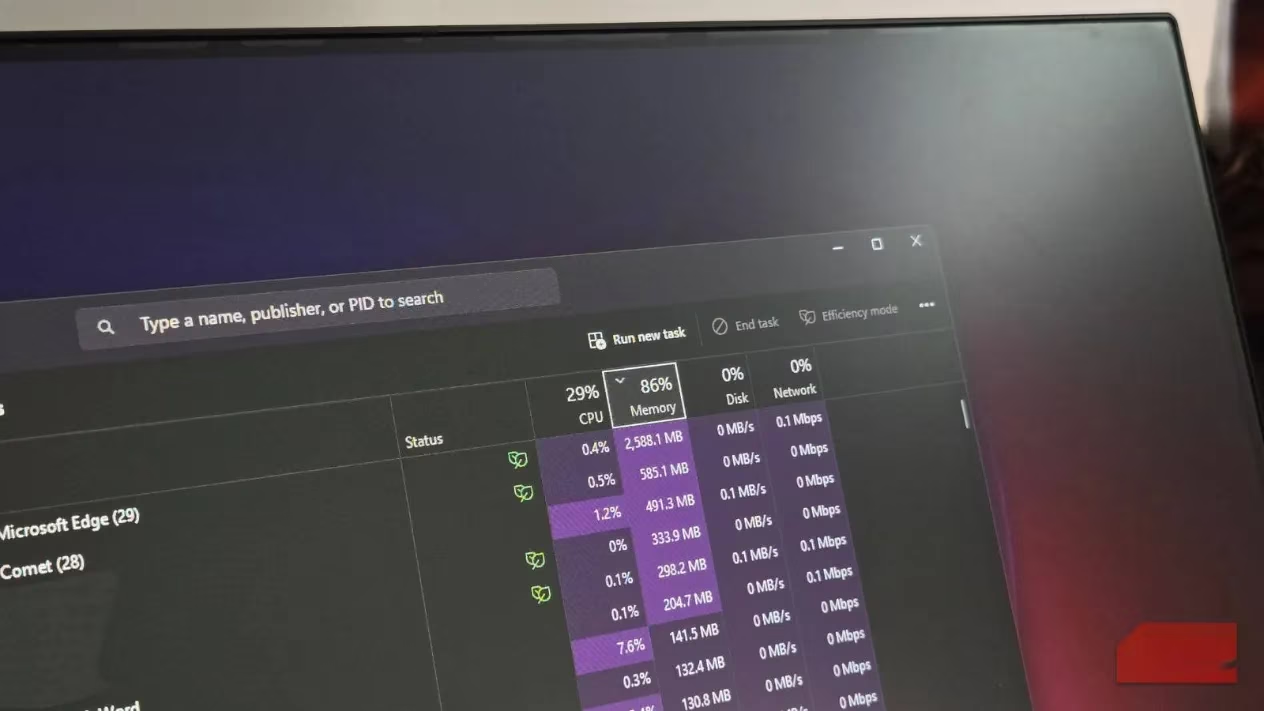
A typical Windows user might assume an older machine is simply losing the hardware lottery when it starts whirring like a leaf blower and stuttering between tabs. In many cases, though, the real villain is not aging silicon. It is the mountain of background apps, startup freeloaders, and browser extensions quietly feasting on system memory.
The good news is that fixing this does not require a screwdriver, a new SSD, or a degree in computer science. A few checkboxes and settings can restore a surprising amount of breathing room.
The Startup App Trap 🚀
Most people never think about what launches the moment Windows boots. Yet every time a PC starts, a handful of programs leap into action before the desktop even appears. Cloud storage, clipboard managers, and antivirus tools can be useful. But over time, game launchers, chat apps, update helpers, and random bloatware join the party without an invitation.
The result? Slower startups and RAM that is already partly occupied before a single real task begins.
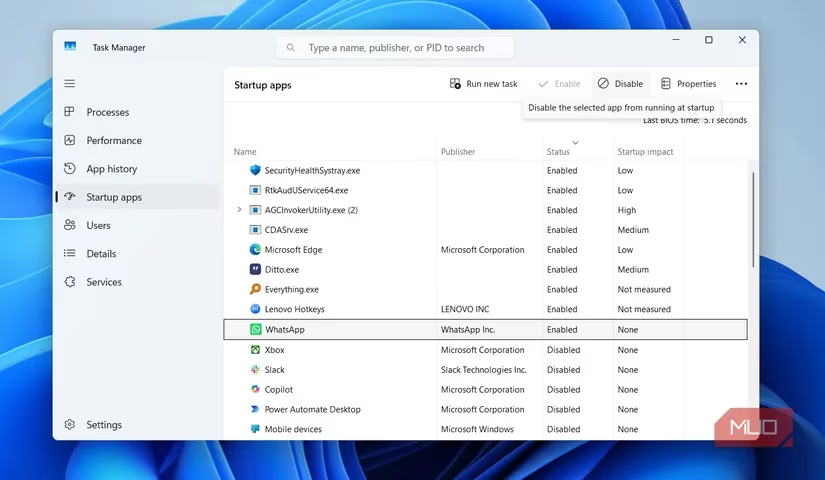
To prune this list, a user can open Task Manager, choose the Startup apps tab, and disable anything that is not essential. The PC will boot faster, and the memory will not be held hostage by apps that never needed to run in the first place.
Background Apps That Never Say Goodbye 👻
Some applications have a special talent: even after their windows are closed, they linger in the background like a guest who refuses to leave. They sync data, check for updates, wait for notifications, and nibble away at memory.
A sluggish PC with nothing visibly open is often suffering from exactly this problem.
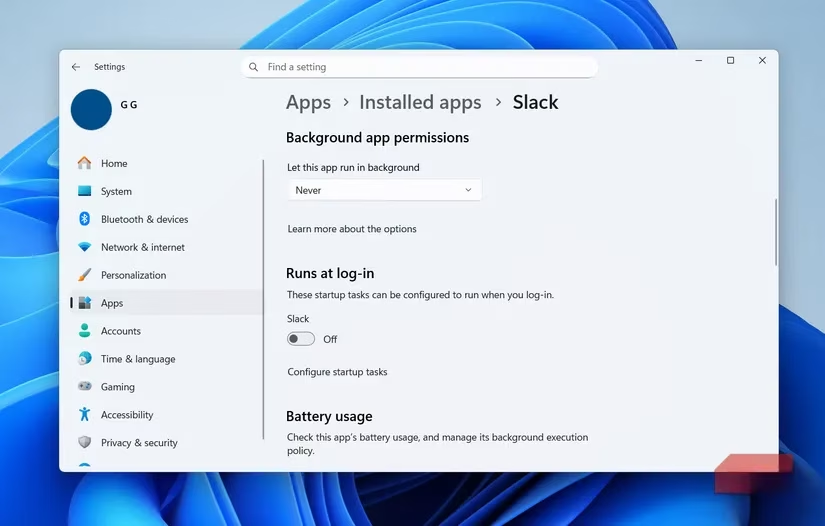
The fix is hiding under Settings > Apps > Installed apps. Next to the offending app, click the three-dot menu, choose Advanced options, and find Background app permissions. Set the drop-down to Never. This is particularly satisfying for apps like Slack or game clients that do not need to maintain a constant background presence.
Browser Extensions: Small but Mighty RAM Munchers 🧩
Extensions can turn a basic browser into a productivity Swiss Army knife. An ad blocker here, a grammar checker there, a password manager on top. But each extension carries a tiny RAM tax. Individually, the cost looks trivial. Collectively, a dozen extensions can make a browser feel sluggish and bloated.
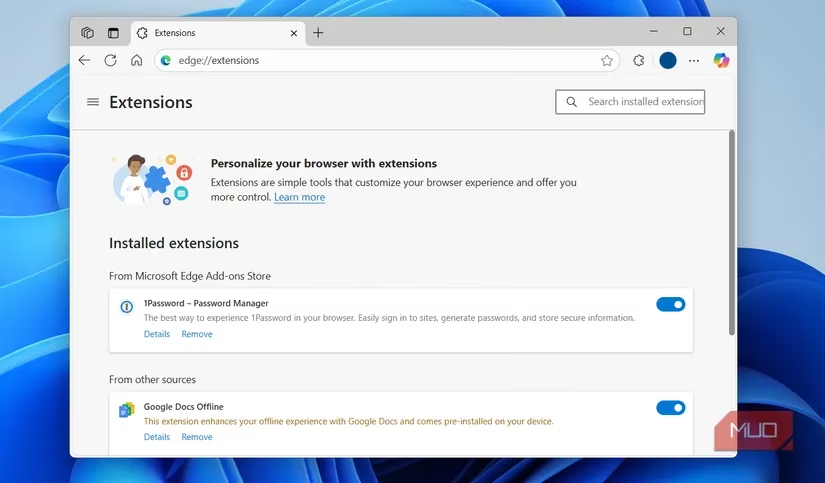
A quick extension audit works wonders. Open the browser's extensions menu and inspect what is installed. If something has not been used in weeks, it probably deserves either disabling or a full uninstall. Users are often surprised by how much lighter the browser feels after a small purge.
Tame the Browser Beast 🌐
For people who live inside a web browser, the browser itself is often the biggest memory hog on the entire machine. A session with dozens of open tabs can gobble up gigabytes without breaking a sweat.
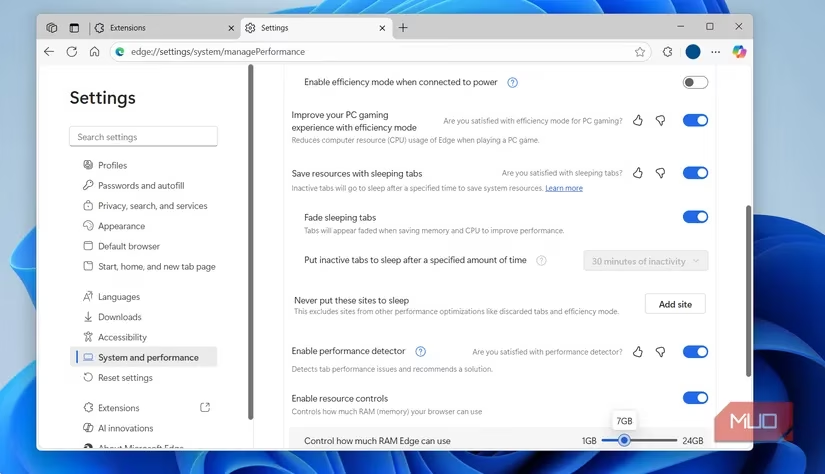
Luckily, modern browsers in 2026 include built-in memory-saving tools. In Edge, for example, a user can go to Settings > System and Performance > Performance and enable Save resources with sleeping tabs. There are also options like Improve PC gaming experience with efficiency mode and Enable performance detector. Edge even allows users to set a hard RAM limit, which is wonderfully useful for keeping the browser on a leash.
Chrome and Firefox have similar features, so the same idea applies across the board.
One-Click Relief with PC Manager ⚡
Sometimes a PC still ends up with high RAM usage after all the optimization. Maybe a user does not want to hunt down every tab or end every process manually. In that case, Microsoft's PC Manager app is a handy escape hatch.
PC Manager is a free Microsoft Store app with several cleanup features. Its most useful trick is the Boost button, which clears memory with a single click. There is also Smart Boost, which can automatically step in when RAM usage spikes. It is not a miracle worker, but it is a quick, no-fuss way to get a sluggish system back under control.
The Real Lesson
Plenty of people assume a slowing PC is just old hardware doing old hardware things. But very often the slowdown is caused by RAM being wasted on stuff nobody asked for. Startup apps, background processes, extensions, and abandoned tabs all combine into a quiet memory tax that drags down daily performance.
Trimming those extras takes less than half an hour, and the improvement can feel immediate. The PC will not necessarily become a supercomputer, but it will stop behaving like a jet preparing for takeoff every time someone opens a few apps.
Leave a Comment