He had used Windows for as long as he could remember. It was functional, reliable, and it ran the software he needed. But in 2026, functional does not always mean inspiring. The default Windows 11 interface is polished enough, yet after years of staring at the same layout, it can start to feel like a beige hotel room: comfortable, familiar, and completely forgettable. So when he kept seeing Linux users show off their riced desktops on social media, he felt a familiar pang of jealousy. Why couldn’t Windows look that good?
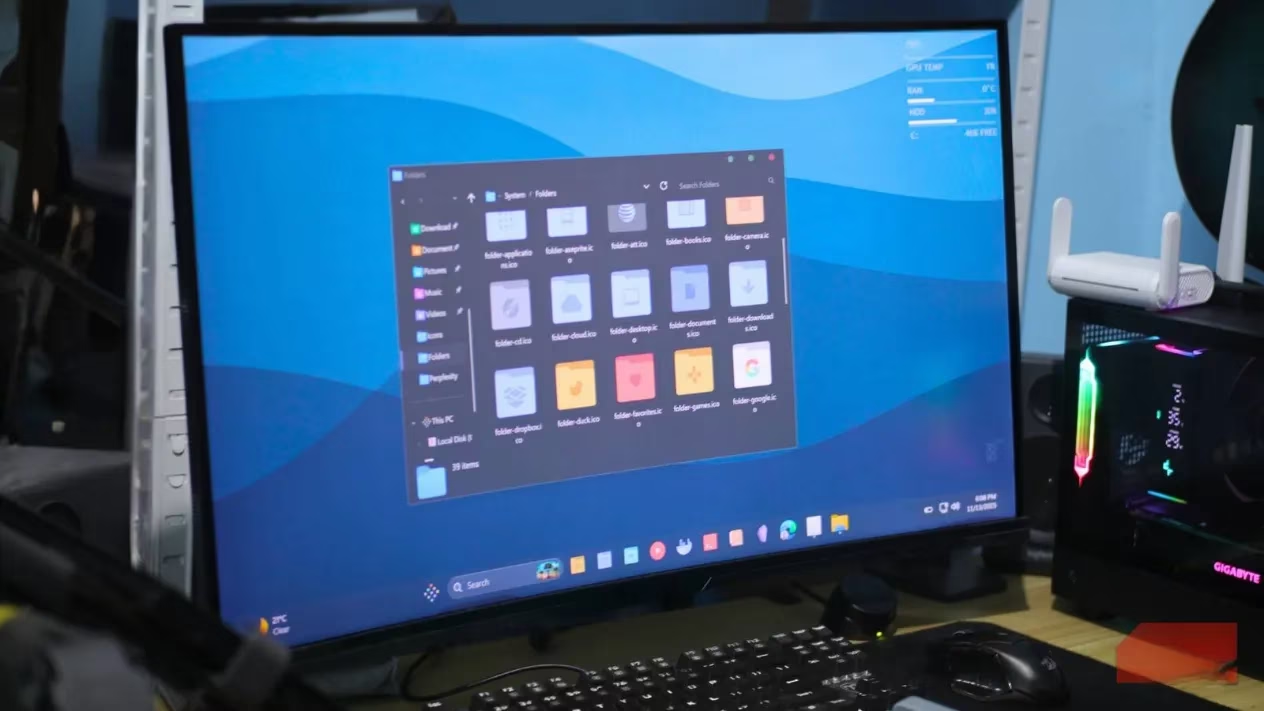
The turning point came with Rainmeter on a laptop. That first experiment was not a full desktop overhaul, but it was enough to reveal the potential. Windows customization was not out of reach after all. Even with limited experience, he could bend the desktop toward something more personal. So he decided to try a second, more focused ricing project on his desktop PC. This time, the goal was not a busy dashboard. It was something minimalistic, easy on the eyes, and free of distractions.
The Goal: Calm, Clean, and Deliberate
The new setup leans flat and simple. A cohesive icon pack replaces the generic Windows icons with modern alternatives that actually look like they belong together. The taskbar changed from a thick bar at the bottom into something sleek and refined that blends with the wallpaper. Clutter disappeared. Only a few key apps remained pinned, and custom folders for games, productivity apps, and a gallery were added directly to the taskbar for instant access.
The Start menu became clean and organized instead of feeling like a junk drawer. He chose a dark mode variant with a macOS-inspired aesthetic from the DELTA theme pack, but kept enough Windows character for the setup to remain familiar. System status bars now display CPU, GPU, RAM, and memory usage through a beautiful overlay that does not get in the way. The Recycle Bin looks minimalistic and appears only when the cursor hovers near its icon. Each window has a border, rounder corners, and macOS-style minimize, resize, and close buttons, plus a custom mouse cursor and loading icon. He even restored the Windows 10 context menu, which he had always preferred.
Does that sound like a lot? It is, but the project breaks into layers. Visual tweaks handle the look. Utility tools handle the behavior. Automation handles the speed.
The Theme Pack and the Patching Step
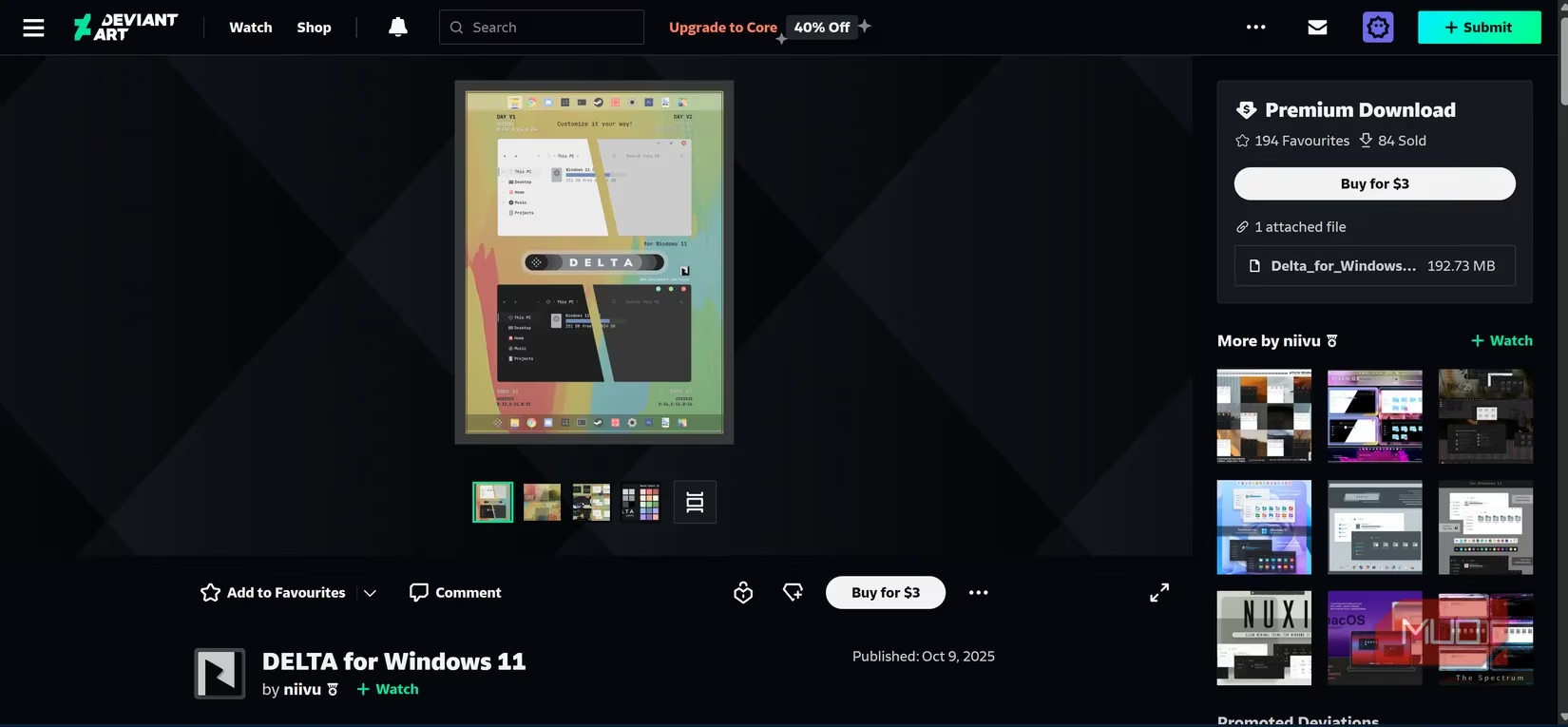
Because he was a newcomer to ricing Windows, he started with a theme pack found online. The pack was DELTA for Windows 11 by niivu. It was once a premium pack and is now available for free. It appealed to him because it included a large icon set, a clean macOS-inspired theme, and configuration files for Windhawk and other tools. In 2026, theme packs like this remain a sensible entry point, though compatibility can shift with Windows updates, so checking current notes before installing is wise.
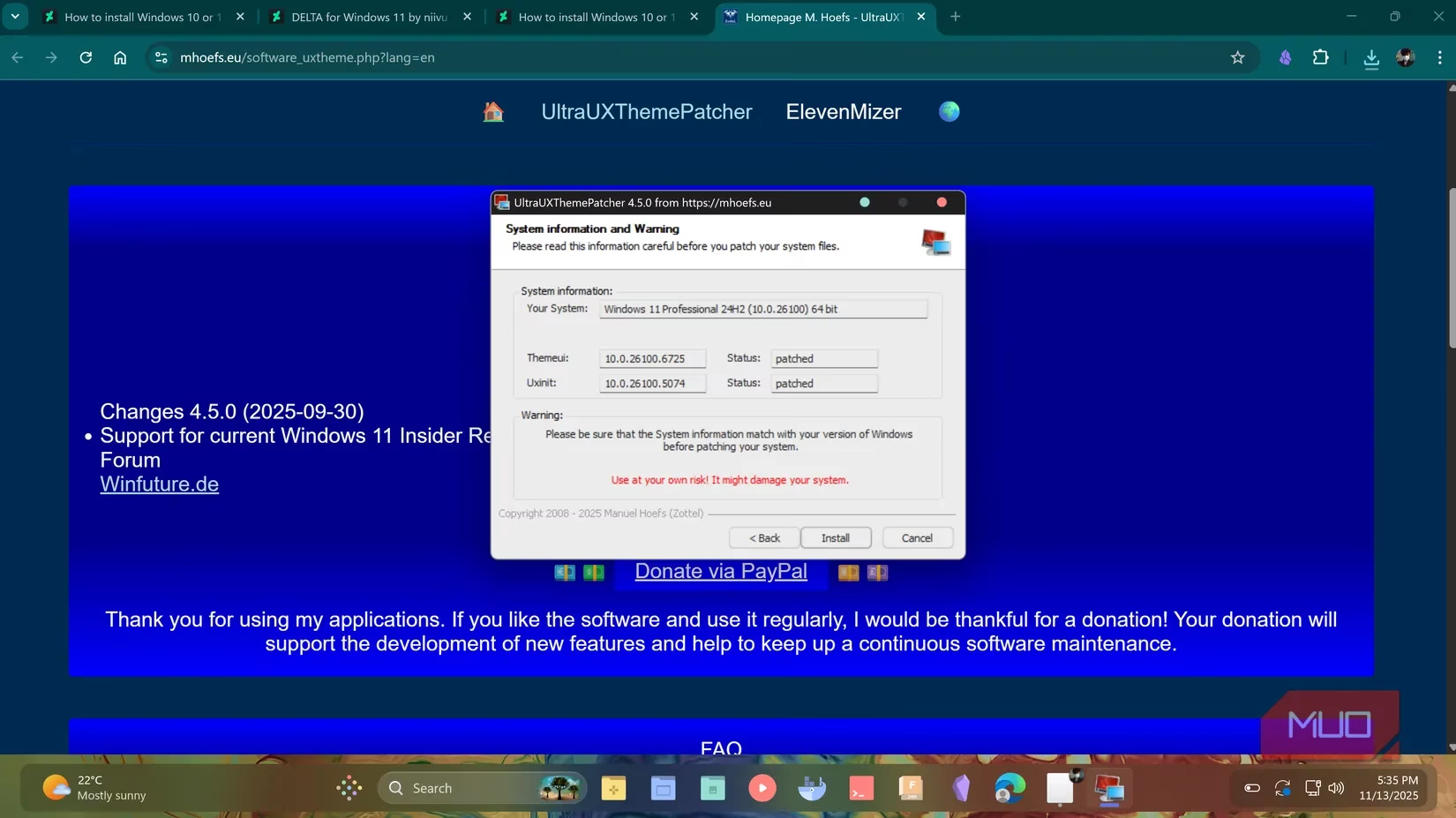
Windows normally blocks third-party themes for security reasons. That meant he had to patch system files first using UltraUXThemePatcher before enabling the theme like any other native Windows theme. This is the part that deserves caution. Patching system files can carry risk, so backups and current guides matter. Once the theme was set, the fun part began.
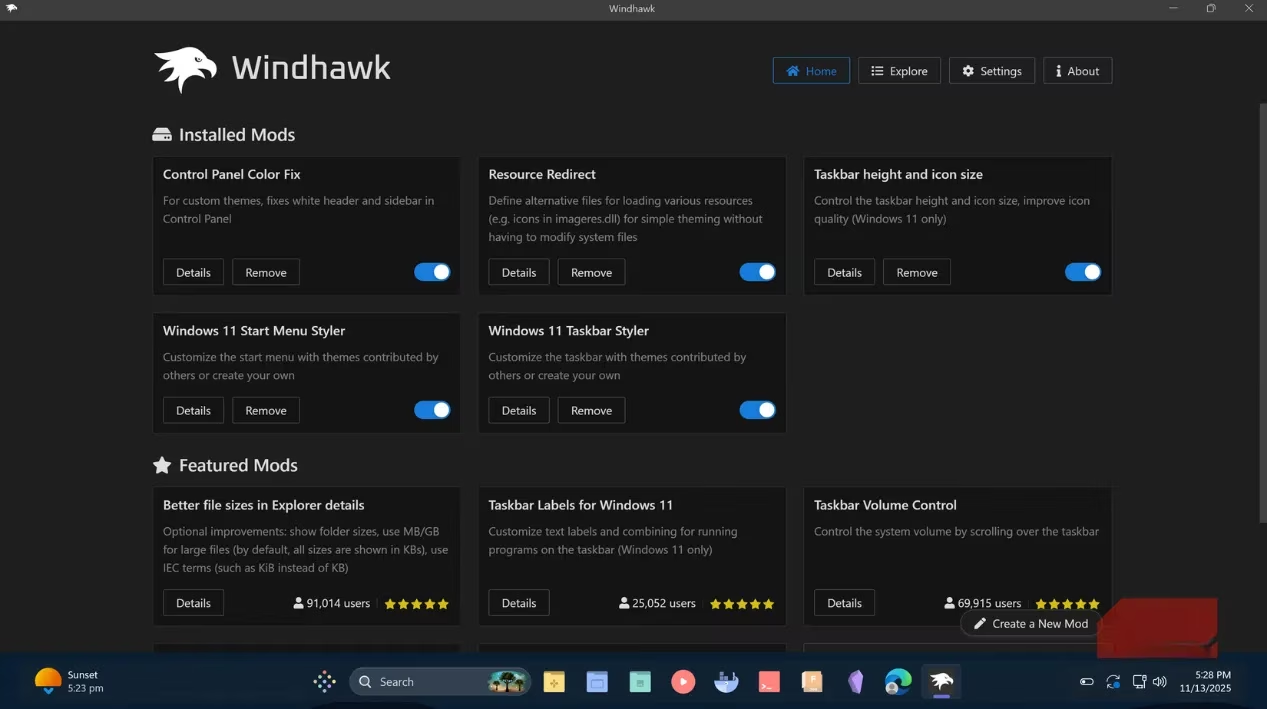
He installed Windhawk and added mods such as Windows 11 Start Menu Styler, Windows 11 Taskbar Styler, and Taskbar Height and Icon Size. Those mods created the sleek taskbar and clean Start menu. He also installed Mica For Everyone for rounded window edges, tacky-borders for window borders, and StartAllBack to restore the classic Windows 10 context menu. Each tool solved a specific annoyance. Together, they made the desktop feel less like a stock install and more like a designed space.
The Slow Part: Icons, Folders, and Rainmeter
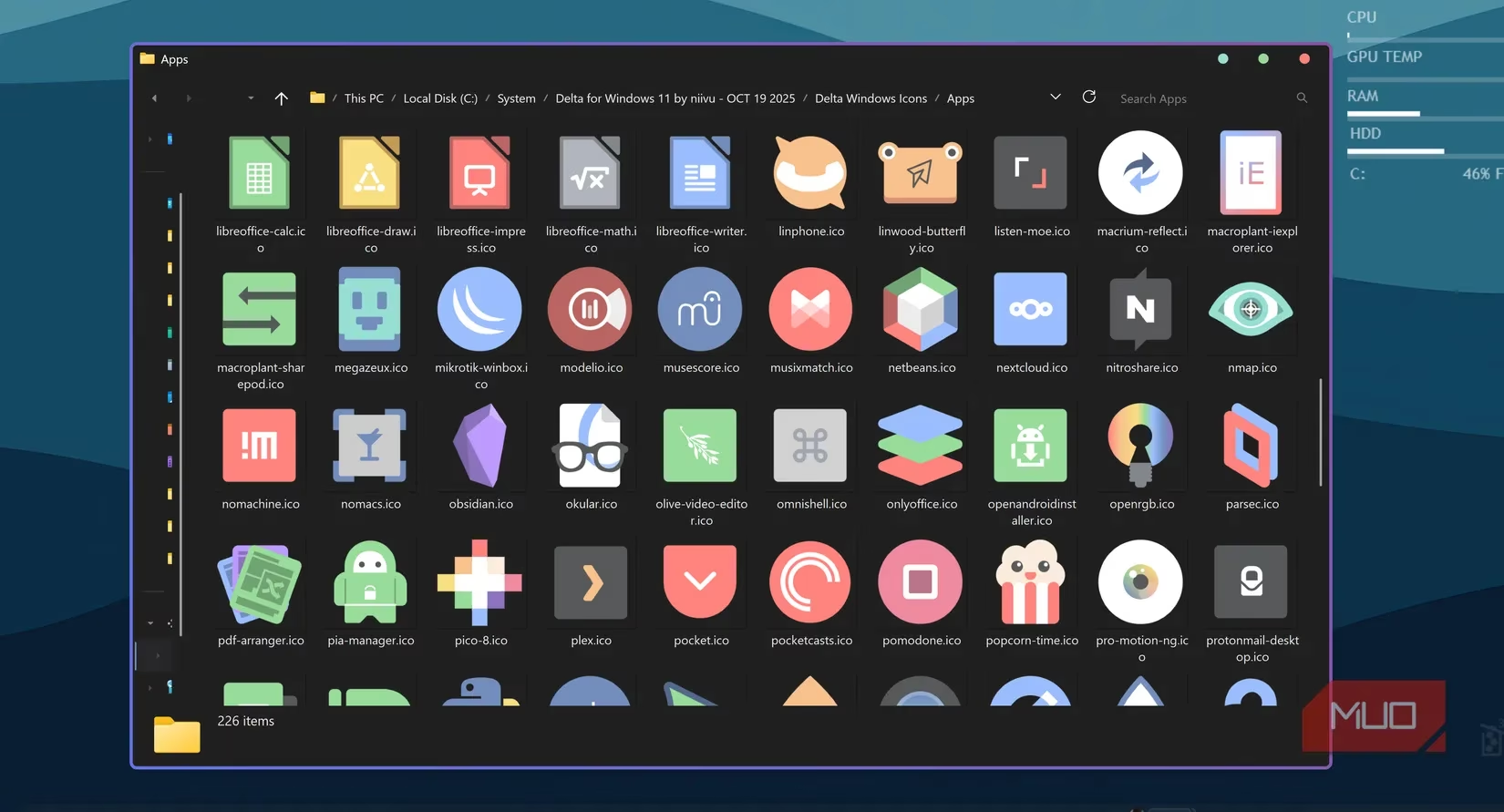
Although DELTA changed many system icons, buttons, and layouts, he still had to manually replace each taskbar icon to match the theme. Following an online guide helped him do it properly, but this step took the longest. There was also no direct way to add folders to the taskbar, so he created shortcuts, set the target path to explorer.exe along with the folder address, changed the icon, and pinned the result. Was it tedious? Yes. Was it worth it? The instant-access folders made the taskbar feel smarter, not just prettier.
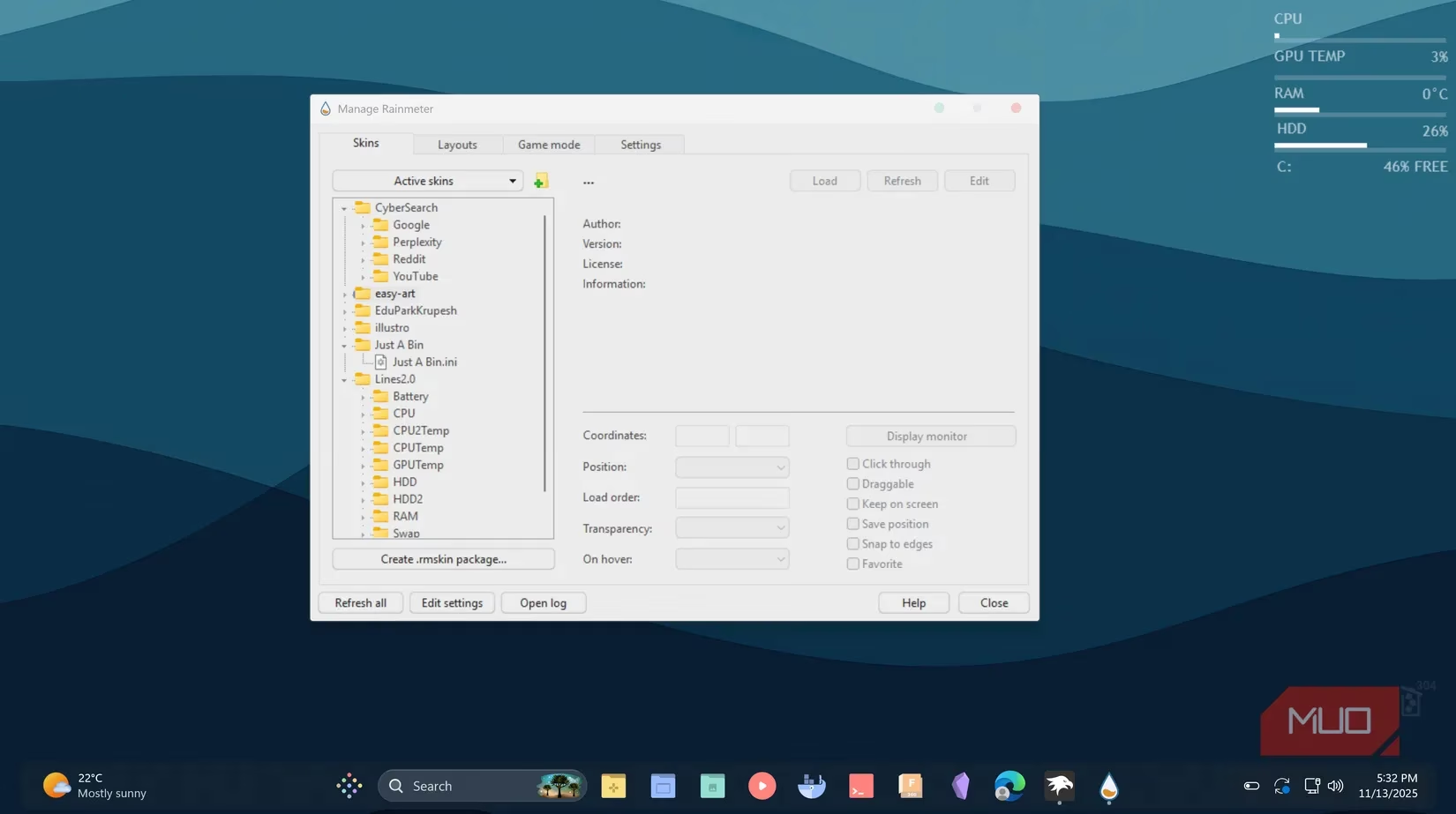
Next came Rainmeter. He loaded a few skins with clear jobs. Lines 2.0 displays CPU, GPU, RAM, and memory usage. Just A Bin replaces the Recycle Bin with a minimalistic version that shows how many files and how much data it contains. CyberSearch adds quick search bars for Google and Perplexity. He tweaked Just A Bin to appear at 0% opacity when hovering over it, and manually configured CyberSearch to include a custom Perplexity search bar. The result was a desktop that looked calm but still offered useful information at a glance.
To add more functionality, he paired everything with AutoHotkey v2, which runs his favorite automation scripts on Windows 11. The scripts provide a quick app launcher, instant folder access, volume control, and even auto mouse centering for his workflow. He also enabled Windows features that should have been on by default, such as Storage Sense and clipboard history, and disabled web search in the Windows search bar to keep things focused.
| Layer | Tool | What it changed |
|---|---|---|
| Theme | DELTA for Windows 11 | Icons, dark mode look, macOS-inspired styling |
| Theme patching | UltraUXThemePatcher | Allowed third-party themes to load |
| Shell styling | Windhawk mods | Taskbar height, icon size, Start menu layout |
| Window polish | Mica For Everyone and tacky-borders | Rounded edges and visible borders |
| Context menu | StartAllBack | Restored the Windows 10 menu |
| Widgets | Rainmeter skins | System stats, search, hover Recycle Bin |
| Automation | AutoHotkey v2 | Launcher, folders, volume, mouse centering |
The Result: A Setup That Feels Personal
He thought the whole project might take an afternoon. It ended up taking a day and a half of on-and-off work. Most of that time went into reading guides, testing tools, and tweaking settings. Even with a simple setup, he learned a lot, and he was happy with how it turned out. Now that Windows is customized to fit his style, he cannot imagine going back to the default look.
That does not mean Windows 11 is bad. It is actually great out of the box. But once someone realizes how much freedom and flexibility the right tools can provide, the default setup starts to feel unfinished. Customizing Windows also showed him how much time he spends looking at his desktop. If he is going to use it for hours every day, it might as well look and feel the way he wants. The time spent setting it up was worth it because everything now feels more personal and efficient.
So what should a curious beginner do in 2026? Start small. Try one Rainmeter skin. Change one icon pack. Add one automation script. Once the desktop starts to look and function better, it is hard to go back to the plain, stock version of Windows. 🎨🖥️
Leave a Comment