Looking back at 2025, I honestly can’t believe I spent so much time performing the same digital rituals day after day—typing the same email sign-off, clicking the same buttons, filling fields, and swapping between apps like a pianist with repetitive strain injury. I’d dabbled with no-code automation tools, but they’d always hit a wall the moment I needed to interact with desktop applications. You know the feeling: you just want to automate something on your actual screen, not inside a web browser, and the tool looks at you like you’ve asked it to do your taxes.
Then I stumbled onto AutoIt. Yes, in 2026 I’m still using it, because once you teach your computer to be your personal butler, why would you fire it? AutoIt doesn’t demand that you become a programmer. It feels more like giving the machine clear, Plain‑English instructions. I wasn’t learning to code; I was finally telling Windows what to do, in a language it actually listened to.
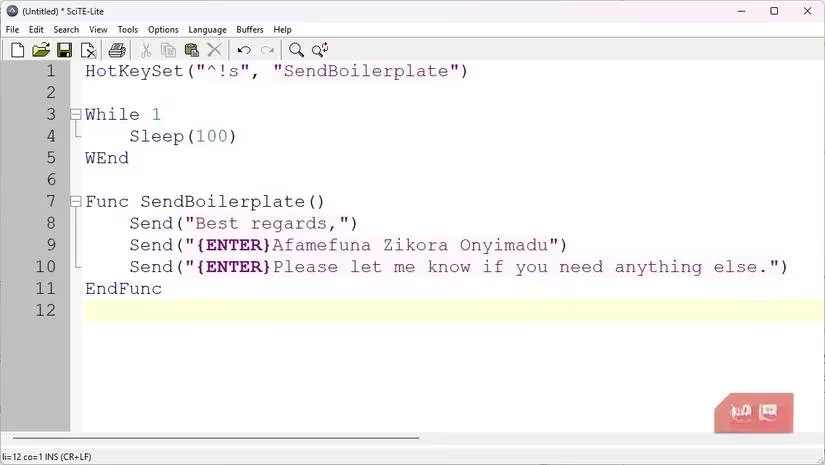
Let me tell you about my first tiny victory. Every day I typed the same block of text: “Best regards,” followed by my full name and a GDPR disclaimer. It wasn’t exactly summit‑level mental effort, but after the hundredth time, my brain threatened to go on strike. What if pressing Ctrl + Alt + S could just plaster that boilerplate into any app I was using? AutoIt’s HotKeySet function made it happen. I copied a sample from the documentation, replaced the text inside the quotes, and saved the file. And just like that, my new robot coworker was born. Here’s a peek at the script that lives in my startup folder to this day:
HotKeySet("^!s", "SendBoilerplate")

While 1

    Sleep(100)

WEnd

Func SendBoilerplate()

    Send("Best regards,")

    Send("{ENTER}Afamefuna Zikora Onyimadu")

    Send("{ENTER}Please let me know if you need anything else.")

EndFunc
When you press the hotkey, it doesn’t matter if the active window is Outlook, Word, Chrome, or even Notepad—the text appears as if your keyboard is haunted by a very polite ghost. The {ENTER} simulates the Enter key, so the cursor moves perfectly. Less than thirty seconds of setup, and I’d vaporised a micro‑task that used to nibble away at my sanity every single day.
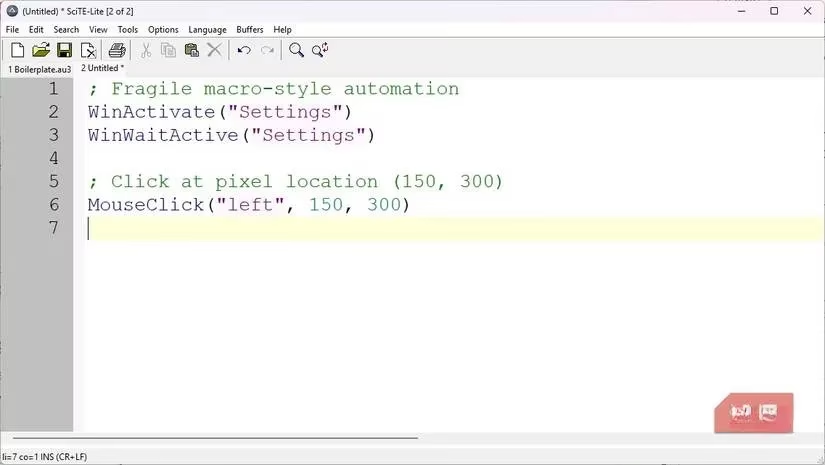
But what about automating more complicated steps, the ones you think you need actual RPA software for? I’d tried old‑school macro recorders that replay mouse clicks. They were impressive… until I moved a window or adjusted my monitor scaling. Then they’d click on empty air and look tragically confused. AutoIt sidesteps this nightmare altogether. Instead of clicking at screen coordinates—“pixel X=150, Y=300”—it speaks to the controls themselves. Buttons, text boxes, menus: they all have IDs, and AutoIt talks to them directly.
The “Aha!” moment came when I opened the AutoIt Window Info Tool, a utility that comes bundled with the software. I just hovered over a stubborn “OK” button, and the tool spilled all the secrets: control name, class, and handle. From then on, I could write ControlClick("Window Title", "", "Button1") and know it would work no matter where the window landed. No more fragile scripts. No more unexplained failures. It’s like teaching your computer to recognise a face instead of just looking at where the chair is.
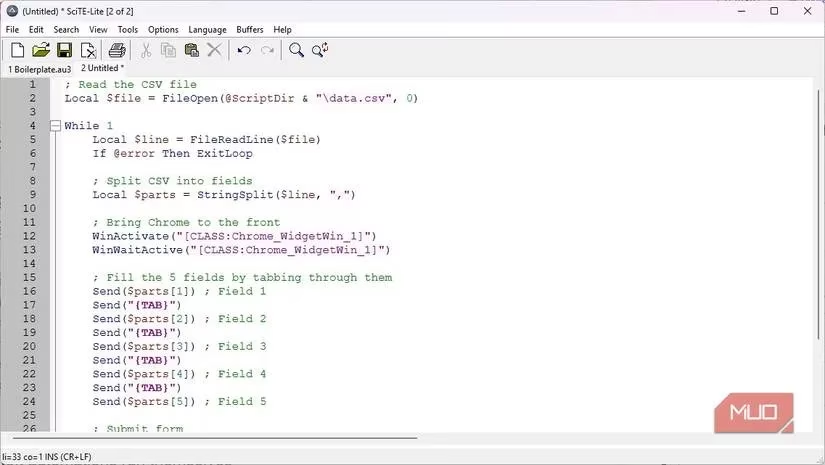
Once I’d tasted that kind of reliability, I went for the kill: automating a data entry workflow that had been the bane of my Wednesdays. The task was reading rows from a CSV file and feeding them into a web‑based CRM—five mandatory fields per record. Doing ten entries by hand took about fifteen minutes of soul‑draining tabbing and typing. Fifty? That was a half‑day ticket to RSI‑ville. With AutoIt, I wrote a small loop that opened the CSV, read each line, focused Chrome with WinActivate, and used Send to hop between form fields. A simple ControlClick on the submit button finished each entry. The script ran like clockwork, and my browser didn’t even blink. What used to be a tedious grind became a coffee break where I watched my PC do the heavy lifting.
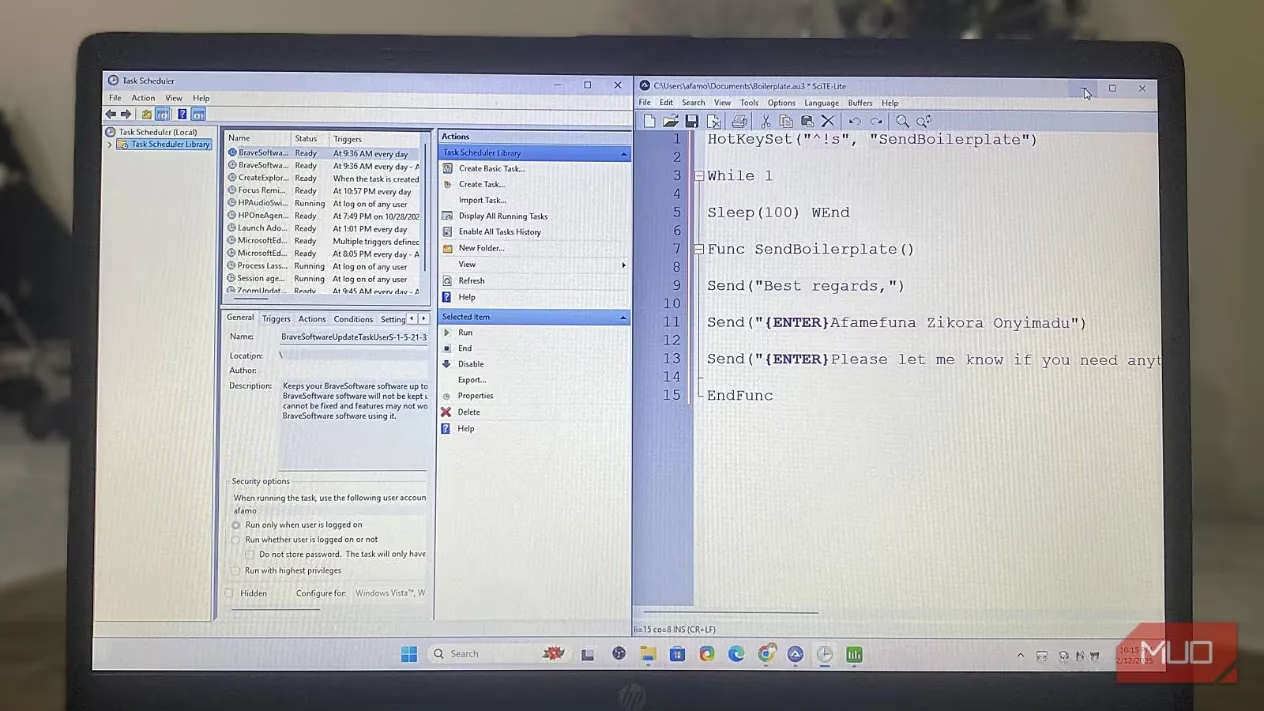
Of course, running a script by double‑clicking isn’t exactly the height of automation elegance. So AutoIt let me take things further. It ships with Aut2Exe, a utility that converts your .au3 script into a standalone Windows executable. Pick your file, choose an output name, hit Convert, and suddenly you have a clean .exe that runs on any PC—even ones without AutoIt installed. I placed several of these mini apps in my Startup folder so they launch when I log in, and set others in the Task Scheduler to fire at specific times. Now, my computer silently completes tasks before I’ve even had my first coffee. Did I mention this all happened without writing a single line of traditional “code”? You bet I’m going to mention it.
Automation shouldn’t feel like a computer science degree. It should be you telling your machine, “Do this thing I’m tired of doing.” AutoIt’s gentle learning curve lets you start with one small win—a hotkey, a button click—and before you know it, you’re building workflows that would make a junior developer jealous. It gave me back hours of my week and the smug satisfaction of watching my PC behave like a well‑trained butler. In 2026, that’s not just a productivity win; it’s self‑care for anyone who’s ever sworn at a “Save As” dialog.
Leave a Comment