Let me tell you a story of liberation, a tale of breaking free from the digital shackles of Windows Search. For years, I endured its sluggish pace, its maddening unreliability, its uncanny ability to hide files I knew were right there. It was my PC's greatest frustration, a constant, nagging reminder that something was fundamentally broken. Then, I discovered salvation, and my computing life was transformed forever. I didn't just improve search; I replaced it with something so fast, so intuitive, it felt like strapping a rocket to my taskbar. This is the saga of how I made Windows Search obsolete in 2026.
The Core Problem: Why Windows Search is a Digital Snail 🐌
The built-in search has been Windows' Achilles' heel for what feels like an eternity. While it has seen some cosmetic updates, its soul remains stubbornly slow. The issue isn't a lack of effort; it's a fundamental architectural flaw. Windows Search is like a librarian who insists on reading every single page of every book in the library to build a detailed catalog before telling you where "that blue book" might be. It indexes everything: filenames, folder paths, and the actual content inside files. This exhaustive, resource-heavy process is why it feels so agonizingly unresponsive at the precise moment you need speed—when you're in the flow and just need to find a document now.
Enter Everything: The Search Engine That Reads Your Mind 🚀
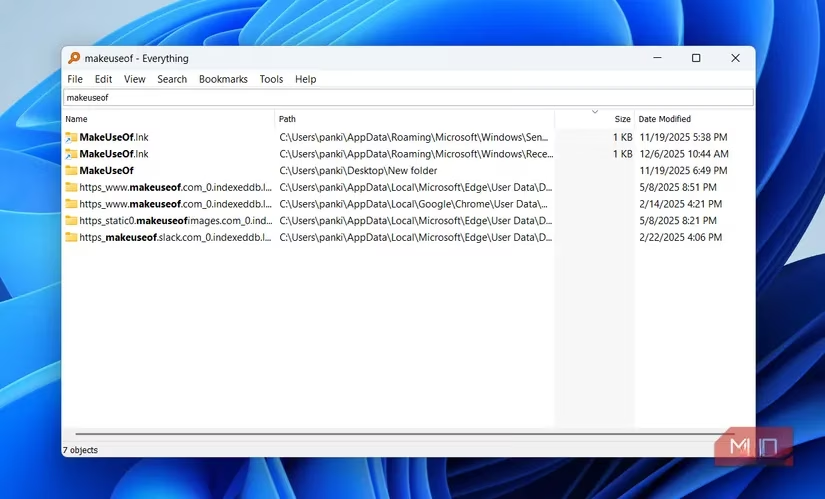
Everything, the glorious third-party application, takes a radically different, brilliantly simple approach. It doesn't bother with the content of files. Instead, it lightning-fast indexes only filenames and folder structures. This dramatically lighter workload is the secret sauce. The result? Instantaneous results. I'm talking Google-for-your-PC speed. You start typing, and before you've even finished the word, your file is staring back at you from the results list. It's not just fast; it's precognitive. You remember a fragment of a name, a vague location, and BAM!—Everything has already found it.
| Feature | Windows Search | Everything |
|---|---|---|
| Indexing Method | Heavy, full-content indexing | Ultra-light, filename & path only |
| Speed | Sluggish, delayed | Instantaneous, near-zero latency |
| Resource Use | High CPU/Memory during indexing | Minimal footprint |
| Primary Use Case | Finding content inside documents | Finding files & folders by name |
The Game-Changer: EverythingToolbar on the Taskbar 🎯
Using the standalone Everything app was a massive leap forward, but it still required that extra step of opening the application. The true revolution, the moment I completely and utterly abandoned Windows Search, came when I embedded its power directly into my taskbar with EverythingToolbar. This isn't just an app; it's a seamless extension, a surgical upgrade to the Windows interface itself.
Setting it up was a breeze:
-
I grabbed the EverythingToolbar from its GitHub repository (always get the latest 2026 version!).
-
Installed it and opened the main Everything app to tweak a couple of settings in
Tools > Options. -
With a quick search for "EverythingToolbar" and a right-click to Pin to taskbar, the magic was ready.
Suddenly, I had a sleek, minimalist search box living right next to my Start menu. Clicking it felt natural, like using Windows Search should feel. I immediately hid the native search icon—out of sight, out of mind! The killer shortcut? Windows + Alt + S summons the toolbar instantly, no mouse required.
Why EverythingToolbar is a Masterclass in Design 🏆
Speed is the headline, but the thoughtful details are what make you fall in love. Microsoft's designers should be taking furious notes.
-
Fully Resizable Window: Need to see more results? Just click and drag the window bigger. It's fluid and intuitive, perfect for browsing long lists.
-
Compact View: On my laptop's smaller screen, switching to Compact view crams in more results without feeling cramped.
-
Search History & Navigation: Enable history, and your last query is waiting for you. Cycle through recent searches with
Ctrl + Up/Down Arrow—genius! -
Visual Previews: Working with images? Enable thumbnail previews for a quick visual confirmation before opening anything.
Power User Nirvana: Shortcuts & Integration ⚡
This is where EverythingToolbar transitions from a great tool to an indispensable part of my workflow.
-
Enteropens a file. -
Ctrl + Enter(orCtrl + Click) opens the folder containing the file. This one shortcut saves me countless navigation steps every single day. -
Shift + Enteropens the full results inside the Everything app for deeper filtering.
But my absolute favorite trick? Right-clicking any search result. It doesn't just open the file; it brings up the full, rich Windows context menu—complete with "Open with," "Send to," "Properties," everything—right there in the search bar. I can compress, rename, or share a file without ever opening File Explorer. It's a monumental time-saver.
The Ultimate Fusion: Replacing Start Menu Search Entirely 🔗
If you're ready to go all-in (and trust me, you will be), you can make EverythingToolbar the undisputed search champion. In its Preferences, there's a magical option: Replace start menu search. Activate this, and the behavior changes beautifully: pressing the Windows key still brings up the Start menu, but the moment you start typing, it seamlessly hands off the query to EverythingToolbar. It's the perfect hybrid—familiar entry point, revolutionary results.
In 2026, tolerating slow, unreliable system search is a choice. I chose power. I chose speed. I chose an experience so fluid and integrated that it feels less like a third-party tool and more like the Windows update we've been desperately waiting for. EverythingToolbar didn't just fill a gap; it showed me what my PC was always capable of. My only regret is not making the switch years sooner. If you're still wrestling with Windows Search, consider this your intervention. Your future self will thank you.
Leave a Comment