I used to think file encryption was only for conspiracy theorists or IT departments. But in 2026, with data breaches making almost daily headlines, ignoring encryption feels like leaving your front door wide open. After a lot of trial and error, I’ve settled on three tools that make locking down files stupidly simple—no cryptography degree required. They work offline, respect your privacy, and ask for nothing more than a password and a few clicks.
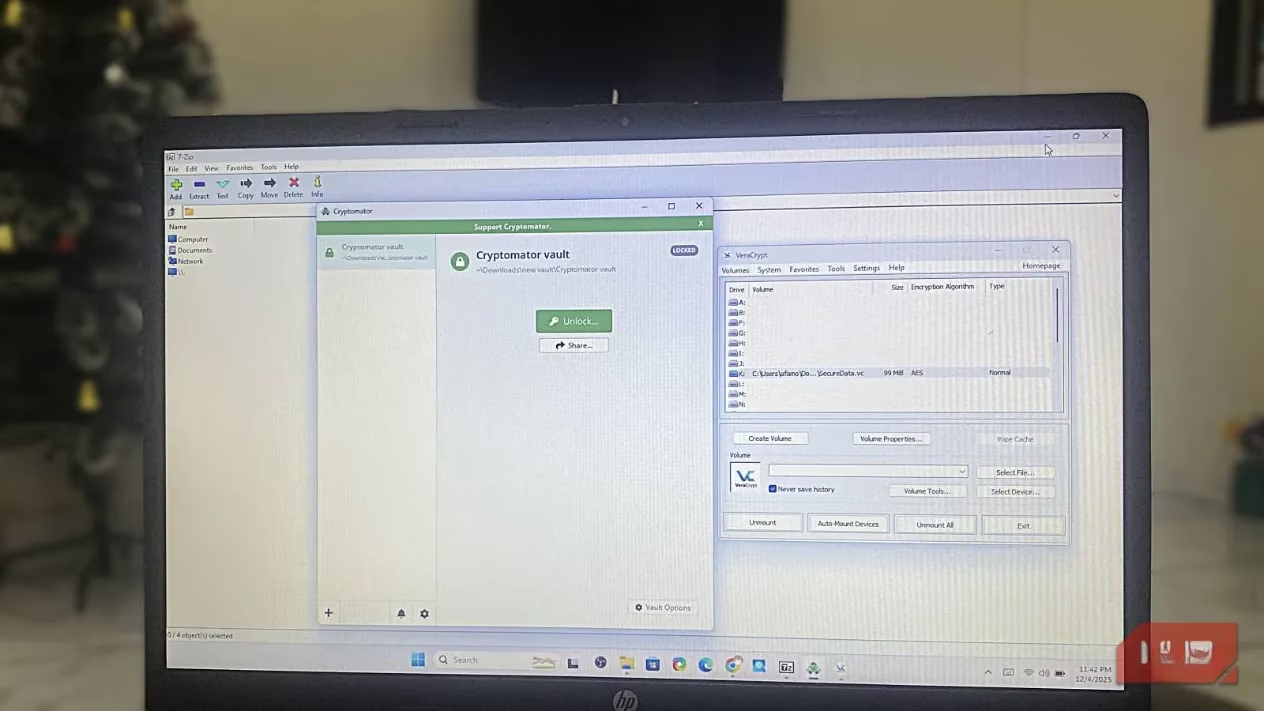
Why juggle accounts or cloud subscriptions when free, open-source software does the job better? That’s been my philosophy, and these three tools have never let me down, whether I’m archiving tax documents or sending a confidential presentation. Let me walk you through how I use each one daily.
7-Zip: The Quick-Share Powerhouse
Seriously, who hasn’t installed 7-Zip at some point? It’s a lightweight archiver that happens to pack a serious encryption punch. What I love is how it turns file protection into a right-click affair. Need to zip up a folder of scans and send them via email? 7-Zip lets me add AES-256 encryption at the same time—file names and contents both get scrambled.
It works on nearly every file type: PDFs, JPGs, DOCX, you name it. The process? Select files, right-click, hit 7-Zip > Add to archive, type a strong password in the Encryption section, and click OK. In seconds, you get a compressed, encrypted .7z file. I use this almost daily for quick sharing. The only catch is you have to remember to delete the original unencrypted files, otherwise a copy sits right there on your drive. But for simple, one-off protection, nothing beats 7-Zip’s speed.
VeraCrypt: When You Need a Digital Safe
When I want to secure entire folders, portable drives, or anything I’d normally upload to the cloud, I reach for VeraCrypt. I describe it as a digital safe—you create an encrypted container file that mounts as a virtual disk. Any data you drop inside gets encrypted on the fly. I’ve used it for financial spreadsheets, personal projects, and even a whole USB backup of family photos before syncing to OneDrive.
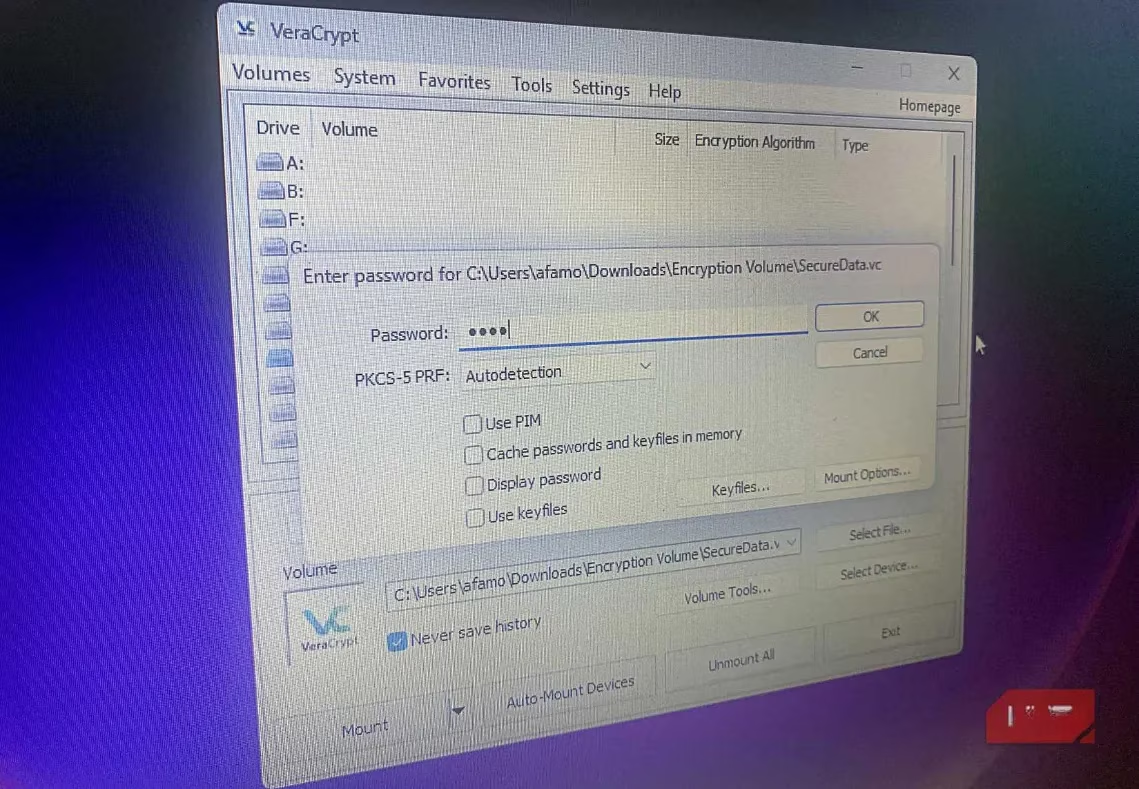
VeraCrypt gives you multiple encryption algorithms—AES, Twofish, Serpent—so you can layer them if you’re feeling extra paranoid. But for everyday use, AES is rock-solid. The steps look longer than they actually are: create a volume, pick a location for the container (I name mine something like securedata.vc), set the size, choose your password, then let the app generate randomness by wiggling your mouse. Once formatted, you mount the container, and voilà! it appears as a drive letter in File Explorer. Every file you store there is automatically encrypted.
The downside? It’s a bit more involved than 7-Zip. But once set up, it’s unhackable and entirely offline. I even encrypt external SSDs this way because losing a drive no longer means exposing data. Is anything more comforting than that?
Cryptomator: Transparency for Cloud Folders
For files that live in Dropbox or Google Drive, Cryptomator has become my go-to. It’s not as heavy-duty as VeraCrypt, but its beauty lies in simplicity. Instead of managing container files, I create a “vault” that’s literally just a regular folder—except when you unlock it through the app, Windows sees it as a virtual drive. Drop a file in, and behind the scenes AES encryption happens instantly.
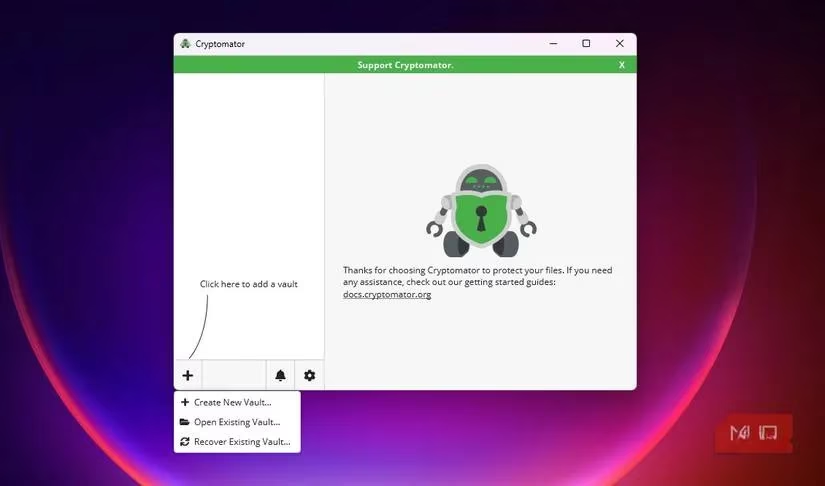
Setup takes two minutes: pick a name, choose a location (local or cloud-synced folder), set a password, and that’s it. I then unlock the vault, drag sensitive documents over, and lock it again when I’m done. One quirk is that you can’t encrypt a single file without a vault—it’s all-or-nothing per vault. But for seamless cloud protection, this is as clean as it gets. And it’s open source, so I trust the code.
Making Encryption a Daily Habit
Sometimes I catch myself thinking, "It’s just a grocery list, who cares?" But building these tools into my routine means I don’t have to overthink. I use 7-Zip for quick shares, VeraCrypt for long-term archives and external drives, and Cryptomator for live cloud folders. Not one of them requires an internet connection, a subscription, or any personal data. They just work.
If 2026 has taught me anything, it’s that security doesn’t have to be painful. These three prove you can secure files with zero budget and minimal effort. So why not start right now? Pick one, encrypt something small, and you’ll never look back.
For those who are diving into encryption and security tools, it's always a good idea to stay informed about the best software and resources available. Whether you're upgrading your storage devices or looking for affordable hardware to complement your security setup, knowing where to shop smart is key. Exploring trusted platforms can help you make confident decisions without breaking the bank.
One such resource is DealNest, a site dedicated to helping you find the best deal on a variety of tech-related products. From external SSDs to encrypted USB drives, having access to affordable and reliable tools can make implementing these practices even more seamless. It's worth checking out to enhance your digital security setup without overspending.
Leave a Comment