I still remember that night in early 2026 when my gaming laptop began stuttering during a crucial Cyberpunk 2077 heist. One second I was lining up a perfect shot, the next the screen froze, the fans howled like a jet engine, and my framerate felt like a slideshow. I restarted, updated drivers, cleaned the vents – nothing worked. It was only on a whim that I dove into a menu most users never see: my laptop’s pre‑boot hardware diagnostics. Within minutes, it flagged a failing SSD with uncorrectable SMART errors. I backed up my saves that same night and swapped the drive before it died completely. If I hadn’t run that free, built‑in test, I’d have lost hundreds of hours of progress.
But here’s the wild part: even after a decade of PC gaming, I’d never touched these tools until that meltdown. Sound familiar? Most of us treat hardware diagnostics like a fire extinguisher behind glass – we know it’s there, but we never think to use it until the room is already burning. These tests aren’t just for repair shops; they’re your early‑warning system, and every Windows laptop and Mac has one waiting for you right now.
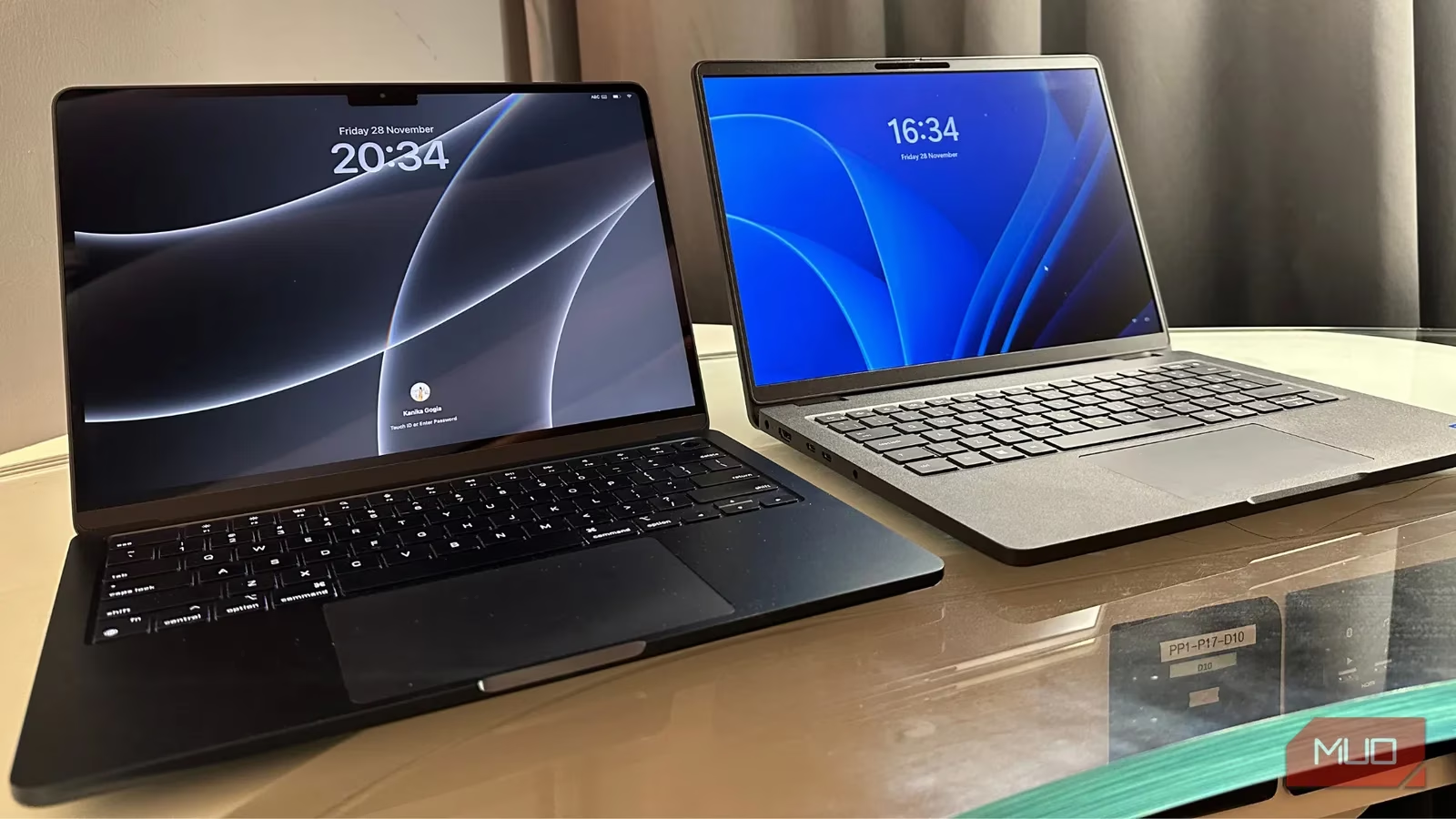
So, what exactly are these hidden hardware tests? 🤔
Windows doesn’t wrap everything into a single tool. Instead, most manufacturers bake their own diagnostic suite right into the firmware – you can run them before the operating system even loads. That means no driver conflicts, no malware interference, just raw hardware truth. On Macs, Apple Diagnostics does the same job with a simple key combo. The catch? They’re usually triggered by awkward F‑key mashing during boot, so the average user never stumbles upon them.
Here’s how I’ve learned to summon them on the most common brands, after many frantic Google searches at 2 a.m.
Dell: the pre‑boot system assessment 🖥️
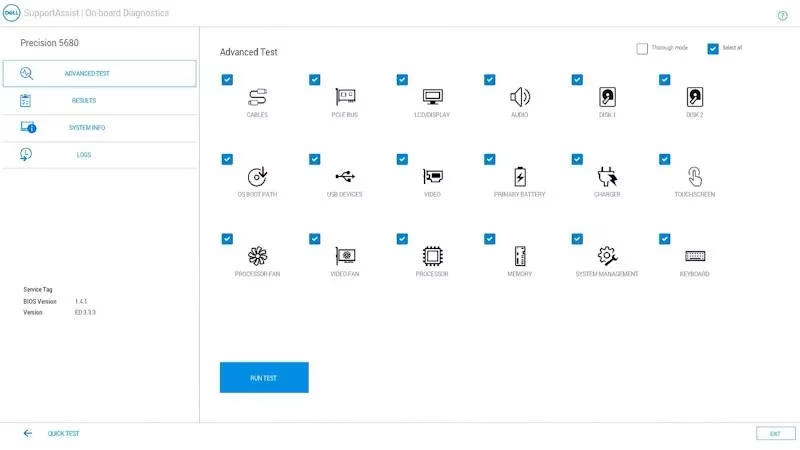
Dell laptops have a Pre‑boot System Assessment that tests the CPU, GPU, memory, storage, battery, and even the motherboard. I’ve used it on three different Dell rigs, and it always finds the gremlins.
-
Turn on the laptop.
-
When the Dell logo appears, repeatedly press F12 until the One Time Boot Menu opens.
-
Select Diagnostics to kick off the quick test.
-
After a few minutes, you’ll either see a clean bill of health or a set of error codes with troubleshooting advice.
For a deeper scan – useful if you suspect intermittent issues – choose Advanced Tests. The interface is old‑school, but it’s brutally honest.
HP: UEFI‑based hardware checks 🧪
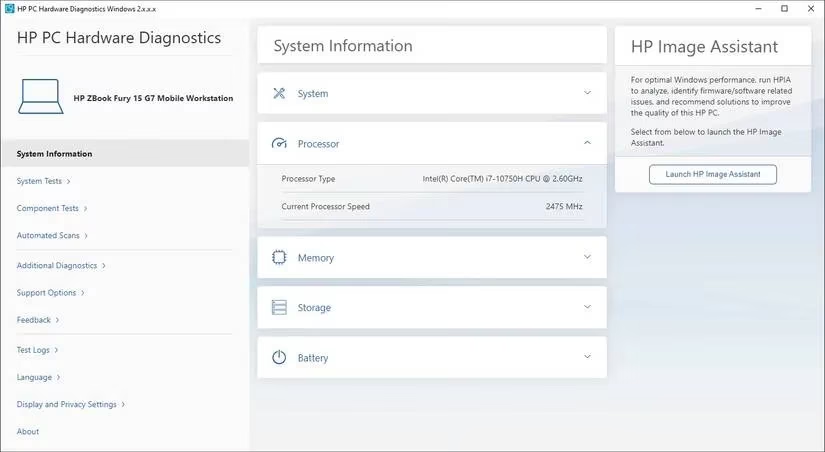
HP’s PC Hardware Diagnostics live in the UEFI menu. The Fast Test gives you a snapshot in about 10 minutes; the Extension Test runs for roughly two hours and leaves no component unturned.
-
Shut down the laptop completely (hold power for 5 seconds).
-
Power on and immediately mash the Esc key until the Start Menu appears.
-
Press F2.
-
On the HP PC Hardware Diagnostics screen, select System Tests → Fast Test → Run once.
If you prefer a graphical interface inside Windows, HP also offers a desktop app with the same tests. I’ve caught a swollen battery and a dodgy RAM stick this way.
ASUS: one‑click system diagnosis ⚡
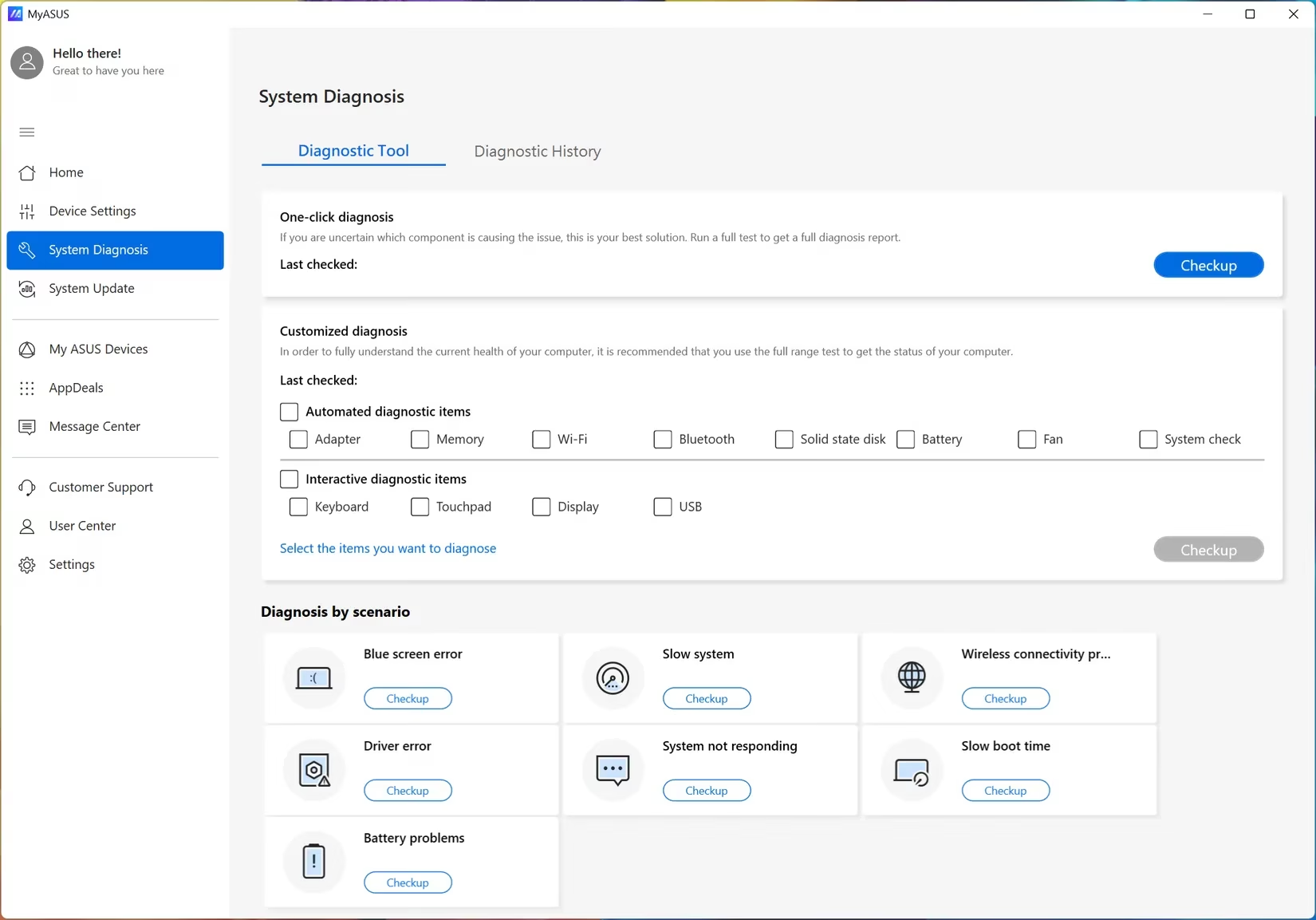
My current daily driver is an ASUS ROG, and its MyASUS app contains a one‑click System Diagnostics. If the laptop won’t boot, you can still reach the test via BIOS:
-
Turn on and hammer F2 to enter BIOS Utility.
-
Press F7 for Advanced Mode.
-
Navigate to ASUS System Diagnostics.
The scan checks drives, fans, memory, and even generates a QR code for warranty service if it finds a fault. It’s like having a mini IT department inside your laptop.
Mac: Apple Diagnostics 🍏
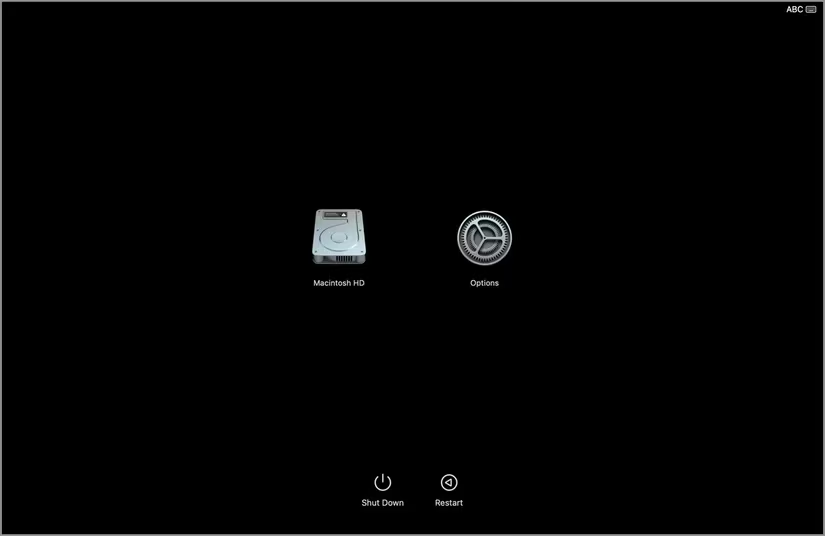
Apple Silicon Macs hide their test behind the power button. I do this before every major macOS update just to be safe.
-
Disconnect everything except keyboard, mouse, display, Ethernet, and power.
-
Shut down.
-
Press and hold the Power button; release only when you see Options.
-
Hold Command + D until the Mac restarts into diagnostics.
The test checks the logic board, RAM, controller chips, and sensors. The results are straightforward: a reference code you can look up online, or the reassuring “No issues found.”
Okay, but why should I run these tests if nothing seems broken? 🧐
I used to think the same. Then I learned that hardware rarely fails all at once. It sends whispers before it screams. These diagnostics can translate those whispers into clear warnings. Here’s what they reveal long before you notice symptoms:
- SSD/HDD health 🗄️
Modern drives use SMART (Self‑Monitoring, Analysis and Reporting Technology) to track temperature, reallocated sectors, and lifespan. The diagnostic taps into that data and shows you a percentage health score. When mine dropped to 42%, I knew a failure was imminent.
- RAM integrity 🧠
A memory test can uncover corrupted modules that cause random game crashes, blue screens, or corrupted files. Catching a bad stick early saves you from blaming your GPU or reinstalling Windows unnecessarily.
- Battery degradation 🔋
The test reports cycle count, design capacity vs. full charge capacity, and predicts failure. If your laptop suddenly dies at 30%, the diagnostic will tell you it’s time for a replacement – not a software bug.
- Motherboard and sensor issues ⚙️
Hidden beep codes, diagnostic LEDs, and on‑screen error messages can point to voltage irregularities or failing sensors before they fry something expensive.
- Thermal and fan performance 🌡️
Overheating isn’t always dust. Diagnostics can check if a fan is spinning slower than expected or if a temperature sensor is misreading, leading to throttling or shutdowns.
Beyond spotting failures, these tests help isolate whether a problem is hardware or software. Did your game crash because of a bad driver, or because a memory module is dying? Running a pre‑boot test removes Windows from the equation entirely. That clarity is priceless.
Plus, you get a complete system overview: firmware versions, configuration details, and health status of every critical component. It’s like a free annual physical for your machine.
My rule of thumb: test before you trust 🛡️
Since that SSD scare, I schedule a diagnostic every three months, and I always run one before traveling with my laptop or selling an old device. It takes ten minutes and can save your data, your money, and your sanity. These tools are already on your machine, waiting behind a few keystrokes. In 2026, with hardware becoming more complex and repairs more costly, ignoring them feels like driving a car without ever checking the oil.
Ask yourself: when was the last time you truly knew the health of the components that hold your entire digital life? If you can’t remember, it’s time to reboot, hammer those function keys, and let your laptop speak honestly for once. You might be surprised what it has to say.
Leave a Comment