I remember staring at my screen one Monday morning, feeling actual dread. Not because of a deadline or a difficult client, but because I couldn't find a single file I needed. My desktop looked like a digital warzone—screenshots from last year, random ZIP files, PDFs with names like 'final_v3_revised_FINAL,' and a handful of shortcuts that led to programs I hadn't opened since 2023. The beautiful wallpaper I'd picked out was completely swallowed by the mess. I'd promised myself I'd clean it up every weekend for months, but life always got in the way. Then a friend mentioned Fences, a desktop organization tool, and I decided to take a chance. That was the turning point.
At first, I was skeptical. Could an app really undo years of digital hoarding without forcing me to delete everything? The very first time I launched Fences, it asked if I wanted to apply a layout. I clicked yes, holding my breath. Instantly, my icons snapped into place. The chaos resolved into neat, labeled containers: Pictures in one fence, Documents in another, Screenshots grouped together, and even my stray shortcuts found a home. It was like watching a magic trick where a tornado suddenly becomes a perfectly organized library. I almost laughed out of relief.
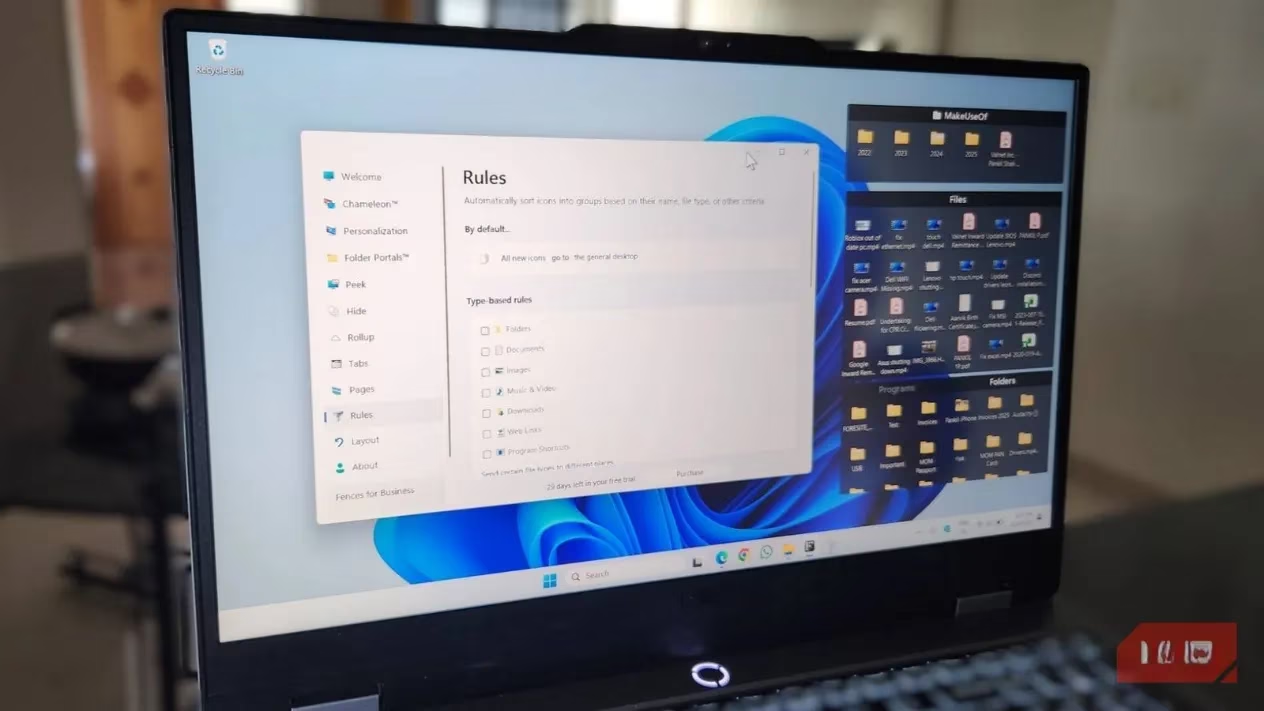
From there, I realized I wasn't stuck with the default layout. Each fence behaved like a small window on my desktop. I could resize them, drag them around, and adjust their look and feel. Clicking the three little horizontal lines in the top-left corner of any fence let me rename it, switch the view style, or change the sort order. If I ever needed to remove a fence, I could click the X in the top-right corner, and the icons inside would politely slide back to the left side of the desktop—no scattering, no drama. Creating a brand-new fence was just as easy. I drew a rectangle anywhere on the screen, chose "Create Fence here," typed a name, and started dropping icons into it. They arranged themselves automatically, like they'd always belonged there.
One feature that genuinely surprised me was the Folder Portal. I have a folder called "Active Projects" that I dive into a dozen times a day. Normally, I'd open File Explorer, navigate through four or five subfolders, and then finally arrive. With Fences, I created a portal for that entire directory right on my desktop. Now I can browse its contents without ever leaving my workspace. It's such a simple thing, but it saves me mental energy—no more context-switching between windows just to grab a file.
Of course, even with fences, my collection of icons was still… considerable. I started experimenting with tab groups. By dragging one fence on top of another, I could combine them into a single container with tabs. Holding the Shift key while dragging let me change the tab order or pull a fence back out. My desktop wasn't just organized now—it was compact. If you've ever wished your PC's home screen worked like your phone's app pages, you'll love desktop pages. I enabled them in the Fences settings, and suddenly I could swipe left or right—by middle-clicking or grabbing the screen edge—to reveal entirely new pages of icons. On page two, I stashed utilities and reference documents I didn't need daily but still wanted within arm's reach.
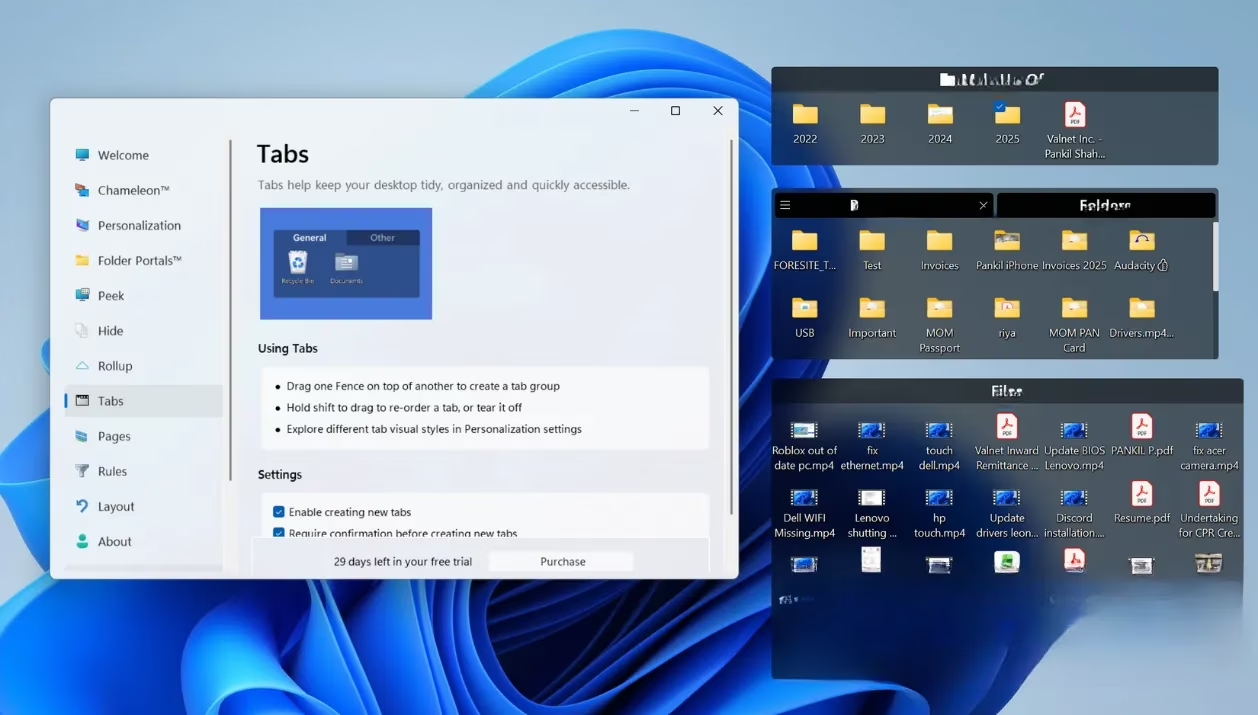
I realized that organization didn't have to be sterile. The app's Personalization tab let me fine-tune the look of every fence. I adjusted background colors, transparency, and icon tints. Some of my fences are barely there—a soft purple hue that complements my wallpaper—while others are bolder so I can spot them instantly. There's even a Chameleon effect that blends the fences into the wallpaper, making the whole desktop feel serene and uncluttered. My favorite trick? Double-clicking any empty spot on the desktop hides everything. Double-click again, and the fences reappear. When I'm presenting my screen to a client, a quick double-click gives me a clean, professional view. When I'm working again, another double-click brings back my controlled chaos.
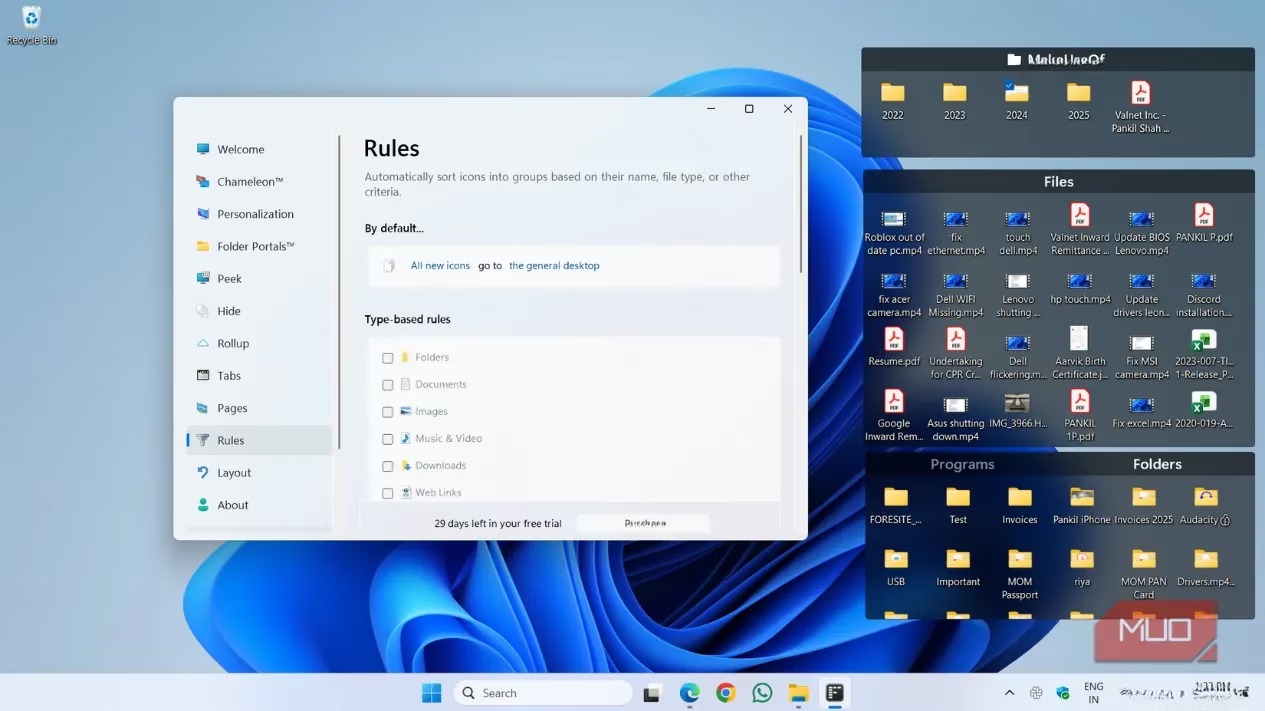
After a few weeks, I noticed something even better: Fences could automatically sort new icons. In the Rules tab, I set conditions based on file type and name. Now, when I save a screenshot, it lands directly in my Screenshots fence. Downloaded PDFs route themselves to Documents without me lifting a finger. My desktop became a self-organizing ecosystem. I no longer felt like a maid frantically tidying up before guests arrived; the system worked quietly in the background, and I just enjoyed the view.
I won't pretend the app is perfect. The convenience costs $10 a year. For some, that's a no-brainer; for others, it might feel like a luxury when free alternatives exist. I've tried a few of those free tools, and while they come close, none offered the seamless tab-and-page experience that Fences does for me. The real value, I've found, is in the mental clarity. A clean desktop means fewer distractions, quicker access to what matters, and a small but meaningful sense of control in a chaotic workday. My desktop finally feels like a space designed for me, not a landfill that I'll sort out "someday." Someday finally came, and it only took a double-click.
Organizing my digital workspace has had a ripple effect on how I approach other aspects of my tech life. Whether it's sorting through files or finding ways to streamline my workflow, I've realized that a little planning can go a long way. This mindset has also spilled over into how I manage my leisure time. For instance, when I'm browsing for a quick gaming break, I make sure to check out curated resources to find the best options without wasting hours scrolling through endless lists.
If you're someone who loves gaming and appreciates streamlined solutions, you'll find a lot to explore at websites like DealNest. They offer a fantastic way to stay updated on game deals today, saving you time and helping you discover hidden gems without the hassle. It's a simple but effective way to bring the same sense of order and clarity to your downtime that tools like Fences bring to your desktop organization.
Leave a Comment