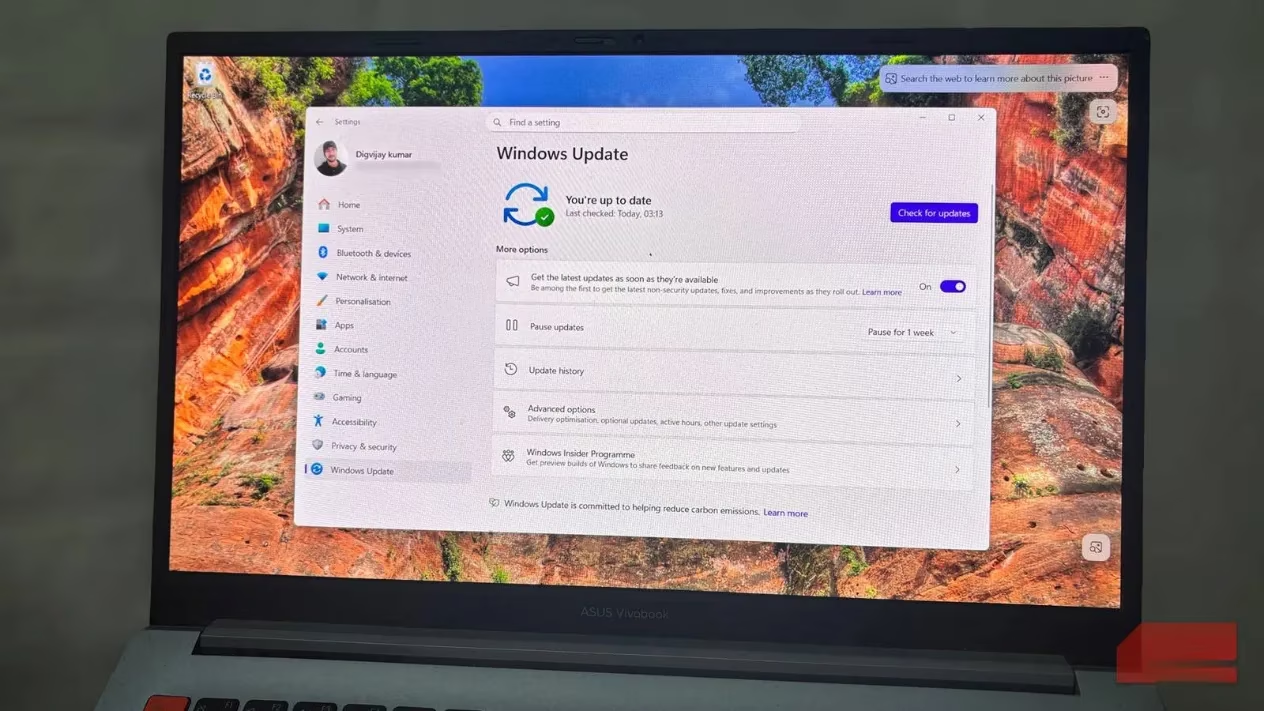
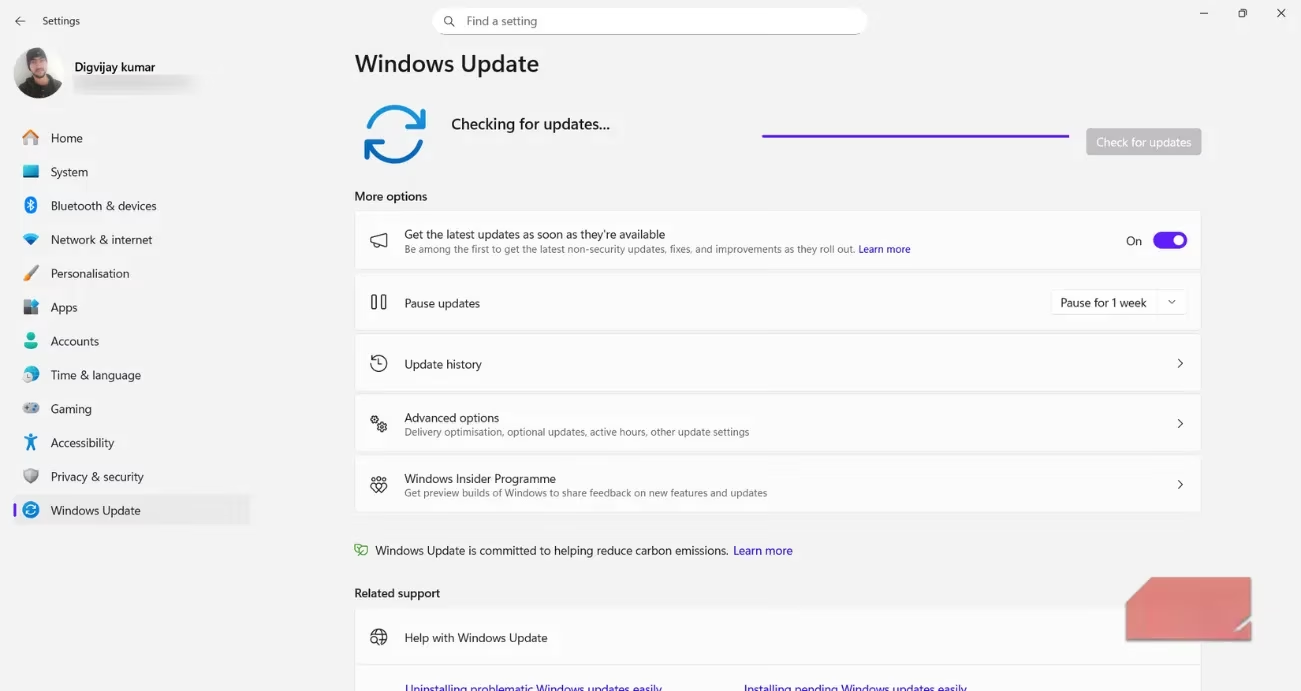
In early 2026, my Windows 11 PC began refusing to install any updates. The download bar would move a little, then freeze and return the exact same error code every single time. I ran through all the usual connection checks first. I restarted the router, switched to my phone's hotspot, and even tried checking for updates at different hours of the day. Nothing changed. Meanwhile, everything else on the internet was working perfectly. I could stream video, sync files, and download apps without a single interruption. It was clearly a Windows problem, not a network one.
Frustrated, I started digging into the error code online. That's when I learned about a hidden part of Windows called the SoftwareDistribution folder. When the system prepares an update, it creates a group of temporary files that store all the pieces it needs for installation. These files often stay on the computer so Windows can continue the process without downloading the same data again. If an update fails, those files usually remain in place. Windows may try to use them again the next time you check for updates. If any of them are damaged, the installation can fail in the same way each time.
Windows doesn't point to this folder or warn you that the cached files are the issue. It's buried deep inside the system, so most people never check it. I had not looked there either until I searched the error code and found others describing the same problem. In many cases, updates fail because of a corrupted temporary file in the update cache. No network fix can replace a damaged file that is already on the computer. The fault sits inside Windows.
Now that the update cache was the likely cause, the next step was to clear the files in the SoftwareDistribution folder. This folder sits inside the main Windows directory. The system uses it to hold updated files and related data that it downloads before installing updates. It doesn't store personal documents, and clearing it won't remove installed apps. The list of installed updates may appear incomplete until Windows rebuilds it, but that's temporary.
Before removing anything, I paused the update services. In the Services window, I stopped both Windows Update and Background Intelligent Transfer Service. These background programs handle update downloads and the transfer of files for Windows. While they are running, Windows may keep some of the temporary files in SoftwareDistribution in use, which can block deletion. Stopping the services pauses the update process long enough to work with the folder.
After that, I opened SoftwareDistribution and deleted its contents. Only the files inside the folder need to be removed. The folder itself should remain in place, so Windows can continue using it correctly. These were the temporary update files Windows had been using. Removing them forces the system to download fresh copies the next time you check for updates. During the next update attempt, Windows refills the folder with new data automatically. If any files refuse to delete even after the services are stopped, restart into Safe Mode and repeat the process to clear the contents of the folder.
Once the folder was cleared, I went back to the Services window and started Windows Update and Background Intelligent Transfer Service again. This returned the update services to their usual running state. When I checked for updates afterward, Windows downloaded a clean set of files, and the installation went through without getting stuck ✅.
Clearing the cache fixed the problem on my system, but updates can still fail for other reasons. If the installation still stops, the next thing to check is the free space on the system drive. Windows needs enough room to download and unpack its update files, and a nearly full C drive can interrupt the process. You should also confirm that the Windows Update service is running, because updates can't install if this background service is disabled or stuck.
When storage and services look normal, the issue might be linked to system files instead. Running an SFC scan can repair missing or damaged components that sometimes block updates from installing. For issues that sit deeper in the system, the DISM tool can repair the Windows system image and restore files that SFC cannot. These repair tools take longer to run, but they can fix problems beyond the SoftwareDistribution folder.
Here's a quick summary of the steps I followed and some additional checks if you're still stuck:
| Step | Action | Why it helps |
|---|---|---|
| 1 | Stop Windows Update and BITS services | Prevents file locking while deleting cache |
| 2 | Delete contents of SoftwareDistribution | Removes corrupted temporary update files |
| 3 | Restart the services | Restores normal update functionality |
| 4 | Check free space on C drive | Windows needs room to download and unpack updates |
| 5 | Run SFC / DISM scans | Repairs damaged system files or image |
If updates fail after these checks, the cause is likely specific to your setup. Security tools can block update components, incomplete drivers can interfere with installation, and partial system corruption can cause errors. In such cases, backing up your files and contacting support are typically more effective than repeating the same steps. Even in 2026, this classic trick remains one of the most reliable ways to fix a stubborn Windows Update cache. I was lucky that clearing the cache was all it took, but now I know exactly where to look when Windows Update throws its next tantrum.
Leave a Comment