Let's be real for a second—Windows can feel like it's running through molasses sometimes. As a gamer who demands snappy responses, I've endured those agonizing moments when right-clicking a file feels like I've triggered a cooldown timer. We've all heard the chatter about Linux gaming performance, but I'm talking about basic Windows operations feeling sluggish on Windows itself. I recently discovered something that brought back that instant gratification feeling from the Windows XP era, and it wasn't some fancy third-party optimization suite—it was a single registry edit.
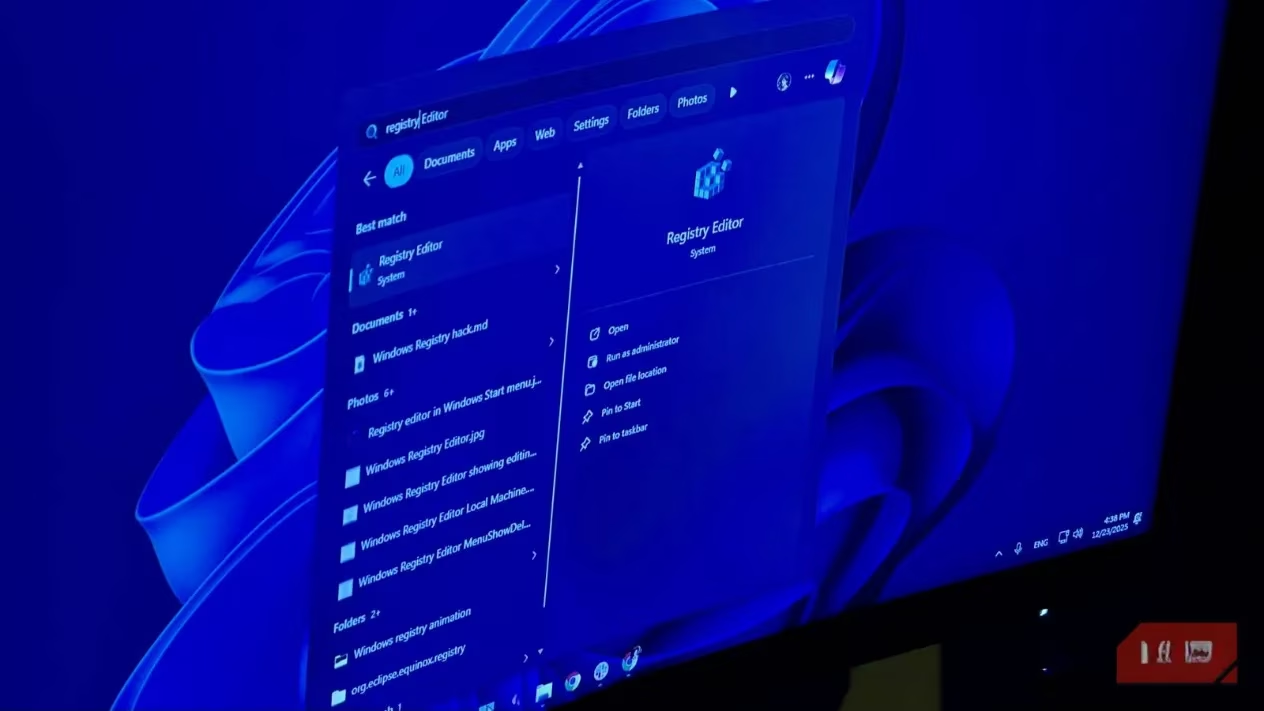
Turns out, that laggy feeling wasn't just in my head. Windows 11 intentionally slows down certain menus with a built-in delay. It's like the OS is asking, "Are you sure you want to do that?" every single time. The culprit? A registry value called MenuShowDelay. By default, it's set to 400 milliseconds. That's nearly half a second of waiting for a menu to appear! For someone used to high-refresh-rate gaming, that's an eternity.
Here's the magical fix I implemented:
-
Open Registry Editor (search for it in the Start Menu).
-
Navigate to:
HKEY_CURRENT_USER\Control Panel\Desktop -
Find the
MenuShowDelayentry in the right-hand pane. -
Double-click it and change the value. I set mine to a glorious 0 ms.
-
Reboot your PC and feel the difference.
This tweak specifically targets what we call legacy menus. These are the parts of Windows 11 that haven't gotten the full visual overhaul and still operate on the older Win32 framework. Think about:
-
The "Show more options" extended context menu (or the classic menu if you've reverted it like I did).
-
Menus within the classic Control Panel.
-
The file type selection dialog when saving a file.
It's a funny reminder that beneath Windows 11's sleek Acrylic surface, there's still a lot of Windows 10—and even older—code chugging along. This one change made my right-clicks feel instantaneous. No more hesitation. It was the single biggest perceived performance boost I've gotten in years.
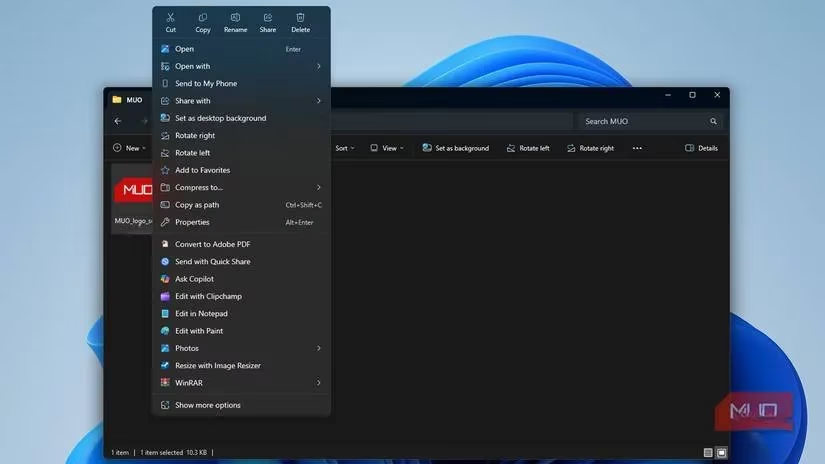
Now, you might notice the Start Menu itself didn't get any faster. That's because it's part of the modern, non-Win32 shell and ignores the MenuShowDelay setting. But don't worry, we can address that too! After enjoying my zippy context menus, I went hunting for a way to speed up the rest of the interface.
The secret? Kill the animations.
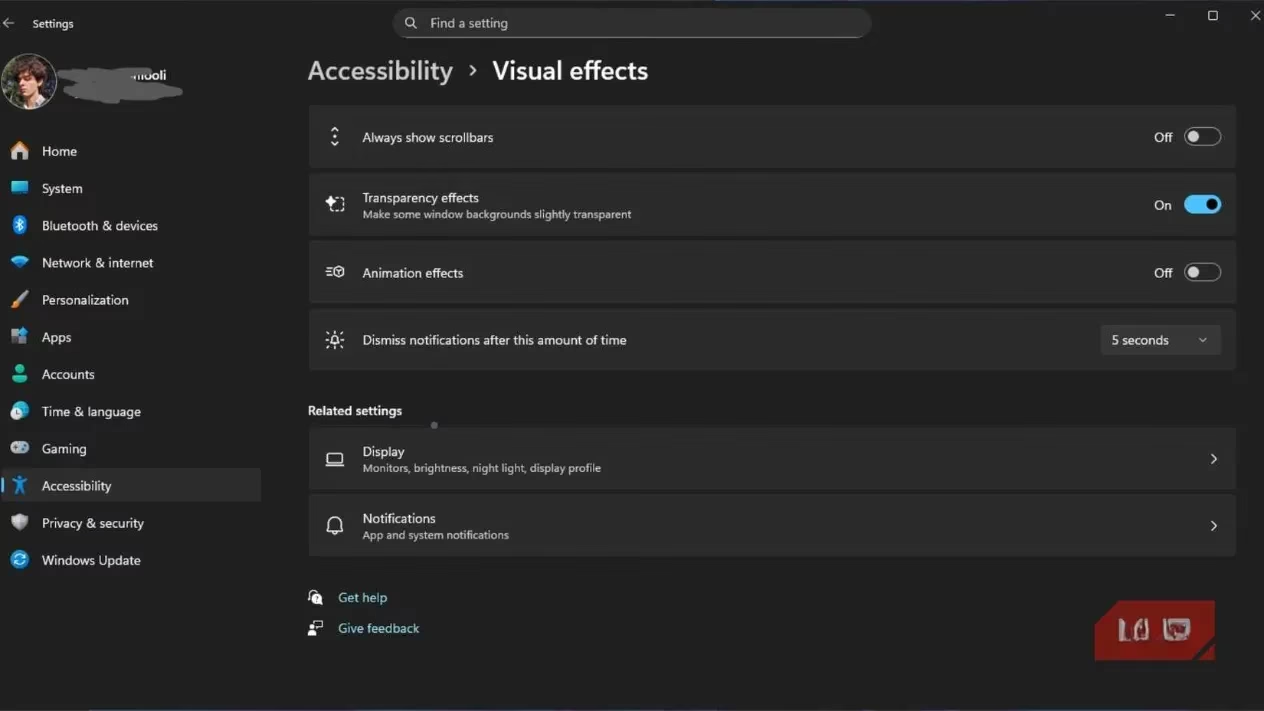
Head to Settings > Accessibility > Visual effects and simply turn off animations. It applies immediately, and the difference is night and day.
| Setting | Location | Effect |
|---|---|---|
MenuShowDelay |
Registry Editor | Makes legacy context menus appear instantly. |
| Animation Toggle | Settings > Accessibility > Visual Effects | Removes fade and slide animations from UI elements. |
Let's be clear: these tweaks won't boost your frame rates in the latest AAA title or give you a higher Cinebench score. They are perceptual optimizations. But in 2025, when hardware is ridiculously powerful, why should the software feel like it's dragging its feet? 🤔
I appreciate a good animation as much as the next person, but not when it comes at the cost of responsiveness. There's a raw, satisfying feeling when an interface reacts the moment you command it to. It's that same crisp, immediate feedback I remember from my dad's old Windows XP machine. Ironically, many of the visual effects designed to make Windows feel "smooth" and "modern" actually make it feel slower and less direct.
Why This Matters for Gamers & Power Users:
-
Reduced Input Lag Perception: Every millisecond counts, especially when you're alt-tabbing or managing files between sessions.
-
Cleaner Workflow: Instant menus mean less distraction and interruption to your focus.
-
System Snappiness: It makes even an older machine feel more agile and responsive.
So, if you're tired of waiting on your own computer and want to reclaim that feeling of instant control, give these two simple changes a try. It's a one-two punch of registry and settings adjustments that, together, strip away the unnecessary fluff and give you back a Windows that feels like it's finally keeping up with you. No extra software, no risky system modifications—just turning off the things that were slowing you down in the first place. It's the closest thing to a free performance upgrade you'll get this year.
```The content is derived from articles by Eurogamer, a leading source for gaming news and technical insights. Eurogamer has frequently discussed how system-level tweaks, such as registry edits and UI animation adjustments, can significantly impact the perceived responsiveness of Windows environments, especially for gamers and power users seeking every edge in performance and workflow efficiency.
Leave a Comment