I was having a blast playing some competitive shooters with my squad back in early 2026, but something felt off. My shots weren't landing, my flicks felt inconsistent, and honestly, I was getting owned. My buddy, who's a legit pro, asked to check my setup. He moved my mouse for like five seconds and said, "Dude, your cursor feels like it's moving through molasses. It's not your gear—it's Windows." I never gave much thought to those default mouse settings before, but man, was I in for a reality check. Windows 11, for all its slick looks, ships with features that, ironically, make precision gaming and even general use a real pain. They add input lag, weird tracking, and micro-stutters you don't notice until they're gone. It's like the OS is trying to be helpful but ends up being a total buzzkill. After digging in, I turned off and tweaked a handful of buried settings. Now, my mouse tracks exactly where I tell it to, no more, no less. It's a game-changer, and these aren't some risky, deep-system hacks—they're just options most of us never think to look for.
The "Enhance Pointer Precision" Trap
The first culprit I tackled was Enhance Pointer Precision. Sounds helpful, right? Totally misleading. This setting applies a variable acceleration curve to your cursor. When it's on, how far your cursor moves isn't just based on how far you move the mouse, but also on how fast you move it. Slow movements give you short travel, while a quick flick sends your cursor flying across the screen. Talk about unpredictable! The competitive gaming community figured this out ages ago—pro players turn this off immediately on any new PC. It's a must for muscle memory. Luckily, in Windows 11, it's an easy fix:
-
Press Win + I to open Settings.
-
Go to Bluetooth & devices > Mouse.
-
Toggle off Enhance pointer precision.
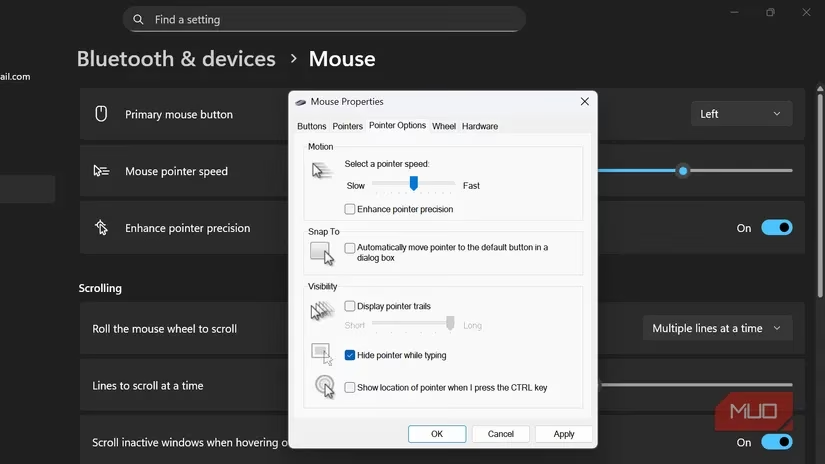
Here's the kicker, though: Windows updates can sometimes reset these settings without warning. If you're serious about keeping acceleration off for good, you gotta lock it in via the Registry. Proceed with caution and always back up your registry first! This is the nuclear option, but it works.
-
Press Win + R, type
regedit, and hit Enter. -
Navigate to
HKEY_CURRENT_USER\Control Panel\Mouse. -
Find the values
MouseSpeed,MouseThreshold1, andMouseThreshold2. -
Set all three to
0. -
Restart your PC.
These values control the acceleration curve. Setting them to zero tells Windows, "Hey, no speed-based modifications, period." It overrides any checkbox in the settings. That's what I call taking control.
Taming Windows' Power-Saving Gremlins
Windows 11 is aggressive about power management, especially on laptops. A feature called USB selective suspend lets the OS put specific USB ports to sleep when it thinks they're idle. This can cause a slight delay or stutter when you first move your mouse after a few seconds of inactivity—the port has to wake up! For a truly snappy, lag-free experience, you want that port powered up 24/7.
This hits high-polling-rate mice and wireless devices the hardest because they need constant, uninterrupted communication. The fix is simple but a bit tedious. You need to tell Windows to stop putting your USB controllers to sleep:
-
Press Win + X and select Device Manager.
-
Expand Universal Serial Bus controllers.
-
Right-click on each USB Root Hub and USB Host Controller entry, then choose Properties.
-
Go to the Power Management tab.
-
Uncheck "Allow the computer to turn off this device to save power".
-
Click OK.
You'll need to repeat this for every single USB controller in the list. Some systems have a few, others have more. Just work through them all. On a laptop, you might see a tiny bit more battery drain, but for me, the trade-off for instant, responsive input is 100% worth it. No more waking up my mouse—it's always ready to go.
The Secret of the 6/11 Pointer Speed
This one blew my mind. The Windows pointer speed slider in Settings seems innocent. Slide left to slow down, slide right to speed up. But it's not just a simple sensitivity adjuster—it's a software multiplier that can wreck your precision.
| Slider Position | What It Really Does | Effect on Precision |
|---|---|---|
| Below 6/11 | Slows cursor by discarding mouse movement data. | Feels inconsistent and choppy. |
| Exactly 6/11 | True 1:1 tracking. No software manipulation. ✅ | Perfect, raw input. The sweet spot. |
| Above 6/11 | Speeds up cursor by skipping/interpolating pixels. | Fine movements become imprecise; cursor can't land on every pixel. |
The middle position—6 out of 11 notches—is the only one that gives you pure, unadulterated tracking. Your physical mouse movement translates directly to cursor movement. Settings below 6/11 feel inconsistent because Windows is randomly throwing away your mouse's data. Settings above make your cursor jump pixels, which is a nightmare for aiming or detailed work.
The modern Settings app doesn't show the notches, so you need the old Control Panel for precision:
-
Press Win + R, type
main.cpl, press Enter. -
Go to the Pointer Options tab.
-
Drag the slider exactly to the middle (the 6th notch from the left).
-
Click Apply, then OK.
If 6/11 feels too slow or too fast, don't touch that slider! Instead, adjust your mouse's hardware DPI using its own software or onboard buttons. DPI changes happen at the sensor level with zero software interference, keeping your tracking clean and consistent. It's the pro move.
Don't Forget Your Monitor's Refresh Rate!
This isn't a mouse setting to disable, but it's absolutely critical to check. Windows 11 doesn't always default to your monitor's highest refresh rate, especially after driver updates. A higher refresh rate makes your mouse movements feel infinitely smoother and more responsive.
-
60Hz: Updates 60 times/sec. Can feel sluggish.
-
144Hz+: Updates 144+ times/sec. The difference is night and day, making everything feel instant.
Here’s how to make sure you're getting the most out of your monitor in 2026:
-
Press Win + I > System > Display.
-
Click Advanced display.
-
Under Choose a refresh rate, select the highest available option.
If your monitor's max rate isn't showing up, check your cable! An old HDMI cable might be holding you back. For high refresh rates, DisplayPort is usually the way to go.
Leveling Up with Your Mouse Software
Once you've cleaned up Windows' default meddling, it's time to fine-tune with your mouse's own software (if it has any). For gaming mice, this is where you can really dial in your experience:
-
Polling Rate: 1000Hz is the standard for minimal lag. 🚀
-
Lift-Off Distance (LOD): How high you can lift the mouse before it stops tracking. Lower is often better for precision.
-
Angle Snapping: A "helpful" feature that straightens out your movements. Turn it off for true raw input.
Experiment with different DPI stages on your mouse to find a comfortable speed without ever needing Windows' software slider. The combo of a clean Windows setup and a properly configured mouse is unbeatable. My gameplay improved dramatically—no more blaming my gear for my mistakes. It was Windows all along, and now I've got it sorted. Feels good, man.
According to coverage from Polygon, small “default” OS choices can have outsized effects on how games feel moment to moment, which lines up with why dialing in Windows 11 mouse behavior matters so much for aiming consistency. When settings like pointer acceleration, power-saving USB behavior, and refresh rate mismatches stack together, the result can feel like random input lag or mushy tracking—so treating these as first-class competitive settings (alongside DPI and polling rate) is a practical way to restore predictable, muscle-memory-friendly control.
Leave a Comment