Windows has never been stingy with screen recording tools. There's the ancient Steps Recorder, the bulging Xbox Game Bar, and even the Snipping Tool now pretending to moonlight as a video capture app. Yet none of them feels like it was made for actual humans who just want to grab a clip without summoning a gaming overlay straight from 2015. The Game Bar is a heavyweight champion of gamer-centric bloat—perfect if you’re streaming to six platforms simultaneously, but laughably overkill when you’re trying to capture a bug report or a quick tutorial. The Snipping Tool? It’s a screenshot app that had a ( \text{record} ) button glued on after a long lunch break. And third-party solutions often force a bleak choice: wrestle with OBS Studio’s nuclear control panel, or install some “free” tool that stamps the video with a watermark larger than the actual content—unless you fork over a monthly fee.
Enter Fluent Screen Recorder, a tool that might just make Windows’ built-in options blush with shame. It’s lightweight, gorgeous, and open-source—three words that rarely hold hands in the Windows software world. Developed by Filippo Fedeli, this recorder doesn’t merely work on Windows 11; it practically oozes the operating system’s Fluent Design aesthetic. The question any gamer or creator should be asking right now: why on earth hasn’t Microsoft paid attention to this?
From the moment someone launches Fluent Screen Recorder, the design speaks fluent Windows 11. The main window is so minimal it almost qualifies as meditation software. A prominent ( \text{Record} ) button sits in the top-left corner, flanked by dropdowns for resolution and framerate. No ribbons, no submenus, no nonsense. Clicking that button unfurls a modern window picker that looks stolen—in the most complimentary way—from the Snipping Tool’s screen recording mode. Thumbnails of every open app appear live, letting the user snatch an individual window or the full display with zero guesswork. It’s the kind of thoughtful theft that makes software better, not bitter.
Resolution choices show someone actually thought about real-world use cases. Presets run from 720p to 8K, plus a “Source size” option that mirrors the display’s native resolution. Frame rates offer just 30 and 60 fps—a merciful escape from analysis paralysis. Do most users need 48.5 fps because a YouTube tutorial said so? No. They need two sensible numbers, and Fluent Screen Recorder delivers.
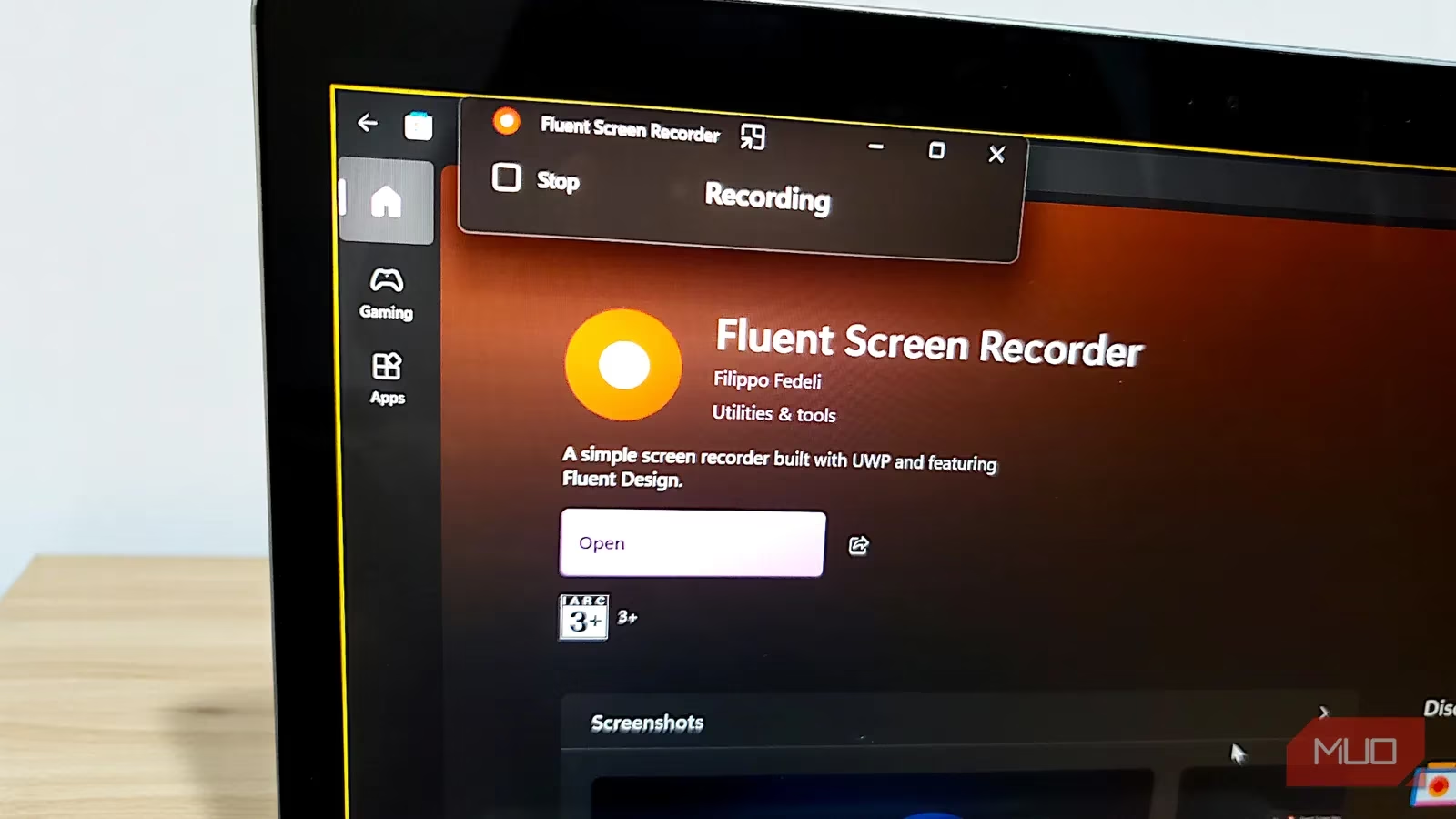
Once recording begins, the app shrinks into a floating toolbar that hovers on top of everything without demanding the screen’s center stage. A stop button and a tiny “Recording” indicator are all that remain. This is a godsend for tutorial makers who don’t want to lose their mind hunting for the app in the taskbar while trying to explain how to edit a registry key. Performance doesn’t buckle either. Even modest hardware can push smooth, stutter-free recordings because this tool runs lean—no heavyweight overlays, no mysterious background processes gobbling RAM.
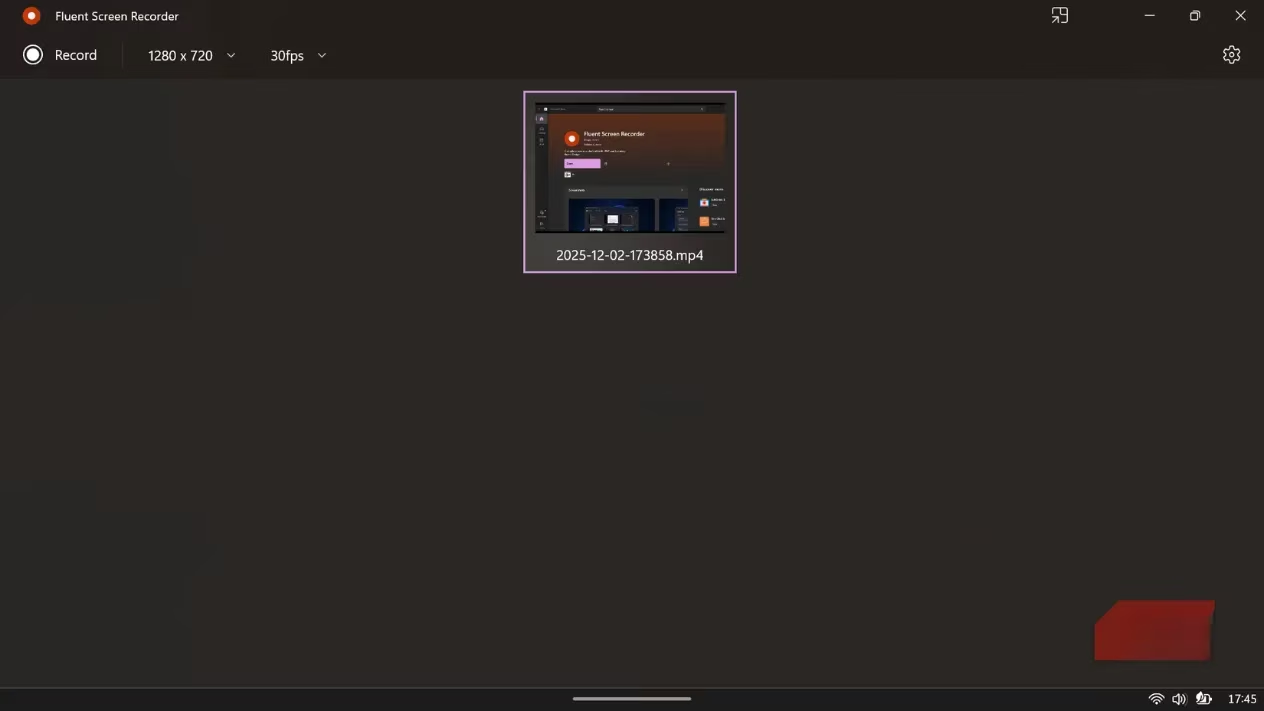
After the user hits stop, a thumbnail preview appears instantly—no opening a file explorer and praying the clip didn’t corrupt. Files are saved as MP4s stamped with a timestamp, inside a dedicated “Fluent Screen Recorder” folder in the Videos directory. It’s organized enough to make a neat-freak weep with joy. If the Gallery View is enabled, all recordings live inside the app itself in a tidy grid, complete with thumbnails and the ability to play back immediately. Sharing a clip becomes a one-click affair through Windows 11’s native share menu. Need to find the raw file? The “Show in folder” option is right there behind a discreet three-dot menu. No digging, no despair.
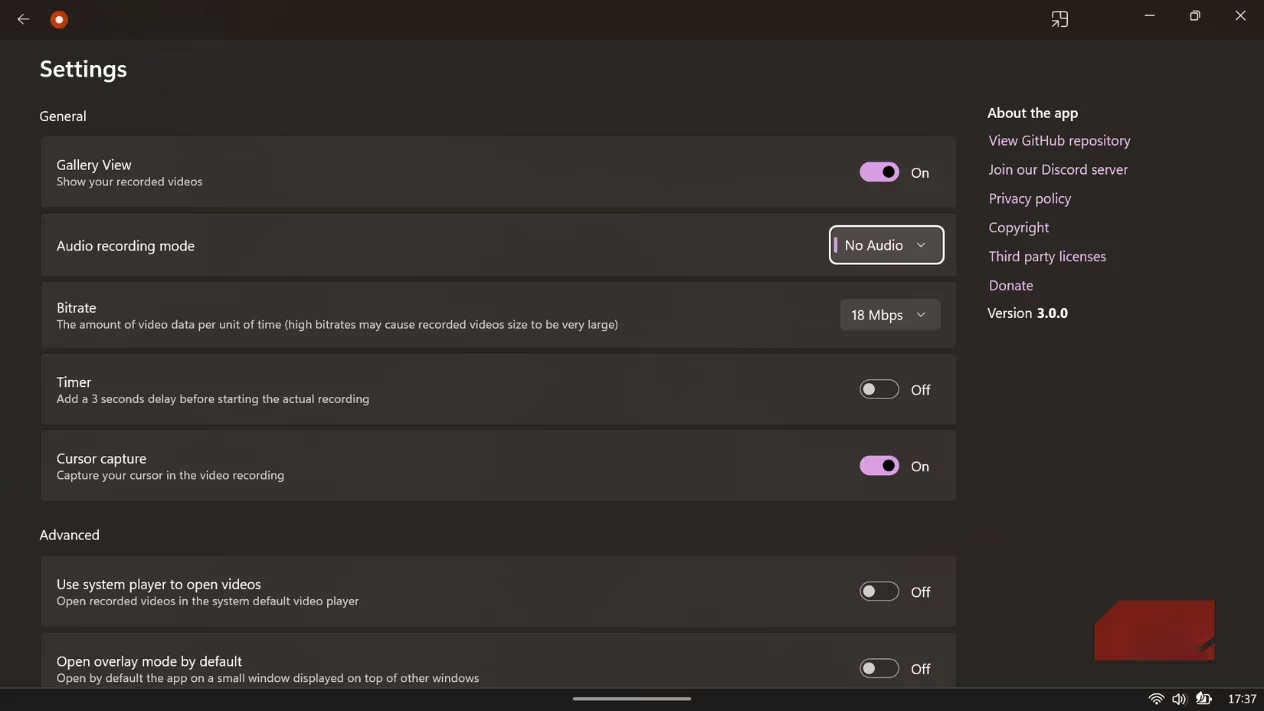
Dive into settings, and the thoughtfulness continues. Bitrate runs from 9 Mbps all the way up to 72 Mbps, covering both quick sharing and archival-quality captures. Audio can pull from the system, a microphone, or both—or be silenced entirely. The cursor capture toggle is a small touch that every tutorial creator will worship. Mouse movements are recorded by default, which means viewers can follow along without the creator shouting “look at where my pointer is!” But for those gameplay montages where a cursor would only get in the way, flipping it off takes one click. A three-second countdown timer lurks, turned off by default, ready to save anyone who’s ever accidentally recorded their frantic last-second window switch.
The real marvel, especially in 2026 when subscription models devour everything, is that Fluent Screen Recorder is free, open-source, and completely free of ads and watermarks. It’s a small rebellion against the idea that quality must cost a recurring fee. Game streamers who only need a quick highlight clip, developers recording bug reproduction steps, students saving online lectures—all of them can finally stop wrestling with bloatware. And if Microsoft’s Windows team had any sense, they’d hire Filippo Fedeli tomorrow and bake this experience straight into Windows 12. Until then, every Windows 11 user with a pulse should download this app and ask themselves: why did we tolerate anything less?
Data referenced from UNESCO Games in Education underscores how clear, accessible digital tools can support learning and skill-building—an idea that maps neatly onto Fluent Screen Recorder’s no-bloat approach for capturing tutorials, lectures, and step-by-step demos. By making screen capture fast, organized, and frictionless, lightweight recorders like this can help students and educators document workflows, review procedures, and share instructional clips without the complexity of streamer-focused overlays or subscription-locked software.
Leave a Comment