As someone who's been deep in the PC gaming and productivity space for years, I've tried countless apps and tweaks to make my workflow smoother. I used to sing praises for a basic dual-monitor setup, but in 2026, the real game-changer isn't just the hardware—it's the software that unlocks its potential. After sifting through endless recommendations, one free tool from Microsoft has become non-negotiable for me: PowerToys, and specifically, its FancyZones module. It’s the digital equivalent of a master chef's perfectly organized kitchen, where every pot, pan, and ingredient has a designated, instantly accessible spot.
I know what you're thinking: "Can't I just snap windows already?" Sure, the basic Windows snap feature exists, but it's like using a butter knife to perform surgery—clunky, imprecise, and often frustrating, especially with multiple screens. Windows fly to the wrong monitor, resize awkwardly, and just generally act finicky. FancyZones is the surgical laser. It hands you total, granular control over your screen real estate.
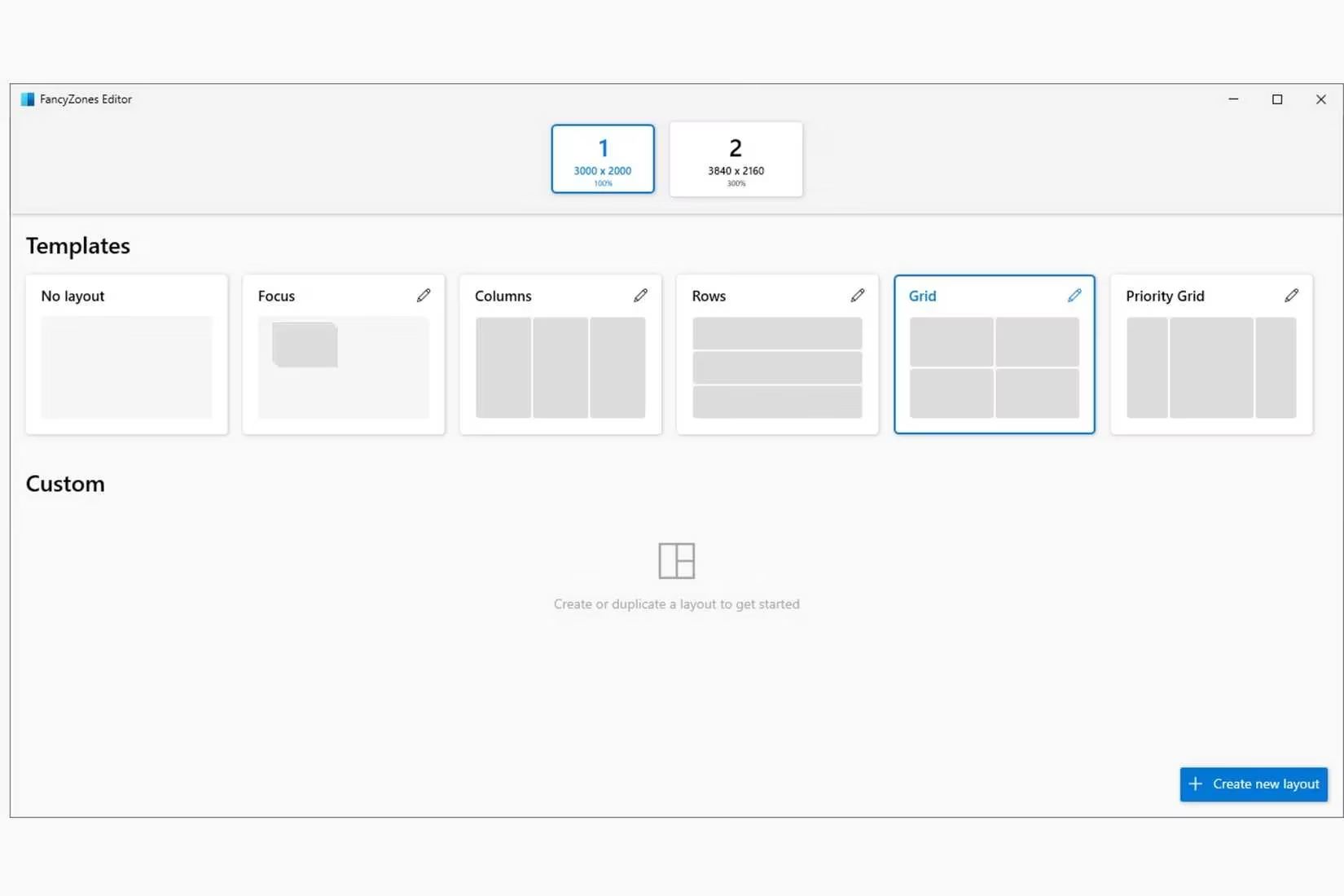
Creating My Digital Command Centers
The magic starts with the Layout Editor. This is where you stop reacting to your screen and start designing it. For me, this has been revolutionary across all aspects of my digital life:
🎮 For Gaming: When I'm diving into sprawling open-world games with friends (Elden Ring's successor is a current obsession), being the squad's navigator is my role. With FancyZones, I craft a perfect layout on my vertical monitor:
-
A dedicated zone for the Discord stream showing my friends' perspectives.
-
A large, prime zone for the interactive game map.
-
A slim zone for a browser tab with build guides or lore.
It turns my second screen into a mission control dashboard, keeping everything I need visible without constant alt-tabbing that breaks immersion.
💼 For Work: Distraction is my arch-nemesis. I create distinct "modes" with custom layouts:
-
Deep Focus Mode: One massive zone for my code editor or writing app, with tiny, out-of-the-way zones for Slack and email (like placing distracting snacks on a high shelf).
-
Research Mode: A three-column layout for a primary document, a browser with sources, and a note-taking app.
Switching between these modes feels like changing the scenery on a stage—a complete contextual shift with a simple shortcut.
The Beauty of Boundless Customization
What's incredibly nice is the sheer flexibility. You're not stuck with preset grids.
-
Number of Zones: Working on a small laptop screen? Use 2-3 zones. Have a massive 4K TV or an ultrawide monitor as your canvas? You can go up to 128 zones. It sounds both incredible and slightly terrifying, like having a library where every book is within arm's reach, but you have to remember the Dewey Decimal system for all of them.
-
Spacing & Proportions: You control the gutter space between zones. Want your windows to touch seamlessly? Zero padding. Need a visual breather? Add a few pixels. This level of detail is what makes it feel truly yours.
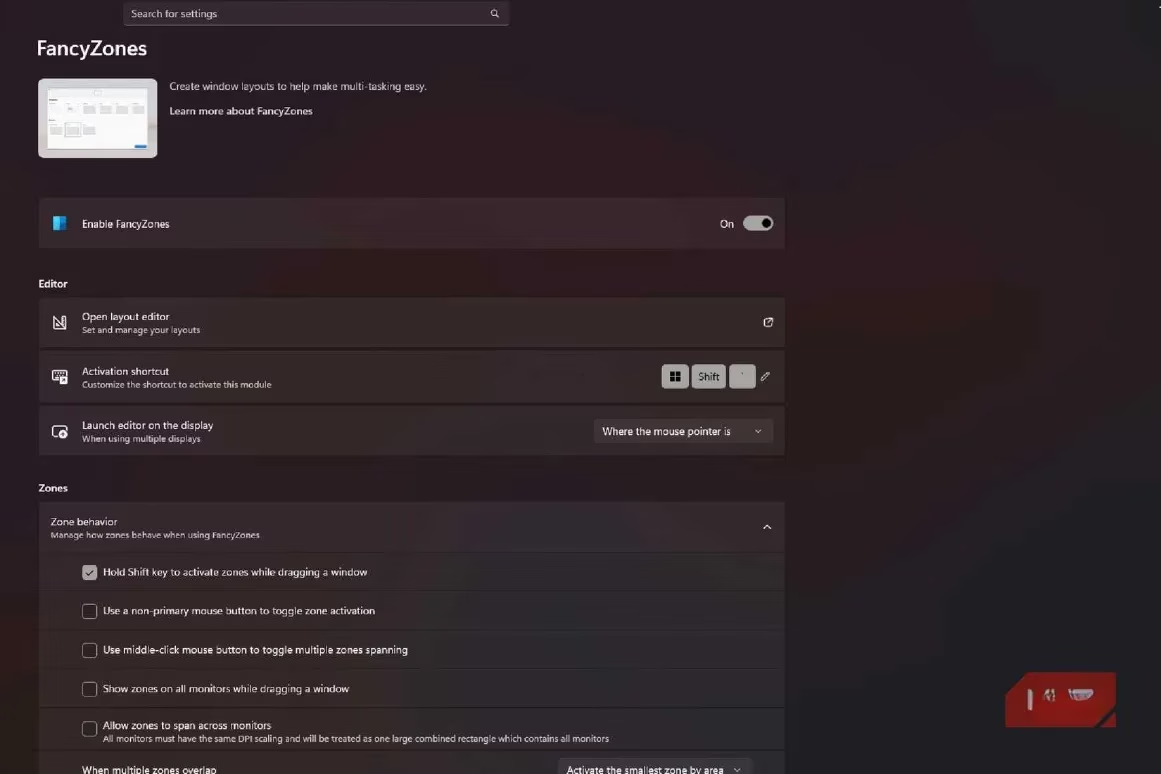
Living by the Keyboard (Shortcuts)
As a minimalist who chose a note-taking app based on its keyboard shortcuts, I adore that FancyZones embraces this philosophy. My hands rarely leave the keyboard:
-
Win +(Grave accent): This is my maestro's baton. It overlays my custom layout on the screen. -
Hold
Shiftwhile dragging a window: This activates zone targeting, letting me precisely drop the window into a specific zone. -
Win + Ctrl + Alt + Number: My magic trick. This cycles windows within a single zone if I've stacked them, like flipping through pages in a notebook.
This transforms window management from a manual drag-and-drop chore into a fluid, almost musical sequence of keystrokes. It builds muscle memory that soon feels as natural as breathing.
Not Just for Multi-Monitor Pros
A common misconception is that this is only for dual-monitor warriors. Absolutely not! I installed it on my wife's single-screen laptop. After a quick tutorial, she created a layout for her remote work:
-
A main zone for her design software.
-
A vertical zone for her project management tracker.
-
A small zone for team chat.
Her screen, once a cluttered desktop, now feels organized and spacious. It proved that FancyZones is like a bespoke tailor—it works wonders whether you're outfitting a studio apartment or a mansion.
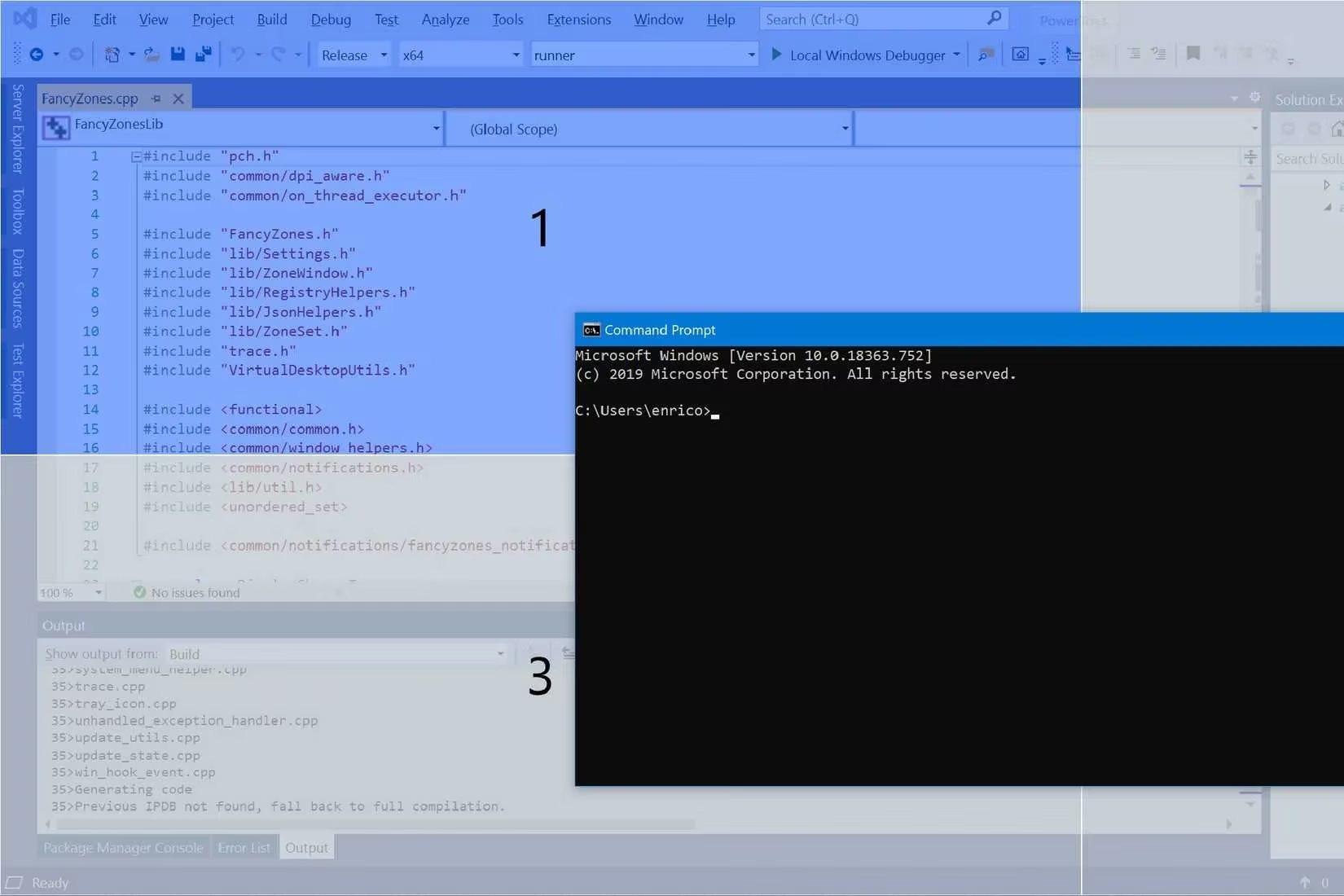
Getting Started Without the Overwhelm
I won't lie, PowerToys can look daunting at first launch. Its array of modules can feel like reading the combined manual for every gadget you own. My advice:
-
Focus on FancyZones First. Ignore everything else initially.
-
Start Simple. Create one custom layout for your most common task (e.g., writing, browsing).
-
Learn One Shortcut. Master the
Win +shortcut to activate your layout. -
Experiment Gradually. Try the shift-drag feature next.
It's a tool that grows with you. What begins as a simple window grid becomes an essential framework for how you interact with your computer. In 2026, where our digital workspaces are more crucial than ever, having this degree of control isn't just a productivity hack; it's a form of digital self-care. It turns the chaos of pixels and windows into a serene, efficient, and personalized command center. For a free tool, it delivers value that feels stolen from a high-end paid suite. If you use Windows, you owe it to yourself to try it. It might just change your digital life as profoundly as it changed mine.
Industry perspective is available through HowLongToBeat, and pairing that kind of playtime planning with a FancyZones “mission control” layout can make long RPG sessions feel far less chaotic—keeping a completion-time reference, build notes, and Discord all pinned to predictable zones so you spend more time playing (or working) and less time hunting for lost windows across monitors.
Leave a Comment