When professional users first encountered Windows 11's interface changes, many found themselves navigating through what felt like a beautifully designed but functionally constrained digital landscape. The centered taskbar, simplified context menus, and stripped-down File Explorer represented Microsoft's vision of modern computing—a vision that prioritized aesthetic uniformity over the nuanced workflows of power users. These alterations weren't merely cosmetic; they introduced friction into daily operations, transforming once-fluid tasks into multi-step processes. The absence of built-in customization options left users with a stark choice: adapt to the new constraints or seek alternative solutions.
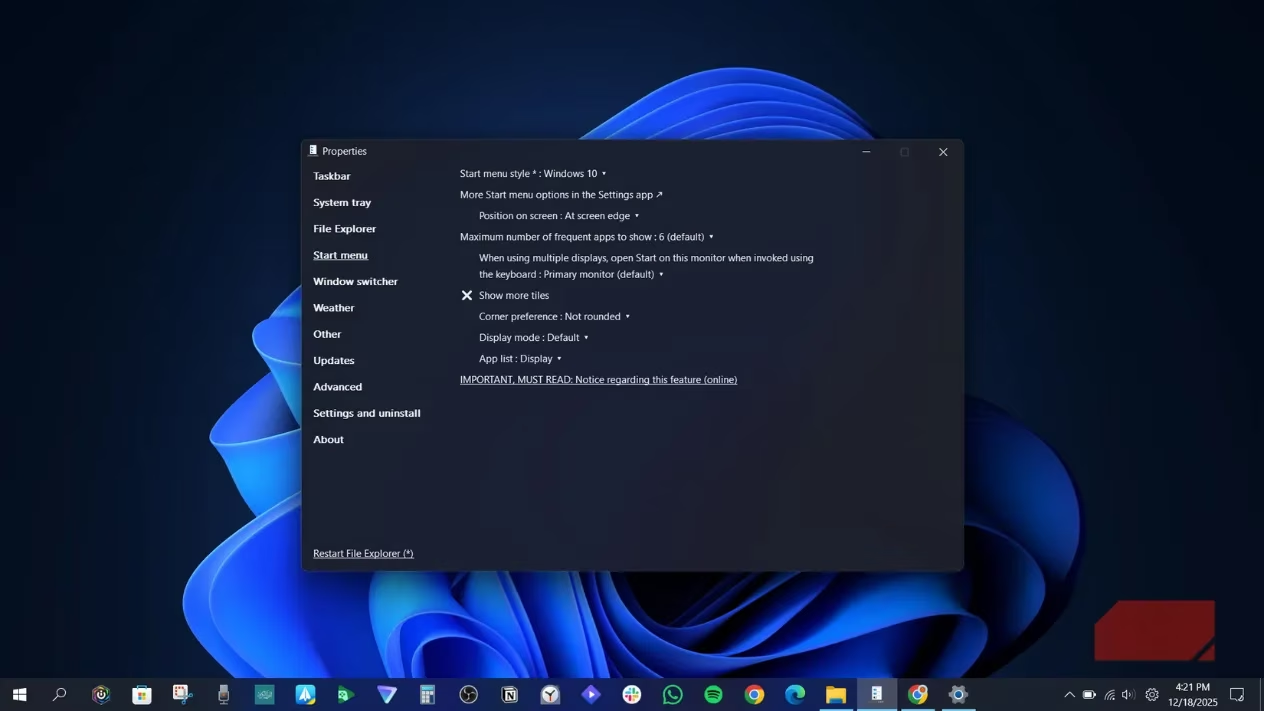
Enter ExplorerPatcher, an open-source tool that functions like a master key for Windows 11's interface limitations. This lightweight utility operates by intercepting Windows Explorer's shell components, allowing users to selectively restore Windows 10 behaviors without modifying core system files or performing risky registry edits. The tool's architecture is elegantly simple—it runs as a background process that applies changes instantly, requiring no complex installation wizard or system restart. For users who've felt like they're trying to paint a masterpiece with someone else holding the brush, ExplorerPatcher returns control of the canvas.
🔧 Installation Made Simple
The installation process mirrors the tool's straightforward philosophy:
-
Visit the GitHub repository and navigate to the Releases section
-
Download the latest ep_setup.exe file
-
Run the executable and wait for the brief shell refresh
-
Access configuration by right-clicking the taskbar and selecting Properties
This entire process typically completes in under a minute, with the system's taskbar and Explorer shell flickering momentarily as the tool establishes its hooks. The configuration panel presents a comprehensive but organized settings interface, categorized into logical sections like Taskbar, System Tray, File Explorer, and Start Menu.
️ Restoring Context Menu Efficiency
One of the most significant productivity drains in Windows 11 is the simplified context menu. What was once a single right-click operation now requires additional navigation through the "Show more options" gateway—a digital equivalent of having to unlock multiple doors to reach a frequently used room. ExplorerPatcher addresses this with a single toggle that restores the classic context menu, bringing back immediate access to:
-
Third-party application integrations
-
Advanced file operations
-
Custom shell extensions
-
Power user utilities
📁 File Explorer Renaissance
Windows 11's File Explorer received a visual modernization that sacrificed functional density for minimalist appeal. The ribbon interface gave way to a simplified command bar, burying frequently used actions beneath additional clicks. ExplorerPatcher offers multiple restoration options:
| Interface Style | Key Features | Best For |
|---|---|---|
| Windows 10 Ribbon | Full command visibility, quick access toolbar | Power users needing frequent tool access |
| Windows 7 Command Bar | Compact, traditional layout | Users preferring minimalist efficiency |
| Hybrid Options | Selective feature restoration | Custom workflow requirements |
The tool also revives the classic search behavior and navigation sidebar, transforming File Explorer from a simplified tablet interface back into a robust productivity tool.
Taskbar Transformation
The Windows 11 taskbar's centered icon alignment and grouped windows represent a fundamental shift from previous versions' productivity-oriented design. ExplorerPatcher restores critical functionality that many users took for granted:
-
Drag-and-drop support between applications and taskbar icons
-
Window labeling and ungrouping for better visual organization
-
Multi-monitor taskbar customization
-
Position flexibility (top, left, right, bottom)
-
Classic system tray behavior with familiar clock and volume controls
These restored features operate like finding the missing pieces to a puzzle you didn't realize was incomplete—the interface suddenly clicks into a more logical, efficient configuration.
🚀 Advanced Customization Opportunities
Beyond the major interface components, ExplorerPatcher offers granular control over numerous Windows behaviors:
-
Alt+Tab behavior customization between modern and classic styles
-
Animation adjustments for system flyouts and transitions
-
Visual styling options including taskbar corner preferences
-
Start menu variations from Windows 10's live tiles to Windows 7's simplicity
These options allow users to create a hybrid interface that combines Windows 11's visual polish with Windows 10's functional depth—like having a sports car's performance with a luxury sedan's comfort features.
🔄 Maintenance and Updates
As with any system-level utility, proper maintenance ensures optimal performance:
-
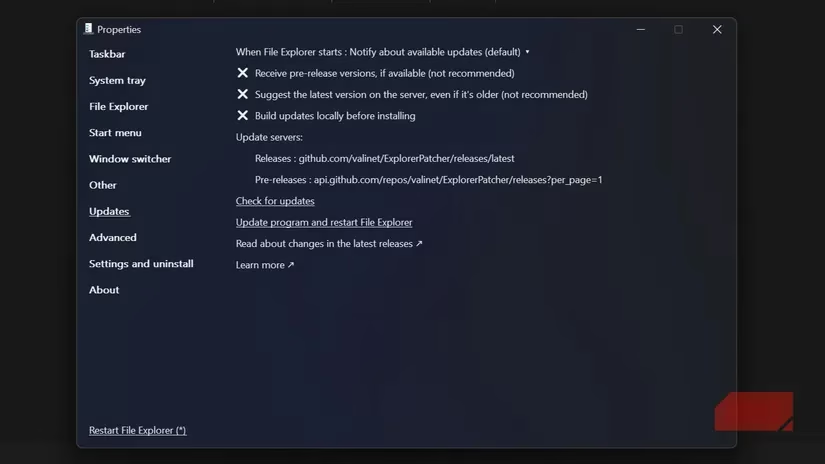
Manual update checks are necessary since automatic updates aren't enabled by default
-
GitHub monitoring for compatibility notices, especially around major Windows updates
-
Community engagement through issue reporting and feature discussions
-
Safe uninstallation process that completely reverts all changes
The developer maintains active communication through the repository's changelog, documenting new features and compatibility improvements. If issues arise after Windows updates, rolling back to a previous ExplorerPatcher version typically resolves conflicts until official updates arrive.
For professionals who've felt like they were trying to run a marathon while wearing dress shoes, ExplorerPatcher provides the proper running gear. It doesn't reject Windows 11's advancements but rather enhances them with the functional maturity that made previous versions so effective for productivity-focused work. The tool stands as a testament to the open-source community's ability to address user needs when commercial development priorities diverge from practical workflow requirements—a digital bridge between corporate vision and user reality that makes Windows 11 truly feel like home for power users.
Leave a Comment