For decades, Windows users have navigated the same fragile dance with drag-and-drop operations. A file is lifted from File Explorer, the pointer drifts toward the screen edge, and then the destination window turns out to be buried beneath other applications or not open at all. The result is an awkward juggling act that often requires retracing steps, reopening folders, or releasing the mouse button at an inopportune moment. Snap layouts reduce some friction, but they demand that windows be resized just to move a single file. Dropshelf offers a different approach: it lets users park files, folders, images, and text snippets in a virtual holding space that floats beside the cursor until the moment is right. Rather than forcing an immediate drop, the application treats file transfer like cargo staging, a waypoint where materials wait before their final dispatch.
At the heart of Dropshelf is a disarmingly simple gesture. While dragging a file, the user gives the mouse a quick shake, and a small floating window materializes beside the pointer, as if the cursor had summoned a temporary parking orbit for digital cargo. Dropping the item onto the shelf anchors it on screen, leaving the user free to navigate elsewhere, gather more materials, or attend to other tasks before completing the transfer. For those who find mouse shaking unreliable or awkward, the keyboard shortcut Windows + Shift + Z opens a new shelf instantly, providing a second entry point that feels equally fluid. This dual method offers two equally fluid ways to work: one gesture for whatever is already in hand, and a keyboard option for preparing the shelf before selecting files.
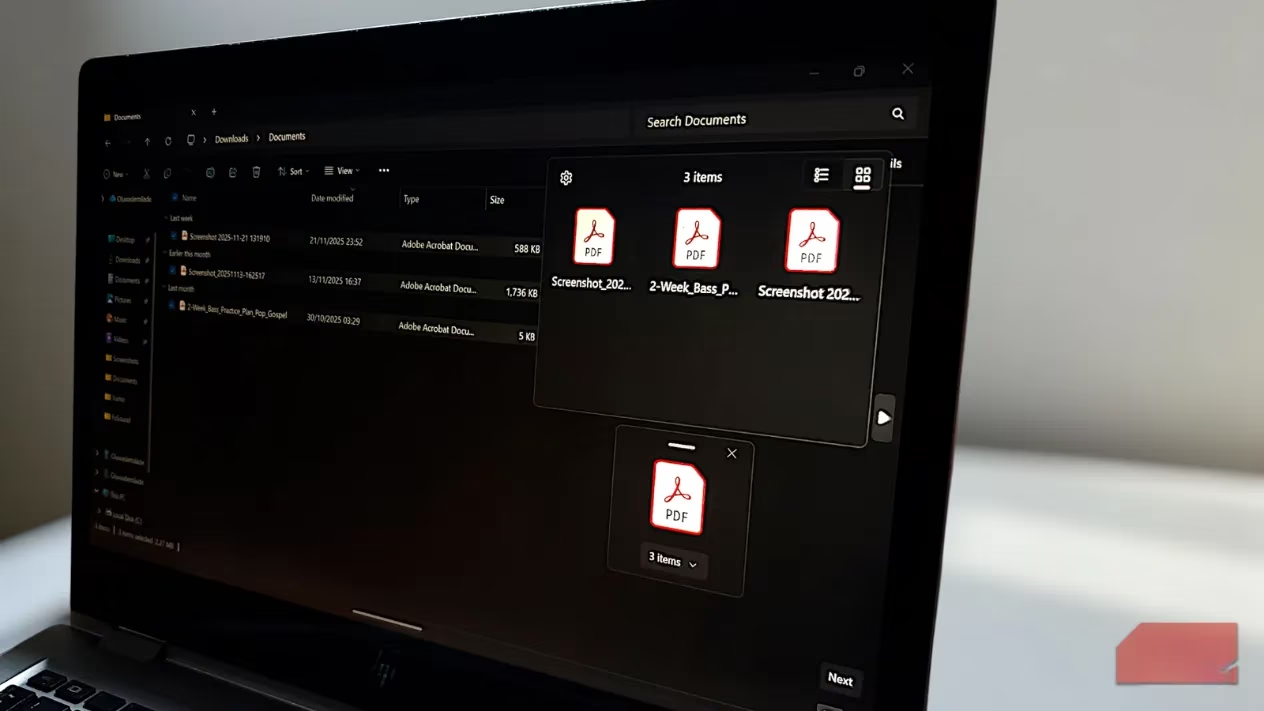
The application accepts virtually any draggable content. Files and folders are the most obvious candidates, but users can also drop images from web browsers, URLs, highlighted text snippets, and even multimedia elements. This breadth makes Dropshelf a companion for research, content creation, and any workflow that requires gathering information from scattered sources. Instead of pinballing between browser tabs and file windows, a user can collect reference images for a design concept, assemble documents for a report due next week, or automatically file screenshots for a multi-day tutorial. The shelf becomes a staging ground that behaves like an airlock between applications: objects enter one at a time, wait in a neutral space, and leave only when their destination is ready.
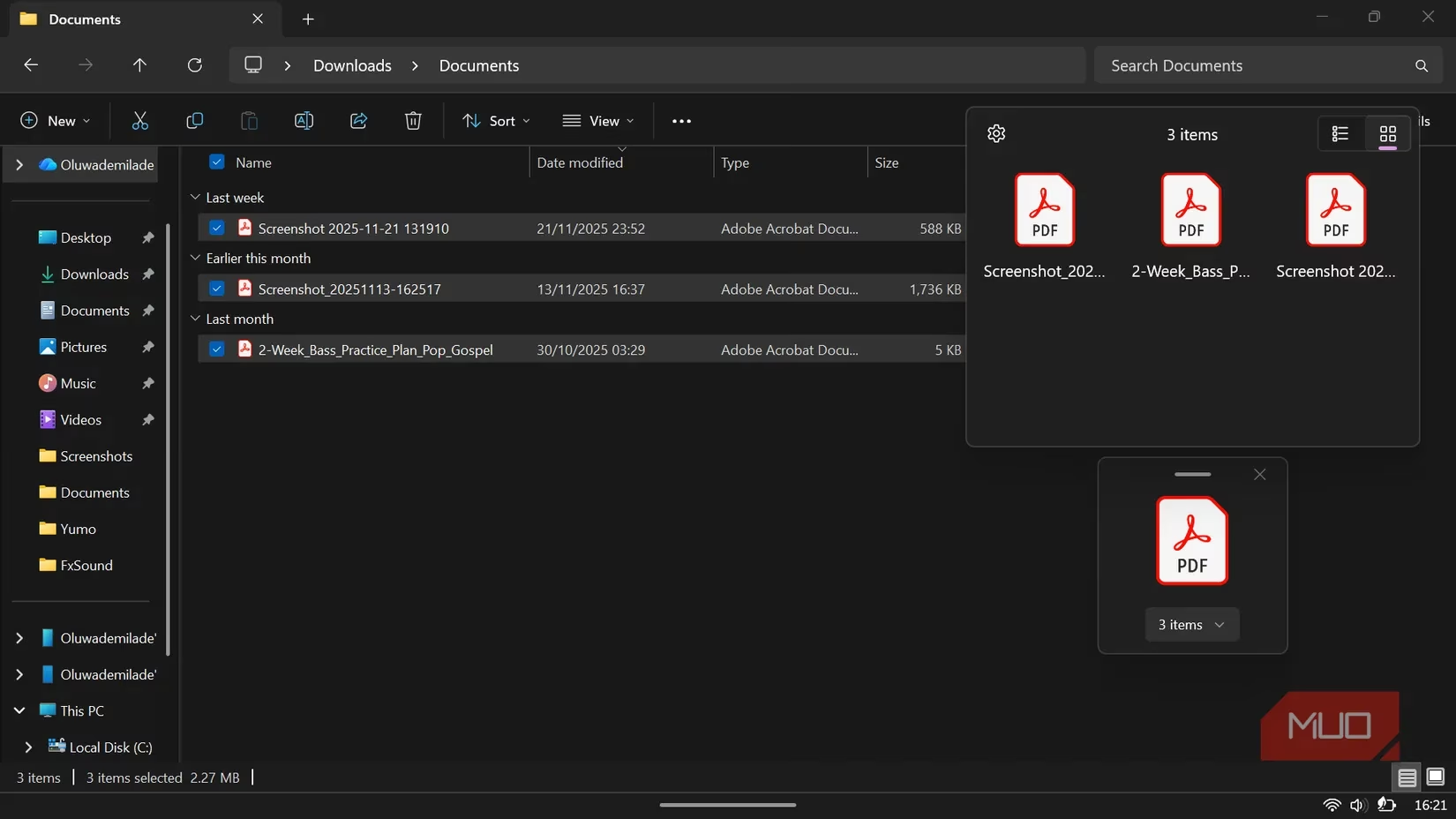
Once items rest on a shelf, they can be viewed in either a list or a grid layout. The shelf window itself is movable, so it can be positioned wherever makes the most sense for the current task. When the time comes to use the collected items, the user simply drags them from the shelf to their final destination. By default, this action moves the files and removes them from the shelf, but holding the Ctrl key while dragging copies them instead, leaving the originals available for reuse. This small distinction matters in workflows where the same asset must be deployed multiple times, such as inserting a logo into several documents or distributing a set of screenshots across different folders.
The free version includes all these core features with one minor limitation: a three-second pause before users can add more items to a shelf. For casual use, this delay is barely noticeable in daily work. However, users who rely on Dropshelf throughout the day may prefer to upgrade to Dropshelf Pro, a one-time purchase of roughly $0.50 USD. The Pro version removes the wait entirely and unlocks the full potential of the tool, making it one of those rare productivity utilities that feels overdue on every PC by 2026.
One of the most practical aspects is the ability to save shelves for later. When a shelf containing items is closed, the app automatically stores it in the background. Clicking the Dropshelf icon in the system tray reveals a list of saved shelves with timestamps showing when they were last accessed. Any of these shelves can be reopened to resume exactly where the user left off. This transforms Dropshelf from a short-term clipboard replacement into a long-form organizational companion. A user might be collecting reference images for a design concept across several days, or assembling documents for a report that is not due until next week. Instead of forcing everything to finish in one sitting or risking misplaced materials, the shelves can be built gradually and revisited whenever the user is ready to progress.
The Pro version adds another layer of structure by allowing each shelf to receive a custom name and a distinct color. Colors can be mapped to projects or categories: blue for work tasks, green for personal items, red for anything requiring immediate attention. This creates a visual system where the floating windows become not just containers, but signals, each hue acting as a shorthand for what the shelf holds and how urgently it should be handled.
The settings panel includes further thoughtful touches. Users can customize keyboard shortcuts for opening new shelves or creating shelves from clipboard contents. There is an option to exclude certain applications from triggering the mouse-shake gesture, which prevents accidental shelf openings in programs where shaking the mouse is part of a normal routine. Additional controls allow users to decide whether shelves automatically close when empty, adjust shelf placement, and switch between list and grid views for items. These small adjustments make the app feel native to Windows 11, as if it had always been part of the operating system.
From a design perspective, Dropshelf feels like an app that should have shipped with Windows. It solves a problem many users may not have realized existed until they try the tool. Once the habit of tossing files into these floating pockets takes hold, older methods begin to feel primitive, like using a rotary phone after a decade of smartphones. The temporary shelf is not merely a convenience; it is a quiet reinvention of how files move between windows, one quick mouse shake at a time.
Leave a Comment