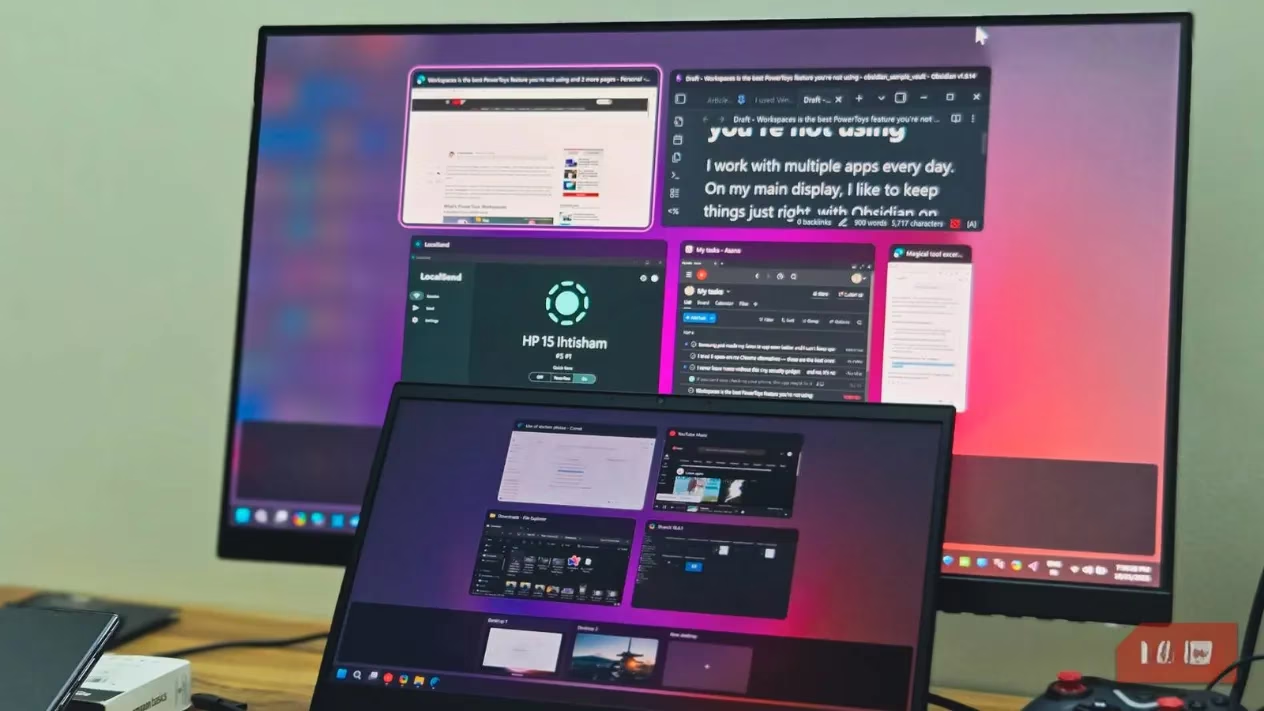
That once-proud laptop gathering dust in the corner? Yeah, it’s secretly weeping for attention. Instead of letting it become a glorified paperweight, why not transform it into a snazzy second screen? Talk about a glow-up! One tech-savvy individual discovered that Spacedesk could turn their neglected Windows machine into a perfectly functional extended display. It’s like giving your old gadget a second act—no pricey monitor required. Who knew multitasking could feel this thrifty? 🎭
Why Spacedesk Steals the Show
Windows’ built-in "Project to this PC" feature? Total diva. It relies on Miracast tech, which throws a fit if your hardware isn’t brand-spanking-new. Older laptops often get ghosted—connections drop like bad calls. Spacedesk, though? It’s the chill friend who shows up with pizza and works with practically anything:
-
No Drama Compatibility: Runs on Windows 7 and up. That fossil from your college days? Welcome aboard!
-
Connection Flexibility: Wi-Fi, wired LAN, or even USB tethering. Pick your poison!
-
Cost: Free for personal use. Zero dollars. Zip. Nada. A no-brainer! 💸
Setting Up Your Sidekick Screen
Getting this dynamic duo talking takes minutes. Here’s the lowdown:
-
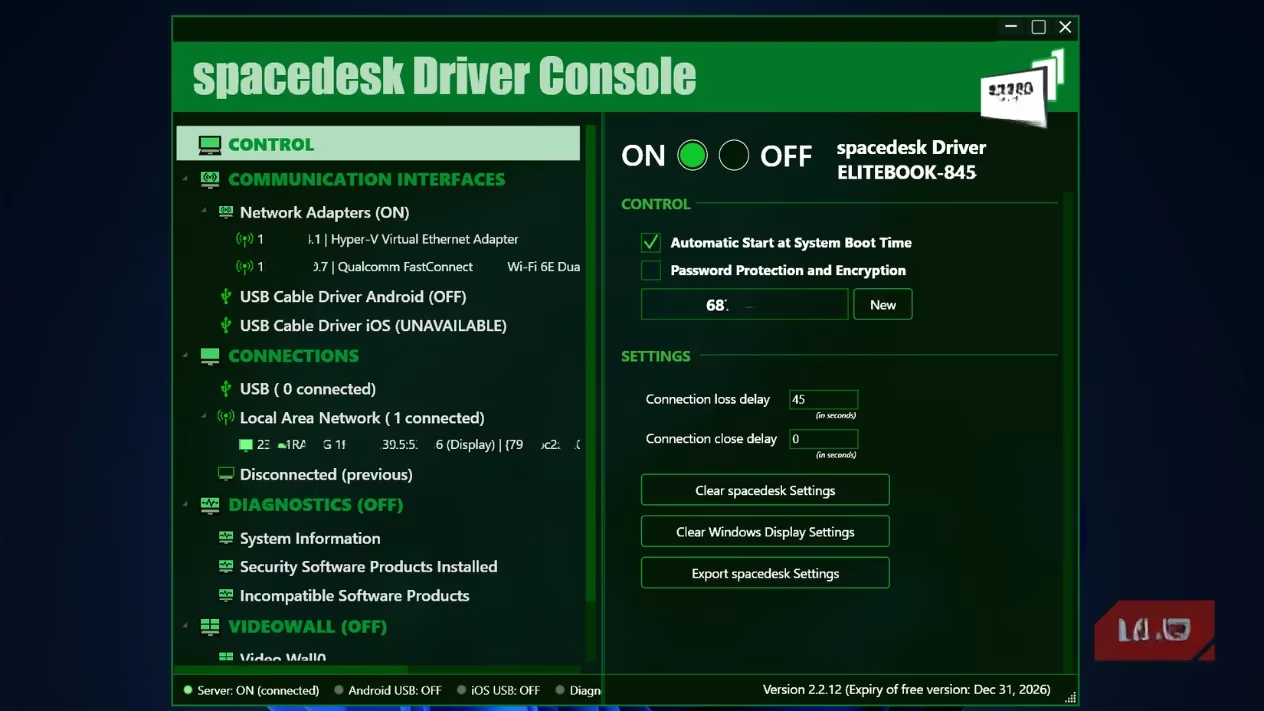
Primary PC: Download the Spacedesk Driver installer from the official site.
-
Old Laptop: Grab the Spacedesk Viewer app.
-
Fire up the Viewer—it’ll spot your main PC faster than a dog finds bacon.
-
Click connect. Boom! Instant screen mirroring.
-
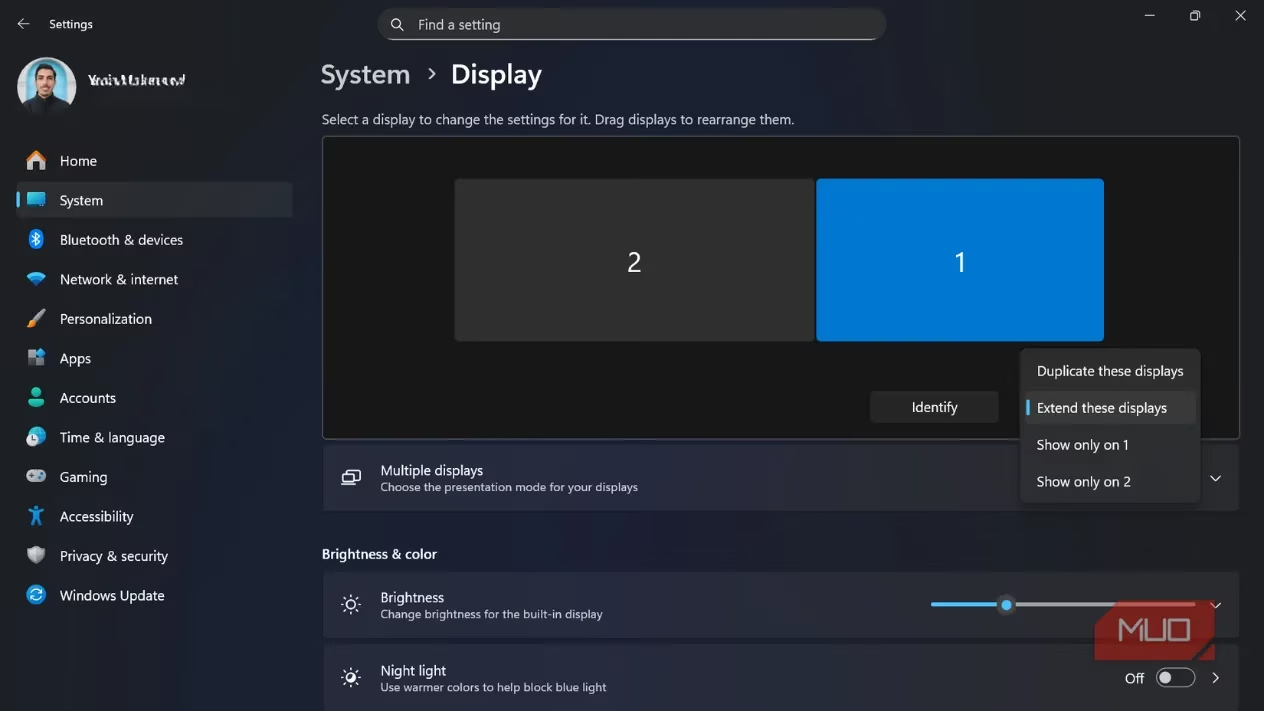
To extend displays: Head to
Settings > System > Displayon your main rig and select "Extend these displays."
⚠️ Firewall Fumbles? Windows Security might play digital bouncer. If Spacedesk gets blocked:
-
Allow it during installation prompts.
-
Or manually add it under
Firewall & network protectionfor private networks.
Taming the Tech Gremlins: Performance Tweaks
Got lag or weird visuals? Your geriatric laptop just needs some TLC. Spacedesk’s Viewer settings are your toolbox:
| Setting | What It Does | Pro Tip 💡 |
|---|---|---|
| Color Depth | Reduces data load | Lower = better for slow Wi-Fi |
| Resolution | Demands GPU muscle | Drop to 720p if 1080p chokes |
| Frame Rate | Smoothness vs. strain | 30 FPS is fine for docs/chat |
Battery Blues? Windows’ power-saving modes throttle performance like a grumpy librarian. Solution:
-
Disable battery saver on BOTH devices.
-
Keep ’em plugged in. Seriously.
Wires vs. Wireless: The Eternal Struggle
Choosing how to connect? Here’s the scoop:
-
Wi-Fi 5GHz: Handles streams better than crowded 2.4GHz. Good for docs.
-
Ethernet Cable: King for responsiveness. Essential for dragging windows or video.
-
USB Tethering: Lowest latency. Perfect for impatient humans.
Know the Limits (It’s Not Magic)
Spacedesk rocks, but it ain’t a miracle worker:
-
👍 Perfect For: Slack, Spotify, static browser tabs, PDFs—anything that sits still.
-
👎 Struggles With: Gaming, HD video. Latency will make you twitch.
-
🔋 Battery Vampire: Your laptop will guzzle power. Keep it charging!
Oh, and those "Server Not Found" errors? Usually network hiccups. Reboot or check IP addresses. Scaling weirdness between different-resolution screens? Tweak display settings—it’ll behave.
Beyond Laptops: Your Old Tablet’s New Gig
Got an Android or iOS tablet collecting dust? Spacedesk turns those into displays too! Suddenly, that ancient iPad becomes a recipe screen in the kitchen. How’s that for upcycling? ♻️
So next time you eye that retired laptop, remember: it’s not obsolete, it’s opportunistic. Spacedesk gives it purpose without emptying your wallet. Now go resurrect some tech!
Leave a Comment